

Choose a Style for your graphics
A Style gives every title card, lower third, stat and caption in an edit one designed look. See them all at heyeddie.ai/styles, then pick one.
A Style is one named look for every graphic Eddie puts in your edit: the title card, the lower third, the stat callout and the captions. The fonts, colours, card backgrounds and the way a title comes in all come from the Style, so the whole edit reads as one design.
See the Styles
The Styles page shows every Style as Eddie draws it, with its fonts and colours. Examples are Eddie default, Editorial, Explainer, Bold social, Signal, Clean white, Pop creator and Pro clear.
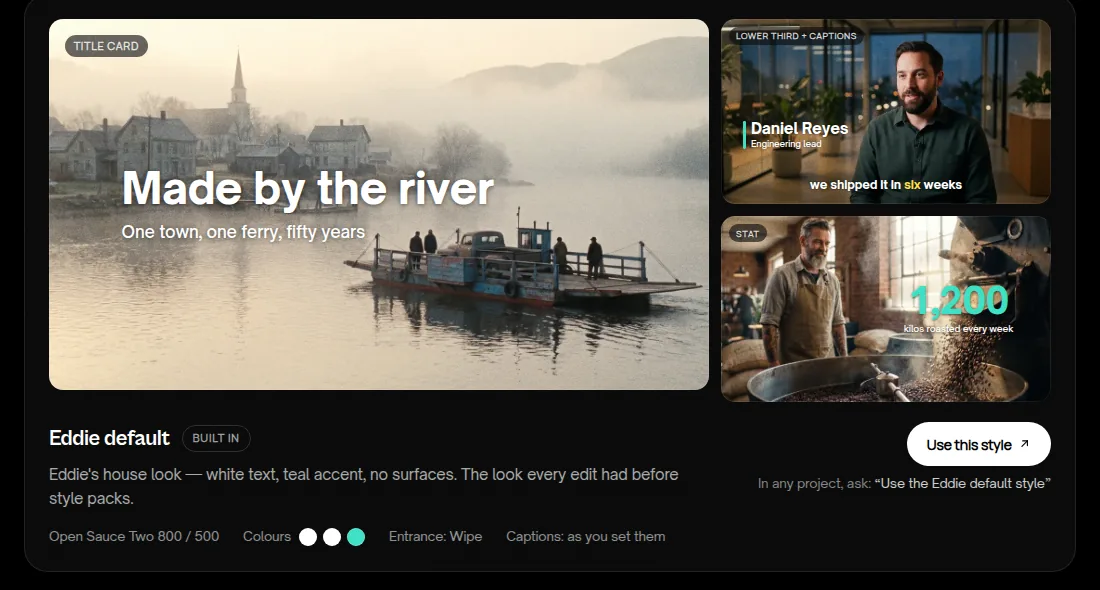
Pick a Style for an edit
- Open the project.
- Ask Eddie in the prompt box, with the Style's name. For example: "Use the Pop creator style."
- Eddie restyles every graphic already on the edit. New graphics use the same Style.
To change the Style, ask again with another name: "Change the style to Signal." Eddie keeps your text. It resets per-graphic style changes to the new Style.
From the Styles page, Use this style opens a new project in Eddie. Each card also shows the words to say.
Choosing a Style is free.
Pin a Style in a recipe
A recipe can pin one Style, so every run of the recipe gets the same look. In the recipe editor, pick the Style under Style. See Make and share your own recipe. Most recipes in the recipe gallery pin a Style, and your copy keeps it.
Good to know
- Your brand kit's font wins. If the project has a brand kit, its font replaces the Style's font.
- Captions follow. When the edit has captions, the Style also gives them a matching look.
- A colour you asked for. A Style can replace a colour you set on one graphic. To keep it, ask Eddie to set that colour again after you change the Style.
- From Claude or ChatGPT. Eddie uses the
set_style_packtool. Name the Style the same way. - A Style changes graphics and captions only. For a whole-edit look (pacing, grade, music), see Edit in a named style.