
The spark — Eddie implements your comments
Every comment on your timeline — yours, your client's, a Frame.io reviewer's, or Eddie's own — carries a ✨ spark. Click it and Eddie makes the change.
Last updated September 25, 2026Every comment on your timeline — one you left, a teammate's note, a Frame.io reviewer's, or feedback Eddie itself wrote — carries a small ✨ spark. Click it and Eddie implements the comment. Review notes stop being a to-do list and become buttons.
The loop that feels like magic
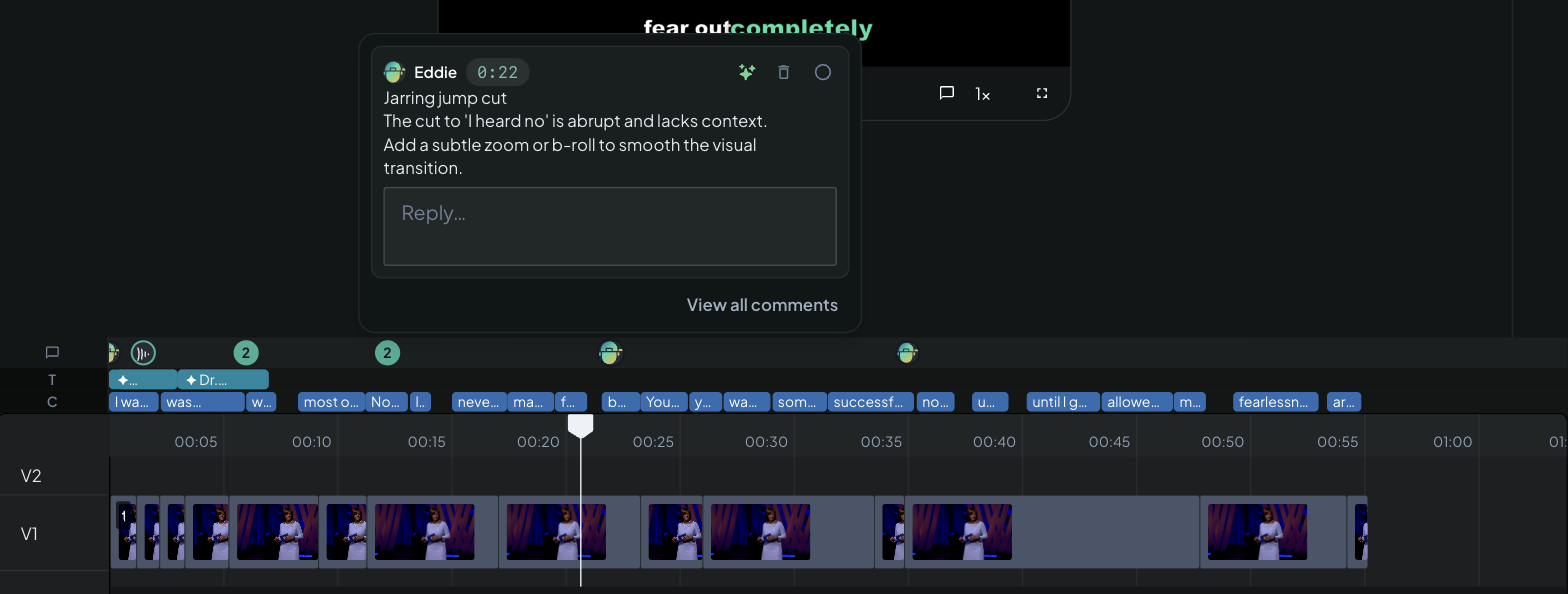
Ask Eddie to review its own cut — "watch this edit and leave your feedback as comments" — and it actually watches the video and leaves timestamped, professional notes as comments on your timeline: a jarring jump cut at 0:22, a filler phrase worth dropping at 0:06, music that should swell under the closing line.
Each of those notes carries a spark. Click one, press run, and Eddie implements its own suggestion. A full review round and the revision — without leaving the page, and without retyping a word. You stay the editor throughout: nothing changes until you press run.
The same one-click loop works for everyone else's notes too — a client watching the share link, a teammate, or a Frame.io reviewer whose comments flow back onto your timeline automatically.
How it works
- Click the ✨ on any comment or reply.
- The thread lands in the Prompt Eddie box as a structured, timestamped instruction — who said it, at which timecode, on which clip, and the exact text.
- Add any context you like ("use the warehouse b-roll for the cutaway"), then press run. Eddie makes the change.
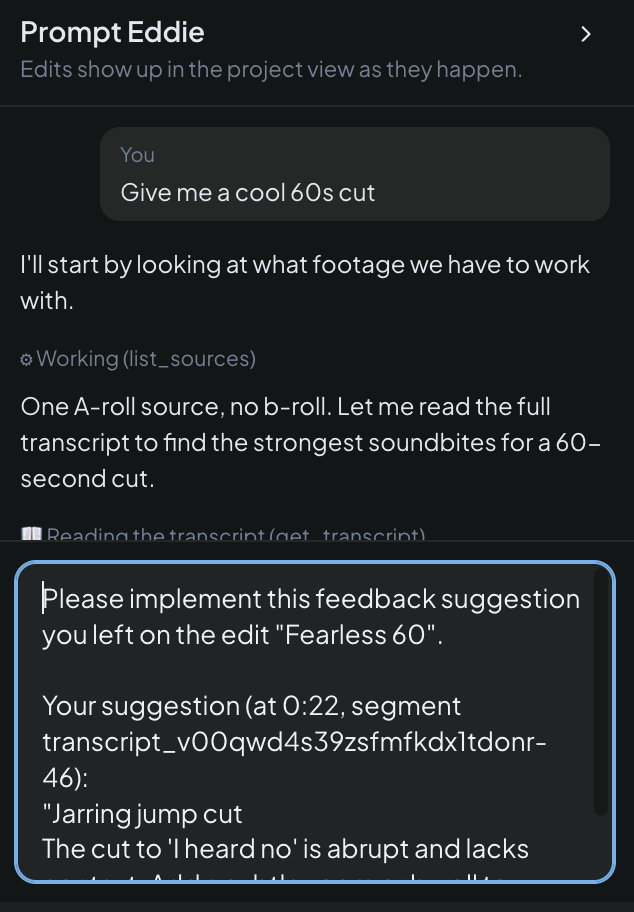
Nothing ever runs on its own: the spark seeds the prompt, you decide when Eddie goes to work.
What the spark's color means
Eddie reads each comment as it arrives and sizes up whether it can implement it with its editing tools. The spark shows the verdict:
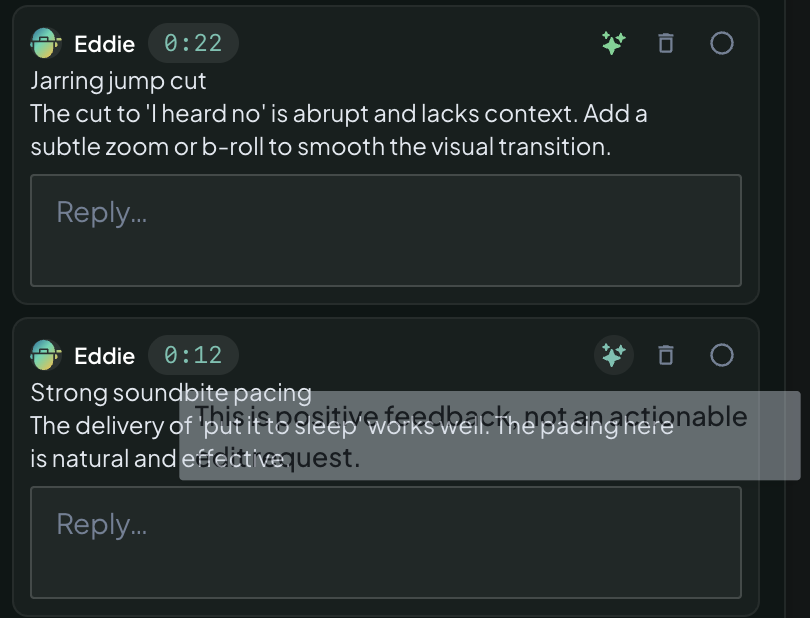
- Green — Eddie is confident it can make the change directly. Click and run.
- Gray — Eddie is less sure it can fully deliver; hover the spark to see why (for example, "needs a reshoot"). Clicking still works exactly the same — Eddie does its best with what's in the project and tells you honestly if part of the request is beyond it.
There is no blocked state. Every comment, from anyone, can always be sent to Eddie.
Where sparks appear
Everywhere comments live:
- Pins on the timeline — click a pin to open its thread card; every comment in it has a spark.
- The comments rail — the full list of threads across the edit (filter by Unresolved, Eddie, or Frame.io); every comment and reply has one.
- Player comments — notes dropped from the player's comment control at the playhead carry sparks like any other.
The glyph is the same ✨ you use to refine a clip on the timeline — "ask Eddie about this" reads identically everywhere. See Refining clips with ✨ spark.
Link to a comment
Every thread has its own URL. Click the link icon on a thread card to copy it, then paste it anywhere — Slack, an email, a project brief. Opening it takes the reader straight to that comment: Eddie selects the right edit, switches to the timeline, moves the playhead to the comment's timecode and opens the thread on its pin. On a phone, or for a comment with no timecode, the comments rail opens instead. See Comment emails and comment links.
It works for anyone who can already open the share link, so it's the fastest way to say "this bit" without describing where it is.
Refer to a comment by number
Each top-level thread shows a #number — #1, #2, #3 — in the order the comments were left on that edit. You can use it when you talk to Eddie:
fix comment 3
do #2 and #5, then re-render
Pasting a comment link works the same way. Eddie resolves the reference to the exact thread and reads the whole conversation, including replies, before it starts.
If a reference is ambiguous — a number that could mean two different edits — Eddie says so rather than guessing at one.
Eddie replies when it's done
When Eddie implements a comment, it posts a reply in that thread, so the person who left the note can see it was actioned without hunting through the project chat.
Eddie only says done when it has confirmed the change actually saved. If a run finishes without a change landing, the reply says so plainly instead — Eddie will not claim work it cannot verify.
Try it
Open an edit in one of your projects, ask Eddie for feedback — "review this cut and leave your notes as comments" — then click the spark on the note you agree with. For briefing Eddie well once a comment is in the box, see How to prompt Eddie well. New to Eddie v4? The comment system is one of the headline changes — see what's new.
Still stuck?
For a product issue, or for billing and your account, see Contact support. Cutting with a team or at studio volume? Talk to sales.