
Import your footage
Create a project and add footage — upload, cloud import or desktop — and Eddie transcribes and analyzes every clip in the background.
Last updated October 10, 2026Watch this in EddieU
Importing Media into Eddie AI v4
How to bring footage into Eddie v4, organize the project, and get media ready for editing.
Every edit starts with a project — a container for related footage. Creating one and adding media kicks off the transcription and analysis everything else relies on.
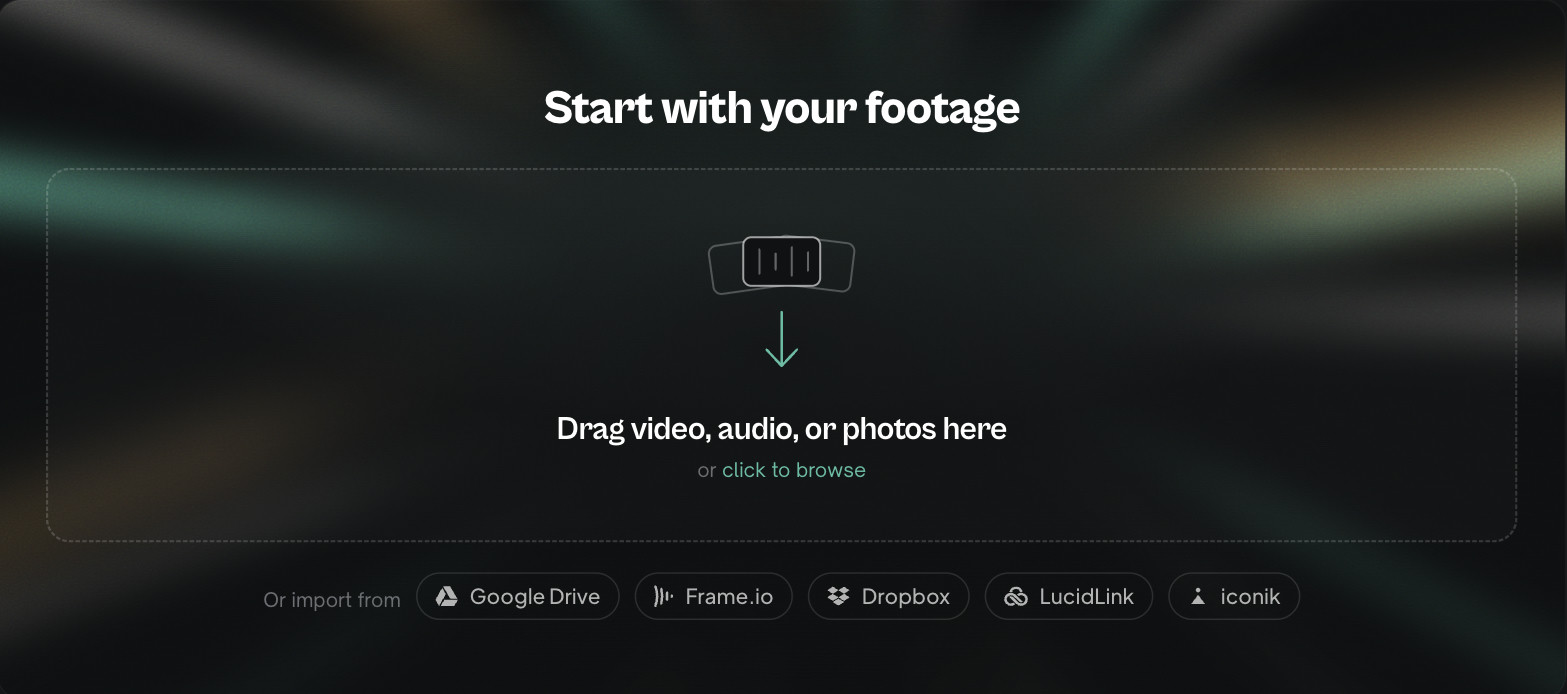
Create a project and add media
- From the home screen, choose New project.
- Add footage:
- Upload — drag files onto the dropzone, or click to browse. Up to 12 files upload at once.
- Cloud import — pull from connected storage. See Connect cloud storage.
- Desktop app — import local files with native playback. See Install the desktop app.
- Eddie uploads, then runs transcription and content analysis in the background. Each clip shows a progress indicator until it's ready.
The row of source buttons under the dropzone — Google Drive, Frame.io, Dropbox, LucidLink, iconik, Shade, YouTube, DaVinci Resolve and Premiere Pro — shows in both Chat and Pro mode. Each button works the same way in either mode.
YouTube takes a pasted link to a public video up to 2 hours long. Each account can look up 30 YouTube links a day. A link that fails on Eddie's side does not count.
Audio on its own
You can import audio with no video: a podcast, an interview recording or a voice memo. It becomes a normal project, and Eddie builds edits from the transcript. See Edit a podcast or other audio-only recording.
- Files that look like music (stems, mixes, "Artist - Title" names) get a suggestion beside them: Move to Music library or Keep in this import. The suggestion never blocks the import.
- Audio picked right after you leave a project gets a suggestion to add it to that project instead. Ignore the suggestion to import the audio as a new project.
Attach context for better transcription (optional)
Once you've picked your clips, an Attach context row appears. Toggle on any workspace Backgrounder folders (and you can rely on your brand kit too): Eddie distills their names, product terms and proper nouns into a keyterm dictionary and hands it to the transcription engine, so those words are spelled and recognized correctly from the first pass. It's optional — skip it and transcription still runs normally.
How long it takes
Eddie shows honest estimates as it goes: a measured upload time ("X of Y GB · ~N min remaining") from your real connection speed, then a processing estimate learned from how similar imports have actually run. Times scale with footage length; you can close the tab and come back.
What it costs
The cost meter above the dropzone shows the price before you start. When a file's length isn't knowable up front (cloud picks, and camera formats the browser can't probe) it reads "cost TBD — based on footage length" — the exact cost is settled on the measured footage during import. See How credits and billing work.
What Eddie does with each clip
- Transcribes speech with word-level timing — the basis for text-based editing and captions.
- Detects speakers, and groups and syncs multicam angles shot at the same time.
- Analyzes content so it can find b-roll moments and understand what your footage is about.
Tips
- Give Eddie the source footage, not a pre-cut export — it works best with room to make choices.
- You don't need to name the project; Eddie generates a name you can change later.
- Need more footage later? See Add media to an existing project.
If an import sits in processing for a long time, see Import stuck or failed.
Still stuck?
For a product issue, or for billing and your account, see Contact support. Cutting with a team or at studio volume? Talk to sales.