
Add media to an existing project
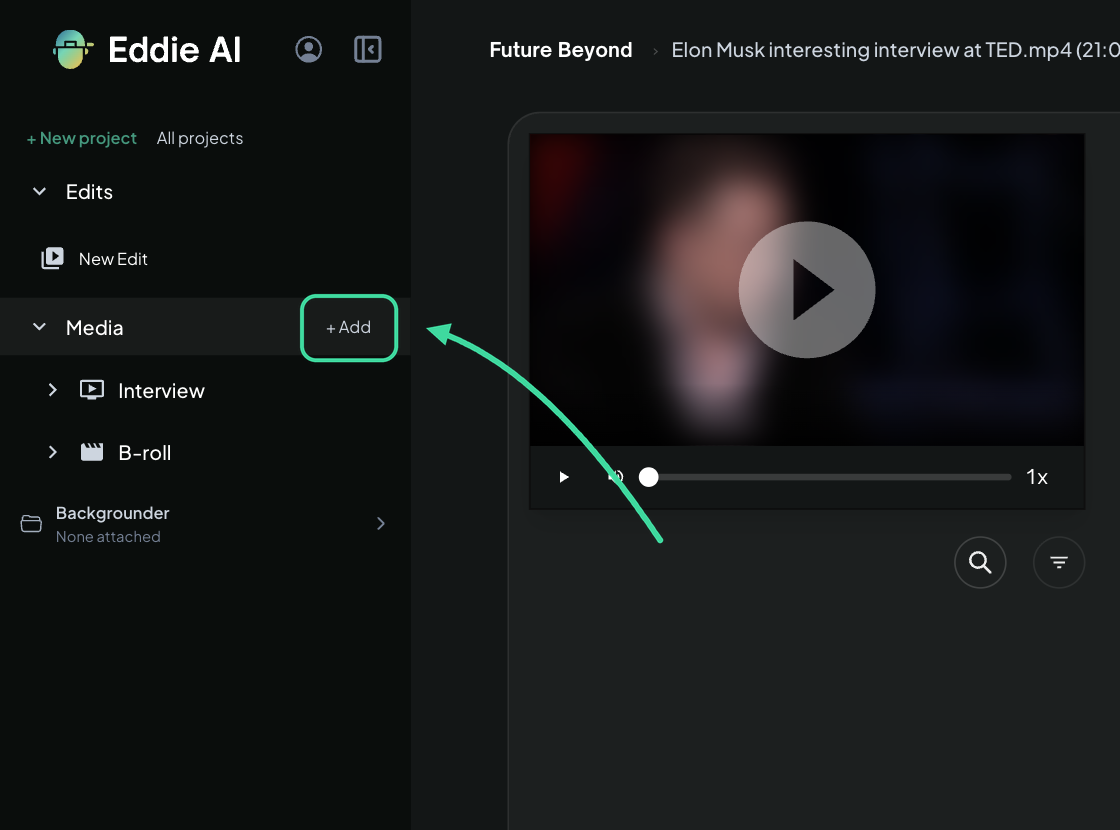
Click + Add next to Media in the project sidebar — new clips upload with live progress in place and join the project seamlessly.
Last updated October 10, 2026Watch this in EddieU
Importing Media into Eddie AI v4
How to bring footage into Eddie v4, organize the project, and get media ready for editing.
You don't have to get all your footage in at the start — add media to a project at any time and it joins the existing clips seamlessly.
Add media
In the project sidebar, click + Add next to Media.
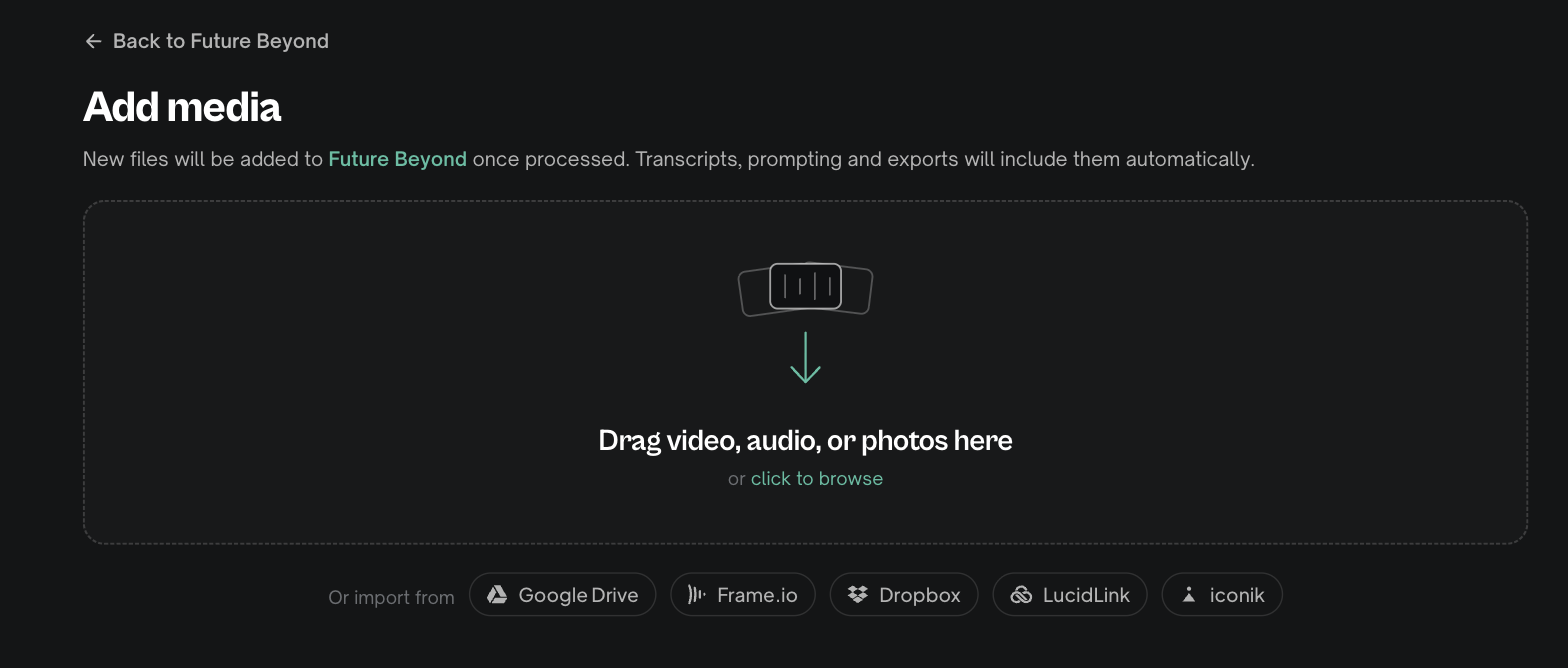
That opens a focused Add media page — the same drop zone and cloud imports as a new project (Google Drive, Frame.io, Dropbox, LucidLink, iconik, Shade), with a banner naming the project the files will join. Drag files in or pick a cloud source, then press Import.
You go straight back to your project
The moment the import is committed you're back in the project — no setup questions, no "what are you making?" wizard: the project already exists and has already answered them. The new files appear in the Media section right away and show their upload progress in place. When the new media has finished processing, a toast confirms it: "Added media is ready — your new files are in the Media section."
While it runs:
- Keep the tab open until the upload itself finishes — if you try to close it mid-upload, Eddie warns you first. Once uploading is done, processing continues in the cloud and you're free to leave.
- Transcription and analysis take a few minutes, exactly like a new import — see Import your footage for what processing involves.
Attach context first (optional)
The add-media page offers the same one-line Attach context row as a new import: toggle on Backgrounder folders (your brand kit feeds it too) and Eddie builds a keyterm dictionary from your names and product terms so the new clips transcribe those words correctly. Optional, and handy when the added footage introduces new names.
It stays one cohesive project
Added footage behaves as if it had always been there — for playback, prompting and export, everything lives together. A few details worth knowing:
- Multicam — added angles from the same shoot import as their own group at first; tell Eddie which take a new clip belongs to and it syncs it into the existing group as a switchable angle. See Multicam: the complete guide.
- B-roll — newly added footage becomes available for b-roll placement in your prompts.
- Transcripts — new clips are searchable by content as soon as processing finishes.
On desktop
If you started the project in the desktop app, adding media keeps you in the desktop app with local playback intact.
Related: Import your footage.
Still stuck?
For a product issue, or for billing and your account, see Contact support. Cutting with a team or at studio volume? Talk to sales.