Product feature | Speaker identification

The most advanced speaker identification AI in the world

Eddie finds out who is speaking in two ways. It separates the voices in the audio. It matches those voices to the faces on each camera. Together, they tell Eddie who is talking and which camera shows them, and Eddie edits with both.

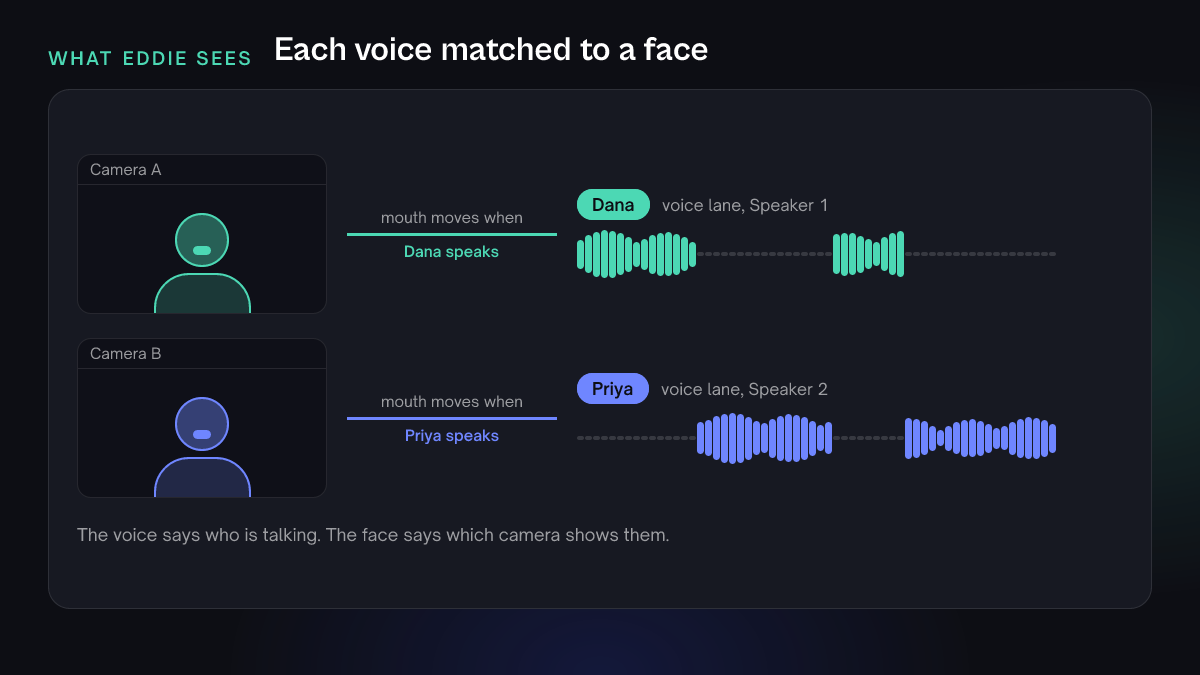
Two drawn camera frames, each showing one person. A line joins each frame to the voice lane of the same colour, because that person's mouth moves when that voice is talking.

Two ways to know who is talking

Aural

Eddie hears who is talking

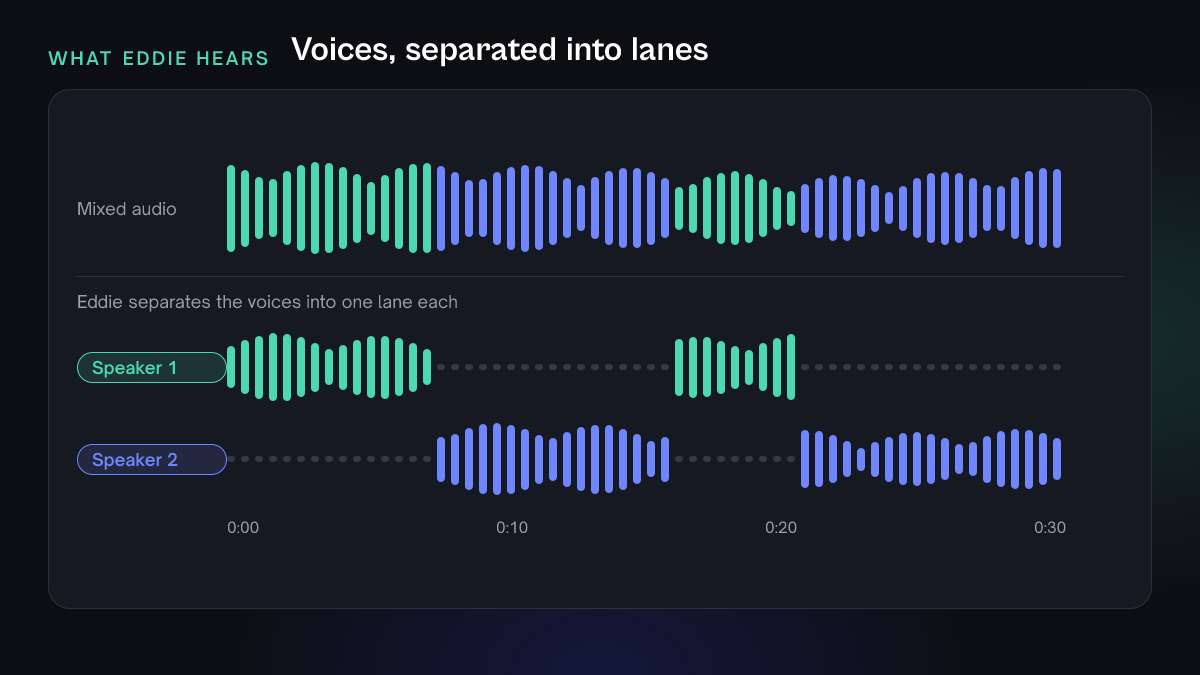
Eddie separates the voices when it transcribes your footage and labels each line with its speaker. You can rename a speaker, move lines to another speaker, or merge two labels into one. A fix in one interview reaches every camera angle and the separate sound recorder of that interview, because Eddie matches the same person across files by when they speak.

A drawn waveform split into two coloured lanes, one for each speaker, with a mixed waveform above them coloured by who is talking.

Visual

Eddie sees who is talking

On a multicam shoot, Eddie looks at each camera angle and watches the mouths while each speaker talks. The speaker whose speech moves the visible mouth is the person on that camera.

  • First pass

    Eddie finds the faces on each angle and reads mouth movement during each speaker's speech.

  • Second look

    For an angle the first pass could not label, a second model watches lip movement against the audio. On a wide angle where two people are clearly in frame, it names both, from left to right.

  • Clear matches only

    Eddie writes a label only when the match is clear. Otherwise it leaves the camera unlabelled and asks you.

Together, they answer two questions at once

The voice says who is talking. The face says which camera shows that person. With both, Eddie can cut to the right angle, pick the right soundbites, caption the right person and frame the right face. If you correct a label, your correction always wins. Later automatic passes never overwrite a label you set by hand.

In our tests

We measured how much speaking time Eddie labelled with the right speaker, on the earlier version and on the current version. The current version adds a second model that watches lip movement against the audio.

Two-camera interview

Speaking time labelled with the right speaker

Eddie before

93.3%

Eddie now

99.0%

Three-camera podcast

Speaking time labelled with the right speaker

Eddie before

83.1%

Eddie now

99.8%

These are two internal tests. They are not a published benchmark, and results change with the footage.

How it works in a project

  1. Step 01

    Import

    You add your footage. Eddie transcribes every source and separates the voices.

  2. Step 02

    Match

    On a multicam shoot, Eddie matches each voice to the camera that shows that person.

  3. Step 03

    Check

    You see the names. Rename a speaker or fix a line, and your change always stays.

  4. Step 04

    Edit

    Eddie cuts, captions and frames with the speaker in mind, then exports.

What you can do with it

Each use case shows what Eddie does with the speaker labels in an edit, and a prompt you can copy. Replace the parts in [square brackets] with your own details.

Multicam and podcast angle switching

Eddie cuts to the camera that shows whoever is talking.

How Eddie uses it

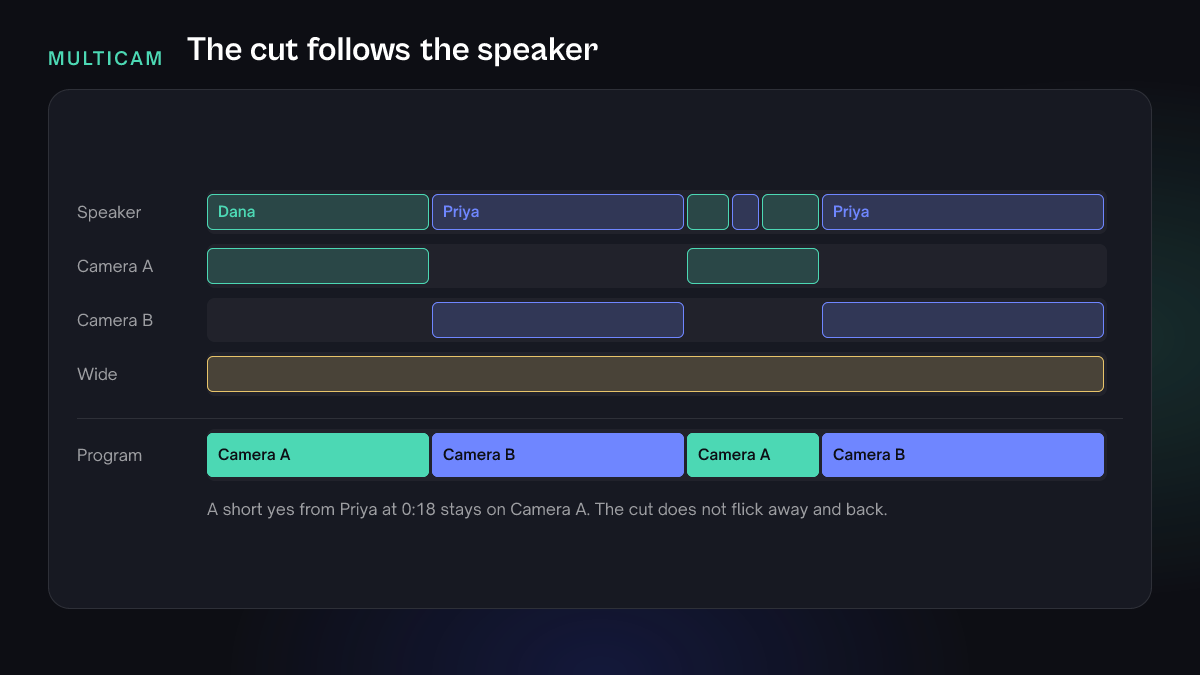
  • Each line of the cut opens on the camera of the person who speaks it.
  • A short interjection, such as a quick yes, stays on the current camera. The cut does not flick away and back.
  • If Eddie cannot tell which camera shows which person, it asks you. It does not leave the whole cut on one angle and call it done.
A drawn multicam timeline. A speaker lane sits above three camera angles. The program track plays the camera of whoever is talking and stays put through a short interjection.
  • Cut to whoever is talking

    Cut this multicam podcast to the camera of whoever is talking. Keep the current camera for short interjections.

    Eddie uses the voice labels and the camera labels to assign an angle to every line.

Interview assemblies

Eddie reads the transcript speaker by speaker and keeps the answers.

How Eddie uses it

  • Eddie picks each speaker's best soundbites from their own lines.
  • By default it leaves the interviewer's questions out, unless an answer needs a question for context.
  • Eddie checks that a question it keeps is followed by its answer.
  • Only the guest's answers

    Build a six-minute assembly from [guest name]'s answers only. Leave out the interviewer's questions.

    A clean answers-only cut. Name the speaker so Eddie knows whose lines to keep.

  • Best soundbites from each speaker

    Pick the best soundbite from each speaker on [topic] and build a two-minute edit. Keep a question only when its answer needs it.

    Use this when you want both voices in the cut.

Transcripts and captions with speaker names

Every line carries a speaker, and you decide what that speaker is called.

How Eddie uses it

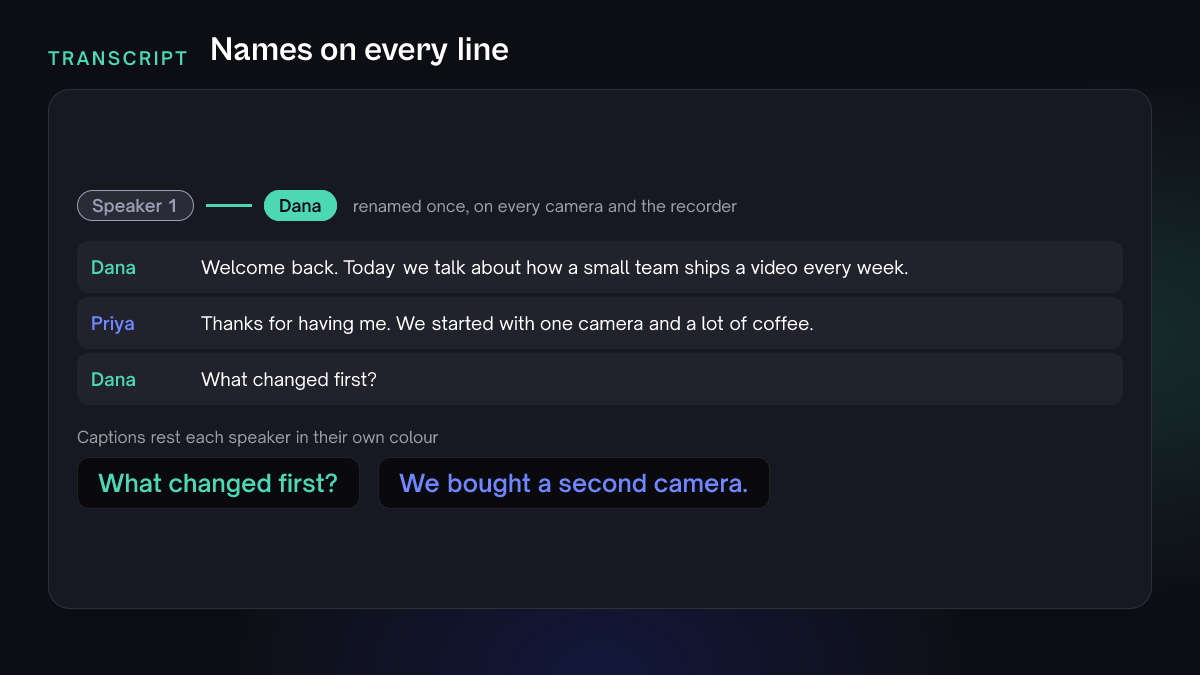
  • The transcript shows each speaker by name. Rename Speaker 1, move lines between speakers, or merge two labels.
  • Captions can rest each speaker's words in their own colour. A caption card never mixes two speakers.
  • Captions can skip a speaker, for example the interviewer.
A drawn transcript where each line carries a coloured speaker name. A label that read Speaker 1 is renamed, and two caption cards below are coloured by speaker.
  • Name the speakers

    Rename Speaker 1 to [host name] and Speaker 2 to [guest name] in this interview.

    The rename reaches every camera angle and the sound recorder of the interview.

  • Colour the captions by speaker

    Add documentary captions and make [guest name]'s words yellow. Do not caption the interviewer.

    Eddie colours the captions per speaker and leaves the other speaker uncaptioned.

Finding moments by speaker

Ask for one person's lines instead of scrolling the whole transcript.

How Eddie uses it

  • Eddie searches by speaker, by text, by time window, or by all three, across every source in the project. A multicam group counts once, so you do not get the same speech once per camera.
  • A voice search finds where someone speaks, not where they appear. When a person must be on camera, Eddie also checks face evidence and rejects black frames.
  • Every line by one person

    Find every place [name] talks about [topic] and bookmark those lines.

    Bookmarked lines are the ones Eddie reaches for first when it builds a cut.

  • On camera only

    Build a short edit from [name] talking about [topic], using only clips where [name] is on camera.

    Eddie checks the face evidence, so a voice over someone else's shot does not slip in.

Social clips framed on the speaker

A vertical clip from a wide shot lands on the person who is talking.

How Eddie uses it

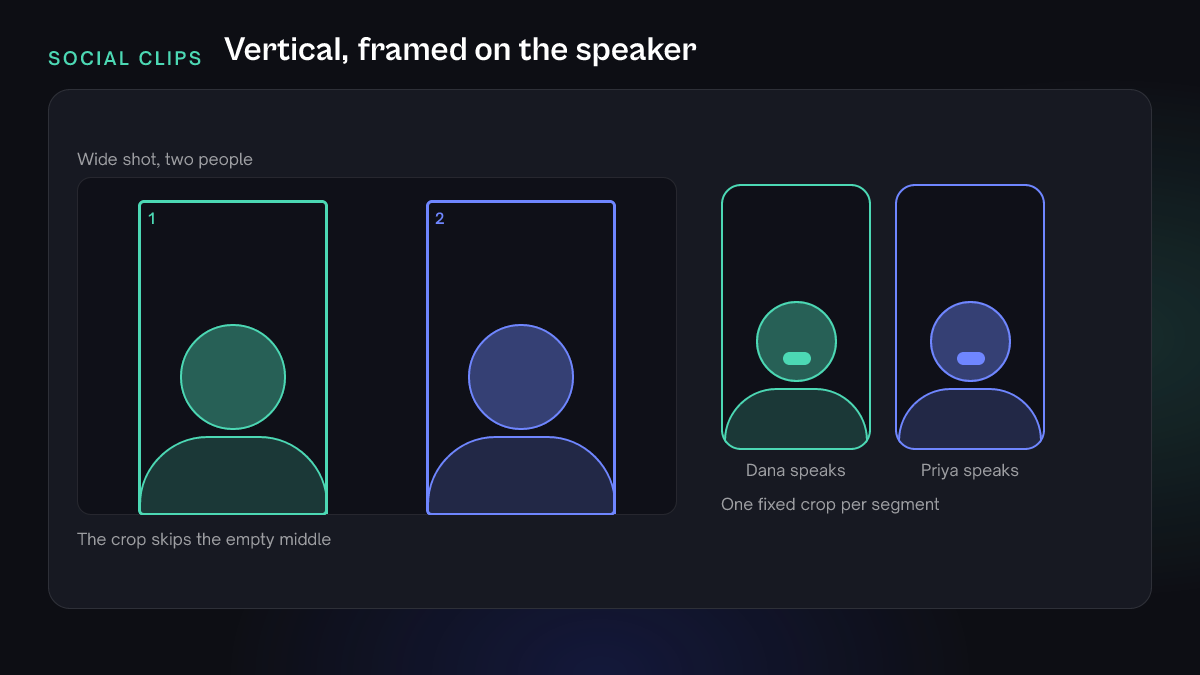
  • When you cut a 9:16 or 4:5 clip from a wide shot of two people, Eddie crops each segment onto the person speaking in it. It does not keep the empty middle between them.
  • If one segment holds a question and its answer, Eddie splits it where the speaker changes, so each part is framed on its own speaker.
  • Every crop is fixed for its segment, and you can change any of them. Eddie does not follow movement inside a segment.
A drawn wide shot of two people with two tall crop windows, one on each person. Two phone-shaped frames show the result: each segment is cropped onto whoever is speaking.
  • Vertical clip on the speaker

    Make a 9:16 clip of the best answer in this interview, framed on whoever is speaking, with captions.

    The crop follows the speaker from segment to segment.

  • Stacked angles

    Make this a vertical cut with [guest name] on the top half and [host name] on the bottom half.

    Eddie places two camera angles on one vertical canvas.

B-roll that fits who is talking

A cutaway should not show a different person while someone else speaks.

How Eddie uses it

  • When you tell Eddie a cutaway shows the wrong person, it checks every b-roll placement in the edit for the same mistake.
  • It flags shots cut from footage where another speaker is talking, and shots described as showing someone other than the speaker.
  • Check the cutaways

    This cutaway shows the wrong person. Check the rest of the b-roll in this edit for the same mistake and fix it.

    One correction fixes the whole kind of mistake, not only the shot you named.

NLE exports that keep the multicam

The angle choices Eddie made travel with the cut.

How Eddie uses it

  • The Premiere Pro project and the DaVinci Resolve project carry real multicam clips. Each cut points at the angle Eddie chose, and you can switch the angle in your editor.
  • FCPXML carries the same cuts as flat clips, without switchable angles.
  • Send the multicam to Premiere

    Export this edit as a Premiere Pro project with the multicam angles intact.

    Use the project file when you want to switch angles after the export.

Questions

How does Eddie identify who is speaking?
Eddie uses two signals. It separates the voices in the audio and labels each line by speaker. On a multicam shoot, it also watches the mouths on each camera while each speaker talks, and it matches each voice to the camera that shows that person.
Why use faces as well as voices?
Voice labels say who is talking, but not which camera shows them. Faces answer that. In our tests on a two-camera interview, the current version of Eddie labelled 99.0% of speaking time with the right speaker, against 93.3% for the earlier version. On a three-camera podcast it was 99.8% against 83.1%.
Does it work on one camera?
Yes, for voices. Eddie separates the speakers and labels every line. The camera matching applies to multicam shoots, where Eddie needs to know which camera shows which person.
What if Eddie gets a label wrong?
Rename the speaker, move the lines to the right person, or merge two labels. Renaming and merging speakers is free. Eddie never overwrites a label you set by hand, so your correction stays through later automatic passes.
What about a wide shot that shows two people?
When both people are clearly in frame, Eddie labels the camera with both names, from left to right. If it cannot tell, it leaves the camera unlabelled and asks you. Your cuts still follow each speaker's voice, and for a vertical clip Eddie crops each segment onto whoever is speaking.
Does speaker identification change my exports?
It changes the cut. Where you export a multicam edit to the Premiere Pro project or the DaVinci Resolve project, the multicam clips and the angle Eddie chose for each cut come with it. FCPXML carries the same cuts as flat clips.
Try it on your own footage

Add an interview or a multicam shoot, then ask Eddie to cut to whoever is talking. New accounts start with free credits.