
Generate with Eddie: motion graphics, sound effects, music and more
Motion graphics, sound effects, music, voice-over and AI b-roll: where to find each one, prompts that work, using your logo, 4K export, and what each one costs.
Eddie doesn't only cut what you shot. It can make the pieces a video is missing: animated graphics, sound effects, a score, a narrator, and the b-roll shot nobody filmed. This guide covers each one: where to find it, how to get a good result, and what it costs.
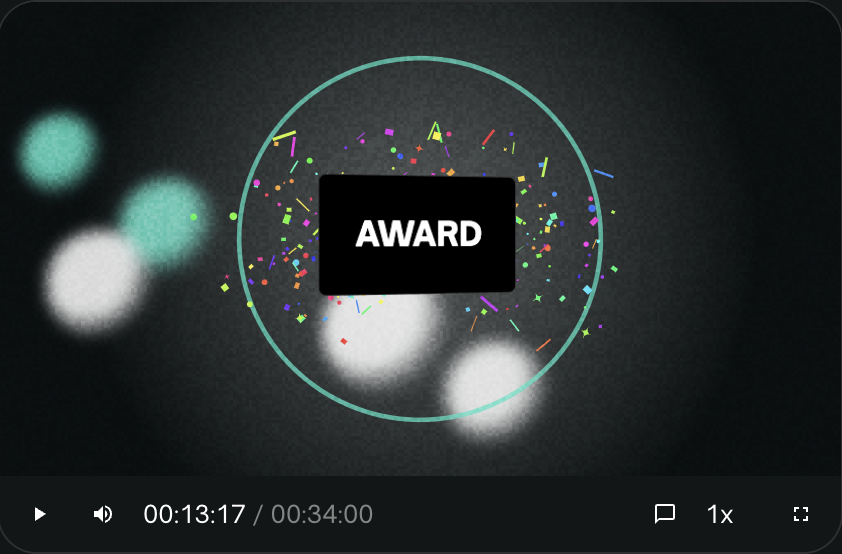
What you can generate
| Generate | Use it for | Where | What it costs |
|---|---|---|---|
| Motion graphics | Titles, lower-thirds, animated stats, logo reveals, full graphics-only pieces | MG lane ➜ + | Billed like a normal prompt |
| Sound effects | Whooshes, hits and pops that sell a graphic or a cut | SFX lane ➜ ✨ | About 7 credits for a 2-second sound |
| Music | A score that fits the edit, or several cues across it | Music lane ➜ Generate music | 200 credits per minute |
| Voice-over | Narration from a script, or a dub in another language | VO lane ➜ Generate voice-over | About 178 credits per 1,000 characters |
| AI b-roll | The one shot no stock library has | Any clip's ✨ ➜ Generate AI b-roll | About 346 credits per 8-second Best clip with 720p or larger footage (154 with smaller footage), the default |
All of it happens inside a project in the web app, on an edit's timeline. You need edit access to the project. Credits covers every price in one place.
Motion graphics
A motion graphic is an animated clip that Eddie designs from a description. It isn't picked from a fixed template, so you can ask for almost anything: a kinetic headline that lands on the beat, a stat that counts up, a lower-third that wipes on, your logo assembling itself. Graphics sit on their own MG lane, play live in the player, and export to MP4 at up to 4K.

Add a graphic
- Open an edit in the web app and switch to the timeline.
- Move the playhead to where the graphic should start.
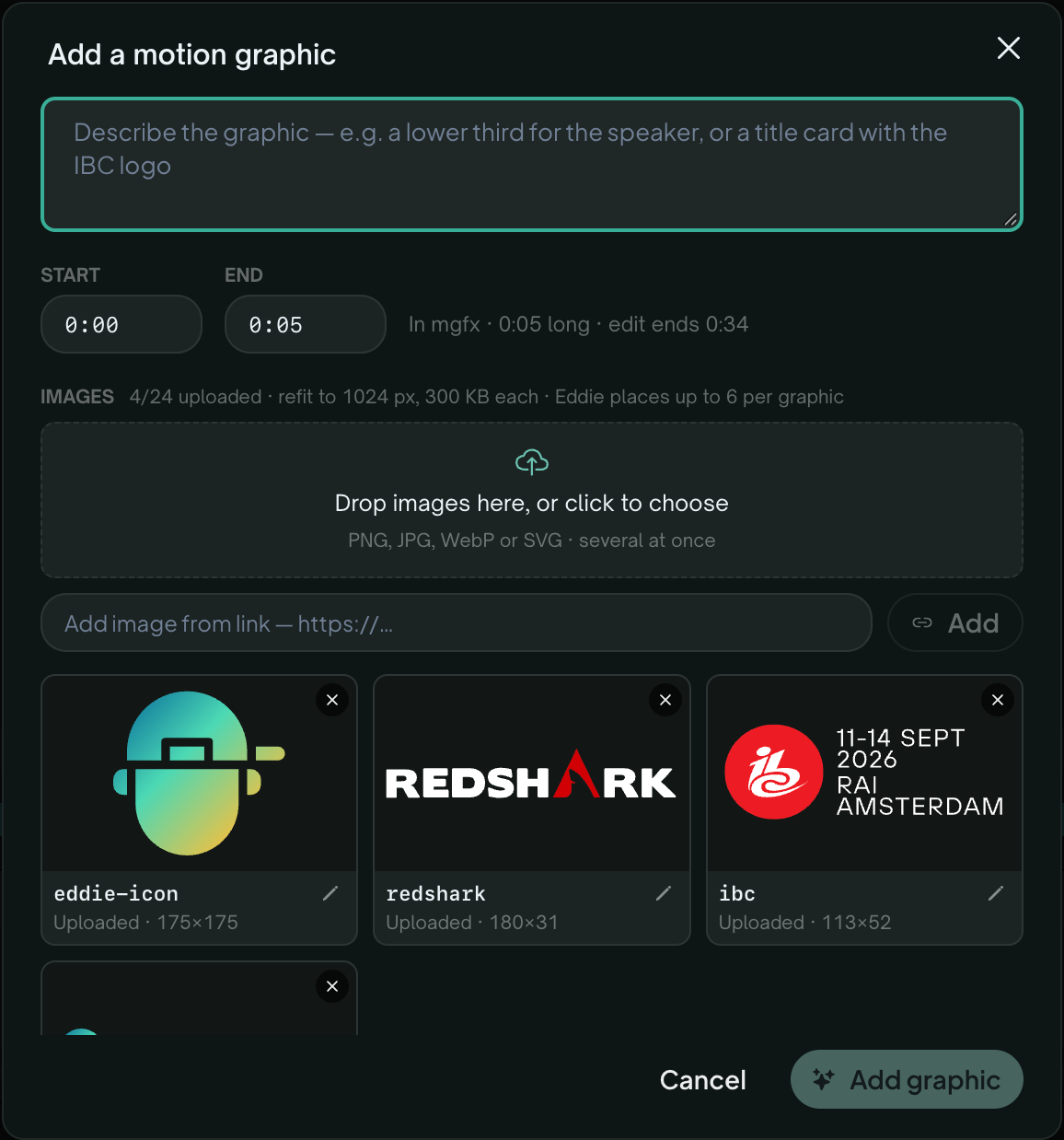
- Click + on the MG lane. The Add a motion graphic composer opens.
- Describe the graphic. Say what's on screen, how it moves and how it feels.
- Set Start and End. They default to the playhead plus 5 seconds. Type times like 12, 1:05 or 1:05.5. A graphic can run from half a second up to 60 seconds; most work best at 2 to 8.
- Add images if the graphic should use a logo or picture (see Use your logo and images).
- Click Add graphic.
Authoring usually takes 30 to 90 seconds, and it can take a couple of minutes. The new clip appears on the MG lane, selected, when it's ready.
Other ways to add one:
- Ask in Prompt Eddie. "Add a lower third for Maya the first time she speaks" works like any other prompt.
- Take a suggestion. Eddie reads the edit's transcript, speakers and beats and suggests graphics that fit: an intro title, a lower-third for a speaker, a count-up for a number someone says, an end card with your logo. They show up in three places. On an empty MG lane they're chips, and clicking one starts it straight away. Above the prompt box they're starters that fill in the prompt for you to edit. In Suggestions ➜ Motion graphics, Add runs one as a normal prompt.
Write a prompt that lands
Describe the result, not the code. The most useful things to include:
- What's on screen. The exact words, numbers and images.
- The motion. How it enters, what it does while it's up, how it leaves.
- The feel. Calm, punchy, editorial, playful.
- Colours and type. If the project has a brand kit, graphics already use its colours and font, so only mention colour to go off-brand.
Four prompts that work well:
"A bold kinetic title, 'Best of Show', slams in word by word on the beat, holds, then shatters into confetti on the way out."
"A lower third for Dr. Maya Chen, Head of Research. A teal bar wipes in from the left and her name types on above it. Clean and understated."
"A stat callout: 3.2M counts up from zero, with 'videos edited this year' underneath. Numbers pop, then settle."
"End card: the ibc logo scales up from the centre on a dark background, with 'See you in Amsterdam' fading in beneath it."
Eddie also reads the transcript for the graphic's window, so "land each word as she says it" works.
Use your logo and images
Graphics can place real images: logos, product shots, headshots. The Images section of the composer holds them.
- Upload: drop files in, or click to choose. PNG, JPG, WebP or SVG, several at a time.
- From a link: paste an https:// image link and click Add. Links can bring in images up to 8 MB.
- Automatically: your brand kit logo appears as logo when the project has a brand kit with a logo, and still images imported into the project appear too.
Every image has a name, taken from its file name (rename an upload with its pencil icon). Refer to an image by name in your prompt, for example "put the ibc logo bottom-right", and Eddie places that image. A project holds up to 24 uploaded images.
Refine a graphic with ✨
Click the ✨ on a clip. That selects the clip, and the prompt box shows an Editing bar for it. Anything you type now changes only that graphic: "make it faster", "swap the teal for our red", "hold the last frame longer".
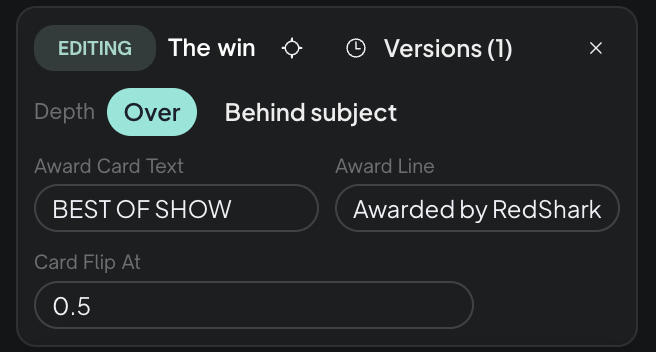
From the Editing bar you can:
- Change one element. Click the crosshair, then click the element in the player. Your next prompt changes just that element. Whole clip goes back to the whole graphic.
- Edit settings directly. Many graphics expose their words, numbers or colours as fields. Changing a field is instant and uses no credits.
- Go back. Versions lists the clip's earlier versions, newest first. Pick one to restore it.
- Put it behind the speaker with Depth (see below).
- Stop editing. Click ✕ and prompts go back to the whole edit.
Small tweaks, such as a colour, size, position, timing or a change of words, usually land in a few seconds. Bigger changes, like "redesign it" or "add a second card", are authored like a new graphic, so allow 30 to 90 seconds.
To rename or remove a graphic, use its ⋯ menu. You can also select it and press Delete. Graphics can't be dragged along the lane yet. To move one, save it as a template and add it again at the new playhead position.
Put a graphic behind the speaker
Select the clip, then set Depth to Behind subject. The person in the footage now stays in front and the graphic sits behind them, so a big title can pass behind a presenter's head. The player separates the subject live. On export, Eddie prepares the separation first ("Preparing subject separation for export…"). Behind subject needs a person in the footage, and it uses no credits.
Templates
When a graphic is right, keep it. Click the bookmark on its chip, name it, and Save to workspace. It's saved with its current words and colours as defaults.
Anyone in the workspace can then add it to any edit. Use the stacked-cards icon next to + on the MG lane, or Suggestions ➜ Templates, and it lands at the playhead. Change its words from the Editing bar. Adding a template uses no credits.
Make a graphics-only video
You don't need footage. On the dashboard, find Motion graphics in the row of import sources under the drop zone (hover the icons to see their names). Click it to open Start with motion graphics.
- Pick a Canvas: 16:9 landscape, 9:16 vertical or 1:1 square.
- Pick a Background: a solid colour, a gradient or your own hex colour.
- Name the project (optional) and click Create project.
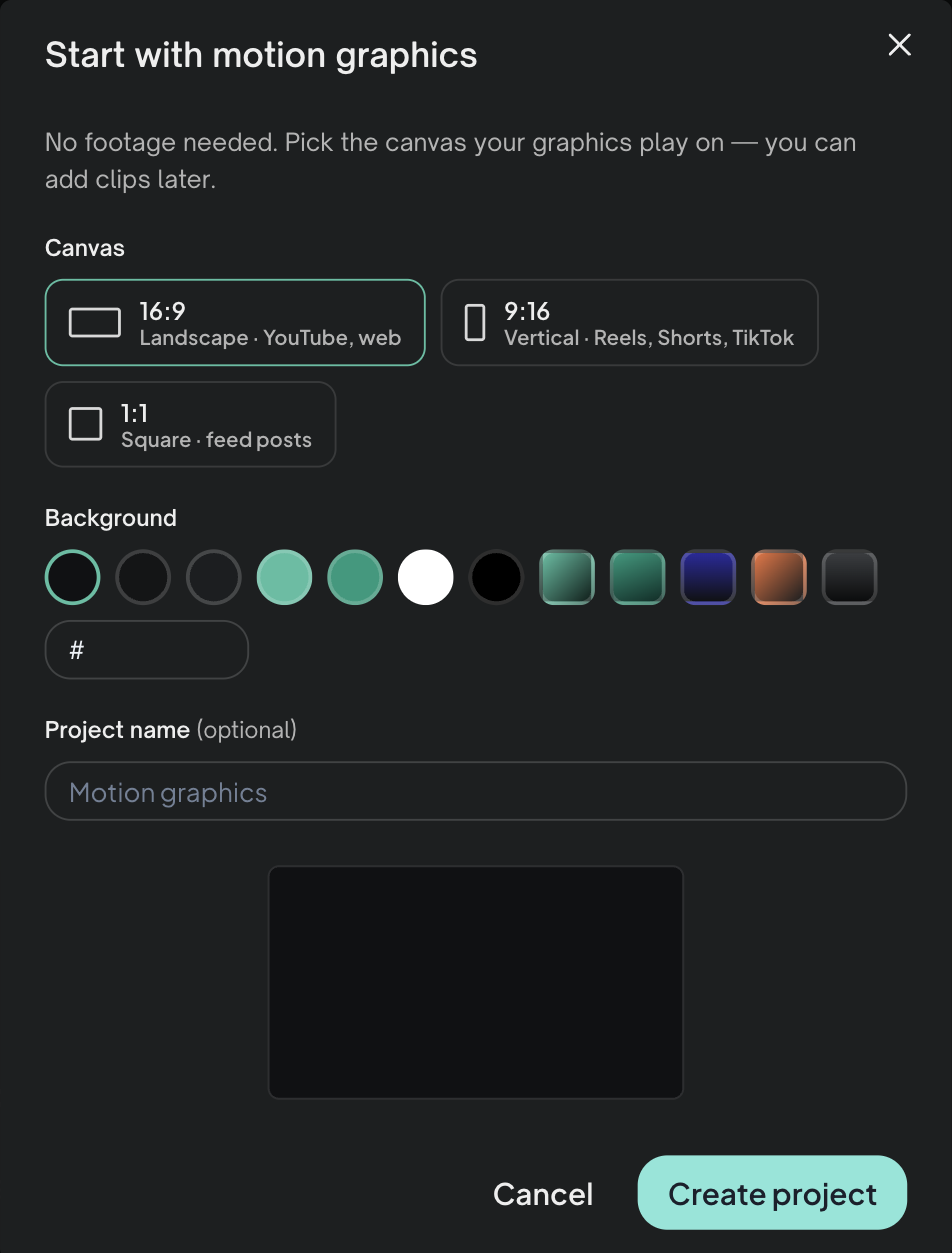
The project opens with an edit ready for graphics. Add graphics, sound effects and music, and it plays and exports like any other edit.
Export, 4K and review links
Graphics are drawn into MP4 exports exactly as they look in the player. Open Export ➜ All export options… ➜ Video file and pick MP4 1080p, MP4 4K (2160p) or MP4 source (up to 4K).
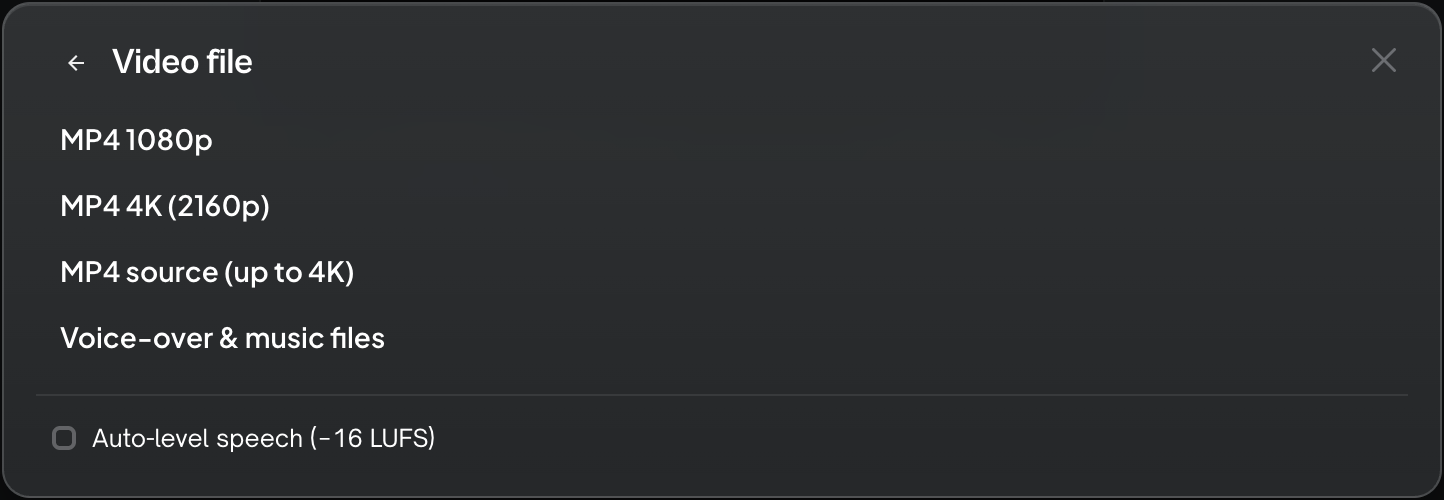
- 4K costs the same as 1080p. See How credits work for what an MP4 export costs.
- Graphics-only projects export at true 4K. In an edit with footage, the picture won't go above the footage's own resolution: an edit cut from HD footage still comes out at HD.
- Review links (Export ➜ Create review link) play the graphics for your reviewers, and the link's preview card shows a short video of the piece.
Sound effects
The SFX lane holds short generated sounds: whooshes, impacts, pops, risers. Each chip plays from its ▶.

Cues from your graphics
When a graphic's animation calls for a sound, such as a swoosh on the wipe or an impact on the slam, Eddie places that sound on the SFX lane at the right moment. There are ten of these house sounds: whoosh, swoosh, pop, ding, click, riser, impact, sparkle, glitch and tick. Each one is made once for your workspace and reused free after that. Remove a graphic and its cue sounds go with it.
Add your own
- Put the playhead where the sound should land.
- Click the ✨ on the SFX lane.
- Describe the sound, for example "short clean whoosh, no tail", and click Add.
The sound lands at the playhead and is saved to your workspace. Asking for exactly the same sound again reuses it for free. You can also ask in Prompt Eddie: "add a soft riser into the end card." Sound effects are generated; you can't upload your own sound files to the lane.
Adjust the level
Click a chip to select it, then use − and + (3 dB a step) to make it quieter or louder. Sounds start at −6 dB. The ✕ deletes the selected sound, and the speaker icon on the lane mutes every sound effect at once. Sound effects duck under speech automatically. You can't drag a sound along the lane yet.
Music
The Music lane holds your soundtrack. It can be one bed under the whole edit or several cues one after another.

Generate a track
- From the lane: on an empty Music lane, click Generate music. Choose a Style, Mood and Tempo, or leave them on Any so Eddie matches the edit. Add anything else ("solo piano, builds at the end") and click Generate.
- From a suggestion: Eddie suggests two tracks for the edit, shown as chips after the last cue, such as "Triumphant orchestral anthem". One click generates that track and charges for it. It lands on the lane in a minute or two.
- By asking: "Add an upbeat electronic track under the whole edit."
Generated tracks run 10 seconds to 5 minutes, and each one is also saved to your workspace's music shelf.
Bring your own
Click + on the Music lane (Add music at the playhead), then:
- Upload a file. MP3, WAV or M4A, up to 150 MB. It joins the shelf too.
- From the shelf. Pick a track your workspace already has.
- Generate for this section. Makes a new track that runs from the playhead to the next cue, or to the end of the edit.
You can also upload on the Music page. Uploading and placing your own music is free. See Music library.
Multiple cues
Add a cue at each point the music should change. Cues never overlap: a new cue trims the one before it, and cues that meet get an automatic 1-second crossfade. Select a cue to set its start and end, level, fade in and out, or Delete cue.
Ducking
Music ducks under speech by default (about −12 dB, rising back up in the gaps). Toggle Duck on the lane, or set Duck under speech to On or Off for a single cue.
Voice-over
On the VO lane, click Generate voice-over. Write the script, or let Eddie draft or rewrite one for you. Drafting is free, and credits are only charged when you generate. Preview and pick a voice, set where the clip lands, and click Generate.
- Scripts can be up to 2,000 characters.
- Every take is kept, so you can go back to an earlier one.
- Switch on Dub this edit to speak the edit's dialogue in another language. See Dub your edit.
- You can't set how a word is pronounced yet.
AI b-roll
When your footage and stock both come up empty, Eddie can generate a short clip. Click the ✨ on a clip and choose Generate AI b-roll. It generates on Best — Seedance 2.5 at 720p, or 480p for smaller footage — unless you pick Standard or Budget, then Generate 3 previews; the price is on the button. Clips run up to 8 seconds, have no audio, and every take is charged. Try stock b-roll first, because it's free. The full guide is Generate AI b-roll.
What it costs
Credits are shared across web, desktop and chat clients. These are the prices of the generation itself; when you ask from the prompt box, the prompt run is billed as usual too.
| What | Credits |
|---|---|
| A motion graphic, or a prompted refine | Billed like a normal prompt (one graphic typically uses about 60 credits of authoring) |
| Editing a graphic's settings, adding a template, Behind subject | Free |
| MP4 export in 1080p, 4K or source (cloud) | See How credits work |
| Sound effect | Billed per second, like music: about 7 for a 2-second sound, 100 for 30 seconds. A sound your workspace already has is free. |
| Generated music | 200 per minute (about 34 for 10 seconds, 1,000 for 5 minutes) |
| Your own music | Free |
| Voice-over | About 178 per 1,000 characters (up to about 356 for a full 2,000-character script) |
| AI b-roll | Per 8-second clip: Budget 75, Standard 559, Best 346. Best is the default: 346 with 720p or larger footage, 154 with smaller footage. Standard is 136 with footage smaller than 1080p. 4K on request: 1,162. A round is 3 takes. |
| Stock b-roll, captions | No generation charge |
Two rules apply everywhere. You're not charged for something that doesn't land: a graphic that fails to author, or a sound or track that fails to generate, is refunded automatically. And if you want to check before spending, ask Eddie "how much would this cost?" For the full picture, see How credits work, and top up here.
From Claude or ChatGPT
With Eddie connected as a connector, you can make graphics from your AI chat:
- Motion graphics: "Add a 5-second animated title card saying 'Launch Day' at the start of my edit", then "make the title bigger and slower."
- Sound effects: "Add a whoosh at 0:12."
- Music: attach and place tracks from your workspace's music shelf.
Generating new music, voice-over and AI b-roll isn't available through the connector. Do those in the web app, and the result is in the same project when you go back to your chat.
Troubleshooting and FAQ
The graphic is taking a while. Authoring usually takes 30 to 90 seconds and can take a couple of minutes. You can keep working. If it's still going after several minutes, the clip will still appear if it lands, and nothing is charged for a graphic that doesn't. If it fails, try once more with a simpler description.
A graphic looks blank for a moment. It's still loading. Each graphic loads just before it starts, so jumping the playhead straight into one can show an empty frame for a second. Press play or wait a moment.
Eddie didn't use my logo. Images have to be in the composer's Images grid for Eddie to place them, and your prompt should use the image's name ("the acme-logo in the top-left"). Your brand-kit logo only appears, as logo, when the project has a brand kit with a logo.
Can I move or trim a graphic on the lane? Not by dragging yet. Save it as a template and add it at the new playhead position, or add it again with new Start and End times.
Do graphics come through to Premiere, Resolve, Final Cut or Avid? Not yet. The Export menu says so on those options: "Motion graphics aren't included in NLE exports yet — export an MP4 to keep them."
I export from Eddie for Mac. Older versions of Eddie for Mac leave motion graphics and sound effects out of a local MP4 export — update Eddie for Mac, or export in the cloud.
Do graphics play on my phone? Motion graphics play on the web and in exported MP4s. Send the MP4 to see them on a phone.
My review link is silent. On a review link for a graphics-only edit, the graphics play but the sound effects and music don't yet. Export an MP4 to share it with sound.
Is there a limit on how many graphics or sounds I can make? No. There's no separate daily limit for motion graphics or sound effects; they use credits like everything else.
I don't see the + or ✨ buttons. Generating needs edit access to the project. Viewers and commenters can watch and comment, but can't generate.
Related: Motion graphics, Music, voice-over and audio, Generate AI b-roll, How credits work.
Still stuck?
For a product issue, or for billing and your account, see Contact support. Cutting with a team or at studio volume? Talk to sales.