How-to guidesB-roll
How to Add B-roll to a Video
B-roll turns a talking head into a story you can see. It also hides the jump cuts that tight editing creates. The work is matching shots to words across a whole edit and filling the gaps where you have no footage. This guide covers where b-roll goes, where it comes from, and how to place it in any edit built on speech.
The short answer
Put b-roll where the words describe something the viewer could see, and over cuts you want to hide. Use your own footage first, because it shows the real place and people. Where you have nothing, use stock footage, and when stock has nothing that fits, generate a short shot. Eddie places b-roll from all three sources from a prompt, and quotes the credits before it places or generates anything.
What you will end up with
- B-roll over the lines that describe something visible.
- Your own footage used first, cut into the best moments of each clip.
- Stock footage where you have nothing, found from what is being said.
- A generated shot for a moment nothing else can cover, only when you agree to it.
Step by step
Step 1
Log your b-roll
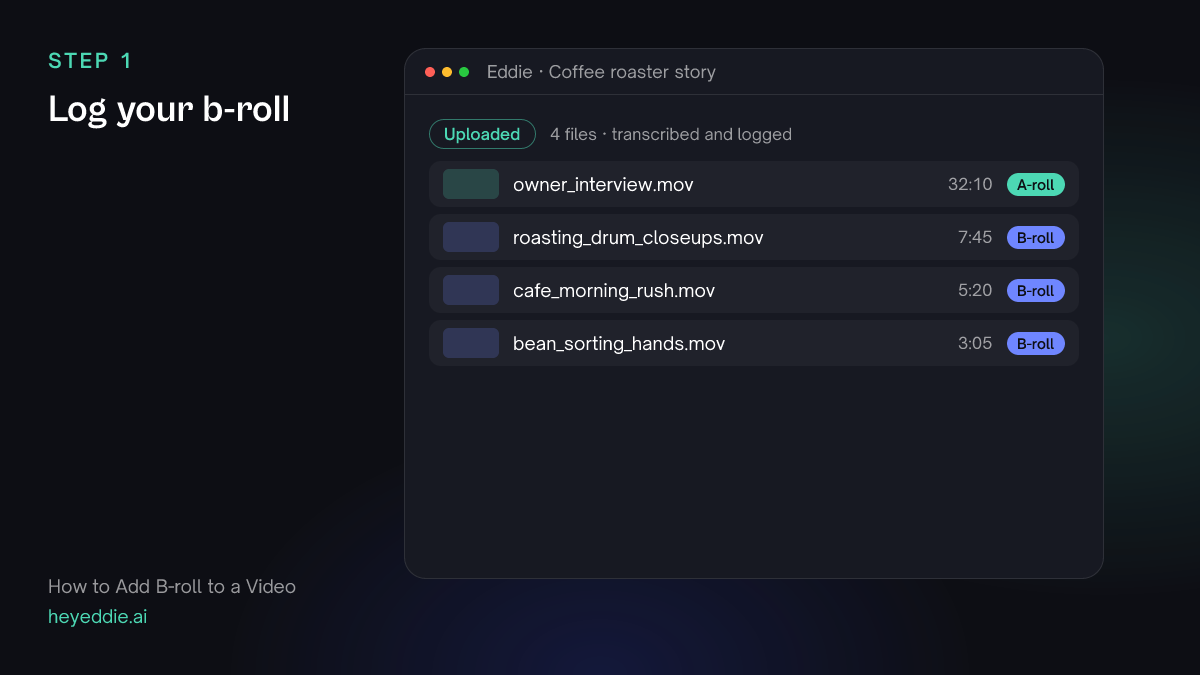
Add your b-roll to the project with the interview. Eddie describes every clip and finds the strongest stretches inside each one, so a seven-minute clip becomes several usable shots.
What you type “Cut my b-roll into short subclips: the best moments of the roasting drum, the beans pouring out, hands sorting beans, and the cafe queue. Tell me the price first.”
What Eddie does
- Logs each b-roll file by what it shows, with the top in and out points inside it.
- Quotes the price, then cuts the clips into subclips by your guidance and adds them to the b-roll library.
What you get: A library of short, described shots ready to place.
Step 2
Place your own b-roll over the story
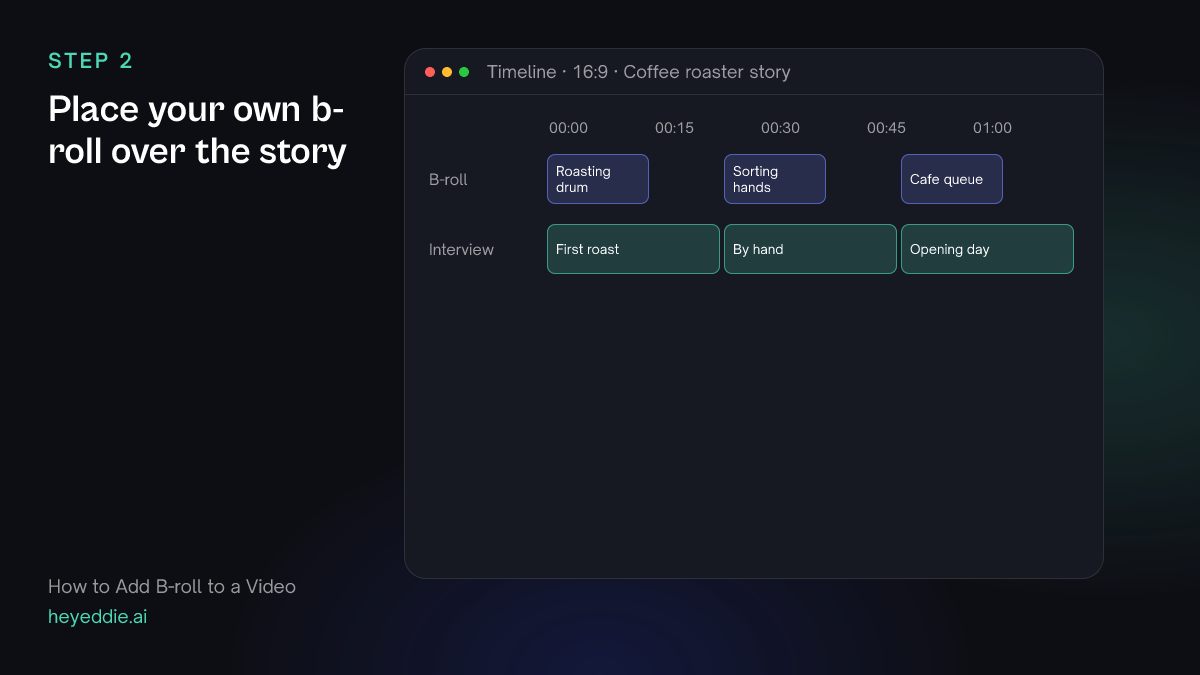
Ask for b-roll over the lines that describe something visible. Name specific shots where you care, and let Eddie match the rest.
What you type “Add b-roll from my own footage over the interview: the roasting drum when she talks about the first roast, sorting hands over "we pick every bean by hand", and the cafe queue over the part about opening day. Cover the jump cuts in the middle answer too.”
What Eddie does
- Lists the library and returns the price of the placements before it writes anything.
- Places the shots over the lines and cut points you named when you confirm.
What you get: Your edit, now showing what it talks about.
Step 3
Fill the gaps with stock
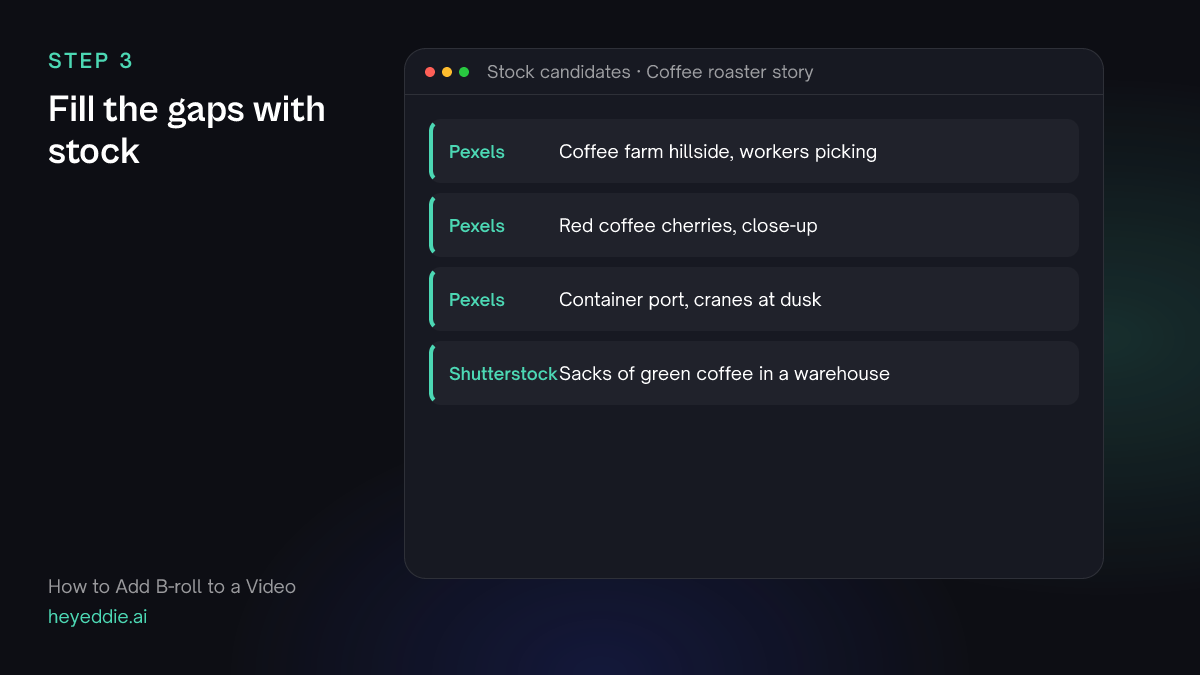
Some lines describe things you did not film: a coffee farm, a shipping port. Eddie reads those lines and searches stock footage on their themes.
What you type “Where she talks about the farms in Colombia and the beans arriving at the port, find stock footage that fits and show me the options before importing.”
What Eddie does
- Searches free Pexels footage, and your own Shutterstock catalog if it is connected, on the themes of those lines.
- Shows candidates with previews, then imports the ones you choose as b-roll.
What you get: Coverage for moments you did not shoot.
Step 4
Generate a shot only when nothing fits
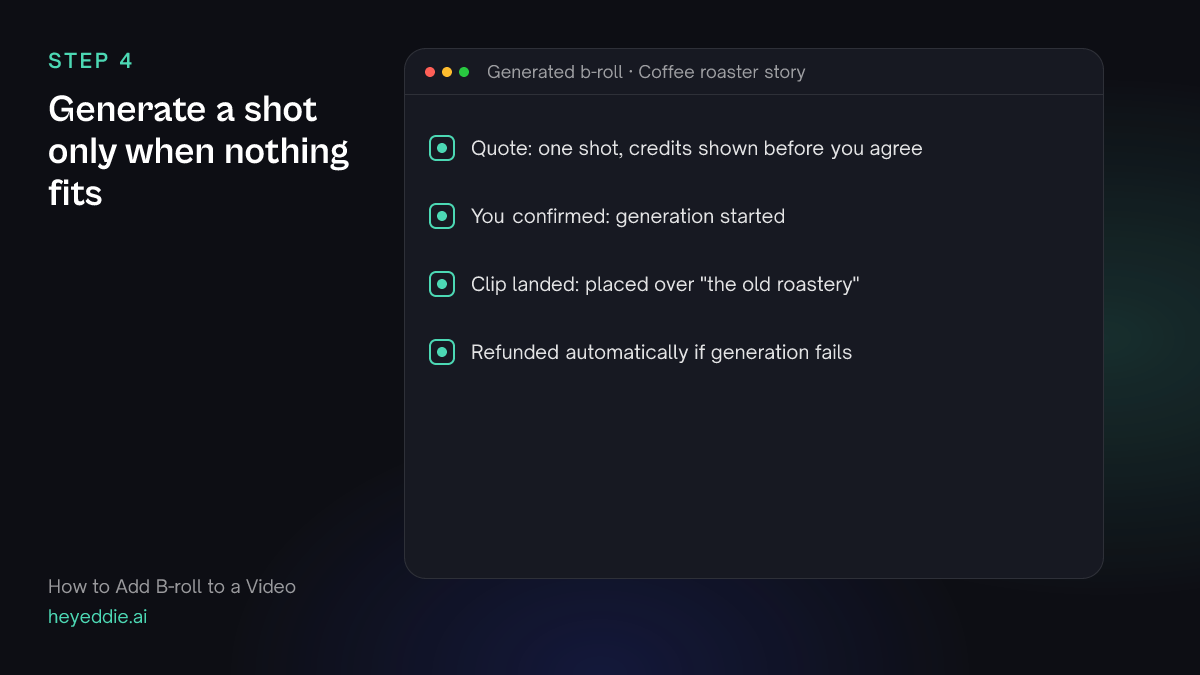
Sometimes neither your footage nor stock has the shot, for example a specific named place. Eddie can generate a short b-roll clip for that moment. It quotes the credits first and generates nothing until you agree.
What you type “Stock has no shot of the old roastery on Calle 8 in 1985. Quote me a generated b-roll shot of a small 1980s coffee roastery storefront at dusk for that line, and place it there if I say yes.”
What Eddie does
- Quotes the price and describes the shot it would generate, without charging.
- Generates the clip in the background when you confirm, places it on that line when it lands, and refunds the credits if generation fails.
What you get: Coverage for the one moment nothing else could cover.
Step 5
Check the placements and export
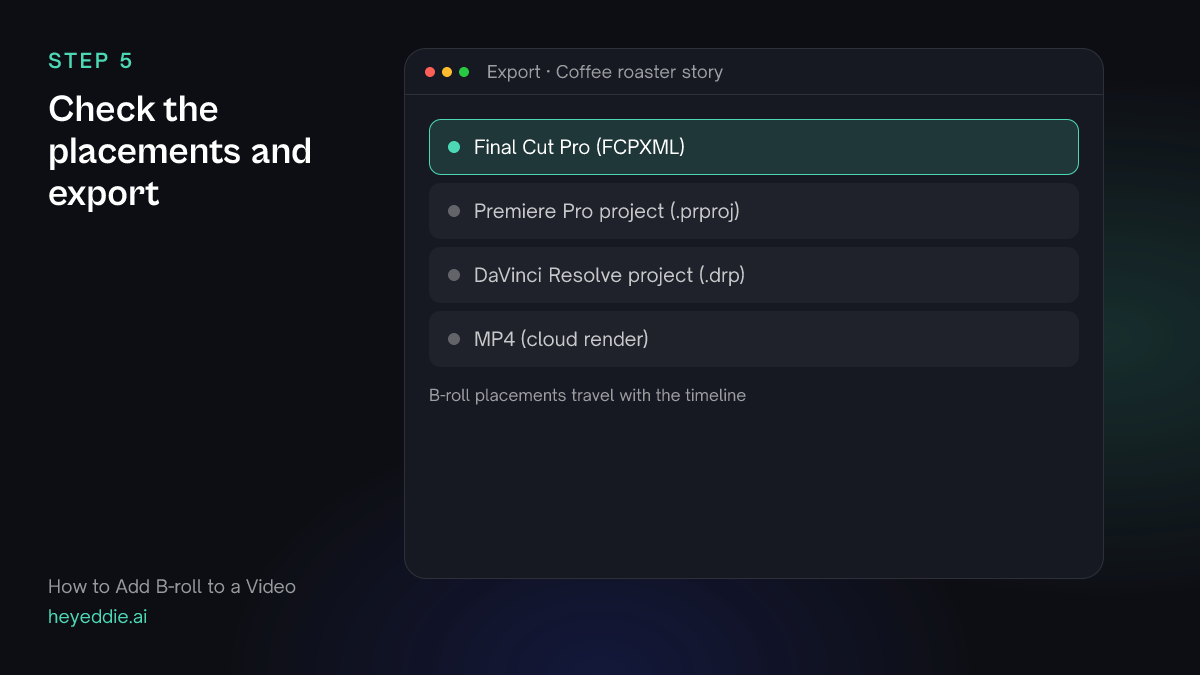
Watch the edit through once. Ask Eddie to check every placement for mistakes, then export. B-roll comes with you into Premiere Pro, Final Cut Pro and DaVinci Resolve exports.
What you type “Check every b-roll placement for problems, such as a shot that contradicts what is said or covers a face at an important moment, then export the edit as a Final Cut Pro timeline.”
What Eddie does
- Reviews each b-roll placement and reports problems.
- Writes an FCPXML timeline with the b-roll placements included, pointing at your original files.
What you get: A checked edit with b-roll, ready to finish.
What makes it work
- Shoot b-roll for your words
- Before a shoot, read the interview questions and list what each answer will need to show. The best b-roll is planned, not found.
- Own footage first, always
- Your own shots show the real place and people. Stock and generated shots are for gaps, not for the heart of the story.
- Never generate what must be true
- In news, documentary and testimonials, a generated shot presented as the real scene misleads viewers. Use generated b-roll for illustration, and say so if it could be mistaken for fact.
- Leave the face on for the key line
- Cover the setup with b-roll, but let viewers see the speaker for the line that matters most.
Questions
- Where does Eddie get b-roll from?
- From three places: your own footage in the project, stock footage (free Pexels clips, plus your own Shutterstock catalog if you connect it), and generated shots when nothing else fits.
- Does Eddie generate b-roll without asking?
- No. Generated b-roll always starts with a free quote of the price and the shot description. Nothing is generated or charged until you agree.
- What does b-roll cost?
- Placing b-roll uses credits based on the length of the b-roll files the edit draws on, and Eddie quotes the price before it places anything. Generated shots are charged per clip. See the pricing page for current rates.
- Can I pick a different shot for one placement?
- Yes. Ask for a different shot at that moment, or hover the clip on the timeline in the web app and ask for an alternative there.