How-to guidesMotion graphics
How to Add Motion Graphics to a Video
Motion graphics used to mean a separate application, a template pack and an afternoon of keyframes. Most videos need a few simple things: names, numbers, a quote, a title. This guide covers adding them from a prompt, keeping them consistent, and making a custom graphic when a template is not enough.
The short answer
Use motion graphics to say what the picture cannot: a name, a number, a quote, a step. Keep one style across the whole video, time each graphic to the word it supports, and keep it on screen long enough to read twice. In Eddie you place template graphics such as lower thirds and stat callouts by asking for them, or describe a custom graphic and Eddie animates it in your brand style.
What you will end up with
- Lower thirds, stat callouts and quote cards placed at the words they support.
- One style pack across every graphic in the video.
- A custom animated graphic made from a description, in your brand style.
- Your workspace's saved graphic templates placed by name.
Step by step
Step 1
Start from an edit
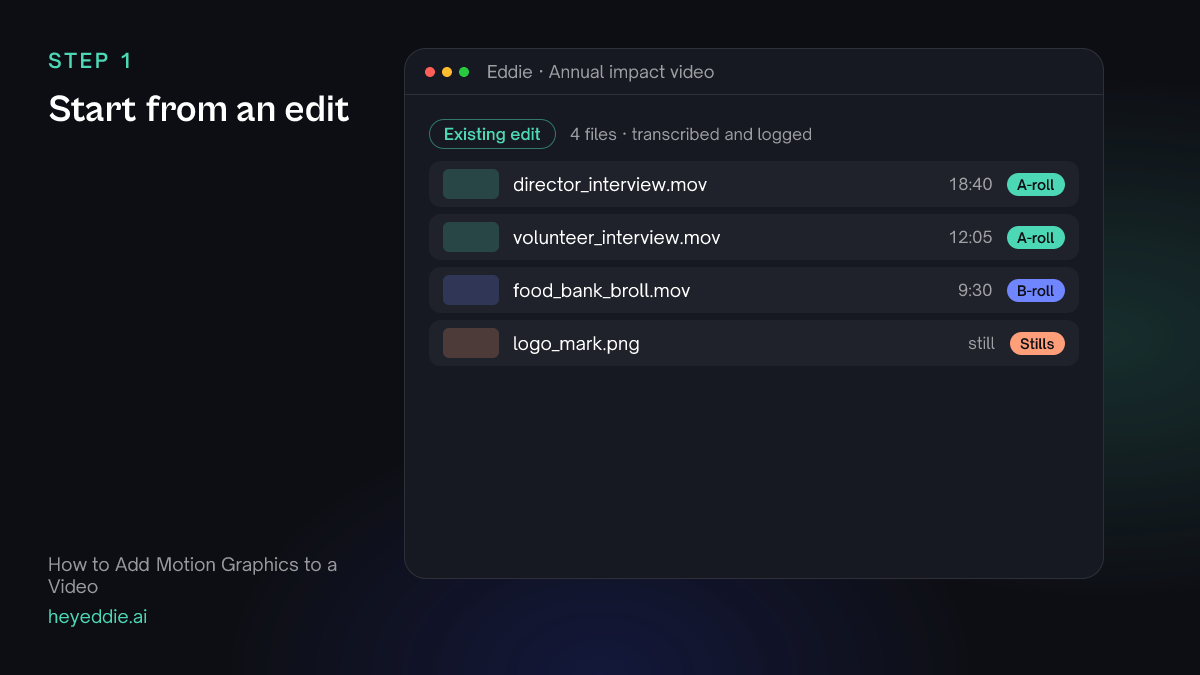
Graphics go on a cut that is nearly final, because they are timed to words and shots. Build or import your edit first.
What Eddie does
- Uses the edit's transcript to time graphics to the exact words they support.
- Uses your Brand kit, such as your logo and colours, if the workspace has one.
What you get: An edit ready for graphics.
Step 2
Pick a style for the whole video
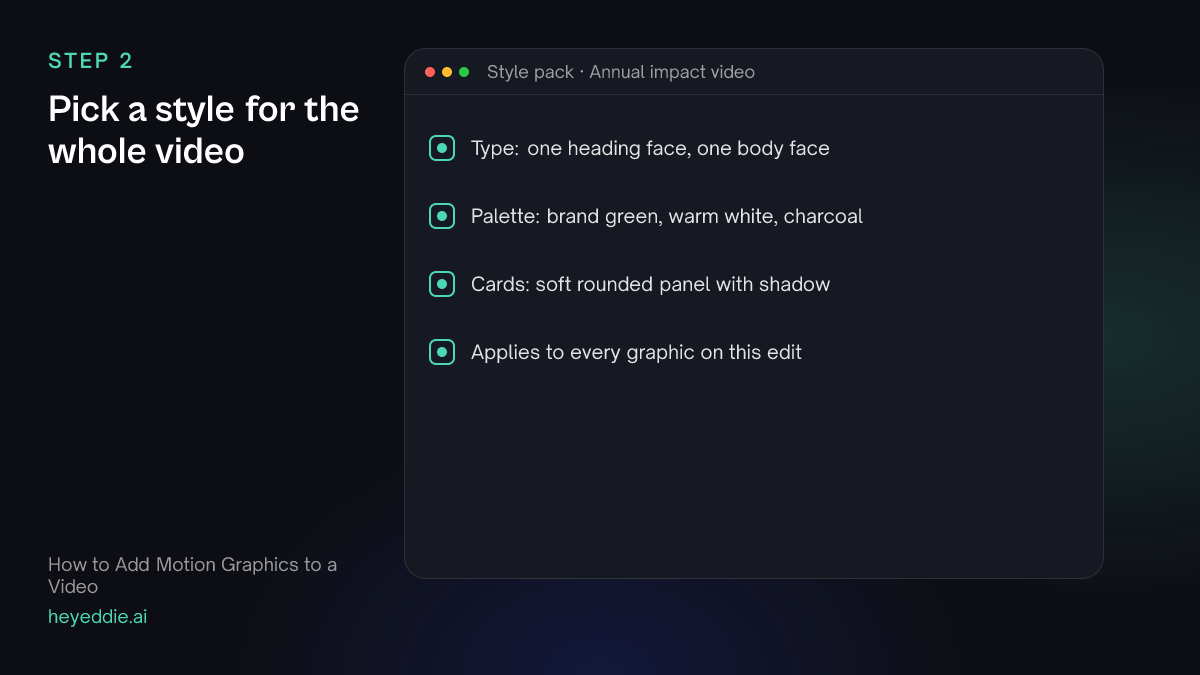
Choose one style pack before you add anything. Every graphic on the edit then shares the same type, palette and card treatment.
What you type “Set a clean, warm style pack for the graphics on this edit that matches our brand colours.”
What Eddie does
- Sets one named preset of type, palette and card treatment for every graphic on the edit.
What you get: Graphics that look like they belong together.
Step 3
Add names, numbers and quotes from templates
Most graphics are one of a few kinds. Ask for them by kind and by the word they belong to.
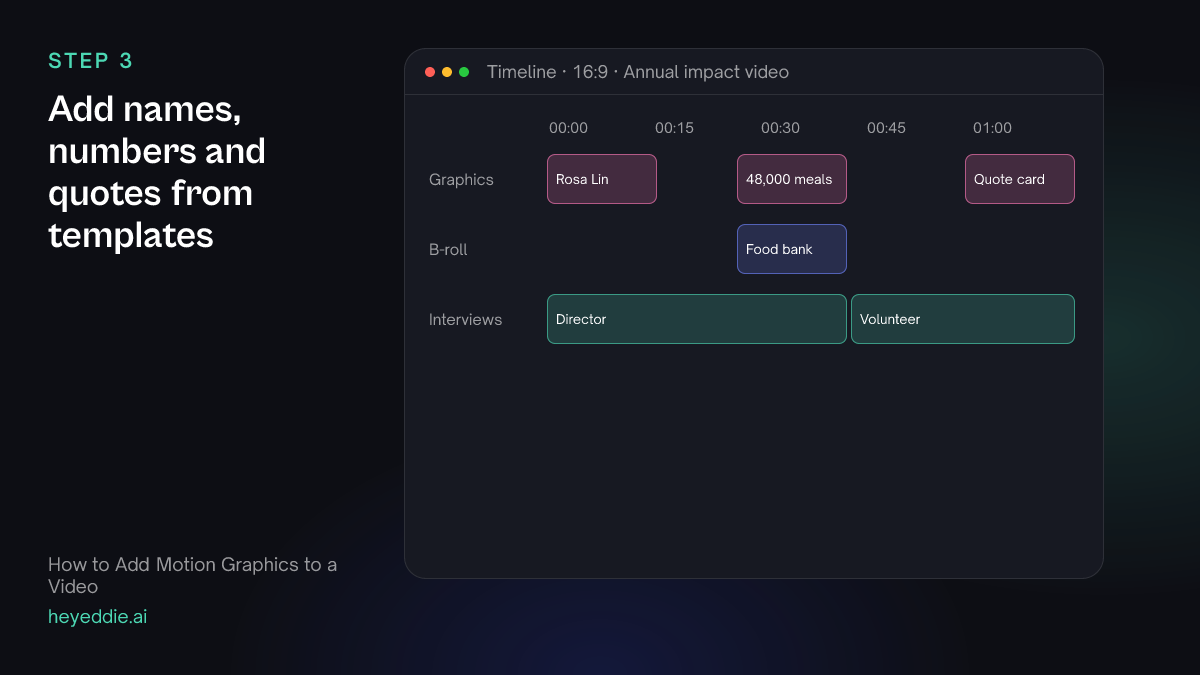
What you type “Add a lower third "Rosa Lin, Director" when she first speaks, a stat callout "48,000 meals" when she says the number, and a quote card with "Nobody here is a number" when the volunteer says it.”
What Eddie does
- Places each graphic from the curated template set at the moment you named.
- Times the callout and the quote card to the spoken words.
What you get: The key facts on screen at the moment they are said.
Step 4
Make a custom graphic from a description
When a template is not enough, describe the graphic. Eddie animates it in your brand style and places it where you say.
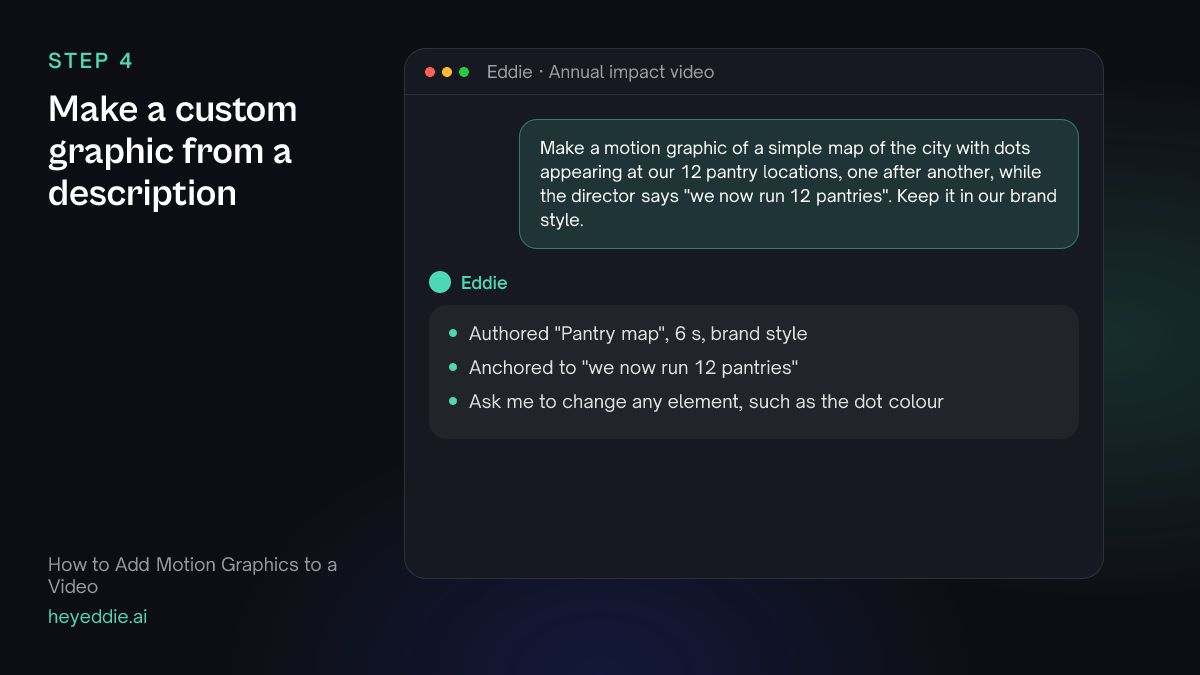
What you type “Make a motion graphic of a simple map of the city with dots appearing at our 12 pantry locations, one after another, while the director says "we now run 12 pantries". Keep it in our brand style.”
What Eddie does
- Authors the graphic from your description in the workspace's brand style, after telling you the credits.
- Anchors it to the spoken words so it lines up with the line.
What you get: A custom animation without leaving the edit.
Step 5
Refine it, or reuse a saved template
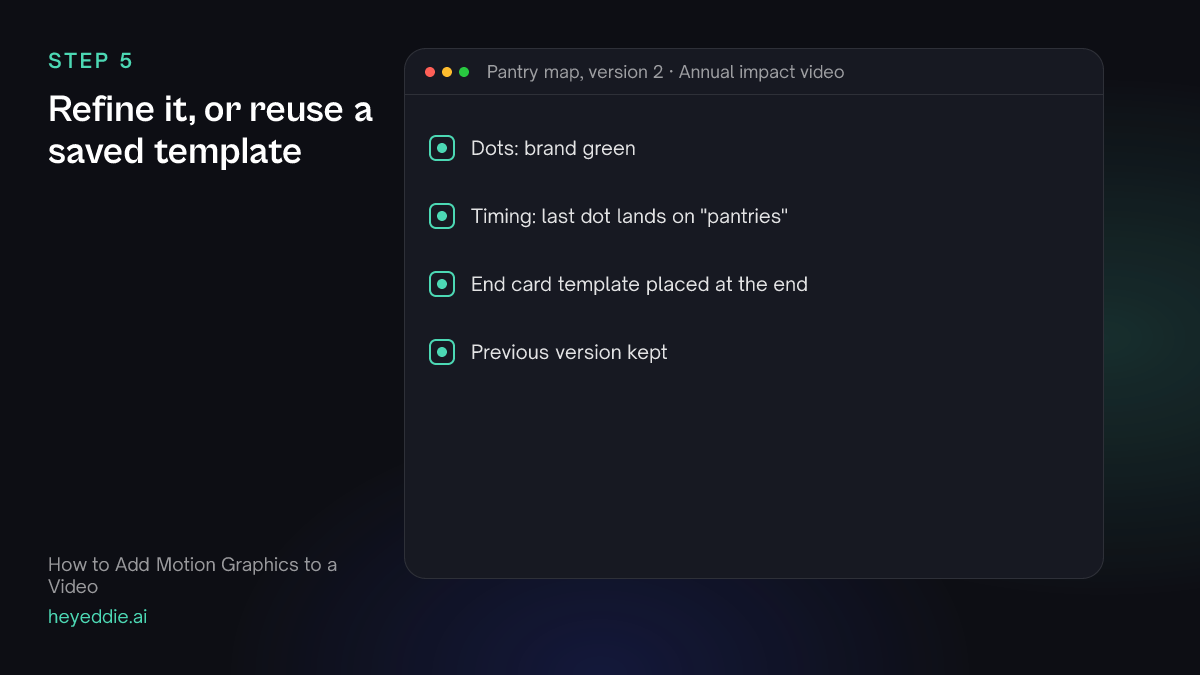
Change one element at a time in plain words. Each refinement is saved as a new version. If your workspace already has saved motion graphic templates, such as an end card, place them by name.
What you type “Make the dots our brand green and slow the animation so the last dot lands on "pantries". Then place our saved "End card" template over the last 4 seconds.”
What Eddie does
- Changes the element you named and saves the graphic as a new version.
- Places the workspace's saved motion graphic template on the edit at the time you named.
What you get: A finished custom graphic, and your team's standard end card.
Step 6
Export
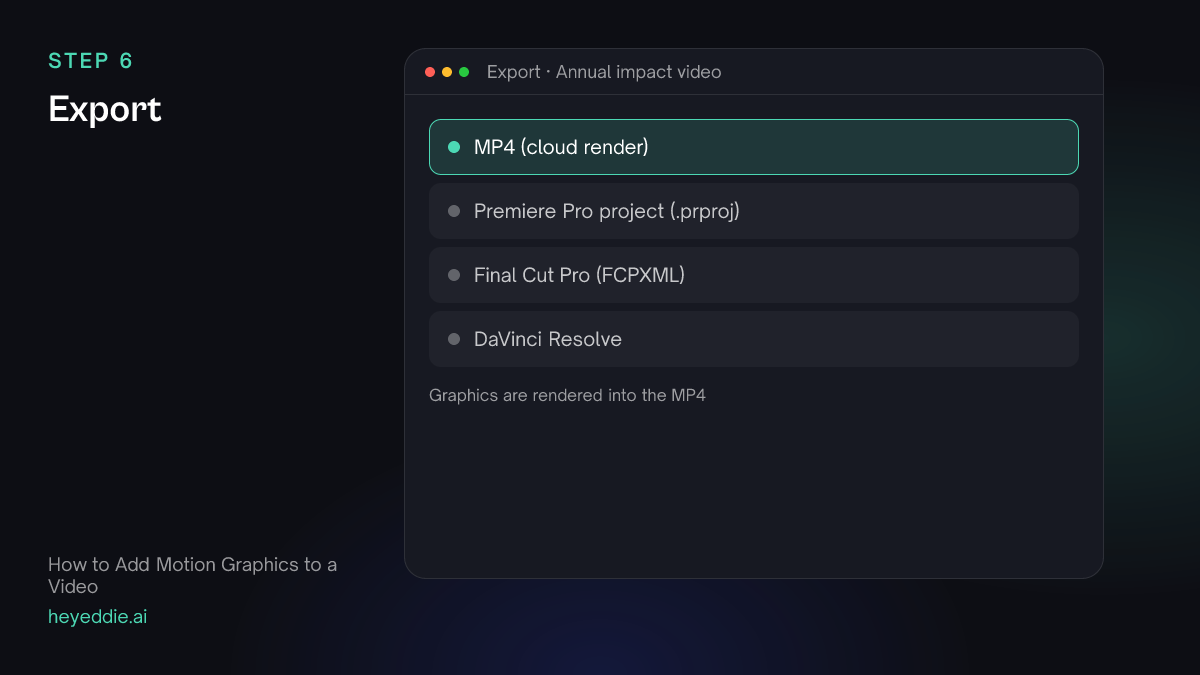
Motion graphics are drawn in the player and rendered into the MP4. Export the video with the graphics in it.
What you type “Export the impact video as a 1080p MP4 with all graphics, and a 30-second vertical cut for social with the stat callout and the quote card.”
What Eddie does
- Renders the edit and its graphics in the cloud.
- Builds and renders the vertical cut with the graphics you kept.
What you get: A finished video with its graphics, in both shapes.
What makes it work
- Graphics say what pictures cannot
- A name, a number, a quote, a step. If the picture already shows it, the graphic is noise.
- One style per video
- Mixed fonts and colours look like a template sampler. Set the style pack first and every graphic follows it.
- Hold it long enough to read twice
- A viewer reads a short callout in about a second. Keep it on screen for two to three seconds.
- Reuse what works
- A graphic your team uses on every video, such as an end card, belongs in the workspace as a saved template, so anyone can place it by name.
Questions
- Which motion graphics templates does Eddie have?
- A curated set that includes kinetic titles, lower thirds, quote cards and stat callouts, all styled by the edit's style pack.
- Can Eddie make a custom animation?
- Yes. Describe it, and Eddie authors a motion graphic in your workspace's brand style. Authoring and refining a custom graphic uses credits.
- Do motion graphics come through to Premiere Pro or Final Cut Pro?
- Graphics are shown in the Eddie player and rendered into the MP4. Check the export page for what each timeline format carries before you plan to finish graphics in another application.
- Can a graphic sit inside the shot rather than on top?
- Yes. Blend modes such as Screen or Multiply let a graphic composite into the picture. They appear in the player and in MP4 exports.