
Send to Frame.io and get review comments back
Send a rendered cut to Frame.io for review, and watch the review comments flow back into your Eddie timeline — where Eddie can implement them.
Last updated July 27, 2026Eddie has a full review round-trip with Frame.io: send a cut out for review, let your reviewers comment in Frame.io as usual, and their comments flow back into your Eddie project — pinned to the right moment on the timeline, ready for Eddie to implement.
Connect Frame.io to your workspace
Frame.io is a workspace-level integration, connected once per workspace:
- On the web app, open the workspace menu (bottom-left) and choose Integrations — or open the Integrations screen directly.
- Click Connect next to Frame.io and sign in with your Adobe account in the popup.
If you try to send before connecting, the export toast tells you and links straight to the Integrations screen.
Send a cut to Frame.io
- Open your project on the web and pick the edit you want reviewed.
- Open the Export menu and choose Send to Frame.io.
- Eddie renders the cut and uploads it to your Frame.io workspace. When it's delivered, the status toast gives you an Open in Frame.io link to share with reviewers.
Optionally tick Include Premiere XML under the Send to Frame.io row to upload the editable timeline alongside the video (off by default so reviewers only see the video).
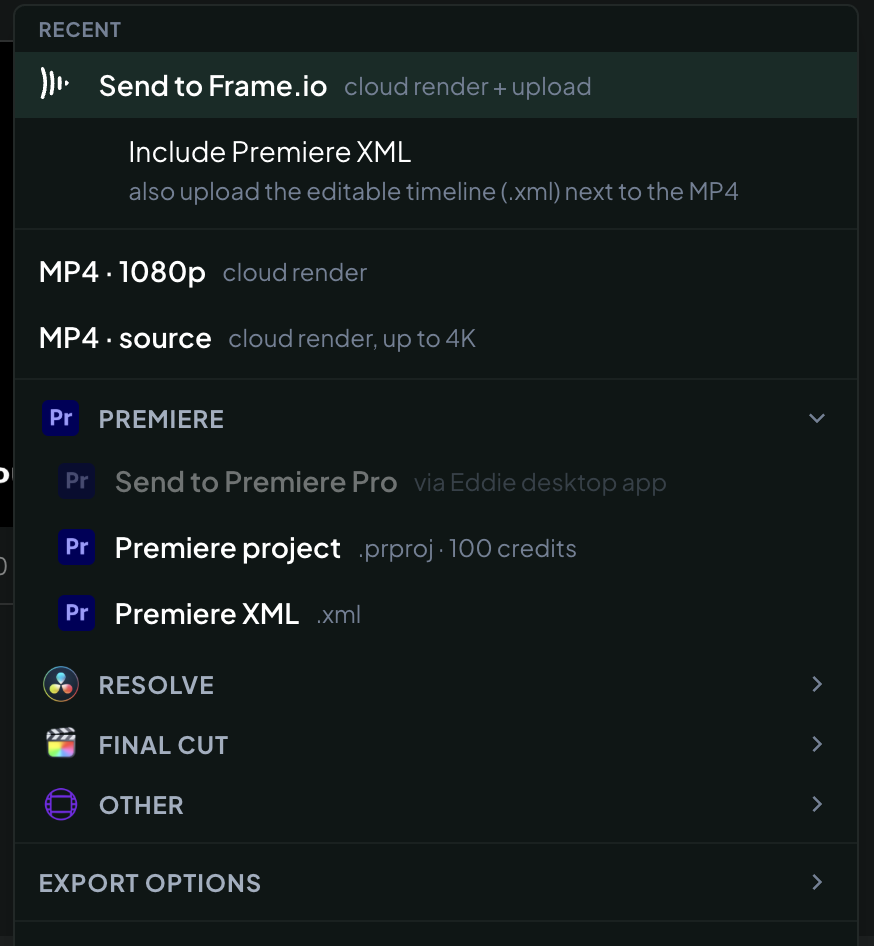
Sending is available in the web app.
Review comments come back automatically
There's nothing to trigger: after a send is delivered, Eddie checks Frame.io for new comments every few minutes (for up to 14 days per send). Each Frame.io comment lands in the project's comments — mapped from its Frame.io timecode to the matching moment and clip on your Eddie timeline, marked with the Frame.io glyph, and kept in sync (edits, replies and resolves made in Frame.io update in Eddie).
Comments live on the timeline
Comments in Eddie — from Frame.io reviewers, teammates, or Eddie itself — share one surface:
- Pins on the timeline mark where each comment applies; click a pin to read the thread, or open the full comments rail from the pin lane.
- Comment from the player: the comment control in the player's transport bar drops a timestamped comment at the playhead.
- Filters: view All, Unresolved, or just Frame.io comments; resolving in Eddie works for bridged Frame.io comments too.
- Eddie's own feedback: ask Eddie to review the edit ("watch this edit and leave your feedback as comments") and it will actually watch the cut and leave timestamped, professional notes as comments on the timeline.
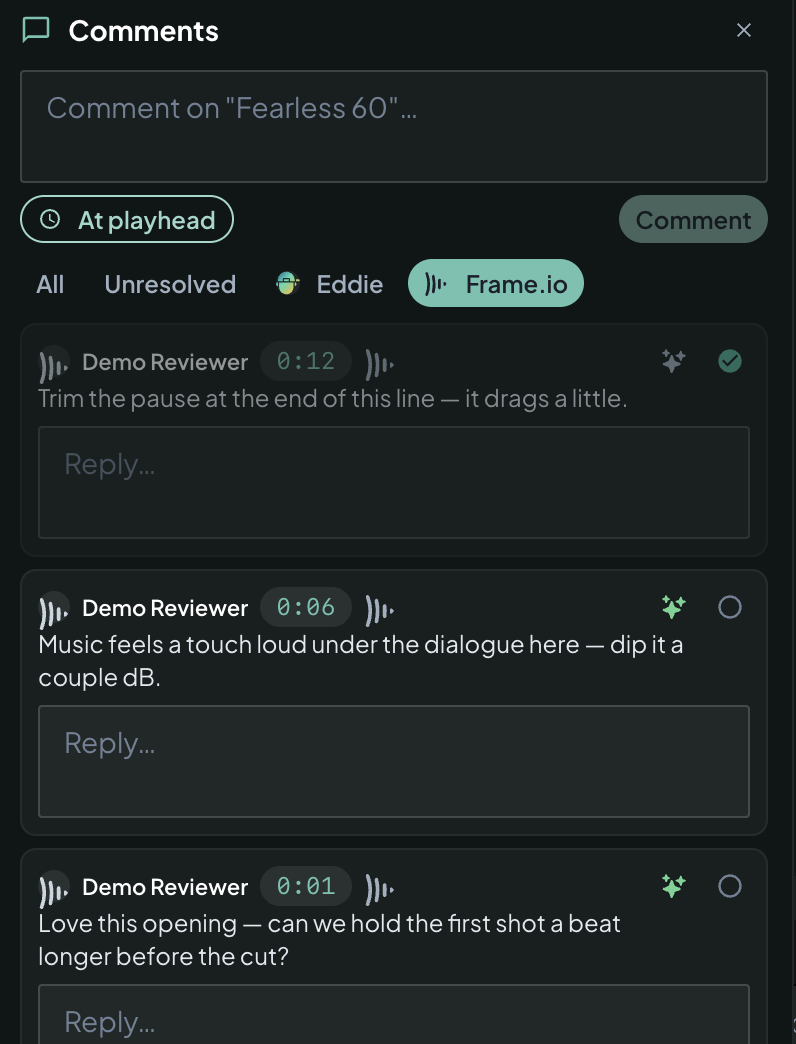
Have Eddie implement the notes
Every comment and reply has a ✨ spark — click it and the thread drops into the Prompt Eddie box as a structured, timestamped instruction. Add any context and press run: Eddie makes the change. That's the full loop — send, review in Frame.io, and implement the notes without leaving Eddie. The spark works the same on every comment in Eddie — see The ✨ spark — Eddie implements your comments.
What the spark's color means
Eddie reads each comment as it arrives — a teammate's, a Frame.io reviewer's, or one of its own feedback notes — and sizes up whether it can implement it with its editing tools. The spark shows the verdict:
- Green spark — Eddie is confident it can make that change directly. Click it and the comment lands in Prompt Eddie ready to run.
- Neutral (gray) spark — Eddie is less sure it can fully deliver. Hover the spark to see why — for example, "needs a reshoot". Clicking still works exactly the same: Eddie will do its best with what's in the project, and tells you honestly if part of the request is beyond it.
There's no blocked state — every comment can always be sent to Eddie.
Comments are picked up for 14 days
Eddie checks for new comments every few minutes, for 14 days after you send the edit. Anything your reviewers leave in that window lands on the timeline automatically — there is nothing to refresh and nothing to click.
After 14 days Eddie stops checking that delivery. A comment left later stays in the review tool and will not appear in Eddie, and you will not get a warning about it — so if a project goes quiet and comes back for review weeks later, send the edit again first. The new delivery starts a fresh 14-day window, and comments on it flow through as normal.
Related: Render a finished MP4 · Invite and manage teammates.
Still stuck?
For a product issue, or for billing and your account, see Contact support. Cutting with a team or at studio volume? Talk to sales.