
Build a cut by hand: the paper edit
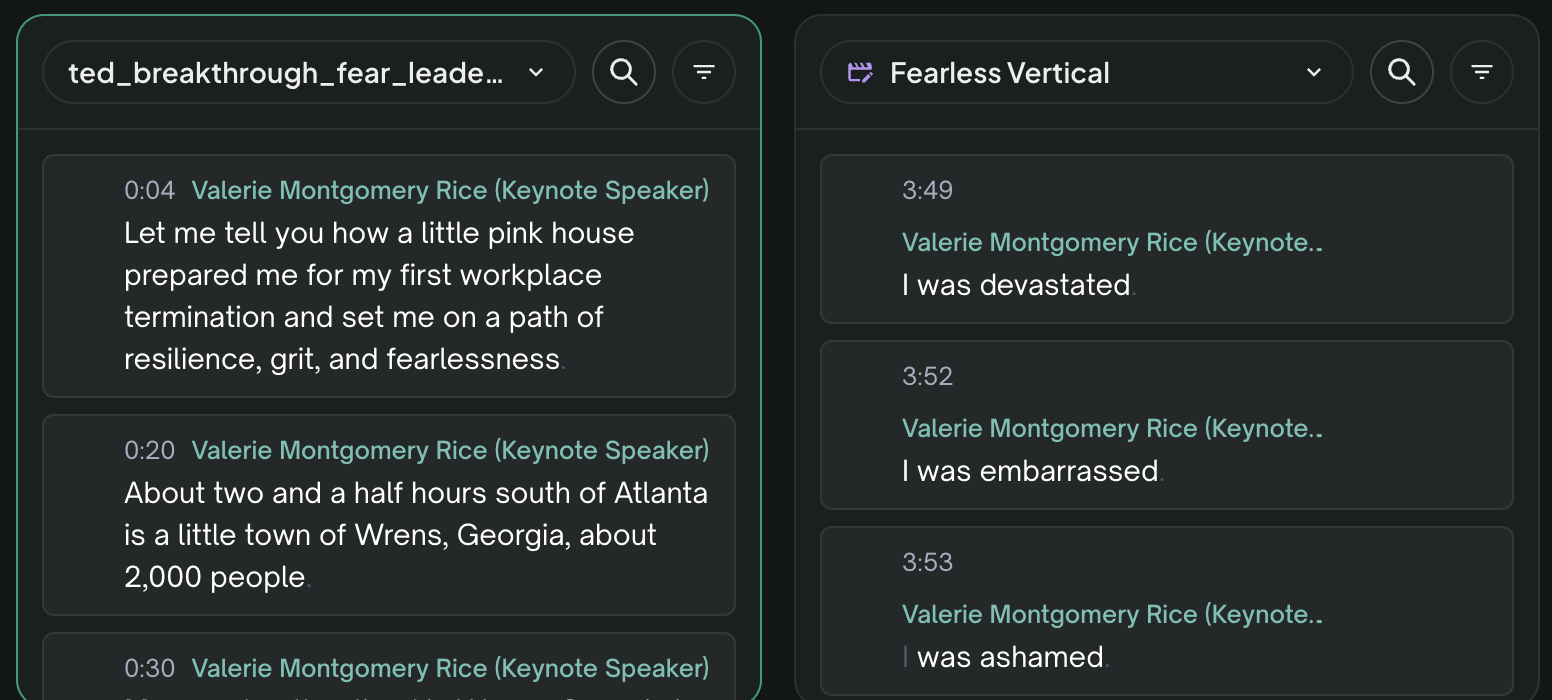
The paper edit puts a transcript beside the edit you are building. Drag the lines you want into the edit column, in the order you want them.
The paper edit puts a transcript beside the edit you are building. You read the transcript in one column, and you drag the lines you want into the other column, in the order you want them. Use it when you want to choose the lines yourself instead of describing the cut to Eddie.
Open the paper edit
- Open your project from your projects page.
- Set the Chat / Pro switch in the header to Pro. The paper edit is a Pro view. In Chat mode the button is not shown.
- Select the paper-edit button in the header, to the right of the project name, beside Player and Timeline. Point at a button to read its name.
In the desktop app the same view is the Text - 2 col button in the app header.
The paper edit needs a window at least 768 pixels wide. A narrower window gets the mobile editor, which has no paper edit.
Choose the two columns
Each column has a picker at the top. It lists your media — clips and multicam groups — and then your edits. Pick any item for either column.
Eddie opens the columns on what you were already looking at: the clip on the left, the edit on the right. With nothing selected, it opens the first clip beside the newest edit.
Every project carries a blank edit called New Edit. Pick it in one column to start a cut from nothing.
The address of the page records both columns, so the same link opens the same pair again.
Build the cut
- Read the transcript in the media column. Every line carries a grip at its top right.
- Drag a line across to the edit column. One drag carries one line.
- Drop the line on a line that is already in the edit, and it lands above that line. Drop it on the strip under the last line, and it goes at the end. An empty edit column is one large drop area.
The media column keeps every line you drag out of it, because the edit gets a copy. You can drop the same line more than once — Eddie does not check for repeats.
Only an edit column takes a drop. A media column is read from, never written to.
Change the cut
- Reorder a line. Point at the line in the edit column and drag it by the grip on its left. A drag inside one column moves the line. It does not copy it.
- Remove a line. Select Remove from this cut on the right of the line. The line stays in the column with a line through it, and it is no longer part of the cut. The same button restores it. It changes this edit only: the line stays in the transcript and in your other edits.
- Mark a line. Select Bookmark on the right of the line. The column filter can then show bookmarked lines only.
- Use the keyboard. While an edit column is the active one, f bookmarks the line the player is on, and r removes that line and moves to the next one.
Changes to an edit column save by themselves. Saving needs edit access to the project. From a view-only link the paper edit still opens, but nothing you do there is saved.
Play what you build
One player sits above both columns. Select any line to play from that point. The player follows the column you used last, and that column is outlined. So you can read on one side and hear the order you have built on the other.
Search one column
Each column header carries a search button and a filter button, and each column searches and filters on its own. The filter offers deleted lines, non-deleted lines, speakers, labels and bookmarks, and a count line reports how many of the column's lines match.
A column that is searched or filtered cannot be reordered, and it does not take a drop. Clear the search and the filters before you drag into it.
What you end up with
The edit column is an ordinary edit. It appears in the sidebar, it opens in the Player and Timeline views, it exports like any other edit, and you can ask Eddie to change it. A cut you build by hand and a cut Eddie builds are the same kind of thing. The only difference is who chose the lines. See Export to Premiere, Final Cut, Resolve, Avid & OTIO.
Or give Eddie your paper edit
You can also hand Eddie a paper edit you wrote elsewhere, and it builds the cut for you. Type the bites into the prompt, attach a document that lists them, or mark them in a script in your Backgrounder. "Paper edit" and "paper cut" both work as names for it.
- Eddie builds one edit, in your order. It does not split a paper edit into chapters.
- Each bite is cut on its own words. A bite that starts mid-sentence starts on your first word, not at the start of the sentence.
- Eddie checks every bite. It reports how many of your bites made it into the cut complete — for example "67 of 69 bites complete" — and names each bite that was cut short, runs long, or was not found in the transcript.
- A short cut is explained. When the cut runs well under the length of the bites you listed, Eddie adds a Paper edit check note. It states the planned and built lengths, names the bites that caused the gap, and offers to place them. It does not blame your footage for the gap.
Questions
How do I take back a line I dropped by mistake? Select Remove from this cut on that line. The paper edit has no undo.
Can I undo a whole run of changes? Not from the paper edit. Open the ⋮ menu on the edit in the sidebar and choose Version history or Restore previous version. A restore writes the older content back as a NEW edit, so the edit you have now is kept as well. See Recover a deleted edit.
I see one transcript and a panel called "Your paper edit", not two columns. That screen appears while no edit in the project holds any content and an edit is selected. Select a clip in the sidebar, then open the paper edit again. The two columns then open with the blank New Edit on the right.
Selecting a clip in the sidebar closed the paper edit. Selecting a clip or an edit in the sidebar leaves the view. To change what a column shows, use the picker at the top of that column instead.
My transcript is very long. Each column scrolls on its own, and a column shows one clip or one edit at a time. Search the column for a phrase, or filter it by speaker, then clear the search before you drag.
Does the paper edit work on a phone? No. Below 768 pixels the editor shows the mobile view, which has no paper edit.
Can I move a line from one edit into another edit? Yes. Put an edit in each column and drag between them. A drag between two columns copies the line, so the edit you dragged from keeps it.
Does removing a line here remove it everywhere? No. Remove from this cut changes this edit only. To take a line out of every future cut, reject it in that clip's own transcript view.
Honest limits
- There is no undo. Version history is the way back.
- One drag carries one line. Build a long run of lines one drag at a time.
- A searched or filtered column is locked against reordering and drops.
- Media columns never change. Bookmarks and rejects belong in the clip's own transcript view.
- It is a desktop view. It needs a window of at least 768 pixels, and the Chat / Pro switch set to Pro.
Related: The editor explained: player, transcript, timeline, How to prompt Eddie.
Still stuck?
For a product issue, or for billing and your account, see Contact support. Cutting with a team or at studio volume? Talk to sales.