
The editor explained: player, transcript, timeline
The player, transcript and timeline stay in sync — understanding the three panels makes prompting far more precise.
Last updated October 10, 2026The editing view has three linked panels that stay in sync. Understanding them makes prompting far more precise.
The player
Plays your current edit exactly as it will export — cuts, captions, titles, color and overlays all applied. What you preview is what you get.
The transcript
Every word, with its timing. Because Eddie edits from the transcript, this is often the fastest way to read the edit: kept lines, removed lines, speaker changes and pauses are all visible here.
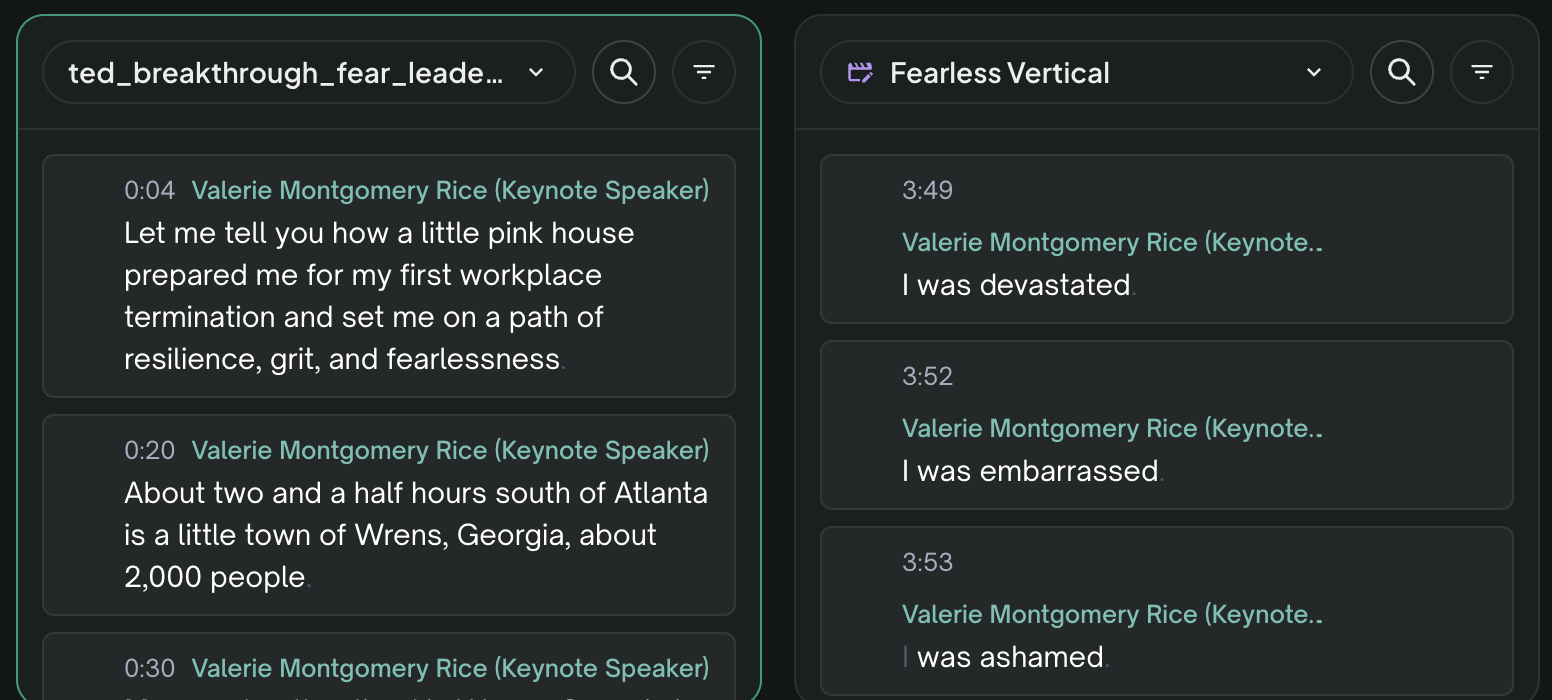
That two-column view is the paper edit. You can build a cut in it by hand — see Build a cut by hand: the paper edit.
The timeline
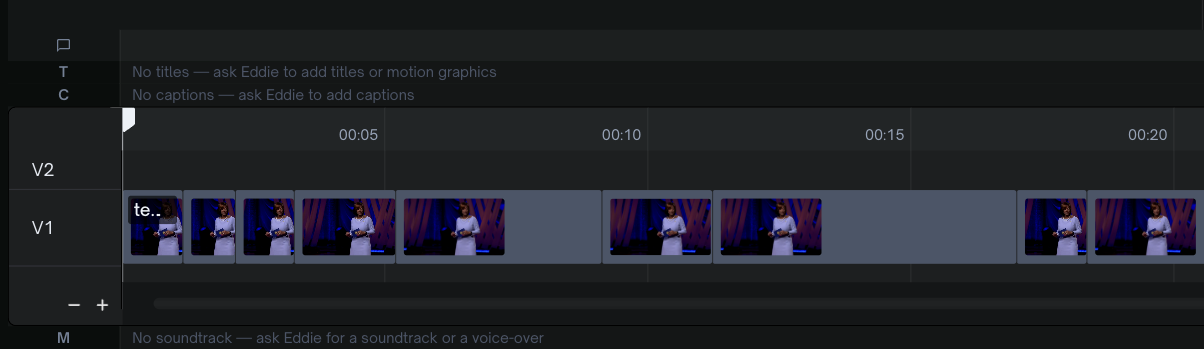
The visual arrangement of the edit:
- Clips — each cut, in order.
- Pauses — silent gaps show as distinct teal "Pause" segments, so you can see (and keep or remove) dead air. See Pauses, gaps and pacing.
- Overlays — b-roll, titles (T), motion graphics (MG) and captions (C) sit on lanes above the base clips.
- Audio — voice-over (VO), sound effects (SFX) and music sit on lanes beneath them. The Music lane can hold one soundtrack or several cues. See Music and audio and Generate with Eddie.
Move a clip by dragging
Drag a clip along V1 to move it. The clips reorder around it: the clip drops into the slot you point at, the others close up behind it, and nothing is removed from the cut or covered. A drag on a b-roll lane works as an overwrite instead: the dropped clip covers whatever b-roll sits under it. To take a clip out of the cut, delete it rather than drag it away.
Point at moments with words
Scrub the timeline and the player and transcript follow. Better: describe the moment to Eddie — "the pause after the second question", "when she mentions pricing" — and it maps your words to the right place. That's the fastest way to direct changes.
Next: How to prompt Eddie.
Still stuck?
For a product issue, or for billing and your account, see Contact support. Cutting with a team or at studio volume? Talk to sales.