
Shape your edit and review it with your team
Add a brief and dictionary, save a reusable recipe, and turn timestamped review comments into changes you approve.
Part 2 of 3 · Give Eddie context, then bring in feedback.
Continue with the cut you made in Part 1. This time, give Eddie a brief, make a repeatable recipe, and collect feedback on the same cut.
1. Give the project context
Backgrounder is your workspace library of reference material. Start small: a Treatment / Brief describing the story and a Dictionary of correct names and spellings. For our fictional bicycle workshop, the brief might say “Show why Second Shift repairs donated bikes.”
In the project sidebar, open Backgrounder, then Manage in Project context. Create a folder and add the brief and dictionary. This project-aware Manage link attaches new material to the originating project. Back in Context folders, check the folder is selected and Save. A folder created separately in the library needs attaching to each project that should use it.
Attach context before importing when possible. Added later, it guides future prompts; it does not retranscribe existing media. Check the displayed price before adding context. See the Backgrounder guide for supported inputs.
2. Save a complete job as a recipe
Context tells Eddie what to know. A recipe tells Eddie what to do repeatedly.
Use one complete instruction, such as:
Make a 60-second community story from these interviews. Open with the strongest answer about repairing donated bikes, explain why the workshop matters, and end with what happens next. Use relevant workshop cutaways and add captions.
After a successful run, choose Save as recipe on that run in Prompt Eddie. Review the proposed name, prompt and variable inputs, then Save to workspace. Save a full instruction that stands alone: the recipe captures that run's prompt, not your whole conversation or earlier follow-up decisions.
To reuse it, open Suggestions, find Your team's recipes, select it, review the inputs and choose Run with Eddie. Saving is free; running uses credits. More about recipes.
3. Choose who can participate
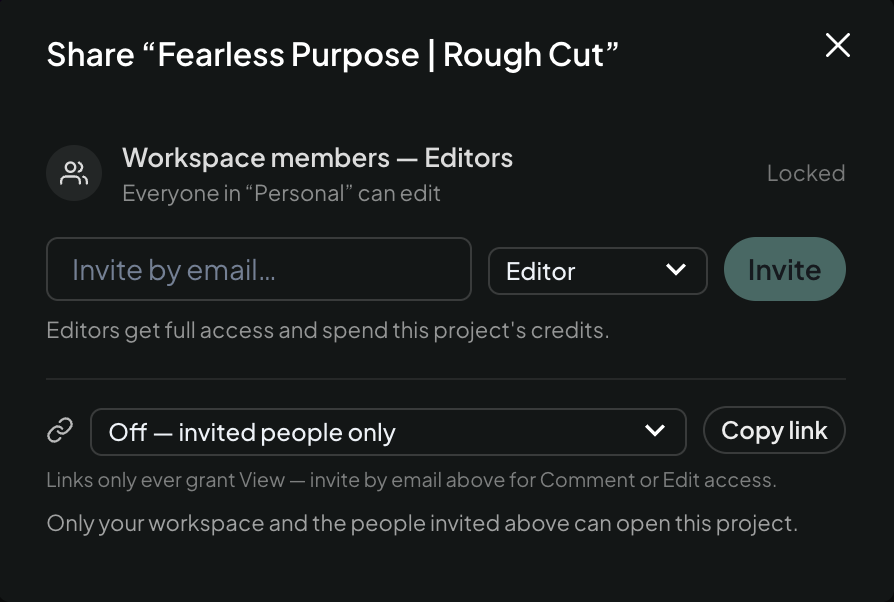
For a teammate working on this project, choose Share, enter their email and select Editor or Commenter, then Invite. Editors can edit, export and spend this project's credits. Commenters can watch and comment. Read the invitation confirmation; send the link yourself if the email was not delivered. This is a project invitation. Workspace membership grants broader access.
A general Anyone with link can view project link grants viewing access. For a guest commenting on one cut, use the next step.
4. Share one cut for review
Select the cut, then choose Share, Review, Create review link. Copy it to your reviewer. It allows timestamped comments on this cut only. You can require sign-in or revoke it later.
5. Already review in Frame.io or iconik?
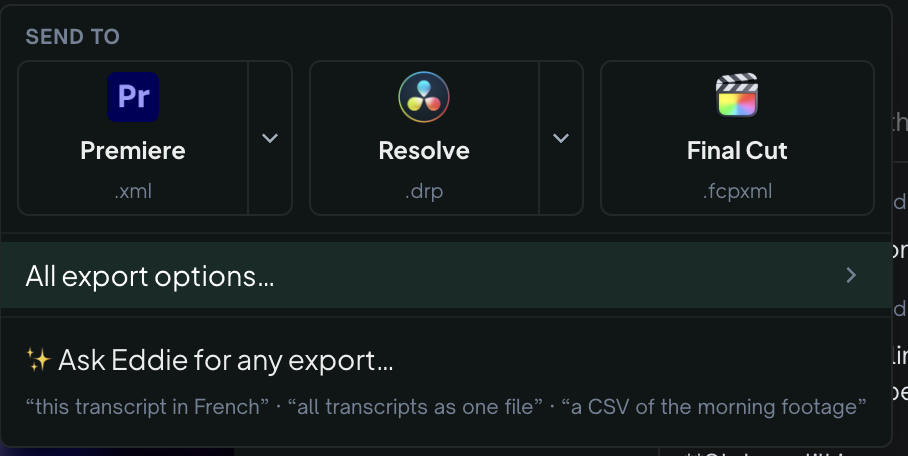
Choose Export → All export options… → Send to Frame.io or Send to iconik. Connect the service when prompted, choose the destination and send the cut. Share the resulting review page with your team.
Comments return to matching moments in Eddie during the 14-day review window for that send; feedback is not an instant live mirror. See the Frame.io steps or iconik steps.
6. Turn feedback into an edit
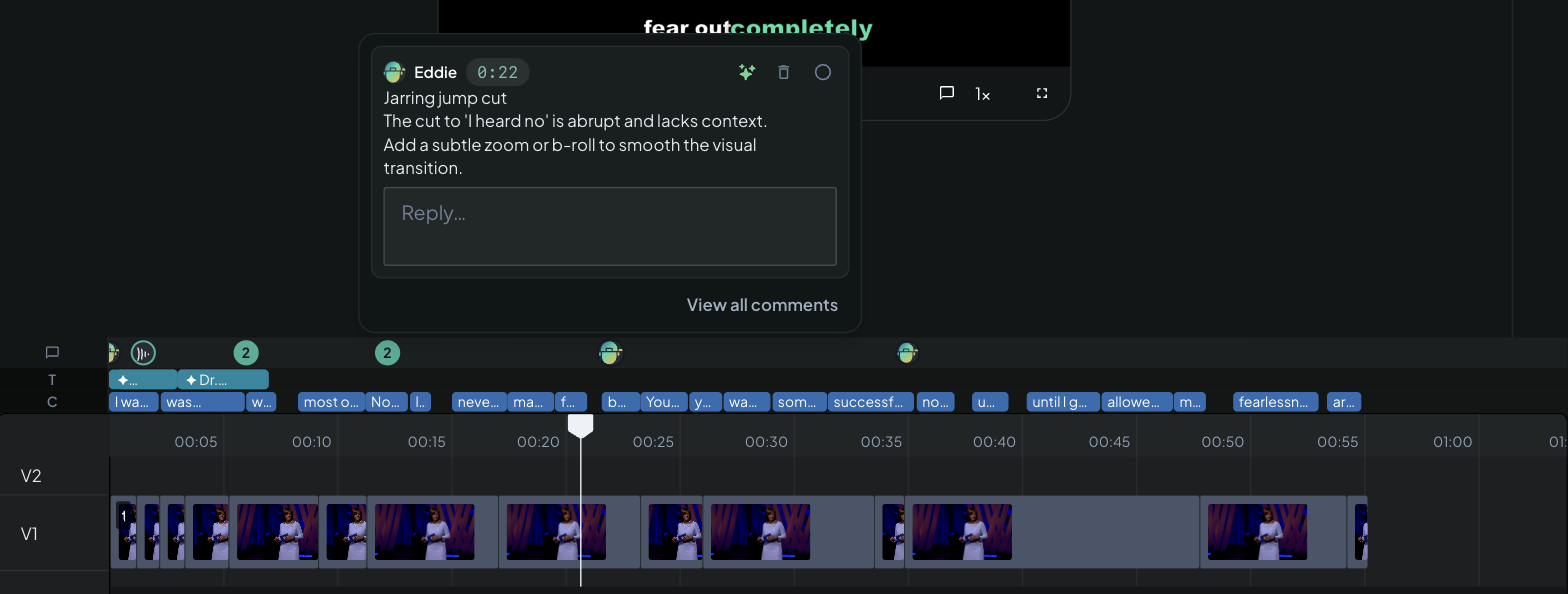
Click a comment's spark to open an inline instruction composer. Review or adjust the instruction, then submit it. Feedback arriving does not automatically edit your cut. Watch the result before exporting or sharing again.
Next: Agents and reusable workflows in Part 3.
You are done when: someone has left a review comment and you have used one chosen note to improve the cut.
Still stuck?
For a product issue, or for billing and your account, see Contact support. Cutting with a team or at studio volume? Talk to sales.