BlogUpdate
New in Eddie AI: Week of September 20, 2026
On this page
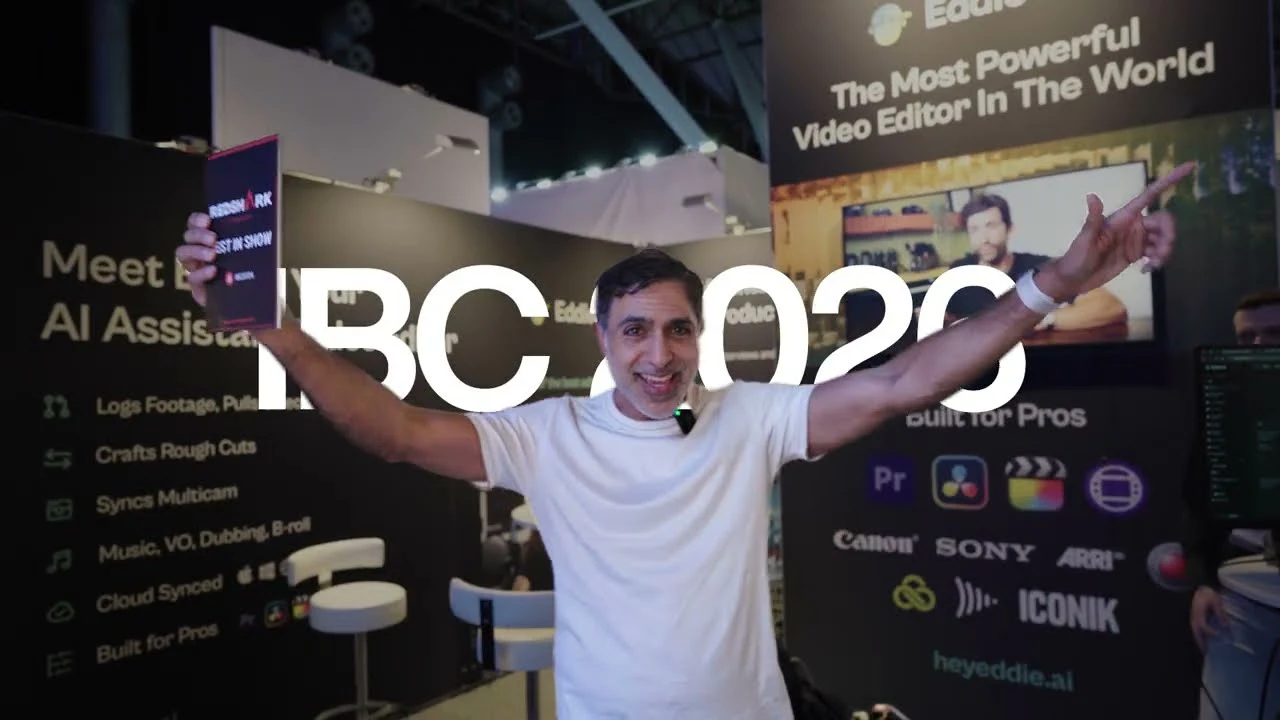
- Best in Show at IBC 2026
- Ask for a motion graphic and watch it appear
- Upscale to 4K
- Now you can text Eddie
- Speed ramps, for everyone
- A real sound bed: effects, cues and voice-over
- Captions that stay off your speaker's face
- Reshape a cut without rebuilding it
- Fix a name once, in the right place
- New on EddieU: how to use v4
- Also landed
- Missed the last fortnight?
It has been a big fortnight. Eddie v4 went out, we took it to Amsterdam, and it came home with Best in Show. In between, a great deal landed in the product — and you can now edit by text message.
Best in Show at IBC 2026
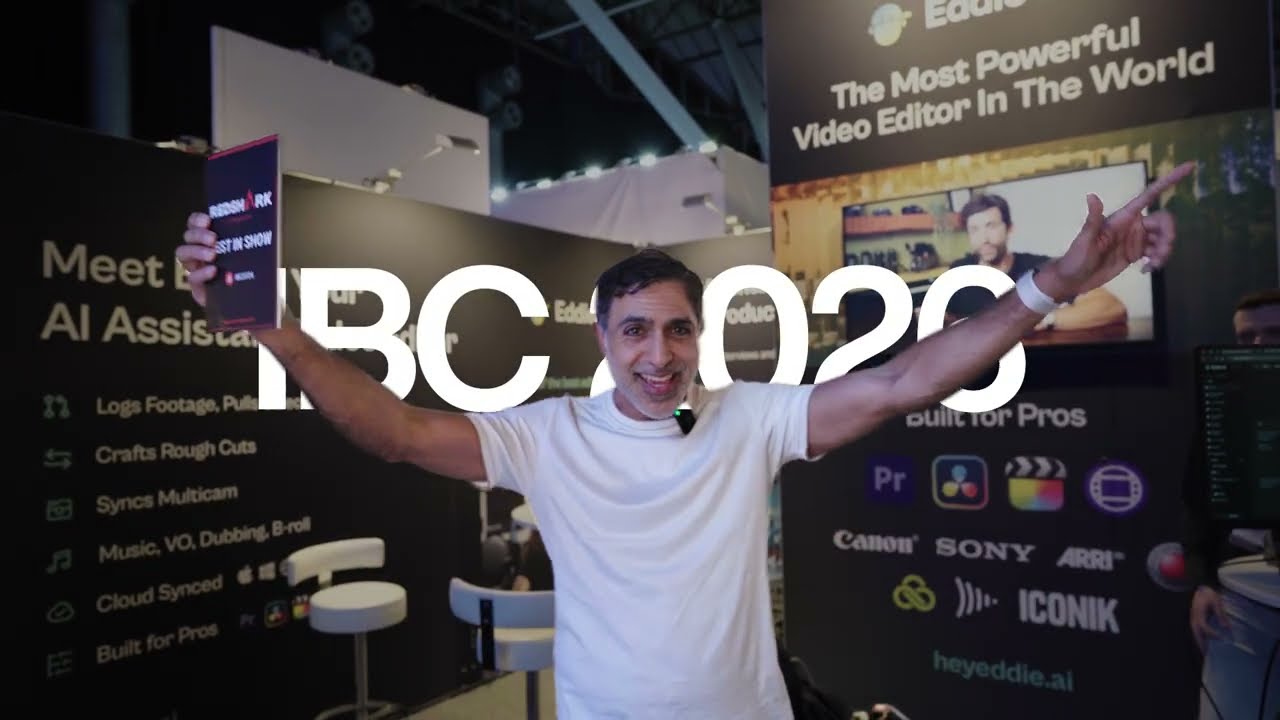
The award is for the part of Eddie that professional editors care about most: it does not hand you its own editor and hope you stay. It hands you a real project file, in the tool you already use, with your multicam intact.
The full story is in our announcement. The short version is that the thing the judges were looking at is the thing you have been using and telling us about all year, so: thank you.
Ask for a motion graphic and watch it appear
This is the biggest new thing in the product, and it is worth explaining how it works rather than just naming it.
Describe the graphic you want — an animated opener with the episode name, a statistic that counts up, a lower third that slides in and holds — and Eddie writes it as a real animated composition. Not a still card with a fade on it: an actual timed animation, built from a library of animation blocks, that runs on its own lane in your timeline alongside your footage, captions and audio.
Because it is a composition rather than a rendered picture, you can talk to it. Ask for the accent colour to change, for the text to hold longer, for the whole thing to be calmer, and Eddie refines the existing composition in place — usually in a couple of seconds, because a small change is handled by a fast model and only a structural rewrite goes to the slower one.
It plays live in the share view, and it bakes into your MP4 — including 4K renders, where the graphics layer is rendered at full resolution rather than scaled up from a smaller one. You can also build a graphics-only piece with no footage at all.
Upscale to 4K
You can now deliver a whole cut as one 4K file with every clip upscaled, in a single action from the export menu — or upscale only the clips that need it, such as phone footage or an older camera sitting beside your A-camera.
You see the price before anything starts, and clips the project already holds at 4K are reused. The upscale changes the picture an export reads and leaves your timeline exactly as it is, and the result tells you clip by clip what was upscaled.
Now you can text Eddie
Eddie now works in iMessage. Send it a clip and a line about what you want, and the edit comes back in the thread — a rough cut, captions, b-roll, music — with no app to open, no upload page and no timeline. It is the quickest way we know to turn something you just shot into something you can post.
The waitlist is open now. Join the waitlist →
Speed ramps, for everyone
Speed ramps came out of their trial and are now on for every account.
A ramp is not a flat speed change. Ask Eddie to ramp into a moment and it retimes the clip with real acceleration and deceleration, the way you would draw the curve yourself. And they go wherever your edit goes: ramps are written into Final Cut XML, Premiere XML and OTIO, into the Premiere and Resolve project files Eddie authors, into the cloud MP4 and the desktop render, and they play in the share view.
A real sound bed: effects, cues and voice-over
The audio side of an edit grew up this fortnight.
Sound effects on request. Ask for a whoosh under a transition or a thud on a title card and Eddie generates the effect and places it at the right moment, mixed under your dialogue.
A music lane for several cues. Place as many cues as the edit needs, each starting where you want it — including a file of your own, placed at a time you name, at a level you set. Music ducks under speech and under voice-over automatically.
A voice-over lane. Place a recording you uploaded or one from your shelf as a proper voice-over clip, or have Eddie read your script using a considerably wider catalogue of voices. Eddie always tells you which voice it used.
Captions that stay off your speaker's face
Captions now read the frame before they place themselves, and keep clear of the speaker's face. They sit above your motion graphics and any subject cutout, so the words are always readable.
There is a new default caption typeface too, covering far more of the world's languages — Greek, Cyrillic and more — with fallback fonts behind it for anything the main face does not carry. Entrance animations are smoother, and each card breaks at the cut, so every clip gets its own line.
Reshape a cut without rebuilding it
Change just the segments you name, and the rest of the cut stays exactly as it is:
- Move a clip to a different point in the timeline.
- Rotate or flip footage that came in sideways, per segment.
- Blur or redact a region that should not be on screen.
- Crop to a close-up that lands on the face rather than the centre of the frame, with room left in the direction the subject is looking.
Fix a name once, in the right place
Correcting a speaker's name is now scoped to that interview and the clips belonging to it, and the correction carries across every clip recorded together.
Eddie can also take the names from the context you already gave the project, so more often than not they are right before you look.
New on EddieU: how to use v4
We have put a set of walkthrough videos on the EddieU how-to playlist, covering what is new in v4 and how to get your first edit out of it. If you would rather be shown than read, start there.
Also landed
- Your credits go further. A prompt run now costs 40% less than it did a fortnight ago, with nothing to opt into. (How credits work →)
- Your project context travels with you. A new project picks up your workspace's newest context folder by default, added media inherits it, and your brand spellings and spoken language are used on web imports. (Backgrounders → · Brand kits →)
- Review links got sharper. Click the player to play or pause, hover to scrub frame by frame, and the link unfurls as a card that plays the real cut — on a phone as well as a desktop. (Sharing a project →)
- Six desktop releases, 4.0.11 through 4.0.16: send any edit straight to Premiere, clearer import messages, multitrack audio on NLE imports, and review links without leaving the app. (The desktop app →)
- Faster transcripts. Eddie reuses the transcript it already has, and your project's vocabulary is applied to every transcription, so names and jargon are spelled your way. (Transcripts and speakers →)
- Your cuts breathe. Eddie keeps the speaker's natural breath at each cut, so tightened dialogue sounds like a person talking. (Pauses and pacing →)
- Your A-roll / B-roll choices at upload are kept exactly as you set them. (Importing footage →)
Missed the last fortnight?
In case this is the first of these you have read, the headlines from before this round-up:
- Eddie v4 arrived. It watches your rushes, finds the story, syncs your cameras, writes the music, sources the b-roll, and hands the finished cut to Premiere, Resolve, Avid or Final Cut as a real project file. (What v4 does →)
- Review links you can hand to a client. A proper review player with no Eddie account required, notes pinned to an exact frame — and Eddie's own notes on the cut if you want a second read. (Sharing a project →)
- Footage logs written straight into your Resolve or Premiere project (Beta). Clip flags, Log Note and Good columns, search bins and speaker-turn markers. (Footage logs →)
- Choose Final Cut Pro 11 or 12 on export, with the version radios in the export menu — and duplicate footage is spotted for you at import. (Export to your NLE →)
As always, just tell Eddie what you want and it will do it.
— The Eddie AI team