BlogUpdate
New in Eddie AI: Week of November 8, 2026

On this page
One question first: what are one or two things we should improve about Eddie, or a feature we should add? Write to hey@heyeddie.ai in a sentence. We read every one.
F&$! Now bleeped, if you want
Ask Eddie to bleep a word, every swear word, or a stretch of time: "bleep every swear word, and the street name at 1:12". Choose a tone or plain silence. Only the speech is covered, so music, voice-over and sound effects keep playing, and each bleep stays on its word when you trim or move the clip.
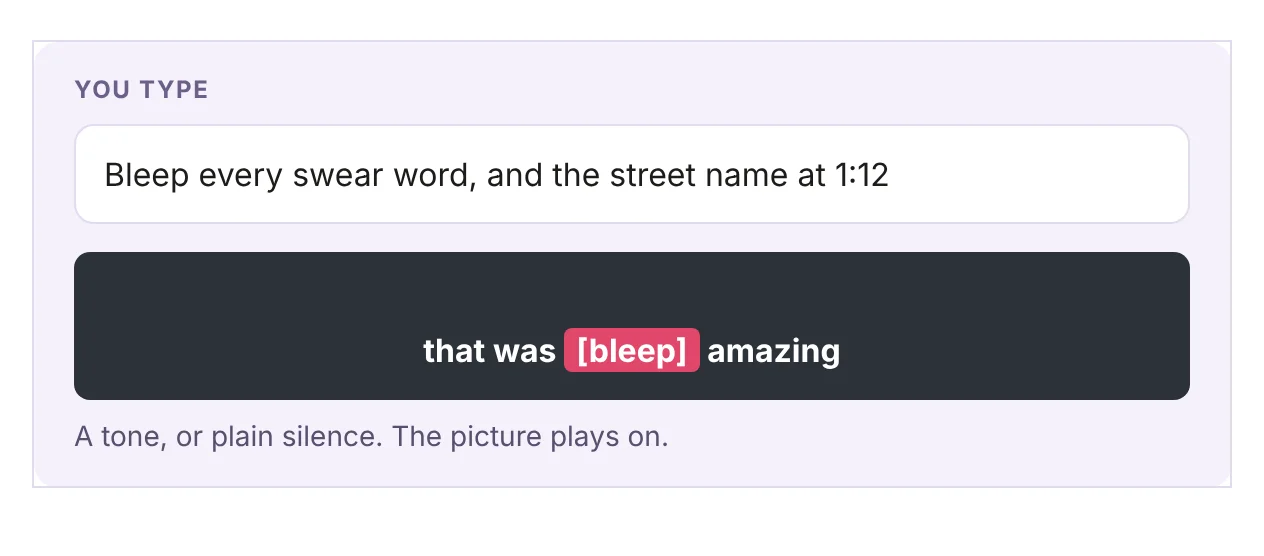
You hear the bleeps in the player and the MP4, and the captions read "[bleep]" (or "[muted]" for silence). Project files for Premiere, Final Cut and Resolve link your original camera audio, so the words are heard there: export an MP4 when you need a file where they cannot be.
Style your captions
Pick a look to start from (social, documentary, minimal, punch or editorial) and the player redraws your captions in it straight away.
From there, set the text colour, the highlight colour for the word being spoken, and the band behind each line (a solid pill, a soft wash or none), the size and the position: bottom, centre or top. Choose one of the bundled typefaces, or attach a brand kit and Eddie uses its font. Ask Eddie for your brand colour and it sets the words on a band of that colour.
You can also set captions in uppercase or lowercase, choose how many words sit on each card (Auto, or a fixed number from one to twelve), and hide a single word from the captions while its audio plays on. The player and the MP4 draw the same style.
Every social shape from one edit
The export menu makes 9:16, 1:1 and 4:5 MP4s from the edit you already have. Tick several and press Export once; each file gets its own progress and its own download.
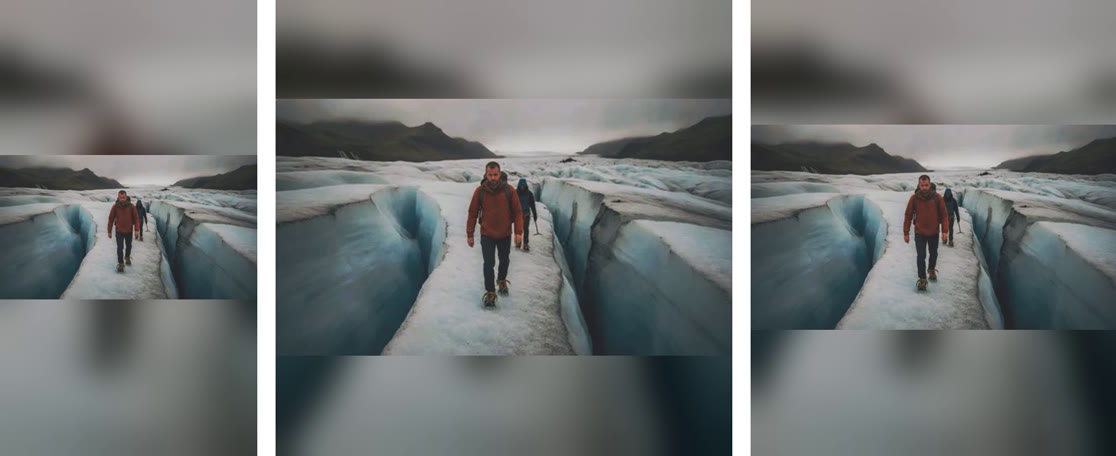
Your edit stays as it is. The full picture sits over a soft blurred fill of itself, unless you chose a crop, in which case the crop leads. Edits up to ten minutes can go this way; longer ones use the ordinary export.
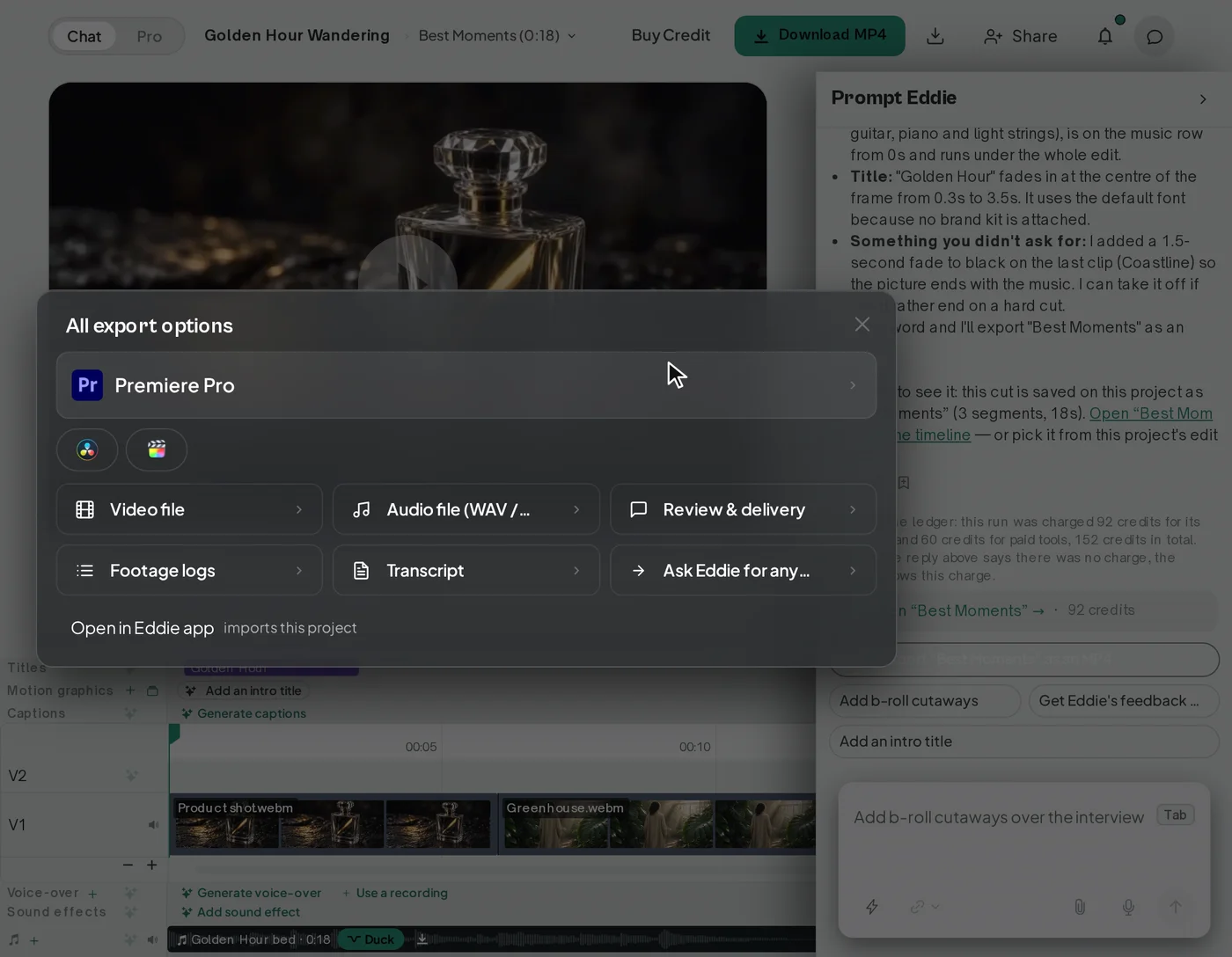
Export an MP4 → · Crop and reframe →
Your editor's project, with Eddie's media in the box
When an edit uses files Eddie made (music, voice-over, sound effects, pause stills), the project you download for your editor comes as one zip: the project file, an "Eddie media" folder and a short READ ME. That covers the Premiere XML, FCPXML for Final Cut and for Resolve, OTIO and the Resolve .drp.
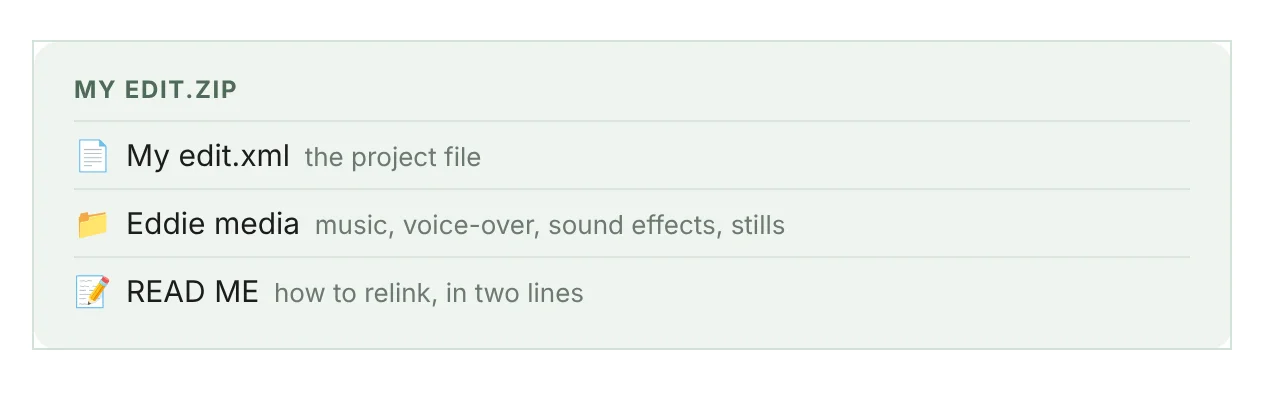
Premiere links those clips as it imports the XML, and puts everything into one bin named for the project and the time. Final Cut and Resolve open the Eddie files offline the first time: point Relink at the Eddie media folder once and they connect by name. Your camera files are never copied into the zip; the project links to them where they already live.
Download a Premiere or Resolve project → · Export to your editor →
The whole motion graphics library, in the editor
Open the template picker on the graphics lane, or the + in the composer, and every Eddie template is there, grouped by category and searchable. Place one at any start and any end, then ask Eddie to change the words or the colours.
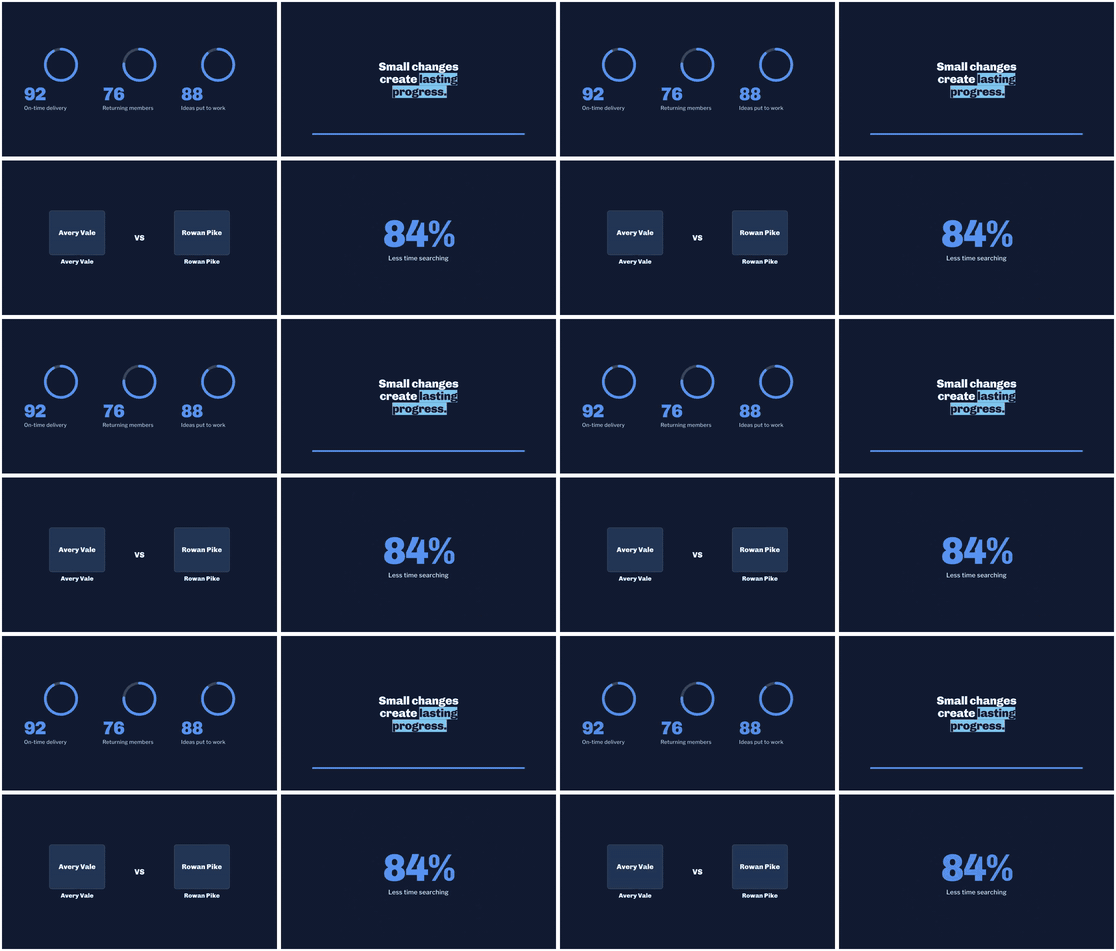
Want to try one before you open a project? On the motion graphics gallery, type your own words into any template and watch it play. No sign-in needed.
Edit Eddie's plan before it starts
For a bigger job, Eddie's plan card opens with the essentials (format, length, deliverable, sources, captions, music) and lists each step it will take. Press Edit plan to change a step, drop one, add one or reorder them, then Proceed.
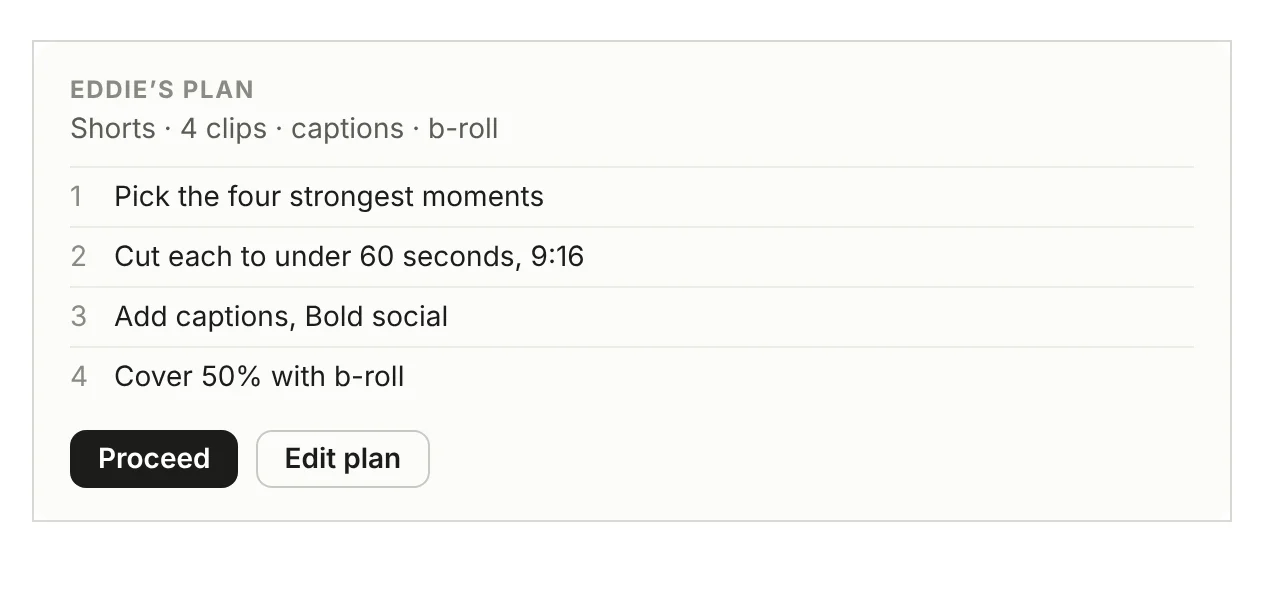
The plan also sets how much of the runtime b-roll covers: 25, 50, 75 or 100%. Asking for shorts? You get about four candidates with Eddie's picks ticked; press play on any found moment to hear it, tick the ones you want, and pick the shapes for each.
How to prompt Eddie → · Several shorts from one video →
In the desktop app: 4.0.62 to 4.0.69
Eight desktop releases this week. The ones you will notice:
- Apple ProRes RAW on Mac: import it like any other clip.
- Camera RAW through your editor: where the computer has no RAW reader, Eddie hands BRAW and ProRes RAW to the connected Premiere or Resolve.
- Imports pick up where they left off after you relaunch the app, with progress for each file.
- Buy credits from the app, from the dashboard's title bar.
- Hover a project row to scrub through its footage.
Get the desktop app → · Camera RAW →
Also landed
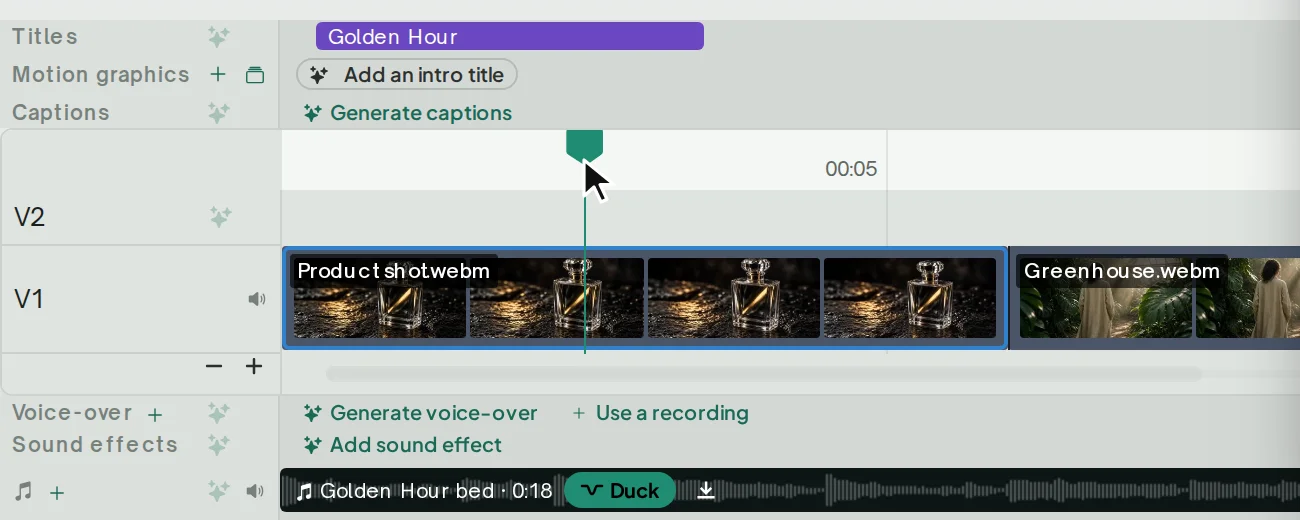
Switch a multicam camera from the Adjust panel, one tap per angle, with Undo. (Multicam →)
Pick up where you left off in the web app: a project reopens on the same edit, view, playhead and zoom, across your devices.
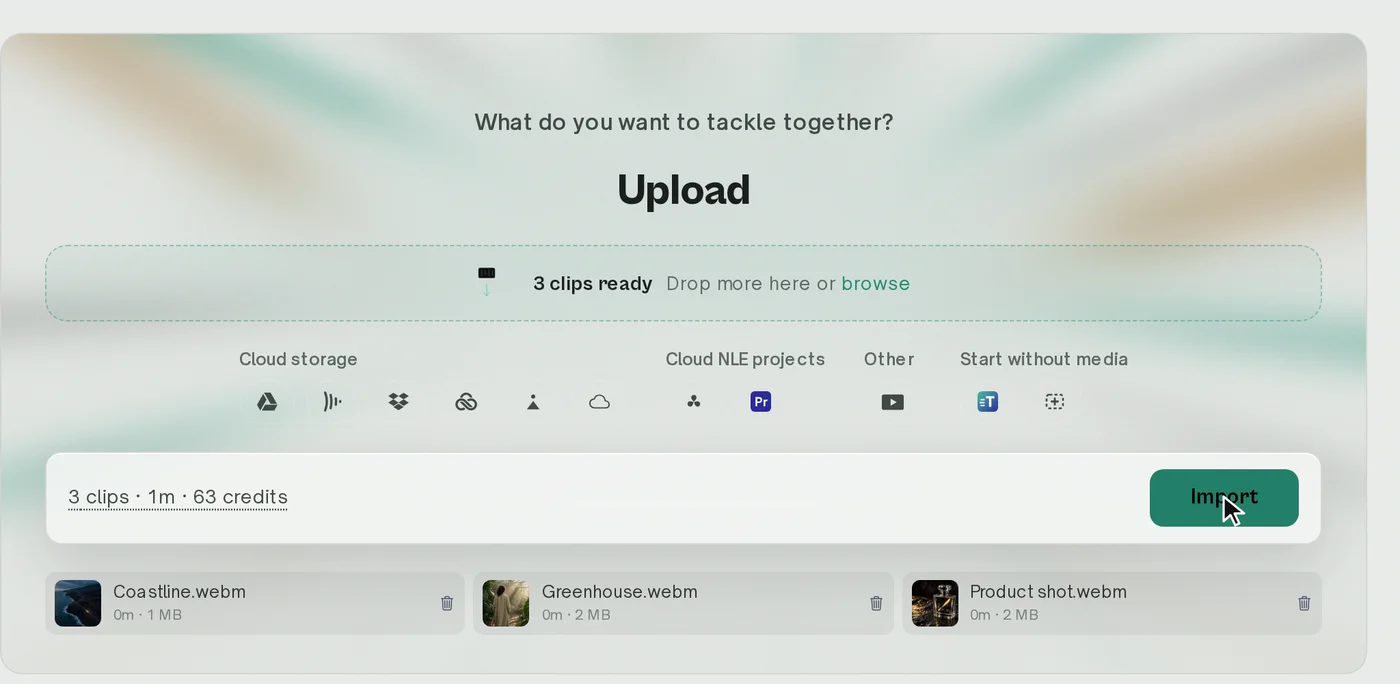
Ask while your footage imports. Eddie starts your request as soon as the import is ready. (Import footage →)
Team members can ask the owner for credits from the app, and the owner gets a one-click link to add them. (Workspace credits →)
Final Cut Pro 12 or 11: pick the version on the Send to tile, and your editor format choices follow you to the desktop app. (Export to your editor →)
Missed last week?
Your motion graphics, inside your Premiere, Final Cut or Resolve project. (Motion graphics →)
Bring your own .cube LUT, on one source or all of them. (Log footage, LUTs and Rec.709 →)
Trim the timeline to a single frame. (Edit by hand →)
Your own walking shots, as b-roll for your vlog. (Add b-roll →)
Tell Eddie what you want and it will do it. And reply to hey@heyeddie.ai to tell us what feature or improvement you would like.
— The Eddie AI team