BlogUpdate
New in Eddie AI: Week of November 1, 2026
On this page
One question first: what are one or two things we should improve about Eddie, or a feature we should add? Write to hey@heyeddie.ai in a sentence. We read every one.
Your motion graphics, inside your editor's project
Download your edit as a Premiere, Final Cut or Resolve project and every motion graphic in it comes along. Each one is a transparent ProRes 4444 clip on its own track above the video, at its place in the cut. Premiere XML, .prproj, FCPXML for Final Cut and Resolve, .drp and OTIO all carry them.
The export dialog shows the price before you start. The clips save next to the project file, and your editor opens them offline the first time: relink them by file name and they play. EDL and AAF exports, and sends from the desktop panel, keep the graphics out.
Motion graphics → · Export to your editor →
Bring your own LUT
Add a .cube file to a project's Backgrounder, then put it on one source or on every source, at the strength you want. The player and the MP4 show the look, and it costs no credits. Eddie checks the file when you add it, so a LUT it cannot read is turned away with the reason.
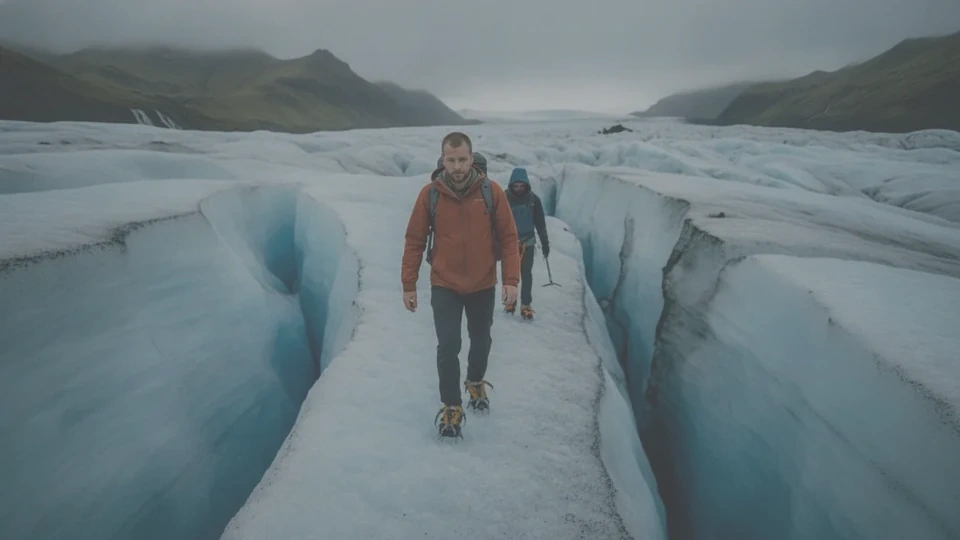
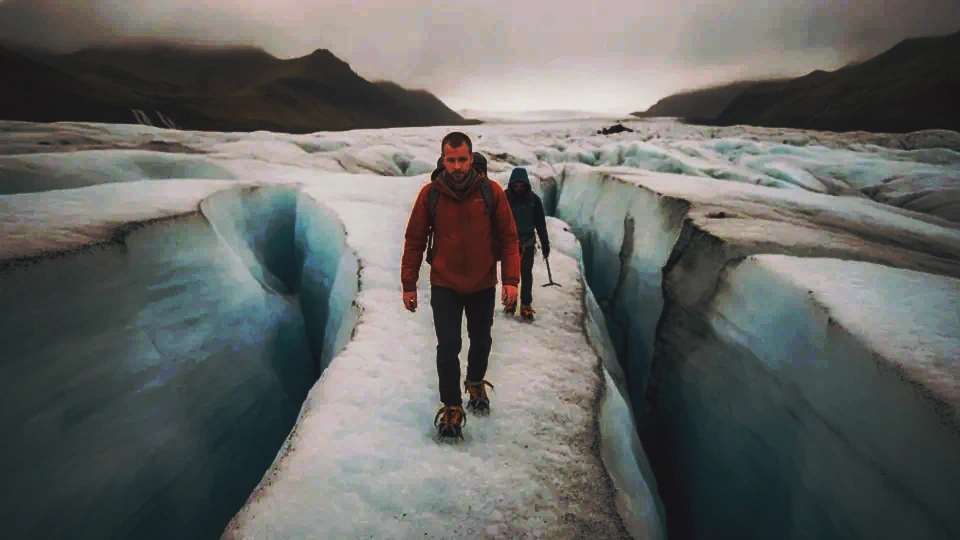
Want one shot warmer than the rest? Ask Eddie to grade that clip on its own, and the rest of the edit keeps its grade. The LUT is for Eddie's player and MP4; project files you take to your editor leave it out, so your colourist starts from the source.
Log footage, LUTs and Rec.709 → · Colour grading →
Trim to the frame
Zoom the timeline in until a single frame is wide enough to grab, on an edit of any length. Focus a trim handle and the arrow keys move it one frame; hold Shift for ten frames, as in your editor.
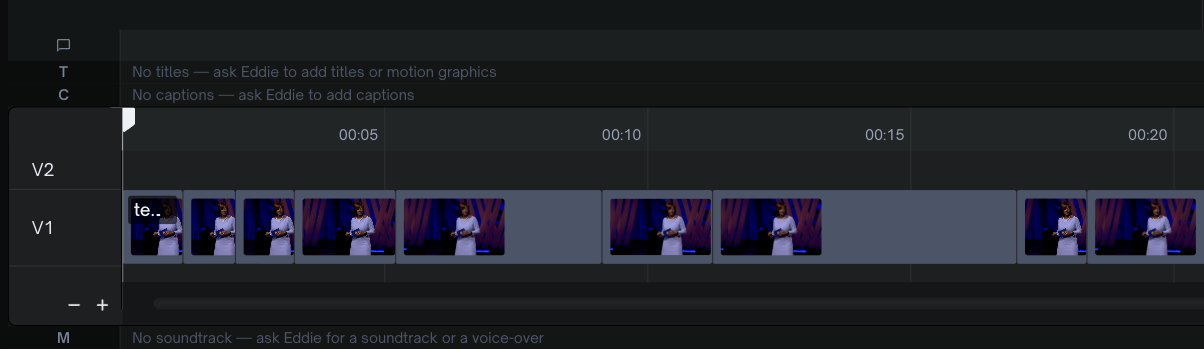
The Adjust panel plays crop, rotation, opacity and blend changes live in the player while you drag, so the frame you see is the frame you get in the MP4.
Edit by hand → · Crop and reframe →
Comments that land as markers in your timeline
Ask Eddie to mark a stretch of the edit, like each topic or every answer worth a second look. When you export to Premiere, Final Cut or Resolve, each one arrives as a marker that spans its stretch, from its first frame to its last.
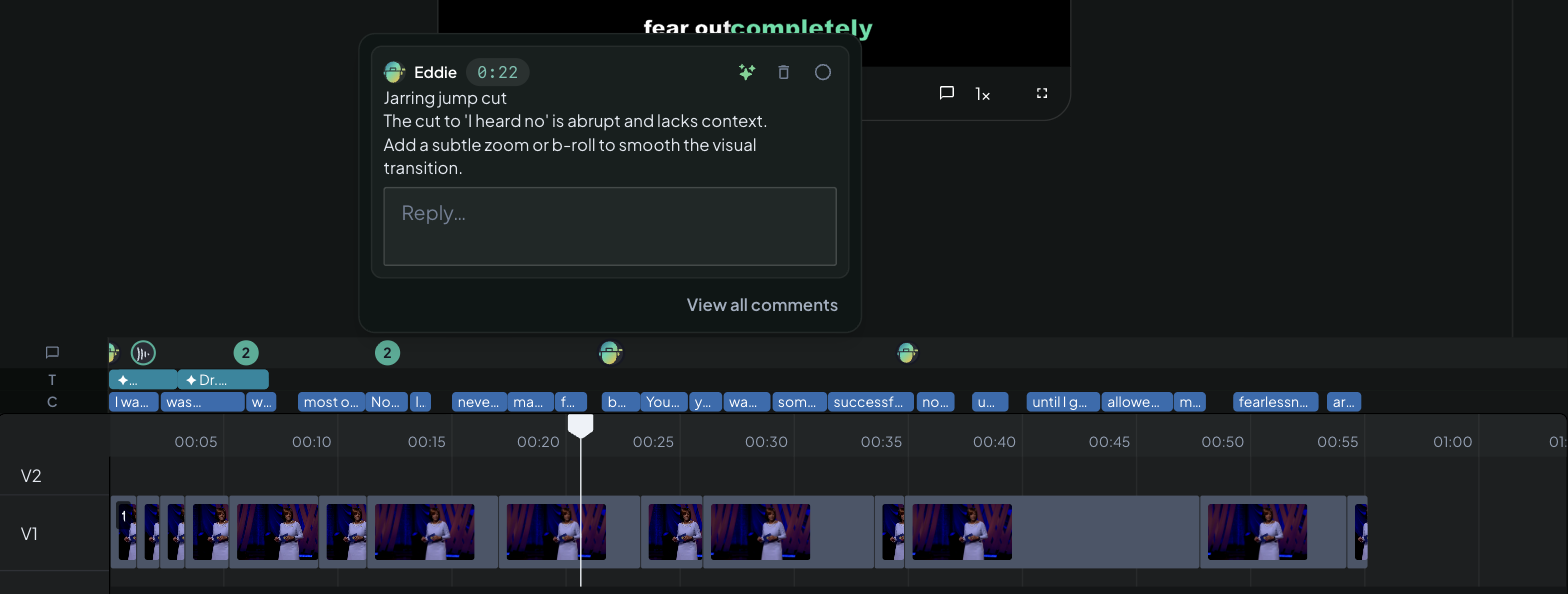
In the desktop app, you can also send Eddie's comments to Premiere Pro as markers.
Your own shots, as b-roll for your vlog
In a vlog, the clips where you are filming the street, the food or the view are b-roll already. Eddie finds the shots where nobody is talking and lays them over the talking parts, before it reaches for anything else.
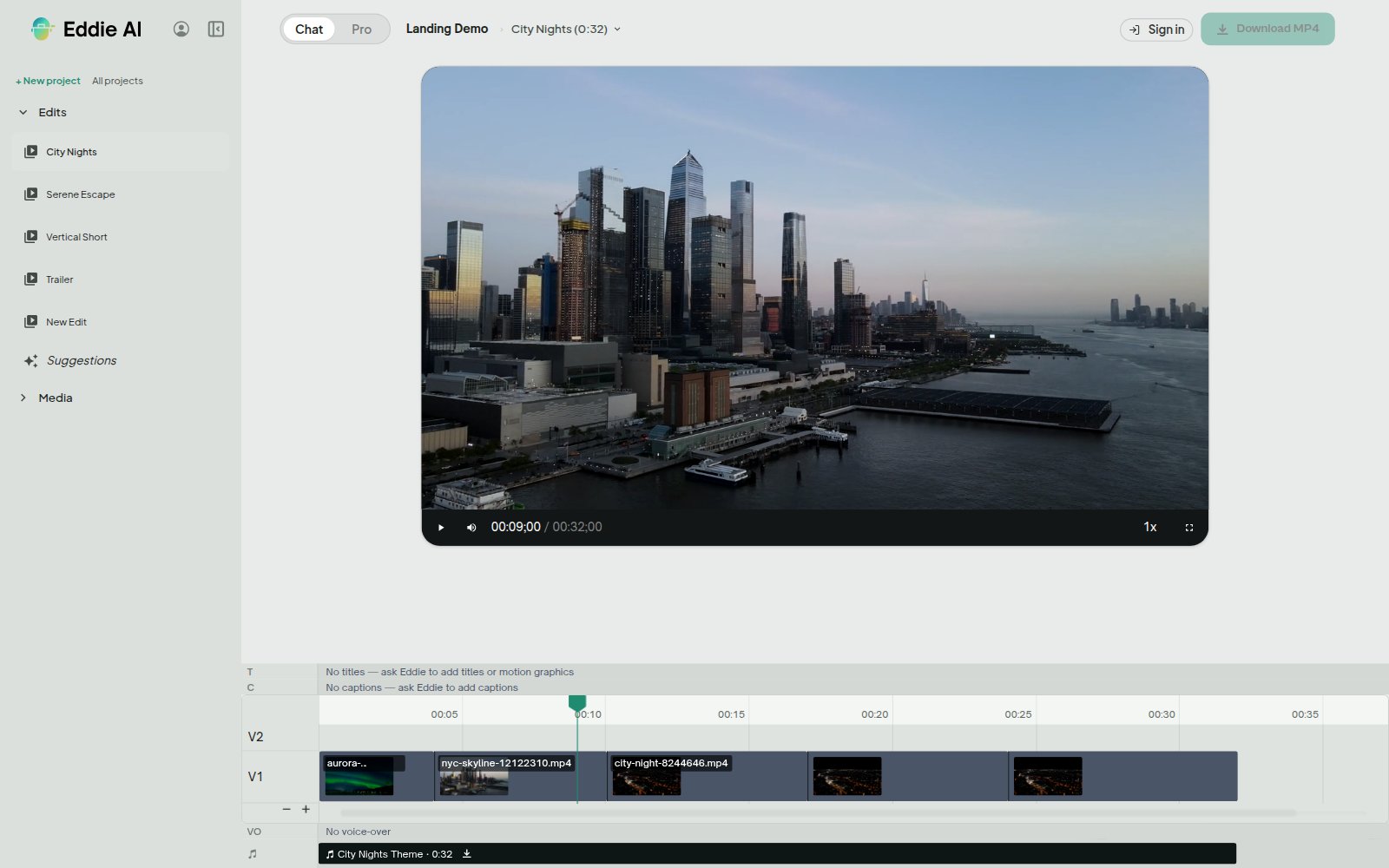
Try: "Cut my vlog to three minutes and cover the talking with my walking shots."
Add b-roll → · B-roll from the timeline →
In the desktop app: 4.0.54 to 4.0.61
Eight desktop releases this week. The ones you will notice:
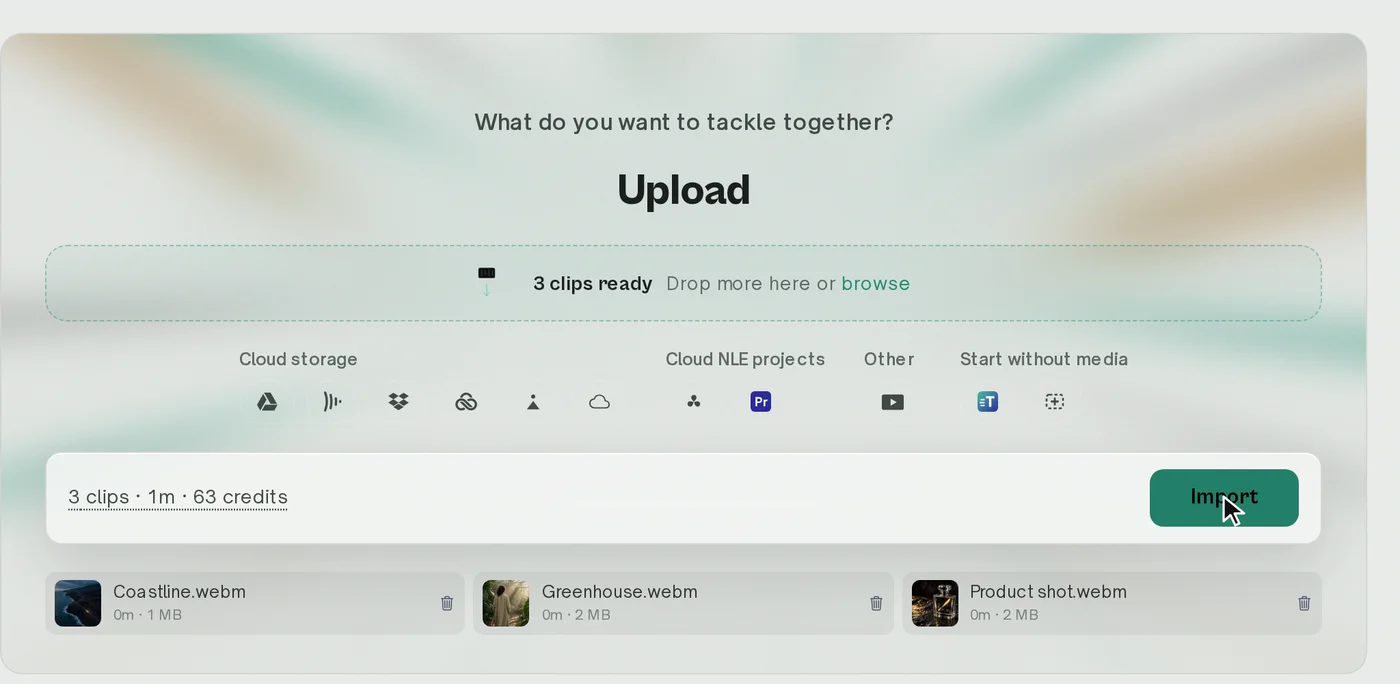
- Notifications when your edit is ready or Eddie has a question. Click one to go straight there.
- Drag media from the sidebar onto your timeline, and undo with ⌘Z.
- Paste a Frame.io, iconik or LucidLink link to import from it, and browse Frame.io V4.
- Select a clip for quick actions like Cover with b-roll and Upscale to 4K.
- Projects reopen where you left off, in the view you like, and hovering over a project previews it.
Get the desktop app → · Notifications →
Also landed
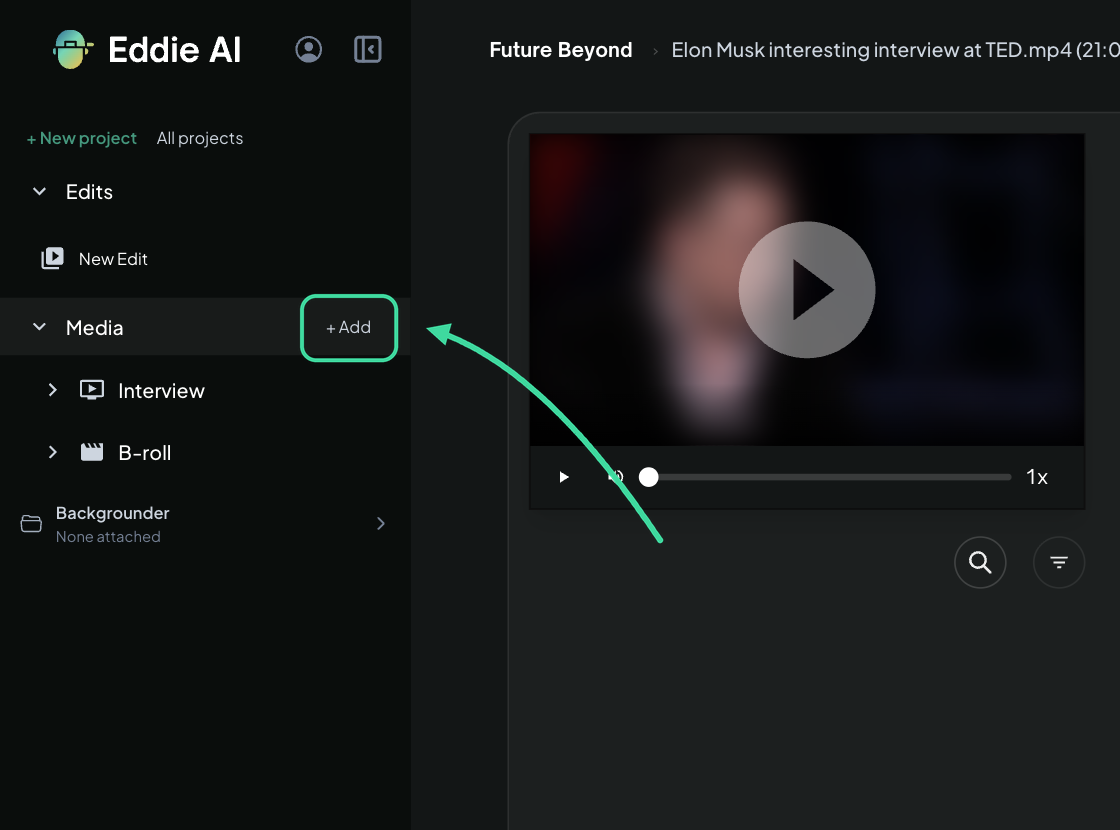
Add footage from your Library while a project is open. (Add media →)
Set the text size of titles, bigger or smaller, the way you size captions. (Titles and graphics →)
Download in one go. Generated and stock clips come in the Generated assets zip, and all your editor exports come as one zip. Sound effects ride along in FCPXML and Premiere XML, on their own lanes. (Export several edits →)
Pick a voice by how it sounds. Each voice in the picker has a description, with filters for its traits. Trim the start of a placed voice-over and Eddie keeps the original take.
On iPhone (1.0.8): the edit plays while the finished video renders, and projects sort into folders. (Eddie for iPhone →)
Missed last week?
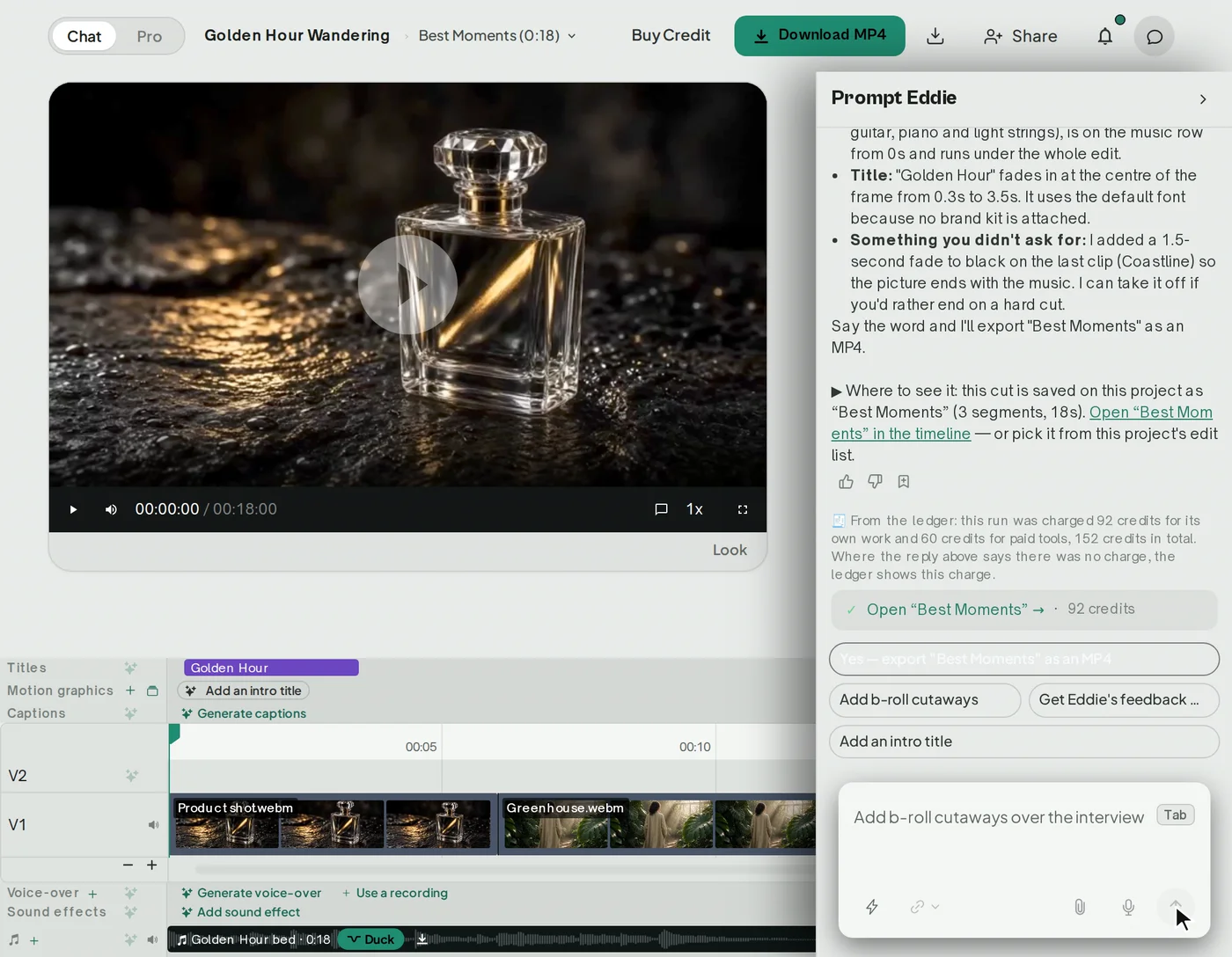
Grade with colour wheels, then export the grade as .cube LUTs. (Colour grading →)
See Eddie's plan before a big prompt runs. (How to prompt Eddie →)
Paste an Instagram or TikTok link to bring the video in. (Links in prompts →)
Tell Eddie what you want and it will do it. And reply to hey@heyeddie.ai to tell us what feature or improvement you would like.
— The Eddie AI team