BlogUpdate
New in Eddie AI: Week of October 25, 2026
On this page
One question first: what are one or two things we should improve about Eddie, or a feature we should add? Write to hey@heyeddie.ai in a sentence. We read every one.
Grade with colour wheels, then take the grade with you
Every edit now has lift, gamma and gain colour wheels. Set them in the share view, or ask Eddie for the look you want and it sets them for you. The player shows the grade as you go, and the MP4 Eddie renders carries it.
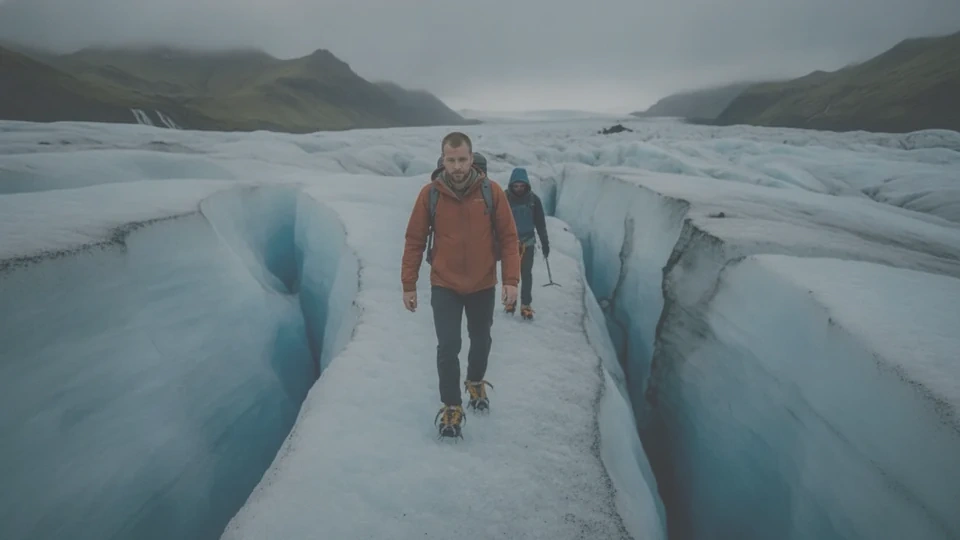
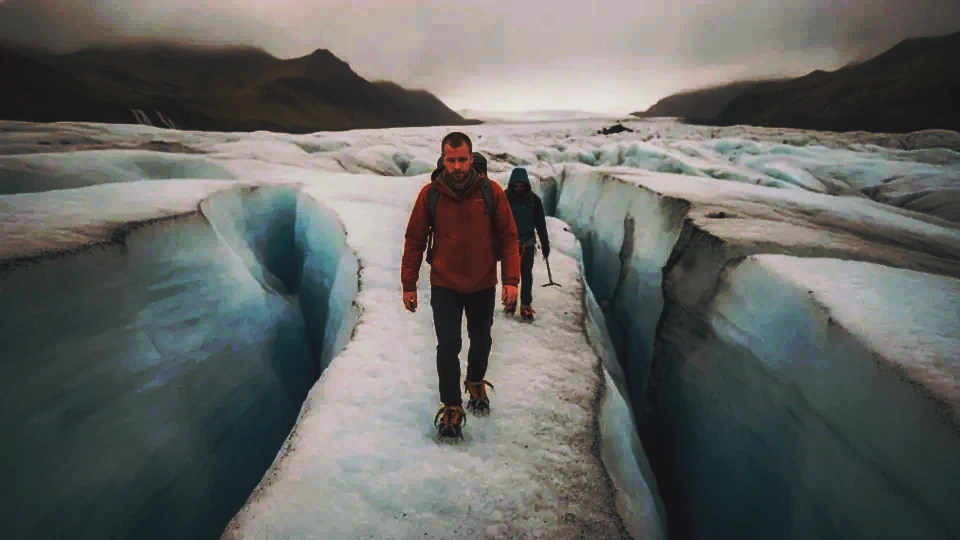
Finishing in Premiere, Resolve or Final Cut? Export the grade as .cube LUTs from the Export menu: one master LUT with the whole edit's grade, one for each source that has its own grade (with a note of which file is which), and a manifest that records the look and every adjustment. The LUTs are for Rec.709 footage, after your camera conversion. Film grain, haze and split tone stay in Eddie's render; a LUT cannot hold them.
Colour grading → · Log footage, LUTs and Rec.709 →
Eddie shows you the plan first
Give Eddie a prompt that will do real work and, before it starts, it shows you the plan: what it will make, step by step, and which steps spend credits. You approve it, change a step, or drop one. Nothing runs and nothing is charged until you say go. On the desktop app the same card sits under the prompt box, with Go, Change and Cancel on it.
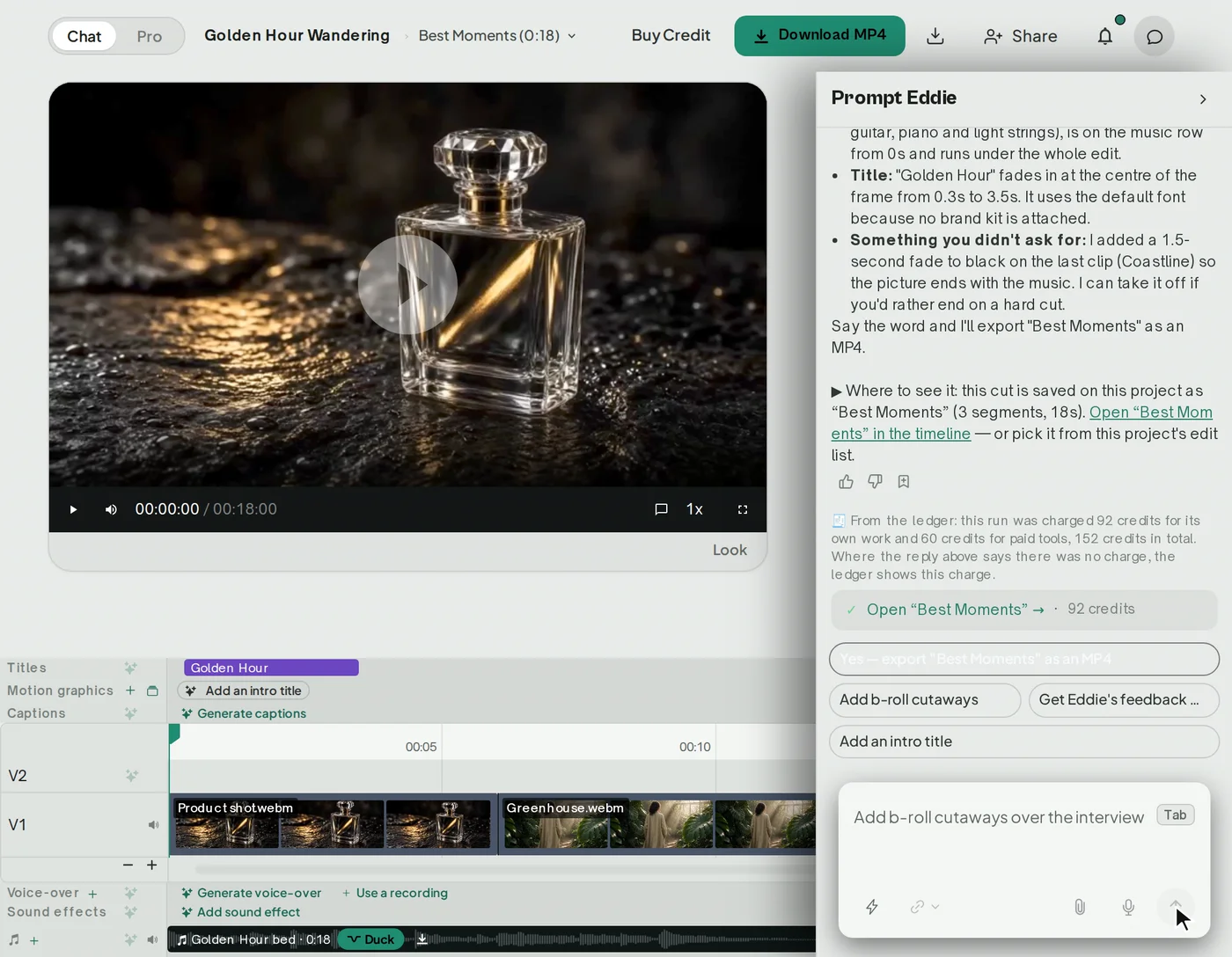
Where a step holds a real choice, like a colour grade, Eddie shows you the options as stills from your own footage, and you pick the one you meant by looking at it.
How to prompt Eddie → · How credits work →
Paste an Instagram or TikTok link
Drop a post's link into the prompt and Eddie brings the video in. Study its pacing, cut a response to it, or rebuild the idea with your own footage.
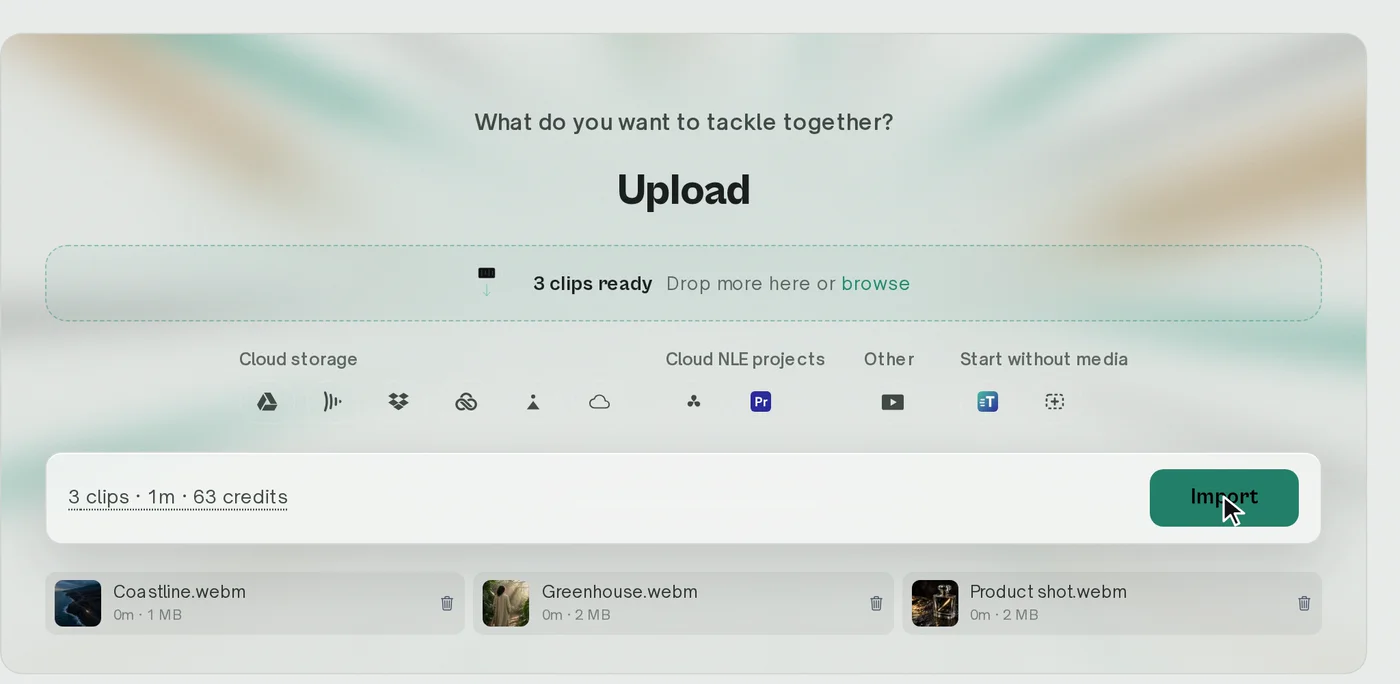
The post arrives as a 480p working copy. That is plenty for drafting and for reference; it is not a master, so cut your final from your own files.
Links in prompts → · Import footage →
More of the edit in your own hands
Select clips and open the Adjust tab: picture controls, opacity, blend modes, and panning inside a crop. On the caption lane, split a caption card, retype it, or drag it to a new time, and select several cards to move them together. Pinch to zoom the timeline for the fine work.
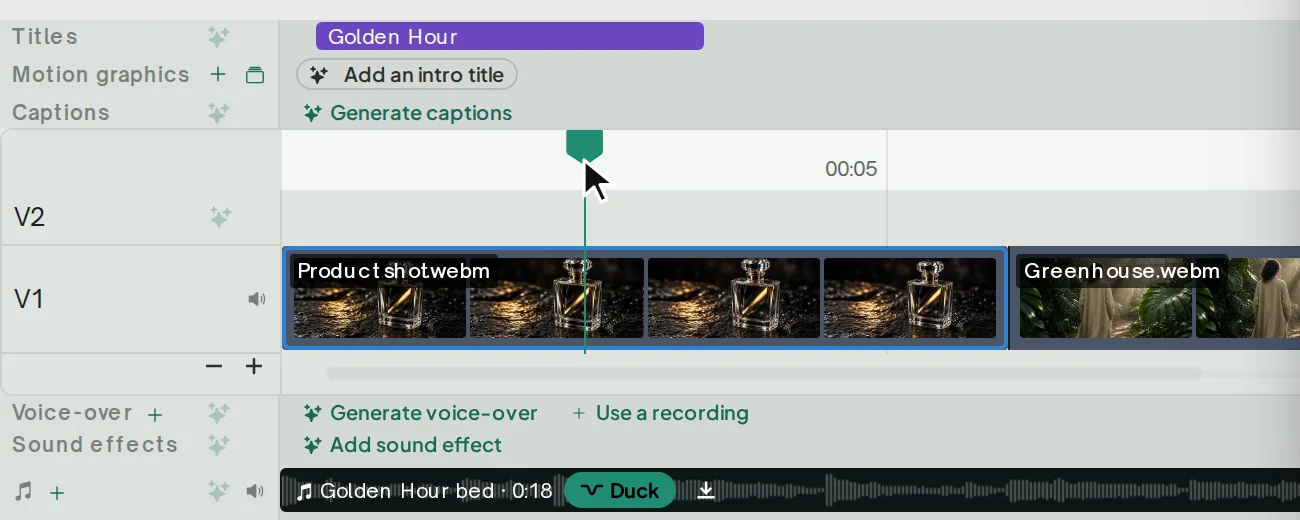
In the sidebar, right-click a source to mark it B-roll or interview. Select several files and mark them all at once, and undo if you change your mind. Eddie then uses each file the way you meant it.
Voice Polish for your MP4
Pick a voice preset for an edit and every MP4 render of it carries the polish. Clean evens the voice out so quiet lines and loud lines sit together. Broadcast does that and adds presence to the voice and softens the s's.

Ask Eddie for it, or choose it in the Export menu, where the price shows before you render.
Export an MP4 → · Audio cleanup →
For the edit suite: desktop 4.0.44 to 4.0.53
Ten desktop releases this week. The ones you will notice:
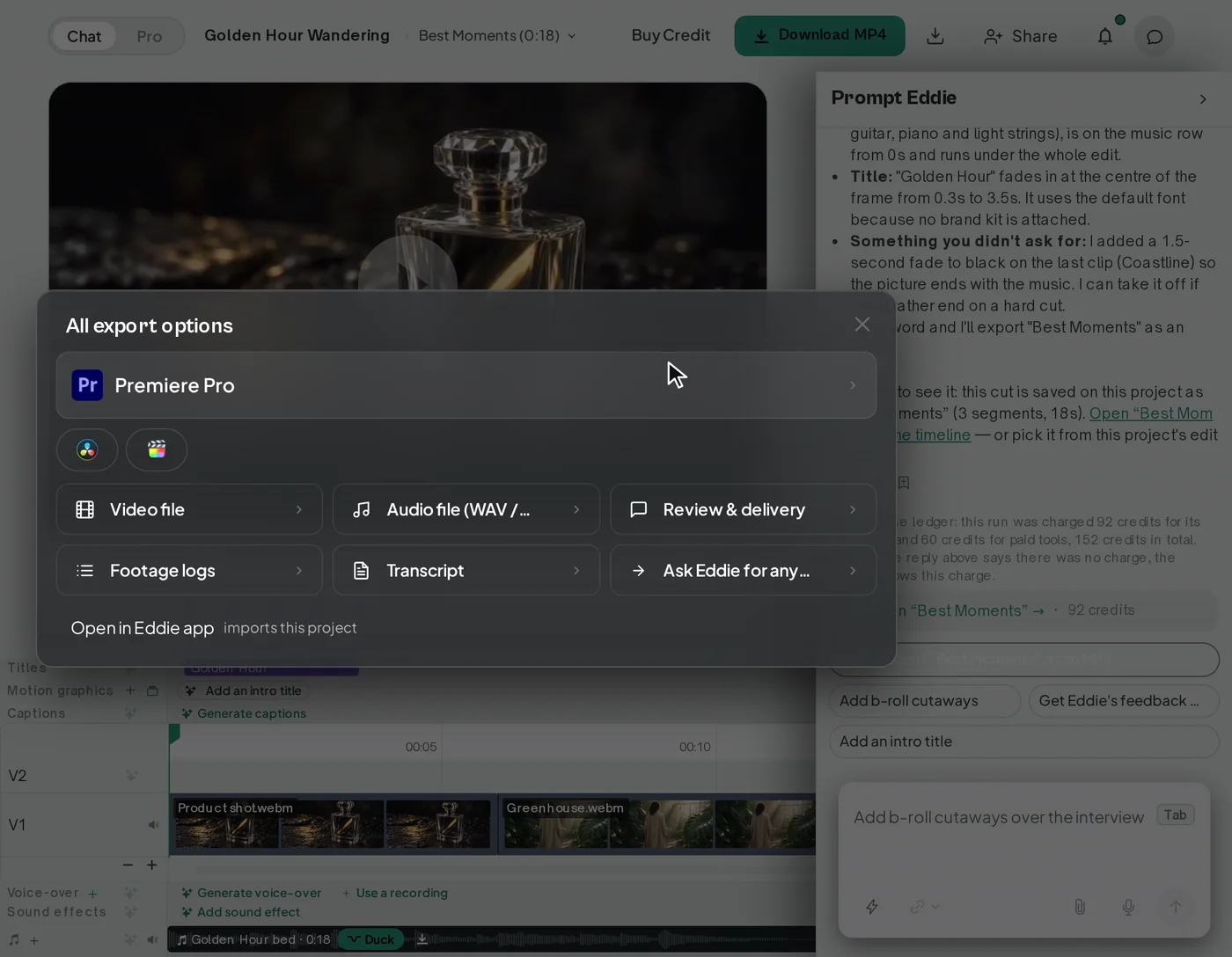
- The Export menu leads with your editor. One large Send button, and every other format a click away under More formats. Footage logs work the same way: pick the editor, then the format.
- Choose the folder your downloaded exports save to. (Thanks, Mark, for this recommendation!)
- Import and Projects are their own pages. Favourites, recent and shared projects sit together on Projects, and on a narrow window the sidebar folds into a slim rail of icons.
- Organise your projects into folders on Projects. (Again, thanks Mark!)
- Mark a source as B-roll or interview from the desktop sidebar too, several files at once, with undo.
Export to your editor → · NLE extensions →
Also landed
Render edits up to 90 minutes long. Cloud MP4 and WAV renders take an edit of up to an hour and a half. (Export an MP4 →)
Import from an iconik review share. Paste a public iconik review share or short link and Eddie imports the footage behind it. (Import footage →)
Put a title in a corner. Ask for a title in any corner of the frame. (Titles and graphics →)
The home screen speaks your language. The new-project screen, the greeting and the Plan panel follow your browser's language, in sixteen languages. (Languages →)
Missed last week?
Bring your own After Effects and Premiere graphics. Eddie builds its graphics in your design. (Adobe motion graphics templates →)
Thirteen tools, each one a single job. Drop a file on the page for the job and Eddie starts it. (The thirteen tools →)
Chat with Eddie from the dashboard. (What you can ask for →)
Tell Eddie what you want and it will do it. And reply to hey@heyeddie.ai to tell us what feature or improvement you would like.
— The Eddie AI team