First, thank you. People are putting real, paid, deadline-bound work through Eddie every day, and that is not a small thing to trust a young product with. The pace of what AI can do for an edit has been something to watch this year, and a good deal of it has landed in Eddie in the last few weeks.
So before the list, one question, and it is the one we actually want answered: what are one or two things we should improve about Eddie, or build into it, that would make your work easier? Not a survey. Write to hey@heyeddie.ai in a sentence. We read every one, and they decide what gets built.
Now, what is new.
Eddie shows you the plan first
Give Eddie a prompt that will do real work and it comes to you with the plan before it starts: what it is going to make, step by step, and which of those steps spend credits.
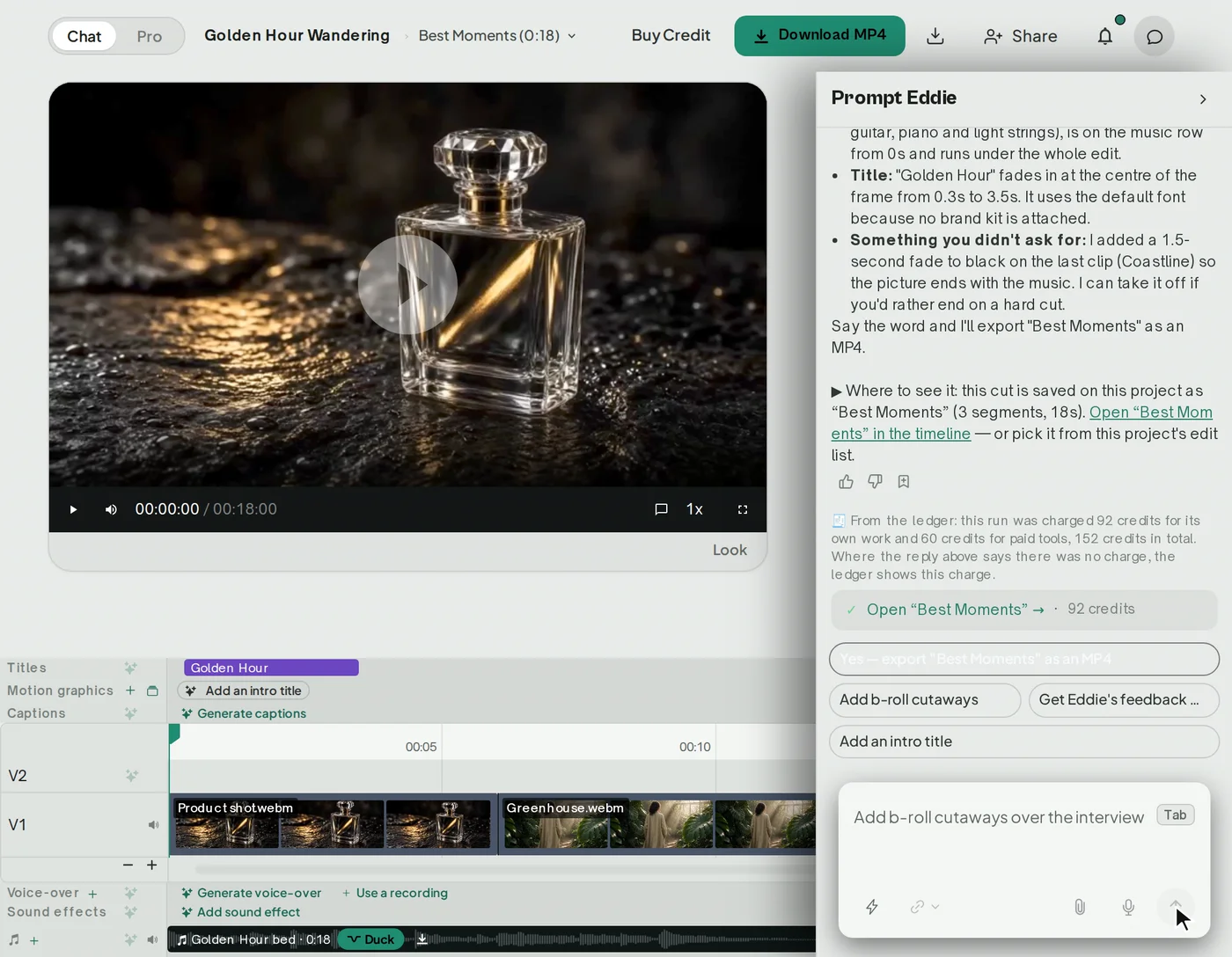
You approve it, change a step, or drop one. Nothing runs and nothing is charged until you say go. On the desktop app the same card sits under the prompt box with Go, Change and Cancel on it: Go sends the prompt through, Change puts it back in the composer for you to edit, Cancel drops it.
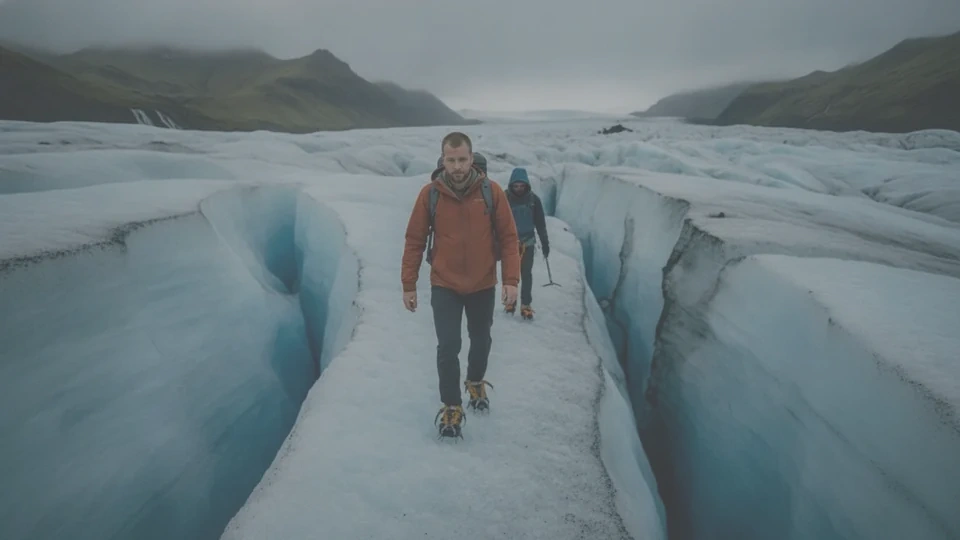
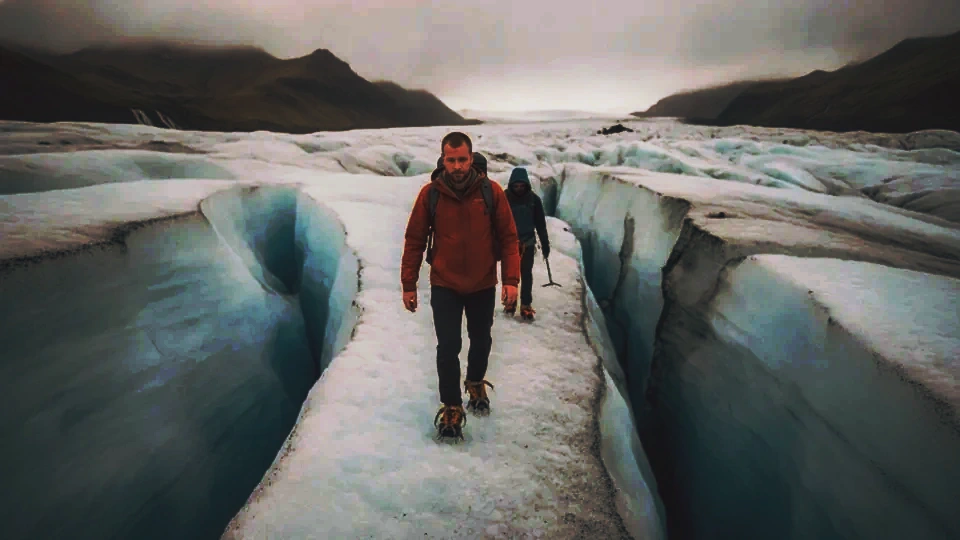
And where a step contains a real choice — a colour grade, a look — Eddie shows you the options as stills from your own footage before it commits. You pick the one you meant, by looking at it.
How to prompt Eddie → · How credits work →
Bring your own After Effects graphics
This is the one we are most pleased about.
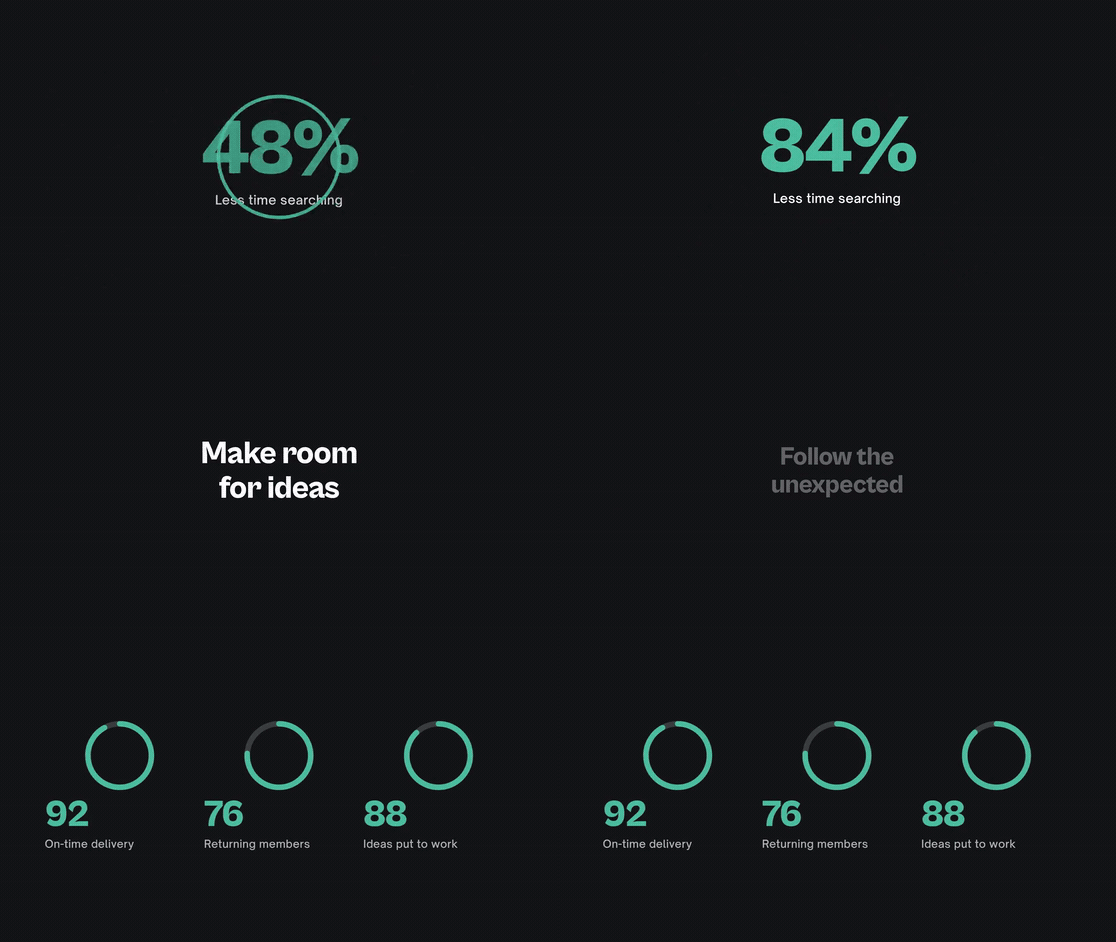
Import your own After Effects projects and Premiere motion graphics templates — the lower thirds, the titles, the stingers that your company or your client already uses — and Eddie builds its graphics in your design.
It reads the template, fills in the text, and renders it the way you designed it. Where a template calls for a font Eddie does not have, it asks you for it. Your brand kit's headline and body faces, its colours and its logo come through on every graphic, and the motion-graphic brief shows you all three before anything renders.
Adobe motion graphics templates → · Brand kits →
An editor that reads the room
The timeline now names itself after what you are actually cutting. A podcast gets a conversation's tracks. An interview gets an interview's. A property tour gets a tour's. And the lanes you are not using fold out of the way until something lands in them — a lane that holds anything always shows.
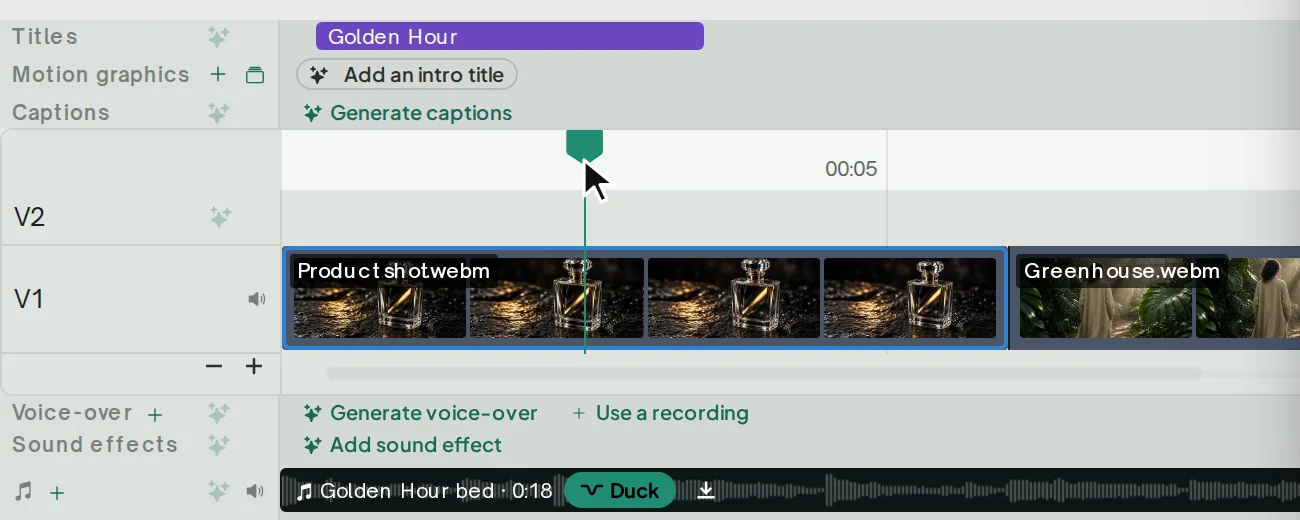
It is read off the footage in the edit you have open, so two edits in one project can each look like the job they actually are. Track ids, the tool vocabulary and your NLE export track names are untouched: this is what the editor calls things, not what it does to them.
Chat with Eddie from the dashboard
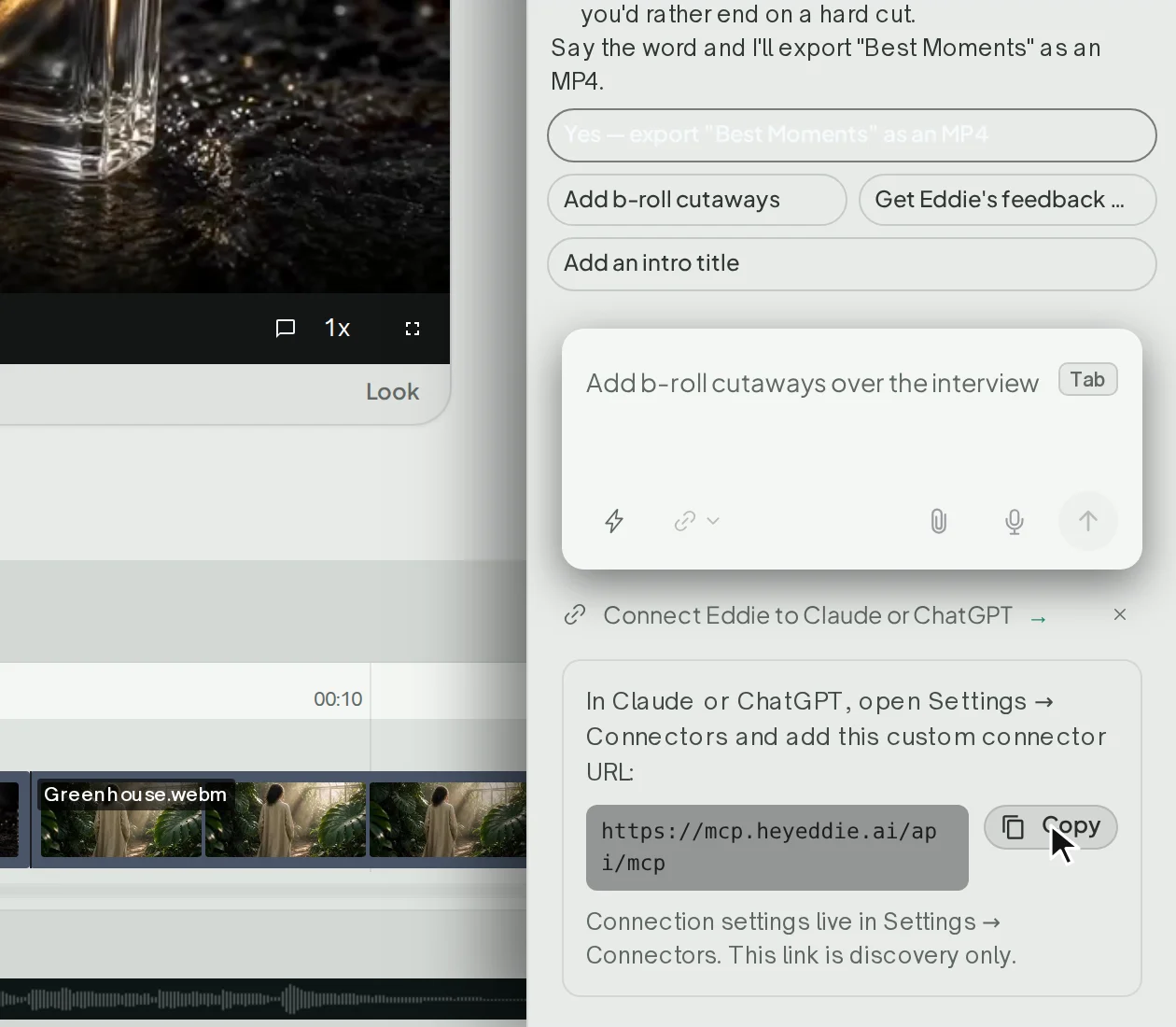
Eddie is on the dashboard now, before you open anything: a chat box right there. Ask what it can do, how you might approach a cut, what a recipe is likely to cost you, or just start describing the job you have.
Thirteen tools, each one a single job
A tool page is one job and nothing else. There are thirteen:
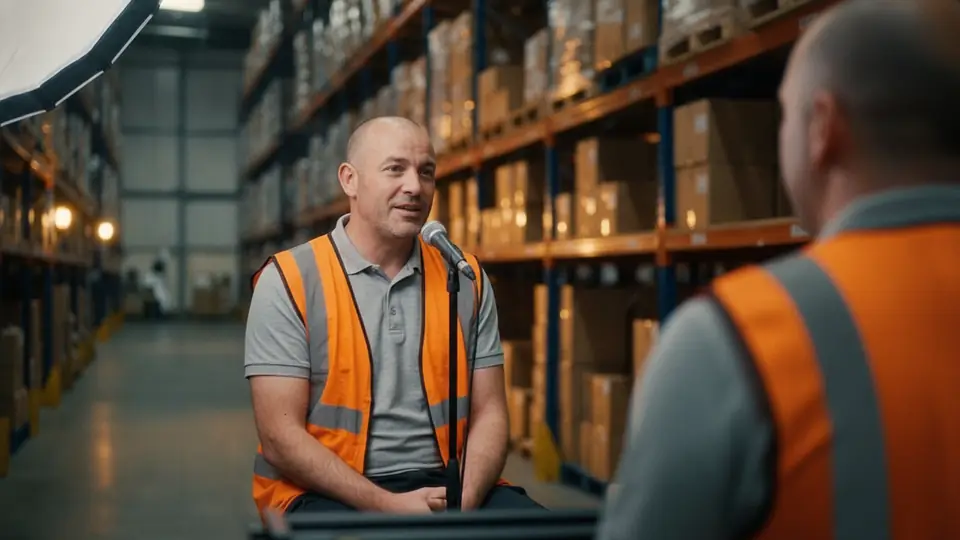
Take out silences. Take out filler words. Add animated captions. Translate subtitles. Dub into another language. Cut a podcast into clips. Edit by transcript. Add b-roll. Add background music. Resize to vertical. Clean up audio. Balance speaker volume. Match a reference image to a LUT.
Each one is a page of its own. Drop a file on it and Eddie imports the media and starts that job, with the brief already composed from the page you chose and the handful of options on it. There is no project to set up first and no prompt to write.
The handoff is built to hold. Your file and the options you picked stay with you through signing in, so the job that runs is the job you asked for, not a blank project you have to start over. And where a file cannot be taken, the page says what would work.
If you have been meaning to try Eddie and have not had a spare half hour, this is the shortest way in: one page, one file.
The thirteen tools → · What you can ask for →
Eddie's own panel, inside DaVinci Resolve Studio
If you cut in DaVinci Resolve Studio, Eddie now has a panel that lives inside it. Open it at Workspace → Workflow Integrations → Eddie AI AE and keep it beside your timeline.
From the panel you can browse your Resolve bins, bring footage, timelines and multicam clips into Eddie, and send an edit back to Resolve as a new timeline. The companion script stays available, but the panel does this work without it.
Install it from Eddie's Help → Install Resolve Studio Panel…, with Resolve closed. From then on the desktop app keeps the panel up to date on launch, while Resolve is shut.
Two honest boundaries. This panel is for Resolve Studio, installed from Blackmagic Design's own installer. Signing in and editing inside the panel are separate pieces of work, not part of this release — the panel browses, imports and sends.
And the Mac App Store editions are covered too, by a different route: see below.
Install the NLE extensions → · The desktop app →
Your source clips in Final Cut, carrying your labels
Eddie can hand over something that is not the cut.
Ask for your source clips and you get a Final Cut Pro browser event — not a timeline — holding the project's footage, relinked to your camera originals. Every label you set in Eddie travels with it: the clip names, the notes, the keywords, the Favorite ranges and the Rejects.
You choose whether it carries all the clips or only the ones you labelled, and whether it writes FCPXML 1.13 or 1.14. It sits in the Export menu under Footage logs, in a "Source clips" group, and you can simply ask for it in chat. The price is shown before anything starts.
This is for the part of the job that happens before the edit: you log and sift the footage in Eddie, where the transcript is, and then open Final Cut with the selects already marked on the camera originals.
In the same area: a technical correction you made in Eddie — a start timecode, a frame rate, a frame size — now travels into your A-roll and B-roll footage logs as well. The clips in those files relink to the camera originals carrying your correction, the same way the edit's NLE exports already do.
Ratings, keywords and footage logs → · Footage log downloads →
A sound row under every clip
In the Eddie desktop app, each clip's audio now has a row of its own under the picture, drawn as a real waveform.
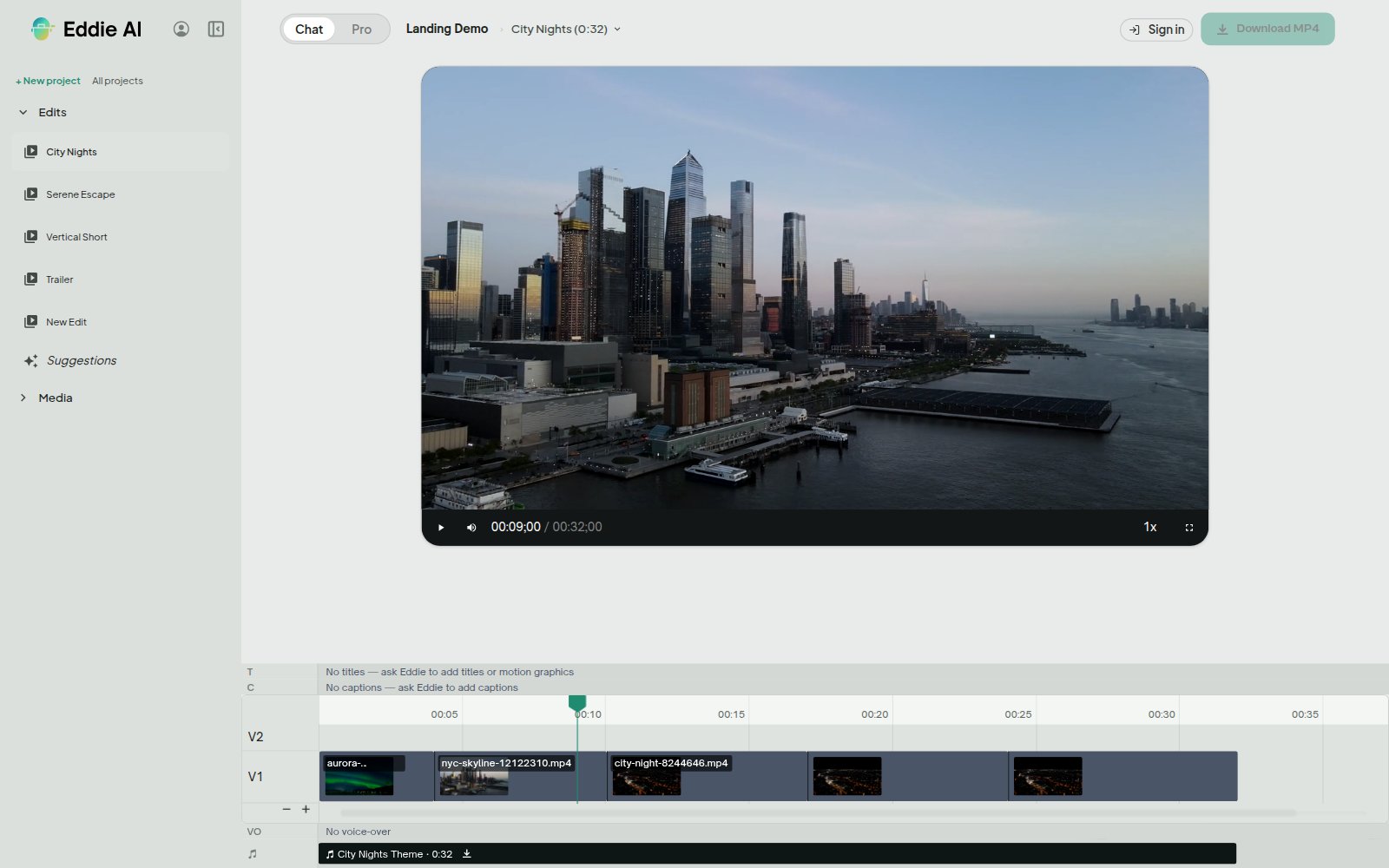
Work on the sound where you can see it: trim it, split it, set its volume, mute it, drop a clip's audio out of the edit, or put a removed pause back. The waveform is measured once on the server from the source peaks, so the row draws straight away however long the footage runs — nothing decodes a whole file in your browser to show you a shape.
This is in the desktop app first, by a deliberate decision this week.
The editor explained → · The desktop app →
Insights: the hours behind the work
There is a new Insights row in the workspace menu.
Your own page shows the hours Eddie saved you, the projects you have run, the edits you have exported, your streak, and a monthly card you can share if you want to.
On a team workspace it adds the team's totals, the credits the workspace has left and how long they are likely to last at the current pace, and each member's hours saved and edits made.
One thing it deliberately does not do: nothing on the page ranks one editor against another, and nothing benchmarks your team against anybody else's. It is a record of what the work took, for the people who did it.
A personal workspace sees the page with the numbers blurred, and the way to make a team workspace.
Open Insights → · Workspace credits →
For the edit suite
Six desktop releases this week, 4.0.38 through 4.0.43.
DaVinci Resolve from the Mac App Store connects to Eddie. Both the free and the Studio edition, through the companion script at Workspace → Scripts → Eddie AI AE. Eddie installs the script into each sandbox container that exists and runs its bridge in the container belonging to the build that started it.
An interview cut that mixes multicam picks with plain clips rebuilds as real multicam in Premiere. An edit whose A-roll is Premiere multicam picks, with ordinary clips cut in between or sitting on the b-roll track, is assembled against your own multicam clips in the open project. Let the Premiere panel take its update and restart Premiere, and the picks come back as switchable multicam clips pointed at your masters.
Clips with no audio import like any other footage. Silent b-roll, a locked-off camera with no mic, a silent multicam angle synced by timecode: all of them import in an ordinary project.
The desktop prompt box shows the plan before a paid run. With Auto off, a prompt that will spend credits is answered with a plan card — what Eddie will make, and the steps that cost — with Go, Change and Cancel under it. Go sends the same prompt through; Change puts it back in the composer for you to edit; Cancel drops it. Nothing starts and nothing is charged until you press Go.
Your recent projects are on the Import screen. The empty import screen shows the workspace's recent projects, each with a footage thumbnail and when you last opened it. Click one to open it, or star it to pin it to the front.
A Try again button on the Resolve connect step, for when you open Resolve and run the script part-way through an import. It asks Resolve for the media pool again and the import carries on.
The desktop app → · Working with multicam →
Also landed
Your brand's fonts on every text surface. Name a headline face and a body face in your Brand kit — importing a Google font straight into the kit — and titles, captions, template graphics and motion graphics all draw with those faces. The motion-graphic brief shows the kit's fonts, colours and logo, so what you asked for and what you get are the same thing. (Brand kits →)
Thirty motion-graphic templates you can reuse. Fill one in by named slot, place at the playhead, and share or copy between workspaces. A shared template's preview shows sample values, so you can see what it does before you take it. (Motion graphics →)
A whole silence pass as one step. A long multi-source edit takes its silences out in a single request: up to a hundred mid-clip cuts written together, with one undo for the lot. Razor cuts are free. A batch of sound effects is one quote and one confirmation, and the same sound used twice is charged once. (Filler and silences →)
File an upload under a different project yourself. A batch of files you have already uploaded can be moved to another of your own projects: a dry run first, then the move, with the exact undo handed straight back to you. No re-upload and no second copy of the media. (Add media to a project →)
A six-second fade. A fade to black, a dissolve or a cutaway or title fade can run up to six seconds, still at most half of every clip it touches. This is an opacity ramp in the video Eddie renders for you; a Premiere, Resolve, Final Cut or OTIO export does not carry it, and the export notes say so. (Transitions →)
A long transcript export comes in parts. A project-wide transcript export tells you the point to pick up from, so the transcript of a very large project arrives in full. (Transcripts and speakers →)
A document Eddie typeset reads back as its own source, so a PDF or DOCX is filled in place, with its rows sorted and de-duplicated.
Come and see Eddie at NAB Show New York
Eddie is at Booth 656 in the Javits Center for NAB Show New York, Wednesday and Thursday, October 21 and 22. Bring your own interview footage, give Eddie a prompt in chat, and watch a rough cut build — then take the round trip into Premiere or Resolve with us standing there. Demos run through both days.
On the Tuesday evening before the floor opens we are co-hosting an editors' party with Reddit's r/editors, near the Javits Center. No stage, no demo, no presentation — just drinks and the room. It is a small room, and the announcement has the details.
Read the announcement and book a demo →
Missed last week?
Twenty recipes, ready to run. A gallery of twenty editing jobs written for the work people bring Eddie most, each with a page telling you what it makes and what footage it needs. A recipe you save yourself travels as a link. (Use a recipe →)
Add footage without leaving the project. Bring more media in from inside the project, then drag a file from the sidebar onto the timeline where you want it. (Import footage →)
Three more languages, and four regional variants. Sinhala, Tagalog and Swedish, plus Latin American Spanish, Canadian French, Swiss German and European Portuguese — with a Transcription language line on the import screen and on your account. (Languages →)
Import from Shade. Shade joins Dropbox, LucidLink and iconik in the import list. (Import from Shade →)
As always, just tell Eddie what you want and it will do it.
— The Eddie AI team