Send a client a link. They open it on their phone. They watch the cut.
That sounds like it should always have been the easy part, and this week it is: an edit opened on a phone plays as the finished video, with the voice-over, the music, the sound effects and the graphics all where you put them. After that: a gallery of twenty ready-made recipes you can point at your own footage, footage you can add without leaving the project, the transcription language of an import in your hands, seven more languages, and Shade in the import list.
The finished cut, on a phone
A phone can compose a good deal of an edit by itself — the cuts, the crops, the b-roll cutaways, a music bed, titles and captions. What it cannot do on its own is everything else: the voice-over, the dubbing, the sound effects, the per-clip audio levels you set, the speed ramps, the grades, the transitions, the motion graphics.
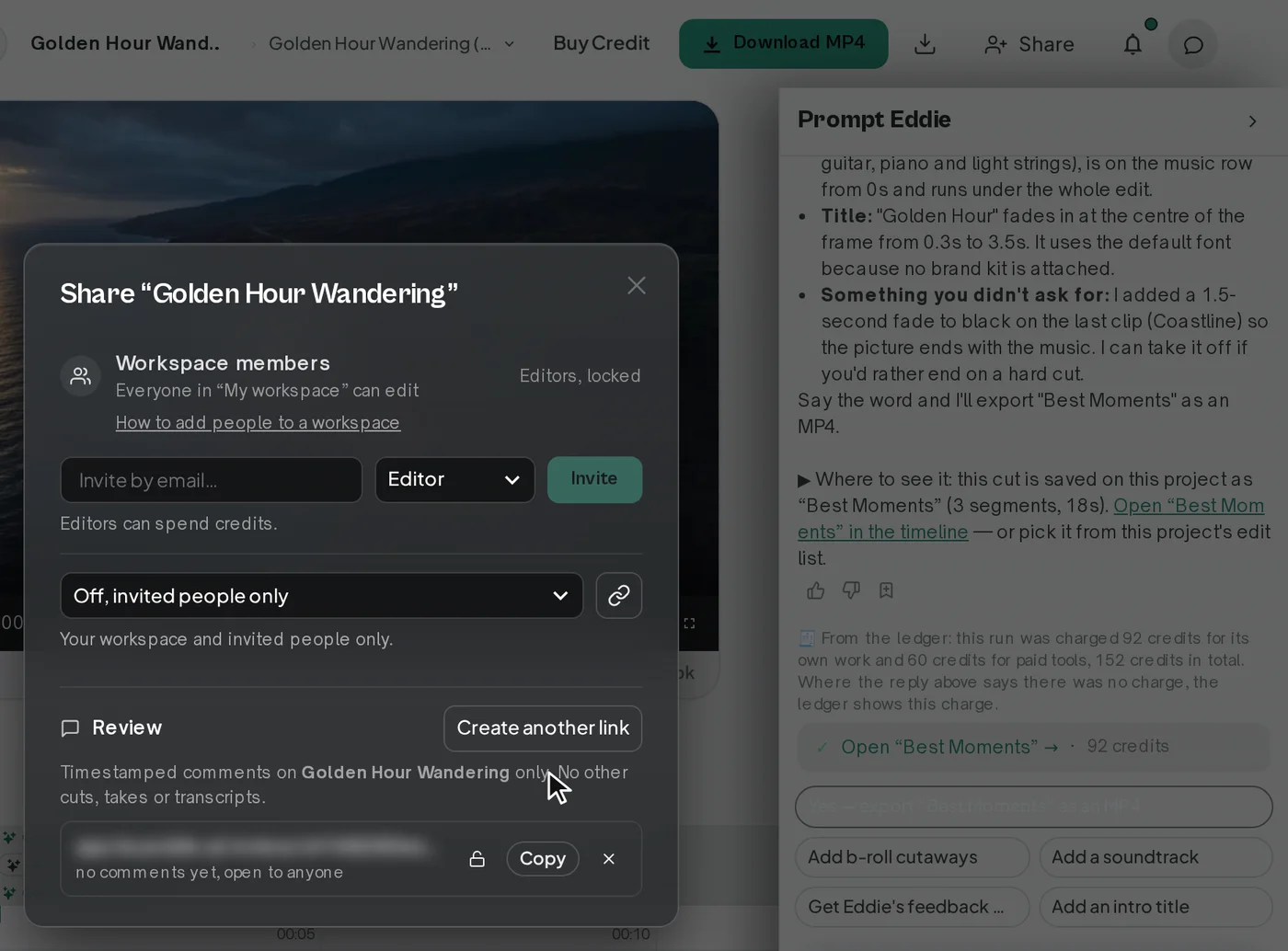
So now, when an edit uses any of those, the phone asks Eddie for the full render of that edit and plays that file. The result is the cut as you made it, on the device your client actually has in their hand.
It works in three places:
- the Eddie app on an iPhone, opening any edit in a project;
- a review link opened in iPhone or iPad Safari, which is the one that matters when you are sending work out for approval;
- a cut you ask Eddie for by text, in the SMS and iMessage product.
A review link also draws the cut's titles and lower thirds on the page itself, so the person reviewing sees the lower third that names the speaker, not a gap where it will go.
What it costs
Nothing, and that is built into how it works, not a promise we are making. These renders run on their own internal lane: they are not MP4 exports, so they reserve no credits, they do not touch your workspace's free export allowance, they fire no "your MP4 is ready" notification, and they stay out of the share's download list. One render per cut at a time, and an unchanged cut re-uses the file it already has. There is a generous daily ceiling per workspace, and past it each surface simply falls back to playing live.
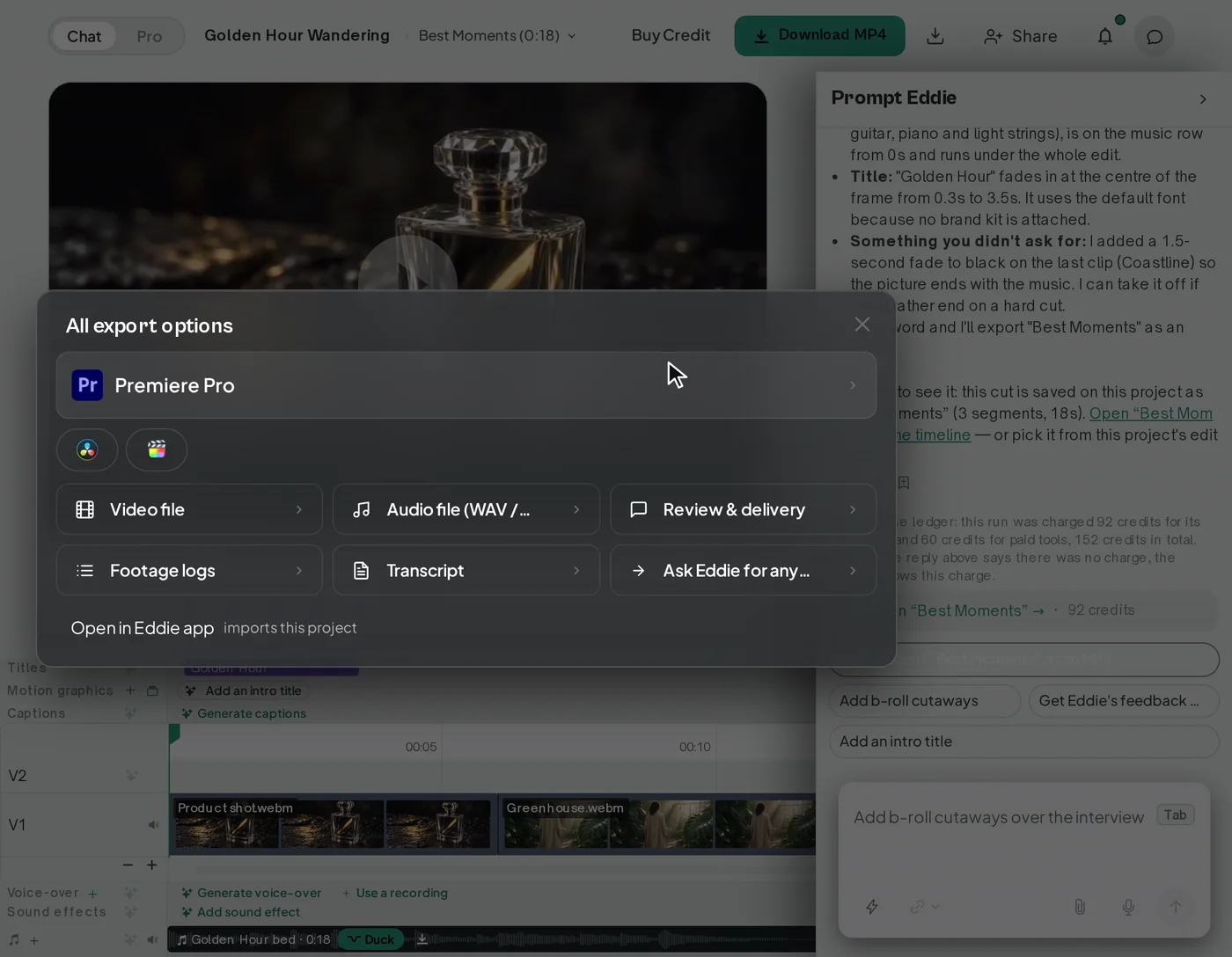
A file you rendered yourself from the export menu counts too. It is the same picture.
Eddie for iPhone 1.0.7
The iPhone app went to 1.0.7 on the App Store this week, and it is the other half of the same story. An edit plays as the finished video, with dubbing, speed ramps, transitions and grades appearing exactly as you asked for them. Redactions play burned into the picture, as they should.
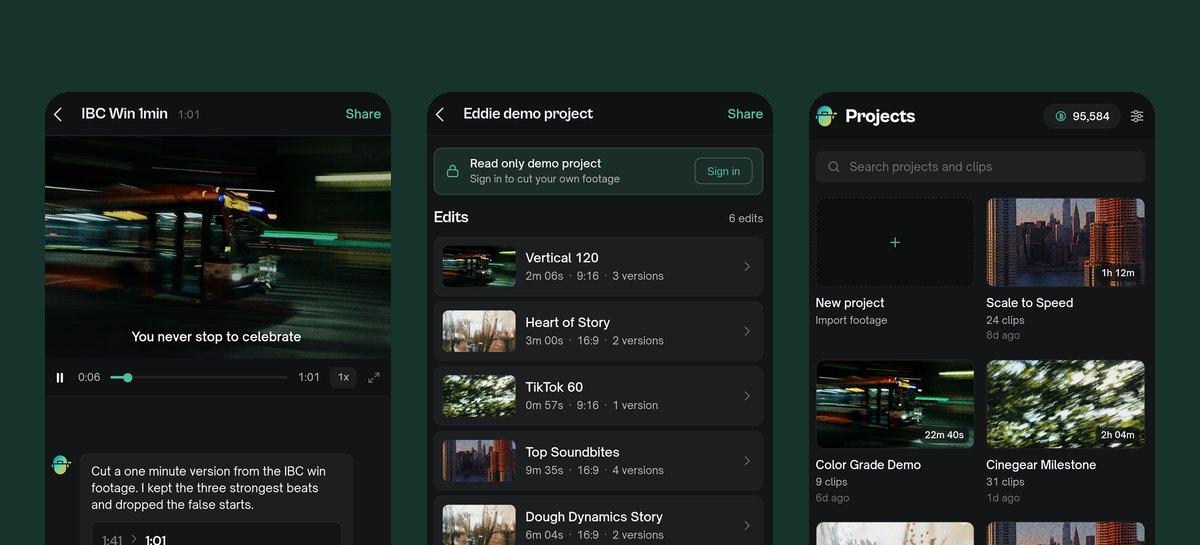
While a video prepares you get a progress count, or a quick preview to watch straight away. And each edit in a project carries its own thumbnail, at its own shape — so a vertical cut and a widescreen cut of the same material are told apart at a glance.
Eddie on the App Store → · Eddie for iPhone →
Twenty recipes, ready to run
A recipe is an editing job you keep: the prompt that does the work, the questions it asks you before it starts, and the Style it comes out wearing. Save one and the job you do every week becomes one instruction.
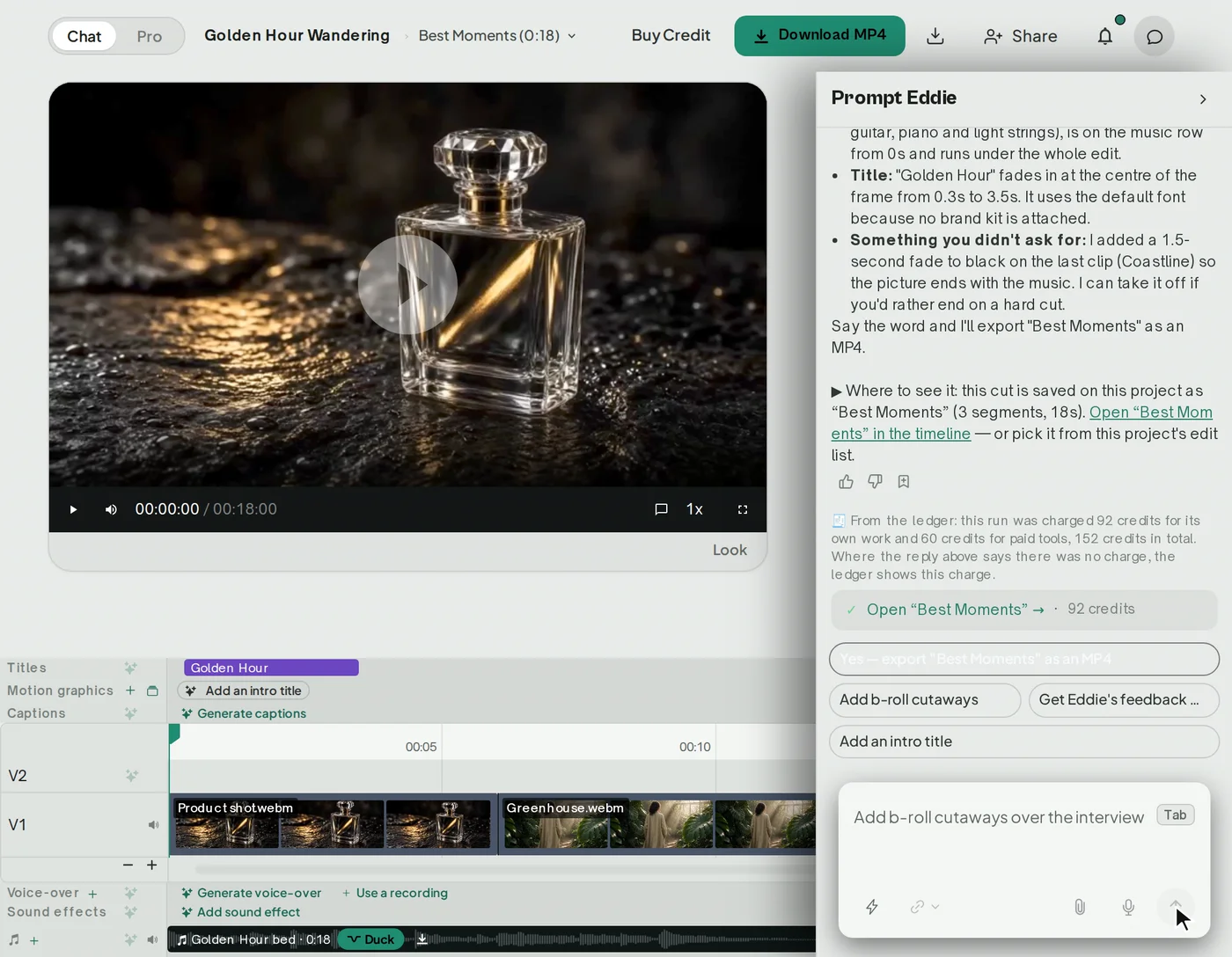
This week there is a gallery of twenty of them, written from scratch for the jobs people bring Eddie most often:
Podcast vertical clips. A full podcast episode. Interview highlights. A podcast trailer. A wedding highlight film. A property tour. A conference recap, and an event recap. A customer testimonial. A product demo. A launch teaser. A founder story. A mini-doc profile. An oral history. A training module. A webinar highlights reel. A talking-head reel. A creator vlog. A YouTube explainer. A documentary assembly.
Each one has a page of its own. You can read what it makes, what footage it needs, the steps it will run and the Style it uses, and what it is likely to cost in credits, before you commit to anything. Then take a copy into your own workspace and point it at your files.
And a recipe you saved yourself travels as a link. Send it to a collaborator and they get a preview of what it does, and can copy it into a workspace of their own. A recipe can also pin a Style, chosen from a visual preview, so every run of it comes out in the same treatment.
Browse the twenty recipes → · Use a recipe from the gallery → · Make and share a recipe →
Add footage without leaving the project
More footage turns up halfway through a cut. The second card. The file somebody forgot. The b-roll that was still rendering when you started.
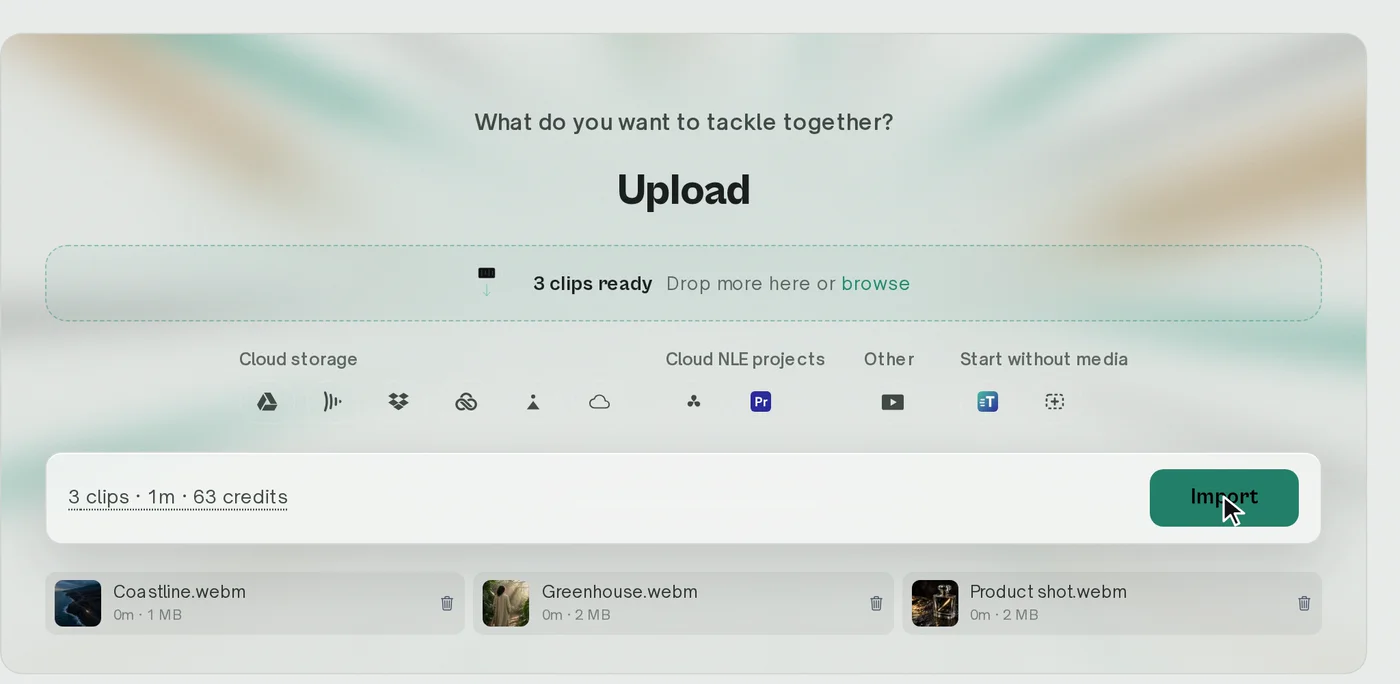
Add it from inside the project — no trip back to the import screen and no new project to reconcile afterwards. Then drag a file from the sidebar straight onto the timeline, at the point you want it. Hover a sidebar thumbnail first to scrub it, so you know which of four similar-looking clips you are reaching for.
Two smaller things in the same area. You can now open a blank project and bring the media to it later, which is the right shape for a job where the footage arrives over a week, not all at once. It is open to every member of a workspace. And if a web upload is interrupted, re-pick the same files and it carries on from where it stopped.
Import footage → · The editor explained →
Tell Eddie what language the footage is in
Auto-detection is right most of the time, and when it is wrong it is wrong in a way that costs you the whole transcript.
There is a Transcription language line on the import screen now: one quiet row that reads "Transcription language: Auto-detect", where the value itself is the control. Name the language yourself and that import uses it. Set it once on your account and every import starts there. And you can set it on a project after the import — the transcripts you already have stay exactly where they are.
Seven more languages went in this week: Sinhala, Tagalog, Latin American Spanish, Canadian French, Swiss German, European Portuguese and Swedish.
Separately, and just as useful if you work outside the Latin alphabet: captions, burned-in titles and graphic text are now shaped correctly in twenty more writing systems, Bengali, Tamil, Arabic, Devanagari and Thai among them, in the MP4 Eddie renders for you.
Languages → · Transcripts and speakers → · Captions and subtitles →
Import from Shade
Shade joins Dropbox, LucidLink and iconik in the import list. Connect a Shade workspace once and pick clips from it into a new project. A published Shade link you text to Eddie pulls that footage in too.
Import from Shade → · Eddie and Shade →
For the edit suite
Eight desktop releases, 4.0.29 through 4.0.37. Nested timelines go to DaVinci Resolve as nested timelines. A Resolve send carries multicam and regular clips together in one pass. Resolve project and FCPXML exports work across ordinary media, and a Premiere export recognises media that lives in a shared project. A Premiere footage log is built on your multicam clips, and Send to Premiere picks up media you added after the import. Final Cut multicam imports run on proxies, and a Premiere import brings slow-motion and reversed clips in retimed as you cut them. HDR and Dolby Vision MP4 exports hold steadier, and an add-media import picks up where it left off after a restart. (The desktop app →)
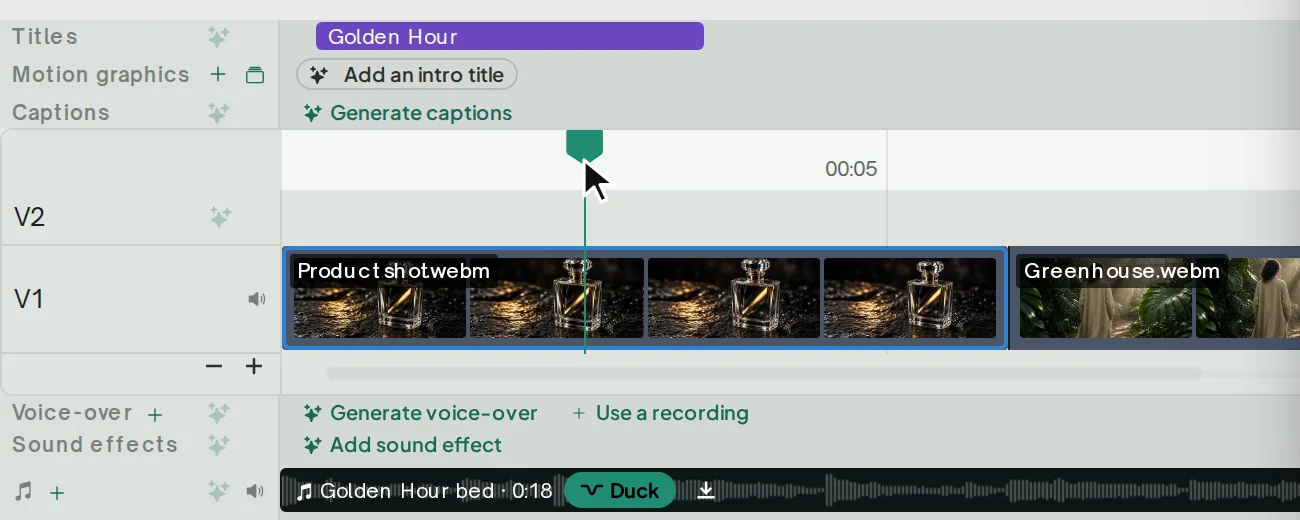
A Premiere export that rebuilds your multicam picks. An edit carrying several multicam picks goes out to .prproj with each pick rebuilt from its own angle files and its own sync — one switchable multicam clip per pick, pointed at your masters. Where a pick has no layout to rebuild from, the export says so plainly and names what to send. (Project file downloads →)
Selects that arrive in Final Cut already marked. Ask for an FCPXML export with favourite ranges and every in and out on the exported timeline is written as a Favorite range on that source's browser clip. Open the library and the moments are marked where they happen — on transcribed footage, and on footage with no words in it at all. (Export to your NLE →)
A multicam cut, angle by angle, on the frame. Each angle sits on its nearest frame in Premiere XML and DaVinci XML, and every lane of the cut is read on the clock of the camera actually on screen. NTSC timecode is read back on the clock it was written on. A field recorder stays inside its own WAV and in sync through FCPXML. (Working with multicam →)
Also landed
The transcript as a file, free. Ask Eddie for a project's transcript and it writes you one at no credit cost. (Transcripts and speakers →)
A spending cap you set in words. Say "stop at 2,000 credits" and a run halts before the step that would cross it, then tells you what it spent, what the cap was and what is still unfinished. The queued-prompts list can be cleared in one action. (How to prompt Eddie →)
Receipts and invoices for every credit purchase, one click from your credit history.
A razor cut at a timestamp, and a cut you can put back: split a segment where you say, or restore a span you trimmed out, without rebuilding the edit. (The editor explained →)
Caption controls in plain words. Ask for captions with no boxes behind them, in lower case, cleaned of filler, or held back while a title is on screen. A solid-colour break card dropped between two sections costs nothing. (Captions and subtitles →)
Crop a named span inside one clip, so a reframe lasts exactly as long as the moment does. (Crop and reframe →)
Attach a document from the prompt box. Drop a .pdf, .docx, .rtf, .xlsx or .csv into the composer and it goes to the project's Backgrounder. Nothing runs by itself.
Come and see Eddie at NAB Show New York
Eddie will be at Booth 656 in the Javits Center, October 21–22. Bring your own interview footage, give Eddie a prompt in chat, and watch a rough cut build — then take the round trip into Premiere or Resolve with us standing there. Demos run through both days.
Read the announcement and book a demo →
Missed last week?
Six creative tools on every account. Whip, flash and glitch cuts, handheld shake, grain, haze and split tone, blend modes and named style packs. (Transitions →)
Find the shot you remember. Describe a moment and Eddie goes through the real video and the sound, and hands back timestamps. (What you can ask for →)
Take the noise off a voice. Wind, hum or a music bed lifted from under the dialogue, with the original recording untouched. (Audio cleanup →)
The mix on its own, as a WAV or an MP3. The finished edit's whole soundtrack as one file, with no picture attached. (Audio-only projects →)
As always, just tell Eddie what you want and it will do it.
— The Eddie AI team