


DaVinci Resolve · Import, export and hand-off
How to import and export OTIO in DaVinci Resolve
The short answer
To export, select the timeline and choose File > Export > Timeline, then pick OpenTimelineIO as the file type. To import, choose File > Import > Timeline (Shift+Cmd+I or Shift+Ctrl+I) and select the .otio file. OTIO support arrived around DaVinci Resolve 18.5.

5 steps
In DaVinci Resolve
01
Select the timeline
Click the timeline in the Media Pool so it is the active timeline.
02
Export OTIO
Choose File > Export > Timeline, set the file type to OpenTimelineIO (.otio), name it and click Save.
03
Import OTIO
Choose File > Import > Timeline and select the .otio. Bring the media into the Media Pool first, or keep the option to import source clips on.
04
Relink
If clips come in offline, click the red Relink Media button above the Media Pool and point it at the media folder.
05
Check what came across
OTIO carries cuts, tracks, timing and markers well. Effects and grades are app-specific and don't travel.
Good to know
Before you start
- Note 1
- OTIO is an open format from the Academy Software Foundation. Apps implement it differently, so test a short timeline before you move a long one.
Eddie AI
Do it in Eddie
Eddie's Resolve OTIO export is the route that keeps review comments.
Resolve doesn't import markers from an FCPXML, and Eddie's .drp holds none. The Resolve OTIO export keeps each comment as a timeline marker. It is a separate export and costs 100 credits. Captions don't travel in OTIO; use the SRT or VTT download for those.
Back to Resolve
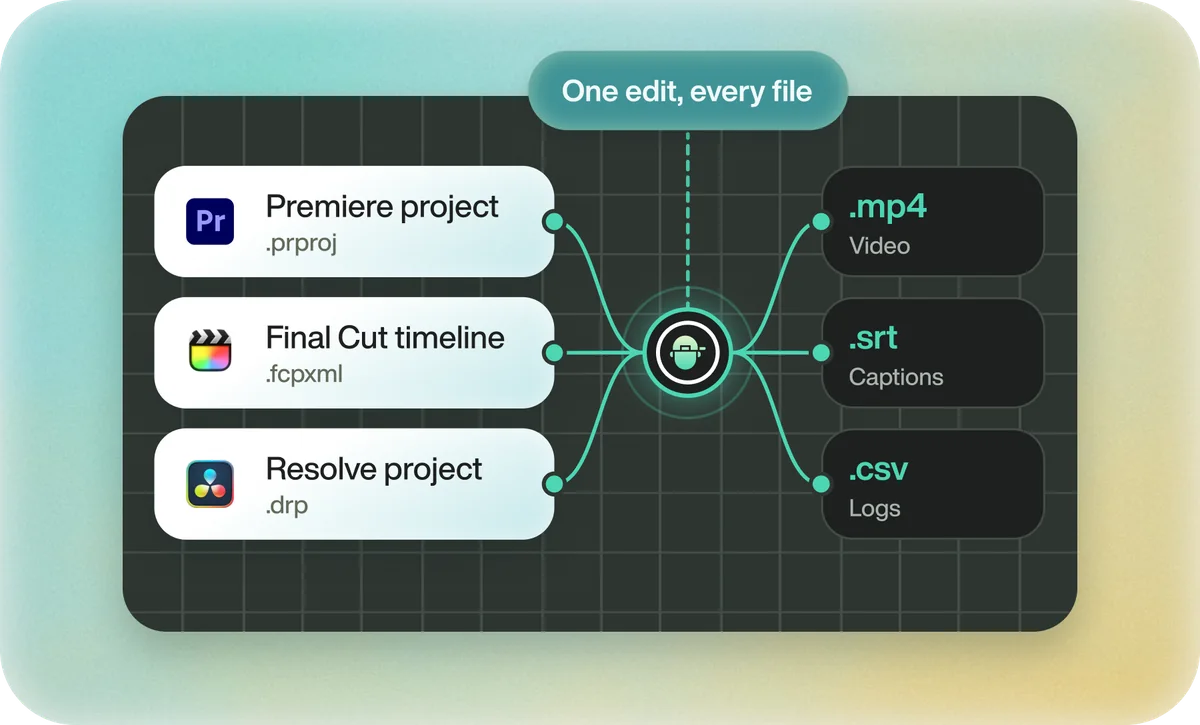
Open the edit, click Export and choose Resolve. The default is a Resolve project (.drp) that opens with the timeline built; behind the arrow is a Resolve FCPXML you bring into the project you have open with File > Import > Timeline. In the desktop app, Send to DaVinci Resolve builds the timeline in the Resolve you have running, through Eddie's script (Workspace > Scripts > Eddie AI AE).
If you imported the footage through the desktop app, the timeline points at your original camera files. If you uploaded on the web or pulled from cloud storage, it points at Eddie's proxy media: relink to those in the Media Pool with Relink Selected Clips, not to the camera originals.
FAQ
Questions
- What is an OTIO file?
- OpenTimelineIO is an open file format that describes an edit: tracks, clips, timing and markers. Several editors and pipeline tools read and write it.
- Does the free version of Resolve support OTIO?
- Yes. Import and export of OTIO timelines work in the free version.
