


DaVinci Resolve · Import, export and hand-off
How to move a CapCut project into DaVinci Resolve
The short answer
DaVinci Resolve can't open a CapCut project or draft. Export the finished video from CapCut and import it into the Media Pool, or rebuild the edit in Resolve from the original clips; Scene Cut Detection can split a rendered video back into its shots.
6 steps
In DaVinci Resolve
- 01Decide what you need
- 02Export from CapCut
- 03Bring captions over
- 04Import into Resolve
- 05Split it into shots
- 06Or rebuild
01
Decide what you need
If the edit is done and you only need to grade or finish it, move a render. If you need to change the cut, rebuild it from the original clips.
02
Export from CapCut
In CapCut, export the video at the project's full resolution and frame rate, at the highest quality setting.
03
Bring captions over
If your CapCut version can export captions as an SRT file, export them and import the SRT into Resolve's Media Pool, then drag it to the timeline as a subtitle track.
04
Import into Resolve
In Resolve, add the render to the Media Pool and edit it into a timeline.
05
Split it into shots
On the Media page, right-click the file and choose Scene Cut Detection to split it at each cut, so you can grade shot by shot.
06
Or rebuild
Import the original clips into Resolve and recut using the CapCut render as a reference on a track above.
Good to know
Before you start
- Note 1
- CapCut effects, stickers and text animations exist only in CapCut. They come across only as part of a render.
Eddie AI
Do it in Eddie
Eddie can't open CapCut drafts either. It works from video, audio and image files.
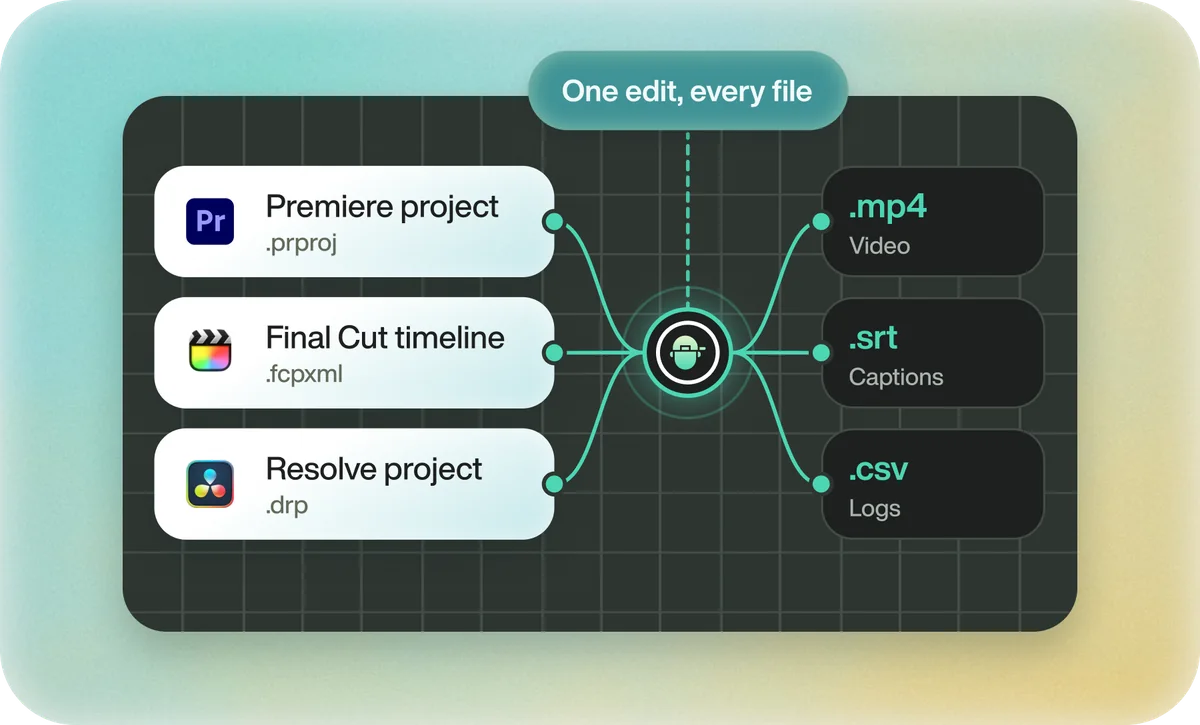
If you'd rather finish in Resolve, import the original clips into Eddie, ask for the cut in plain words, and export it as a Resolve project with the cut, b-roll and captions on their own tracks. Captions arrive on a subtitle track in the .drp.
Back to Resolve
Open the edit, click Export and choose Resolve. The default is a Resolve project (.drp) that opens with the timeline built; behind the arrow is a Resolve FCPXML you bring into the project you have open with File > Import > Timeline. In the desktop app, Send to DaVinci Resolve builds the timeline in the Resolve you have running, through Eddie's script (Workspace > Scripts > Eddie AI AE).
If you imported the footage through the desktop app, the timeline points at your original camera files. If you uploaded on the web or pulled from cloud storage, it points at Eddie's proxy media: relink to those in the Media Pool with Relink Selected Clips, not to the camera originals.
FAQ
Questions
- Can DaVinci Resolve open CapCut projects?
- No. CapCut drafts only open in CapCut. Move the work as a rendered video or rebuild it from the original clips.
- Can I keep CapCut captions in Resolve?
- Only as text or as a render. Export them as SRT if your CapCut version allows it, or burn them into the video.
