


DaVinci Resolve · Projects and workflow
What's the difference between DaVinci Resolve and Studio
The short answer
The free DaVinci Resolve edits, colors, mixes and renders up to Ultra HD (3840 x 2160) at up to 60 fps. DaVinci Resolve Studio adds higher resolutions and frame rates, the DaVinci Neural Engine AI tools such as Magic Mask, Smart Reframe, Voice Isolation, Speed Warp and transcription, noise reduction, extra ResolveFX and Workflow Integrations.
5 steps
In DaVinci Resolve
- 01Check your delivery size
- 02List the AI tools you need
- 03Check noise reduction and effects
- 04Check integrations
- 05Try before you buy
01
Check your delivery size
If you deliver above Ultra HD, such as DCI 4K (4096 x 2160), or above 60 fps, you need Studio.
02
List the AI tools you need
Magic Mask, Smart Reframe, Voice Isolation, Speed Warp, audio transcription, IntelliSearch, Multicam SmartSwitch and AI Audio Assistant are Studio features.
03
Check noise reduction and effects
Temporal and spatial noise reduction, and a share of the ResolveFX effects, need Studio. Studio-only effects show a watermark in the free version.
04
Check integrations
Workflow Integration panels (Workspace > Workflow Integrations) need Studio. Scripts under Workspace > Scripts run in both.
05
Try before you buy
Edit in the free version. Projects open in Studio unchanged if you upgrade later.
Good to know
Before you start
- Note 1
- Studio is a one-time purchase, not a subscription. Check Blackmagic Design's site for the current price and feature list.
- Note 2
- Feature lists change between versions. Check the release notes for the version you install.
Eddie AI
Do it in Eddie
Eddie's Resolve script works in both the free DaVinci Resolve and Studio.
Send to DaVinci Resolve runs through the Eddie AI AE script under Workspace > Scripts, so it works in free Resolve, Studio and both Mac App Store builds (with Eddie desktop 4.0.42 or later). In Studio, Eddie can also install a panel under Workspace > Workflow Integrations.
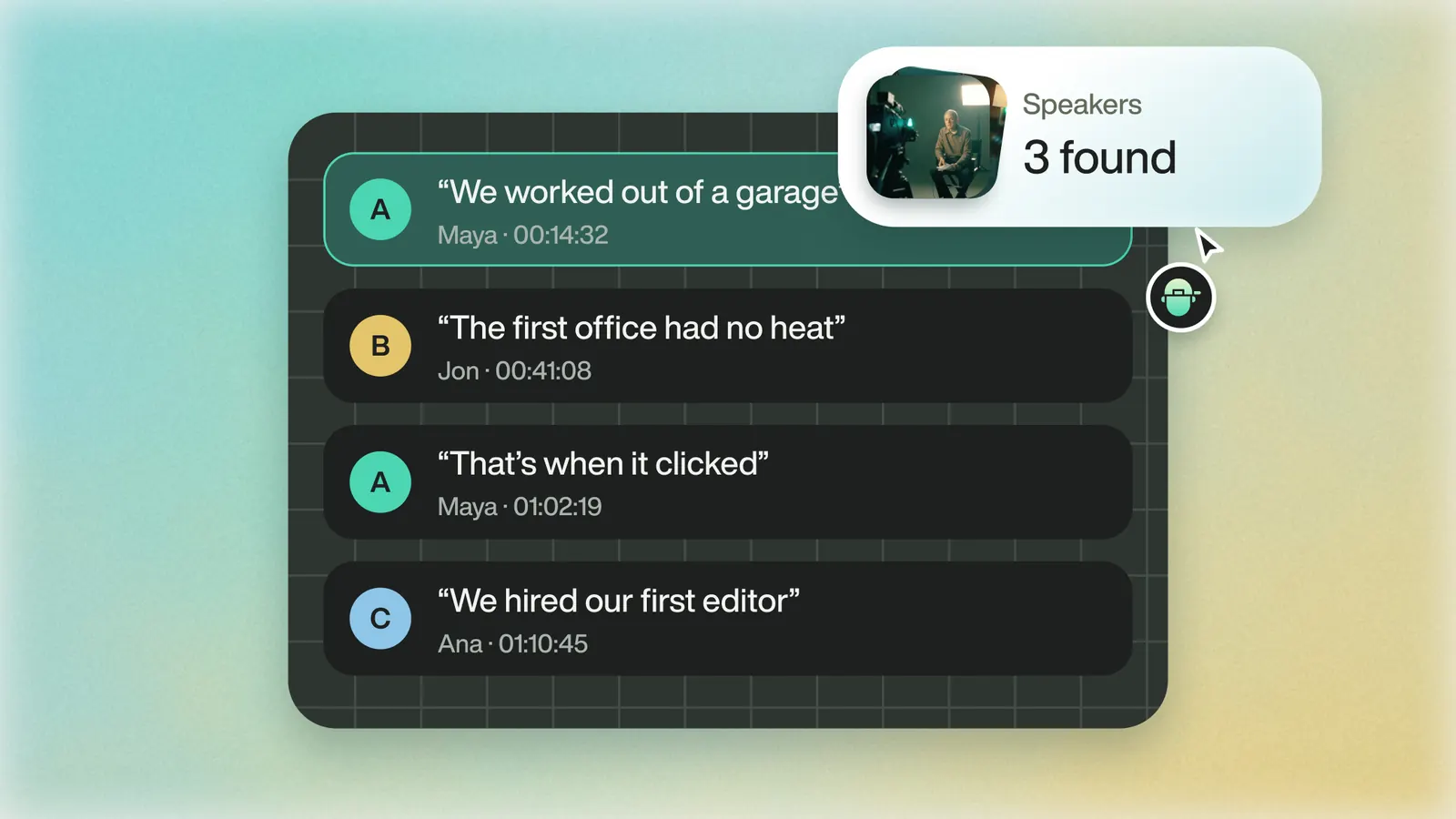
Some jobs that need Studio in Resolve happen in Eddie instead, whichever version you finish in: Eddie reframes each shot for vertical, transcribes 100+ languages, and cleans up audio (wind, hum, hiss, room noise and music under speech). The reframing carries into Resolve as crops; cleaned audio does not carry, so it stays in Eddie's MP4 renders.
Back to Resolve
Open the edit, click Export and choose Resolve. The default is a Resolve project (.drp) that opens with the timeline built; behind the arrow is a Resolve FCPXML you bring into the project you have open with File > Import > Timeline. In the desktop app, Send to DaVinci Resolve builds the timeline in the Resolve you have running, through Eddie's script (Workspace > Scripts > Eddie AI AE).
If you imported the footage through the desktop app, the timeline points at your original camera files. If you uploaded on the web or pulled from cloud storage, it points at Eddie's proxy media: relink to those in the Media Pool with Relink Selected Clips, not to the camera originals.
FAQ
Questions
- Is the free version of DaVinci Resolve good enough?
- For most editing up to Ultra HD at 60 fps, yes. Upgrade when you need higher resolutions, the Neural Engine AI tools or Studio-only effects.
- Can the free version of DaVinci Resolve export 4K?
- Yes, Ultra HD (3840 x 2160) up to 60 fps. DCI 4K and above need Studio.
- Does a Studio project open in the free version?
- Yes, but Studio-only effects show a watermark or don't render, and resolutions above Ultra HD aren't available.
