


DaVinci Resolve · Import, export and hand-off
How to import a Premiere Pro XML into DaVinci Resolve
The short answer
In Premiere Pro, select the sequence and choose File > Export > Final Cut Pro XML. In Resolve, choose File > Import > Timeline (Shift+Cmd+I or Shift+Ctrl+I), pick the .xml, keep Automatically import source clips into media pool ticked and click OK.

5 steps
In DaVinci Resolve
01
Prepare the sequence
In Premiere, duplicate the sequence and simplify it: render or remove Motion Graphics templates and effects Resolve won't read, and note any nested sequences.
02
Export the XML
Select the sequence in the Project panel and choose File > Export > Final Cut Pro XML. Save it next to the media if you can.
03
Match the frame rate
In Resolve, create a project and set its timeline frame rate to the Premiere sequence's rate before you import.
04
Import it
Choose File > Import > Timeline and select the .xml. Keep Automatically import source clips into media pool ticked and click OK.
05
Relink and check
Relink any offline clips with the red Relink Media button above the Media Pool, then play the timeline against a reference export from Premiere.
Good to know
Before you start
- Note 1
- Lumetri grades, Essential Graphics titles and most Premiere effects don't come through. Cuts, basic transforms, opacity, speed changes and audio levels usually do.
- Note 2
- Nested sequences may arrive as compound clips or as separate timelines. Check them first.
Eddie AI
Do it in Eddie
If the cut starts in Eddie, you don't need to convert from Premiere at all.
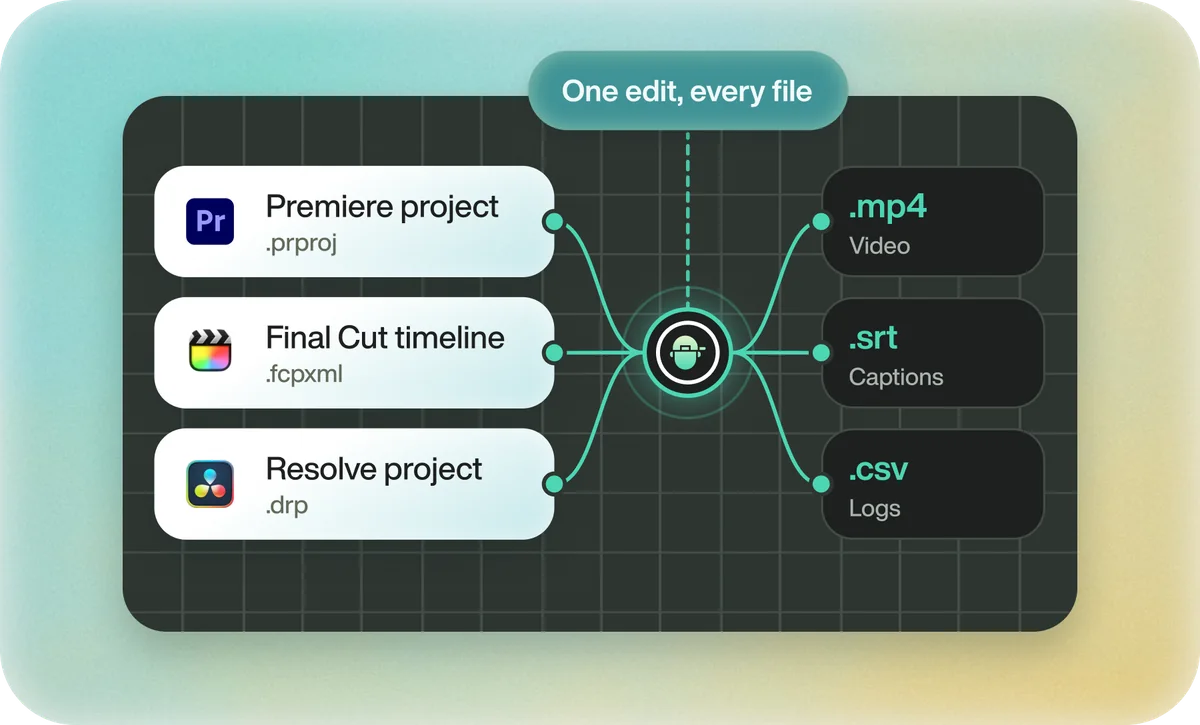
Eddie exports the same edit to both editors: a Premiere project (.prproj) or Premiere XML, and a Resolve project (.drp) or Resolve FCPXML. So the version for Resolve comes straight from Eddie, with no Premiere XML in between. Each timeline export costs 100 credits.
Back to Resolve
Open the edit, click Export and choose Resolve. The default is a Resolve project (.drp) that opens with the timeline built; behind the arrow is a Resolve FCPXML you bring into the project you have open with File > Import > Timeline. In the desktop app, Send to DaVinci Resolve builds the timeline in the Resolve you have running, through Eddie's script (Workspace > Scripts > Eddie AI AE).
If you imported the footage through the desktop app, the timeline points at your original camera files. If you uploaded on the web or pulled from cloud storage, it points at Eddie's proxy media: relink to those in the Media Pool with Relink Selected Clips, not to the camera originals.
FAQ
Questions
- Which XML should I export from Premiere for Resolve?
- Final Cut Pro XML, from File > Export > Final Cut Pro XML. That is the XML format Resolve reads from Premiere.
- Why does my Premiere XML import with missing effects?
- Effects are specific to each editor. Only cuts and basic properties travel; rebuild effects and grades in Resolve.
