


DaVinci Resolve · Import, export and hand-off
How to import an Avid AAF into DaVinci Resolve
The short answer
In Avid Media Composer, export the sequence as an AAF that links to its media. In Resolve, choose File > Import > Timeline (Shift+Cmd+I or Shift+Ctrl+I), select the .aaf, keep Automatically import source clips into media pool ticked and click OK.
5 steps
In DaVinci Resolve
- 01Prepare the sequence in Avid
- 02Export the AAF
- 03Match the project
- 04Import the AAF
- 05Relink the MXF media
01
Prepare the sequence in Avid
Duplicate the sequence, remove effects Resolve won't read and make sure the media is online. Consolidate or transcode it if the media is spread across many drives.
02
Export the AAF
Right-click the sequence in the bin, choose Output > Export to File, and pick an AAF setting that links to the media rather than embedding it.
03
Match the project
In Resolve, set the timeline frame rate and resolution to match the Avid project.
04
Import the AAF
Choose File > Import > Timeline and select the .aaf. Keep Automatically import source clips into media pool ticked and click OK.
05
Relink the MXF media
If clips come in offline, click the red Relink Media button above the Media Pool and point it at the Avid MediaFiles folder that holds the MXF files.
Good to know
Before you start
- Note 1
- Avid effects, titles and color corrections mostly don't translate. Cuts, dissolves and audio levels usually do.
Eddie AI
Do it in Eddie
Eddie doesn't open AAF files. It works from the footage.
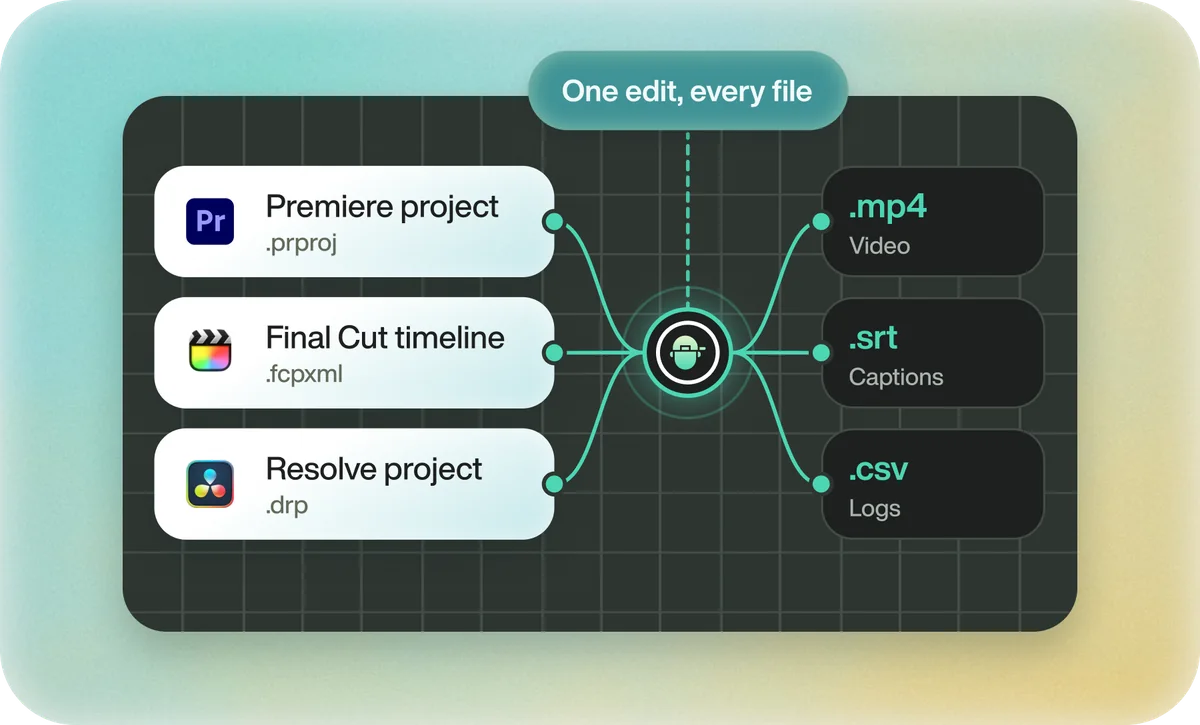
Eddie exports to Avid as well as to Resolve, so one edit can go to either editor. Bring the source clips into Eddie, ask for the cut, and export to whichever editor finishes the job.
Back to Resolve
Open the edit, click Export and choose Resolve. The default is a Resolve project (.drp) that opens with the timeline built; behind the arrow is a Resolve FCPXML you bring into the project you have open with File > Import > Timeline. In the desktop app, Send to DaVinci Resolve builds the timeline in the Resolve you have running, through Eddie's script (Workspace > Scripts > Eddie AI AE).
If you imported the footage through the desktop app, the timeline points at your original camera files. If you uploaded on the web or pulled from cloud storage, it points at Eddie's proxy media: relink to those in the Media Pool with Relink Selected Clips, not to the camera originals.
FAQ
Questions
- Why are my Avid clips offline in Resolve?
- Resolve can't find the MXF files. Relink to the Avid MediaFiles folder, or export the AAF again with the media online.
- Should I embed media in the AAF?
- For video, no. Link to the media and relink in Resolve. Embedded AAFs are mostly used for audio hand-offs.
