


DaVinci Resolve · Cutting and the timeline
How to cut a clip in DaVinci Resolve
The short answer
On the Edit page, press B for the Blade tool and click the clip where you want the cut, or park the playhead and press Cmd+B (Mac) or Ctrl+B (Windows) to split the selected clip there. Press A to go back to the Selection tool.
5 steps
In DaVinci Resolve
- 01Open the Edit page
- 02Blade by clicking
- 03Or split at the playhead
- 04Go back to Selection
- 05Remove the part you don't want
01
Open the Edit page
Click Edit at the bottom of the screen, or press Shift+4.
02
Blade by clicking
Press B for Blade Edit mode and click the clip at the frame where you want the cut. Linked audio is cut too.
03
Or split at the playhead
Park the playhead on the frame, select the clip (or no clip to cut every track under the playhead) and press Cmd+B on Mac or Ctrl+B on Windows.
04
Go back to Selection
Press A for the Selection tool so your next click selects rather than cuts.
05
Remove the part you don't want
Select the unwanted piece and press Shift+Delete (Mac) or Shift+Backspace (Windows) to ripple delete it, or Delete/Backspace to leave a gap.
Good to know
Before you start
- Note 1
- On the Cut page, the scissors button under the viewer splits at the playhead, and Cmd+B or Ctrl+B works there too.
- Note 2
- Shortcuts can be changed. Check yours under DaVinci Resolve > Keyboard Customization.
Eddie AI
Do it in Eddie
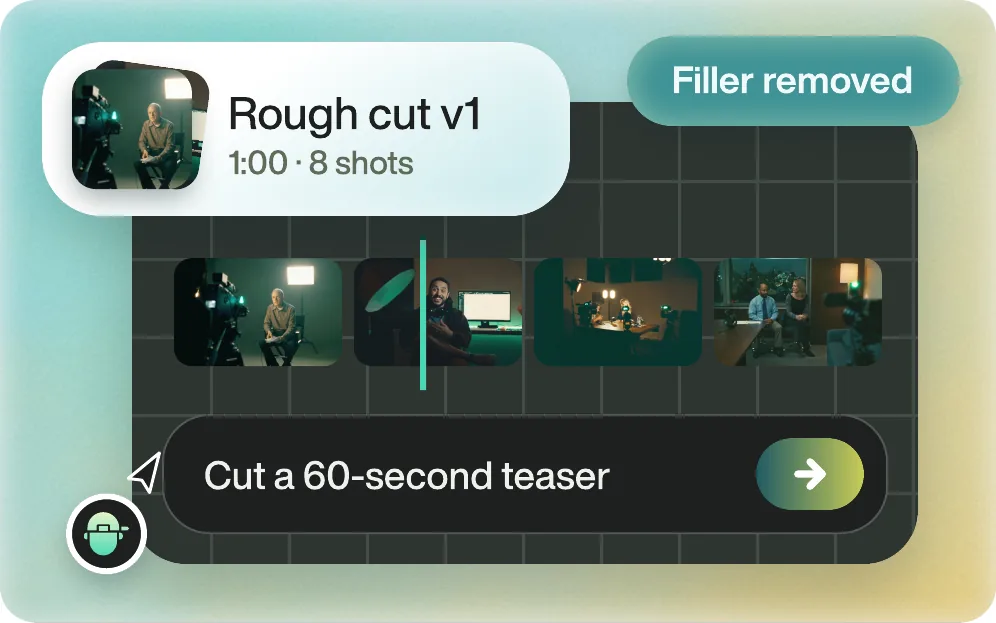
In Eddie you describe the cut and it makes the edits.
Ask for the result, such as "Cut the stumbles and keep the answer about pricing." Eddie cuts on the transcript, which has every word time-stamped. To cut by hand, right-click a clip on Eddie's timeline and choose Split Clip, or delete words in the transcript.
Back to Resolve
Open the edit, click Export and choose Resolve. The default is a Resolve project (.drp) that opens with the timeline built; behind the arrow is a Resolve FCPXML you bring into the project you have open with File > Import > Timeline. In the desktop app, Send to DaVinci Resolve builds the timeline in the Resolve you have running, through Eddie's script (Workspace > Scripts > Eddie AI AE).
If you imported the footage through the desktop app, the timeline points at your original camera files. If you uploaded on the web or pulled from cloud storage, it points at Eddie's proxy media: relink to those in the Media Pool with Relink Selected Clips, not to the camera originals.
FAQ
Questions
- What is the cut shortcut in DaVinci Resolve?
- B selects the Blade tool. Cmd+B on Mac or Ctrl+B on Windows splits the clip at the playhead.
- Why does the Blade cut only one track?
- Linked selection is off, or only one clip is selected. Turn on linked selection in the timeline toolbar, or deselect all clips and split at the playhead to cut every track.
