


DaVinci Resolve · Cutting and the timeline
How to delete gaps in DaVinci Resolve
The short answer
Choose Edit > Delete Gaps to close every gap on the timeline at once. To close one gap, click the empty space between two clips and press Delete or Backspace. To remove a clip without leaving a gap, ripple delete it with Shift+Delete (Mac) or Shift+Backspace (Windows).

5 steps
In DaVinci Resolve
- 01Close one gap
- 02Close every gap
- 03Limit it to some tracks
- 04Ripple delete instead of leaving gaps
- 05Play it back
01
Close one gap
With the Selection tool (A), click the empty space between two clips so it highlights, then press Delete or Backspace. Everything after it moves up.
02
Close every gap
Choose Edit > Delete Gaps. Resolve selects the gaps on the timeline and closes them.
03
Limit it to some tracks
Turn off the auto track selector or lock any track you don't want changed before you delete gaps, so b-roll and music stay put.
04
Ripple delete instead of leaving gaps
Select a clip and press Shift+Delete on Mac or Shift+Backspace on Windows. Resolve removes it and closes the space.
05
Play it back
Check that clips on upper tracks still sit over the right lines after the timeline moved.
Good to know
Before you start
- Note 1
- Closing gaps ripples the timeline, so clips on other tracks that aren't locked can move out of place.
Eddie AI
Do it in Eddie
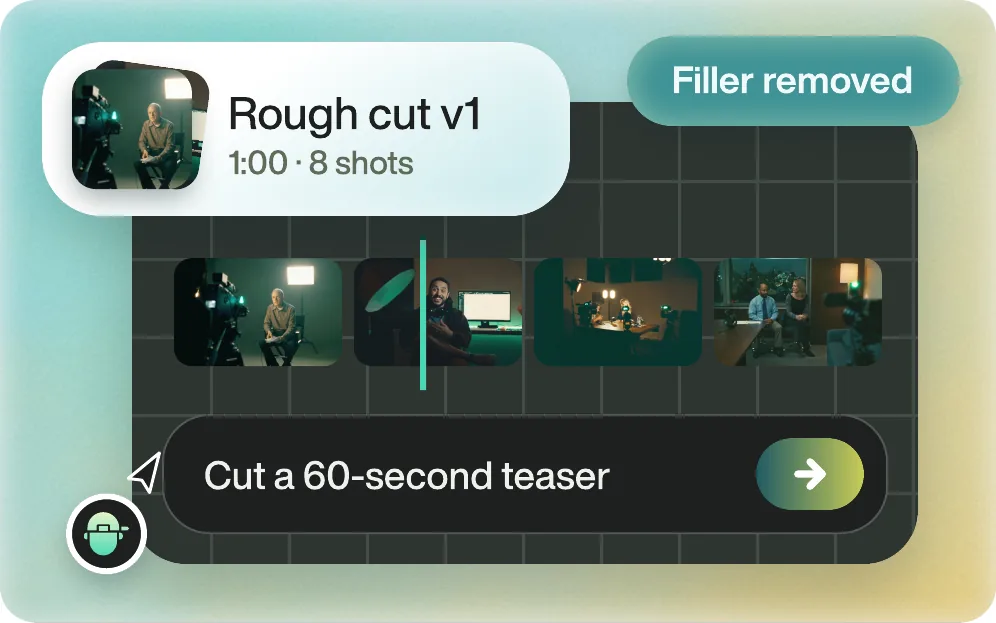
Eddie's timeline has no gaps to close.
Clips on Eddie's timeline sit end to end, and removing a part closes it up. If you want space, ask Eddie for a break or a beat after a line, and it places a pause segment that carries through to the Resolve export.
Back to Resolve
Open the edit, click Export and choose Resolve. The default is a Resolve project (.drp) that opens with the timeline built; behind the arrow is a Resolve FCPXML you bring into the project you have open with File > Import > Timeline. In the desktop app, Send to DaVinci Resolve builds the timeline in the Resolve you have running, through Eddie's script (Workspace > Scripts > Eddie AI AE).
If you imported the footage through the desktop app, the timeline points at your original camera files. If you uploaded on the web or pulled from cloud storage, it points at Eddie's proxy media: relink to those in the Media Pool with Relink Selected Clips, not to the camera originals.
FAQ
Questions
- How do I delete a clip without leaving a gap in Resolve?
- Ripple delete it: select the clip and press Shift+Delete on Mac or Shift+Backspace on Windows.
- Why did Delete Gaps move my music?
- Every track that isn't locked ripples. Lock the music track with its padlock icon before you delete gaps.
