


DaVinci Resolve · Cutting and the timeline
How to trim clips in DaVinci Resolve
The short answer
Press T for Trim Edit mode, then drag a clip's edge to ripple trim it (the rest of the timeline moves with it). Drag the cut point between two clips to roll it, or drag the middle of a clip to slip its contents. Press A to return to the Selection tool.

6 steps
In DaVinci Resolve
- 01Turn on Trim Edit mode
- 02Ripple trim an edge
- 03Roll a cut
- 04Slip or slide
- 05Nudge by a frame
- 06Trim without rippling
01
Turn on Trim Edit mode
On the Edit page, press T, or click the Trim Edit mode button in the timeline toolbar.
02
Ripple trim an edge
Drag the start or end of a clip. The clip gets shorter or longer and everything after it moves, so no gap opens.
03
Roll a cut
Drag the cut point between two clips to move it later or earlier without changing the timeline's length.
04
Slip or slide
Drag the middle of a clip's thumbnail area to slip which part of the shot plays. Drag the clip's name bar to slide it between its neighbours.
05
Nudge by a frame
Select an edge or a cut and press comma (,) or period (.) to move it one frame at a time.
06
Trim without rippling
In Selection mode (A), dragging an edge trims the clip and leaves a gap rather than moving the rest of the timeline.
Good to know
Before you start
- Note 1
- Press W for Dynamic Trim mode to trim while the timeline plays, using J, K and L.
Eddie AI
Do it in Eddie
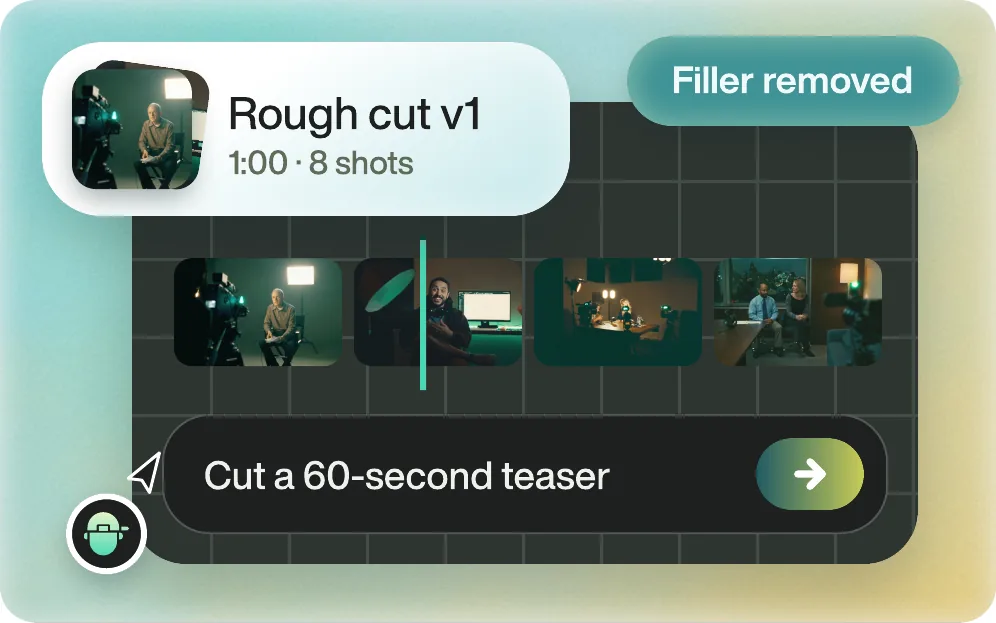
Eddie trims from the chat or from the transcript.
Ask "Start on her second sentence" or "Tighten the ending", or trim by hand: drag a clip's edge on Eddie's timeline, or use the arrow keys for one frame and Shift for one second.
Back to Resolve
Open the edit, click Export and choose Resolve. The default is a Resolve project (.drp) that opens with the timeline built; behind the arrow is a Resolve FCPXML you bring into the project you have open with File > Import > Timeline. In the desktop app, Send to DaVinci Resolve builds the timeline in the Resolve you have running, through Eddie's script (Workspace > Scripts > Eddie AI AE).
If you imported the footage through the desktop app, the timeline points at your original camera files. If you uploaded on the web or pulled from cloud storage, it points at Eddie's proxy media: relink to those in the Media Pool with Relink Selected Clips, not to the camera originals.
FAQ
Questions
- What is the trim shortcut in DaVinci Resolve?
- T turns on Trim Edit mode. A goes back to the Selection tool.
- Why does trimming leave a gap?
- You trimmed in Selection mode. Press T and trim again, and Resolve ripples the timeline instead.
