


DaVinci Resolve · Cutting and the timeline
How to remove filler words in DaVinci Resolve
The short answer
DaVinci Resolve has no one-click filler word removal. In Studio, transcribe the clip (Audio Transcription > Transcribe in the Media Pool), search the transcript for "um" and "uh", and cut those words out; in the free version, find them by ear and blade them out on the timeline.

5 steps
In DaVinci Resolve
- 01Transcribe the clip (Studio)
- 02Search for the fillers
- 03Leave them out
- 04Free version: cut by ear
- 05Smooth the jump
01
Transcribe the clip (Studio)
Right-click the clip in the Media Pool and choose Audio Transcription > Transcribe.
02
Search for the fillers
In the transcription window, search for "um", "uh" and any phrase the speaker repeats. Clicking a word moves the playhead to it.
03
Leave them out
Select the sentences around each filler and edit them into the timeline from the transcription window, leaving the filler out.
04
Free version: cut by ear
Play the clip, stop on each filler, blade (B) either side of it, and ripple delete it with Shift+Delete (Mac) or Shift+Backspace (Windows).
05
Smooth the jump
Cutting a filler in a single shot makes a jump cut. Cover it with b-roll or a cutaway, or punch in slightly on the next clip.
Good to know
Before you start
- Note 1
- Transcription and text-based tools are Studio features and have changed between versions. Check the transcription window's menus in your version.
Eddie AI
Do it in Eddie
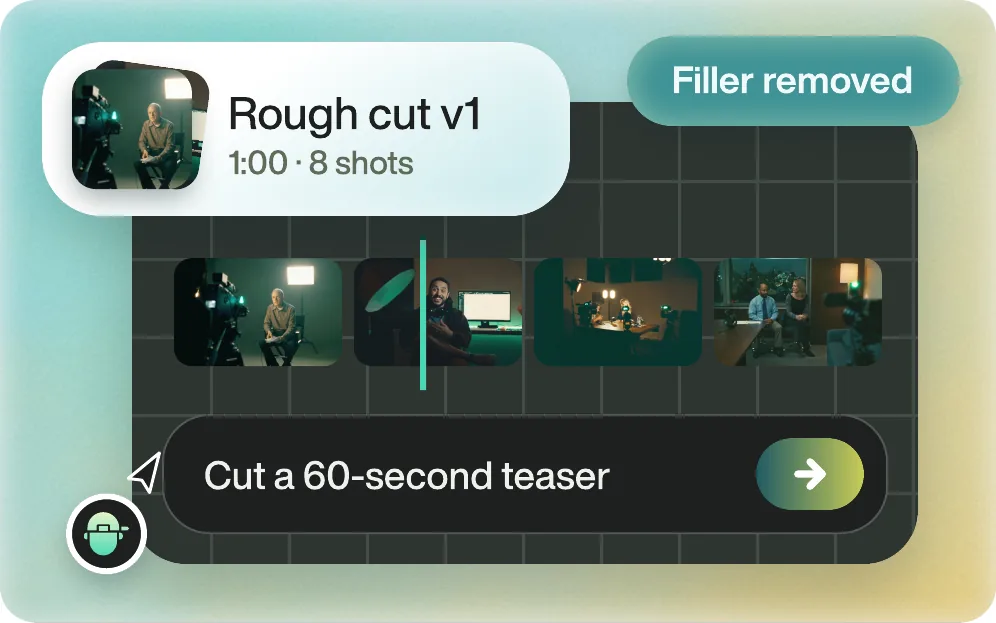
Ask Eddie to remove filler words, and it cuts more than ums.
Ask "Remove filler words." Eddie cuts um, uh, you know and false starts. You can be selective, such as "Remove the ums but keep the natural pauses", and ask Eddie to restore a line it took out.
Back to Resolve
Open the edit, click Export and choose Resolve. The default is a Resolve project (.drp) that opens with the timeline built; behind the arrow is a Resolve FCPXML you bring into the project you have open with File > Import > Timeline. In the desktop app, Send to DaVinci Resolve builds the timeline in the Resolve you have running, through Eddie's script (Workspace > Scripts > Eddie AI AE).
If you imported the footage through the desktop app, the timeline points at your original camera files. If you uploaded on the web or pulled from cloud storage, it points at Eddie's proxy media: relink to those in the Media Pool with Relink Selected Clips, not to the camera originals.
FAQ
Questions
- Can DaVinci Resolve detect filler words automatically?
- Not as a dedicated tool. Studio's transcript lets you find them with search, but you still choose and cut each one.
- Is it faster to cut filler words before or after b-roll?
- Before. Each cut ripples the timeline, so do the dialogue edit first and lay b-roll over the finished cut.
