


DaVinci Resolve · Color and look
How to use Magic Mask in DaVinci Resolve
The short answer
Magic Mask is in DaVinci Resolve Studio. On the Color page, add a node, open the Magic Mask palette, mark the person or object in the viewer, then click track forward to follow it through the shot. Grade the node to change only that area.
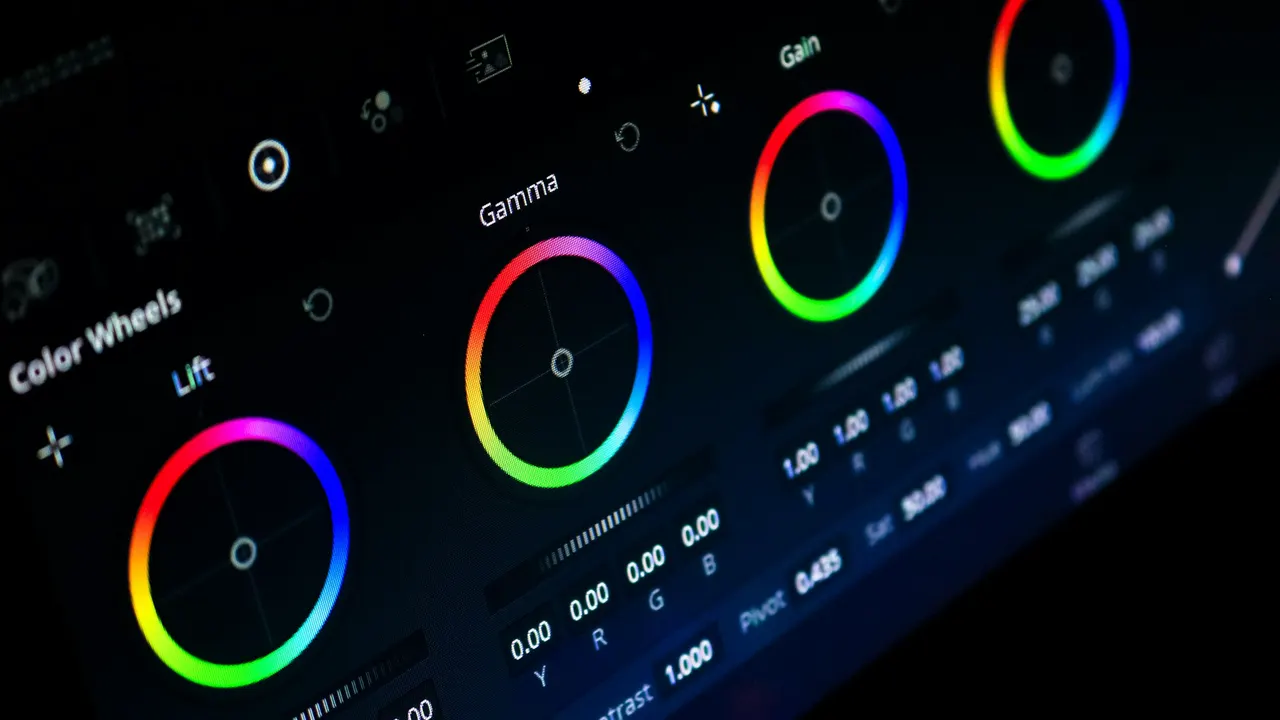
5 steps
In DaVinci Resolve
01
Add a node
On the Color page, add a serial node (Option+S or Alt+S) for the mask.
02
Open Magic Mask
Click the Magic Mask icon in the palette bar in the middle of the Color page.
03
Mark the subject
Mark the person or object in the viewer with the palette's selection tool. The controls changed in Resolve 20, so follow the hints in the palette for your version.
04
Track it
Click track forward (or track both ways) and let Resolve follow the subject. Add more marks where it slips and track again.
05
Grade or invert
Adjust the node to change only the subject, or invert the mask to grade the background. Use the refine controls to soften the edge.
Good to know
Before you start
- Note 1
- Magic Mask is a DaVinci Resolve Studio feature. It uses the Neural Engine and can take a while on long shots.
Eddie AI
Do it in Eddie
Eddie doesn't mask or track subjects. Do this in Resolve Studio.
Eddie can blur, pixelate or fill a fixed box on a clip, free, but the box does not move and Eddie does not track faces or objects. The blur box doesn't carry into Resolve either, so masks and tracking belong on Resolve's Color page.
Back to Resolve
Open the edit, click Export and choose Resolve. The default is a Resolve project (.drp) that opens with the timeline built; behind the arrow is a Resolve FCPXML you bring into the project you have open with File > Import > Timeline. In the desktop app, Send to DaVinci Resolve builds the timeline in the Resolve you have running, through Eddie's script (Workspace > Scripts > Eddie AI AE).
If you imported the footage through the desktop app, the timeline points at your original camera files. If you uploaded on the web or pulled from cloud storage, it points at Eddie's proxy media: relink to those in the Media Pool with Relink Selected Clips, not to the camera originals.
FAQ
Questions
- Is Magic Mask free in DaVinci Resolve?
- No. Magic Mask is in DaVinci Resolve Studio only.
- Why is Magic Mask so slow?
- It analyzes every frame. Track a shorter range, or use a faster quality setting in the palette while you work.
