


DaVinci Resolve · Rendering and delivery
How to export for Reels and TikTok in DaVinci Resolve
The short answer
Edit in a 1080 x 1920 timeline, then on the Deliver page choose Custom Export, set MP4 and H.264 at 1080 x 1920 and your timeline frame rate, and render. Quick Export also has platform presets in recent versions.
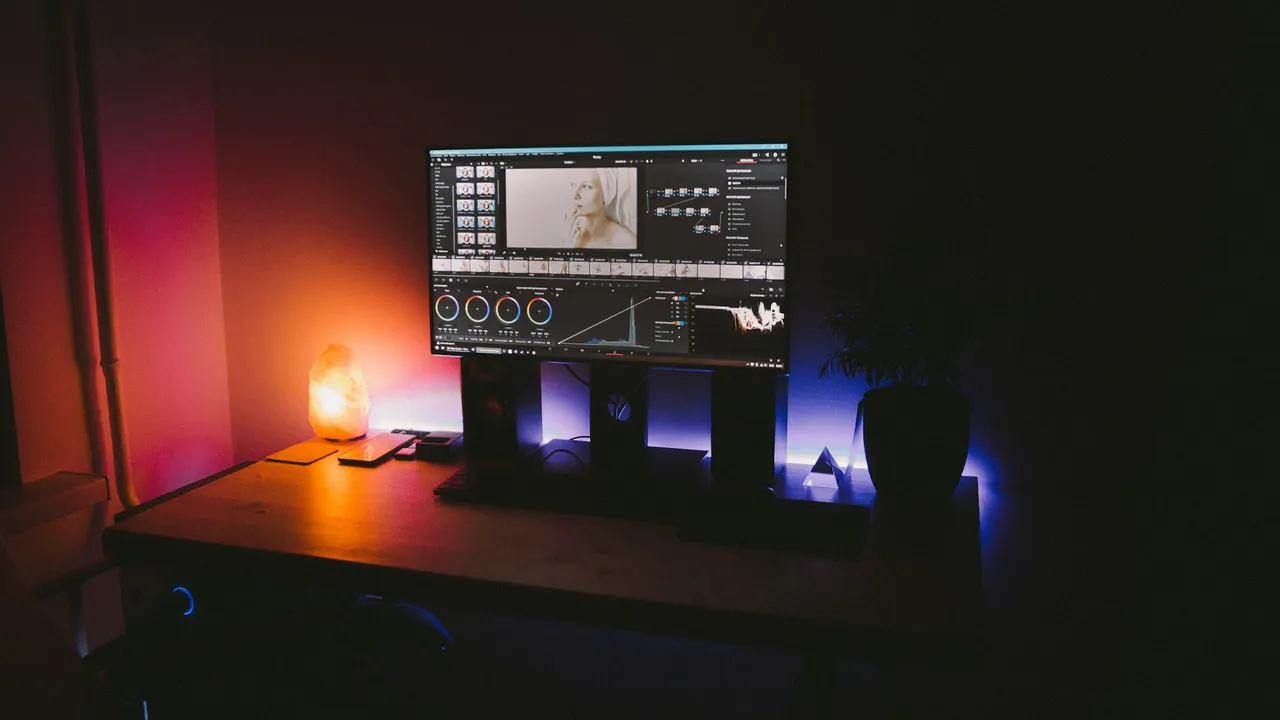
5 steps
In DaVinci Resolve
- 01Make the timeline vertical
- 02Keep text in the safe area
- 03Set the render
- 04Keep the frame rate
- 05Render
01
Make the timeline vertical
Right-click the timeline in the Media Pool, choose Timelines > Timeline Settings, untick Use Project Settings and set the resolution to 1080 x 1920.
02
Keep text in the safe area
Leave room at the top and bottom of the frame, where the apps place buttons and captions.
03
Set the render
On the Deliver page, choose Custom Export, set Format MP4, Codec H.264 and Resolution 1080 x 1920.
04
Keep the frame rate
Leave Frame rate at the timeline's rate, usually 30 or 25 fps for social.
05
Render
Click Add to Render Queue, then Render All, and send the file to your phone or upload it from the web.
Good to know
Before you start
- Note 1
- Setting a vertical resolution only on the Deliver page squashes or letterboxes a 16:9 timeline. Change the timeline itself first.
Eddie AI
Do it in Eddie
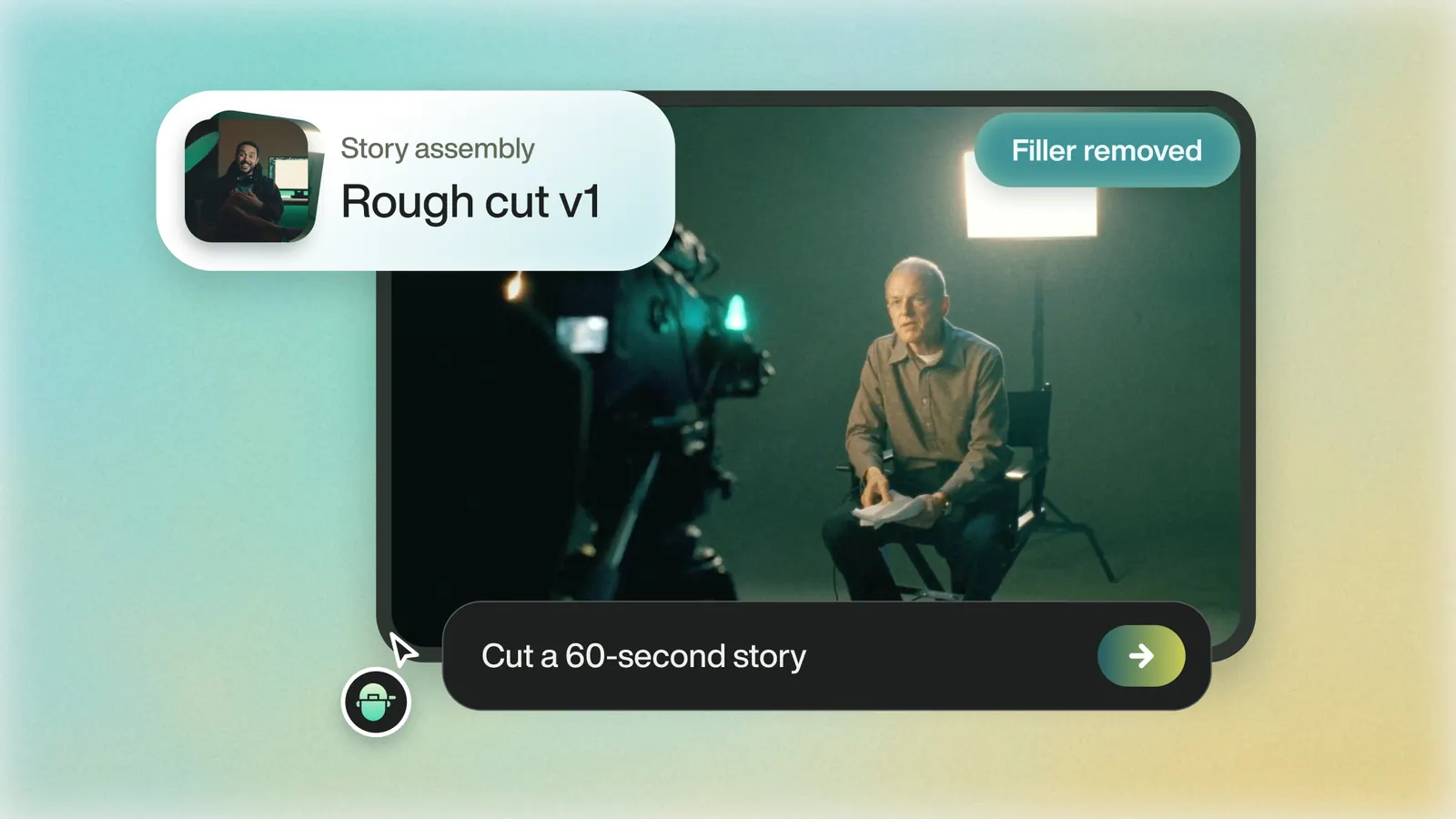
Eddie makes the vertical cuts and renders them.
Ask "Cut five short vertical clips from the strongest moments, under 45 seconds." Eddie reframes each shot around the subject in 9:16, 1:1 or 4:5, and a stated maximum length is a hard limit. Ask for punch captions, two words at a time in large upper-case type, for short-form. Export each edit as an MP4, or ask "Export all my edits as MP4s" to get one link per edit.
FAQ
Questions
- What resolution is best for Reels and TikTok?
- 1080 x 1920, which is 9:16.
- Why does my vertical export have black bars?
- The timeline is still 16:9 and only the render is vertical. Set the timeline resolution to 1080 x 1920 and reframe the clips.
