


DaVinci Resolve · Rendering and delivery
How to export a still frame in DaVinci Resolve
The short answer
Put the playhead on the frame and choose File > Export > Current Frame as Still, then pick a format such as PNG or JPEG. Or, on the Color page, right-click the viewer, choose Grab Still, and export it from the Gallery.
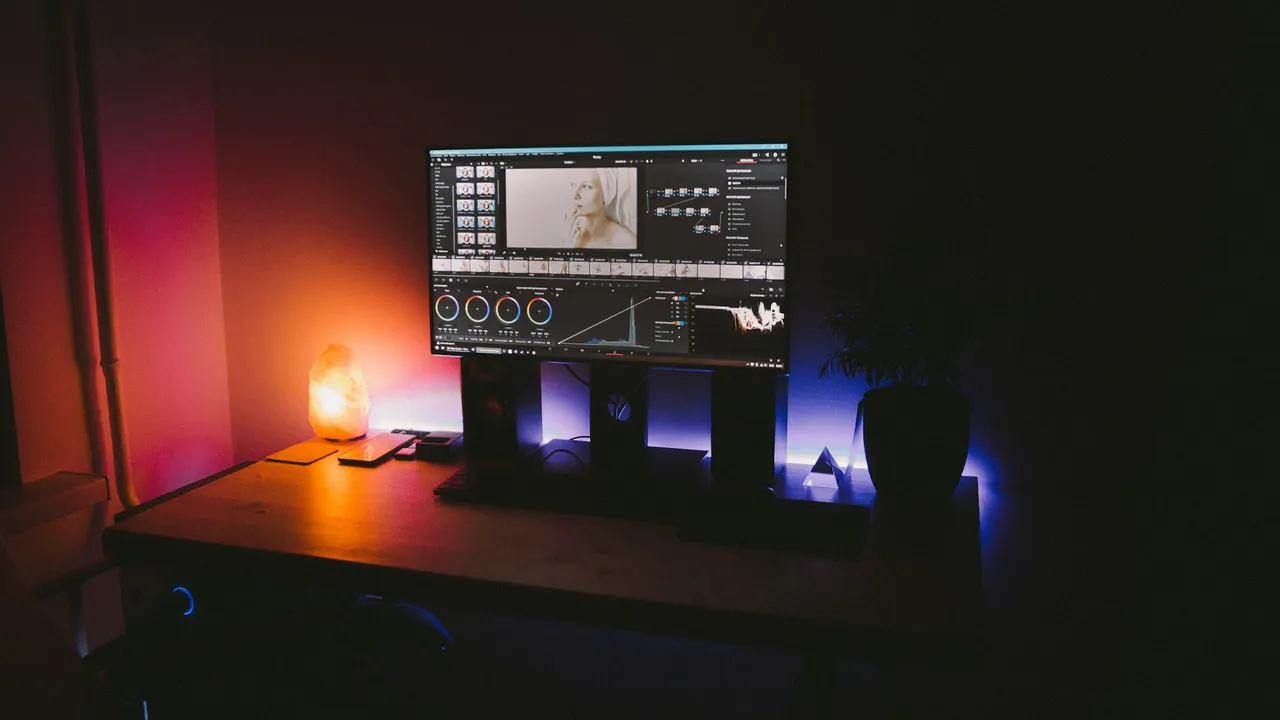
4 steps
In DaVinci Resolve
01
Find the frame
Move the playhead to the frame you want on the Edit or Color page.
02
Export it
Choose File > Export > Current Frame as Still, choose a folder and a format such as PNG, JPEG or TIFF, and click Export.
03
Or grab a still
On the Color page, right-click the viewer and choose Grab Still. The still appears in the Gallery at the top left.
04
Export from the Gallery
Right-click the still in the Gallery, choose Export, pick a format and save it.
Good to know
Before you start
- Note 1
- The still is saved at the timeline resolution. For a full-resolution frame from higher-resolution footage, set a matching timeline first.
Eddie AI
Do it in Eddie
Exporting a single still frame isn't something Eddie's help documents; grab it in Resolve.
Once your edit is in Resolve, export the frame from there. Eddie handles the edit around it: any title, crop or reframe you made in Eddie shows on the frame because it carries into the Resolve timeline.
Back to Resolve
Open the edit, click Export and choose Resolve. The default is a Resolve project (.drp) that opens with the timeline built; behind the arrow is a Resolve FCPXML you bring into the project you have open with File > Import > Timeline. In the desktop app, Send to DaVinci Resolve builds the timeline in the Resolve you have running, through Eddie's script (Workspace > Scripts > Eddie AI AE).
If you imported the footage through the desktop app, the timeline points at your original camera files. If you uploaded on the web or pulled from cloud storage, it points at Eddie's proxy media: relink to those in the Media Pool with Relink Selected Clips, not to the camera originals.
FAQ
Questions
- Why is my exported still a different size than my footage?
- Resolve exports at the timeline resolution. Change the timeline resolution to match the footage, then export again.
- Can I export a still with the grade applied?
- Yes. Current Frame as Still and Gallery stills both include the grade.
