


DaVinci Resolve · Rendering and delivery
How to render part of a timeline in DaVinci Resolve
The short answer
On the Deliver page, press I at the start and O at the end of the section, set Render to In/Out Range above the timeline, then click Add to Render Queue and Render All.
5 steps
In DaVinci Resolve
01
Open the Deliver page
Click Deliver and set up your render settings as usual.
02
Mark the range
Move the playhead to the start of the section and press I, then to the end and press O.
03
Set the range
In the bar above the timeline, change Render from Entire Timeline to In/Out Range.
04
Render
Click Add to Render Queue, then Render All.
05
Render several sections
Mark the next section, add it to the queue, and repeat. Each job keeps its own range.
Good to know
Before you start
- Note 1
- In and Out points you set on the Edit page carry over to the Deliver page, and the reverse.
Eddie AI
Do it in Eddie
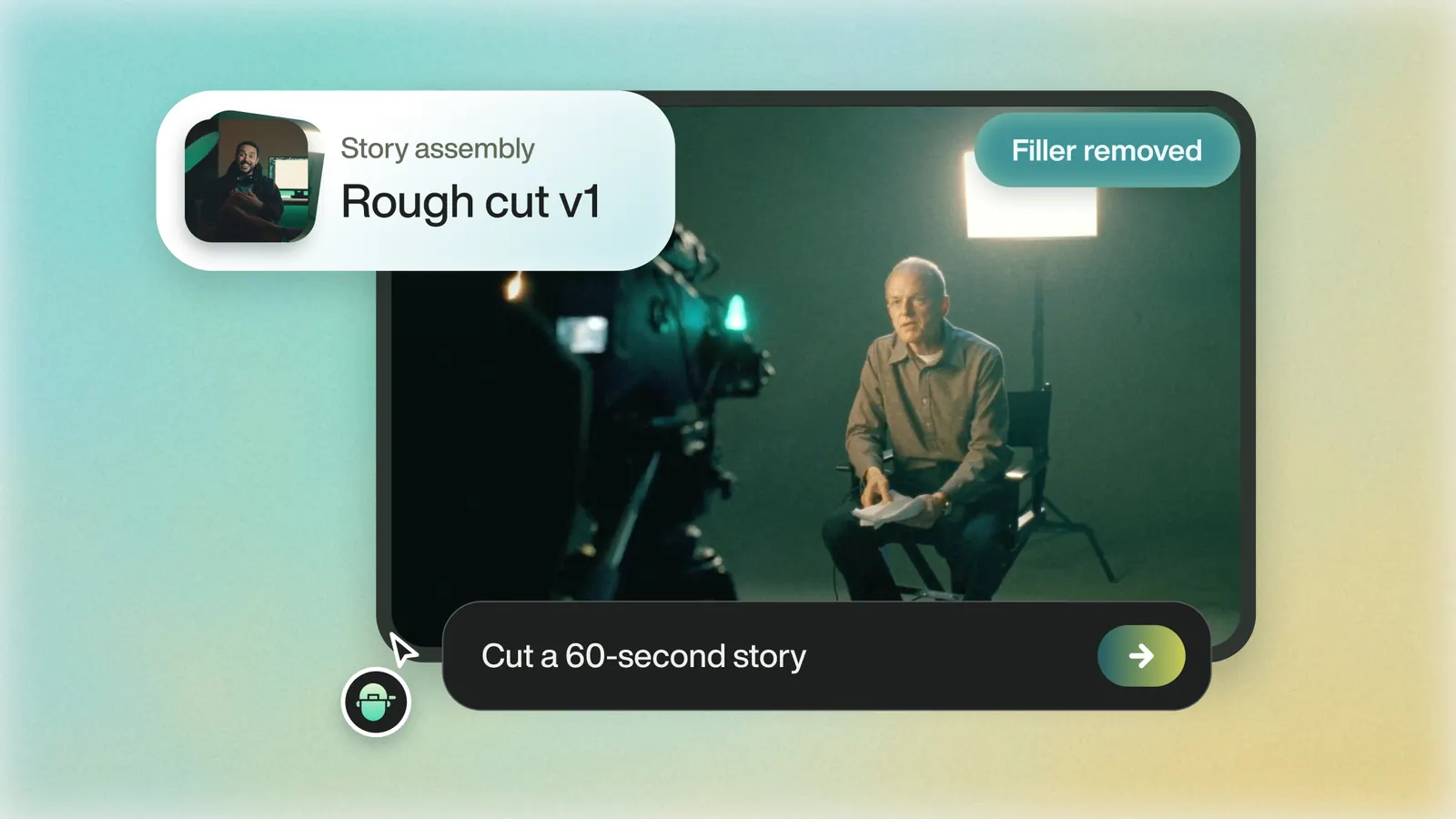
In Eddie, a part of a video is its own edit.
Ask Eddie for the section you want, such as "Cut the pricing answer into its own clip", and choose separate edits. Each edit renders as its own MP4.
FAQ
Questions
- Why does Resolve still render the whole timeline?
- Render is set to Entire Timeline. Switch it to In/Out Range above the timeline on the Deliver page.
- How do I clear In and Out points?
- Press Option+X on Mac or Alt+X on Windows.
