

DaVinci Resolve · Rendering and delivery
How to export audio only from DaVinci Resolve
The short answer
On the Deliver page, choose Custom Export, untick Export Video, open the Audio tab and set Format to Wave (or MP3), then click Add to Render Queue and Render All.
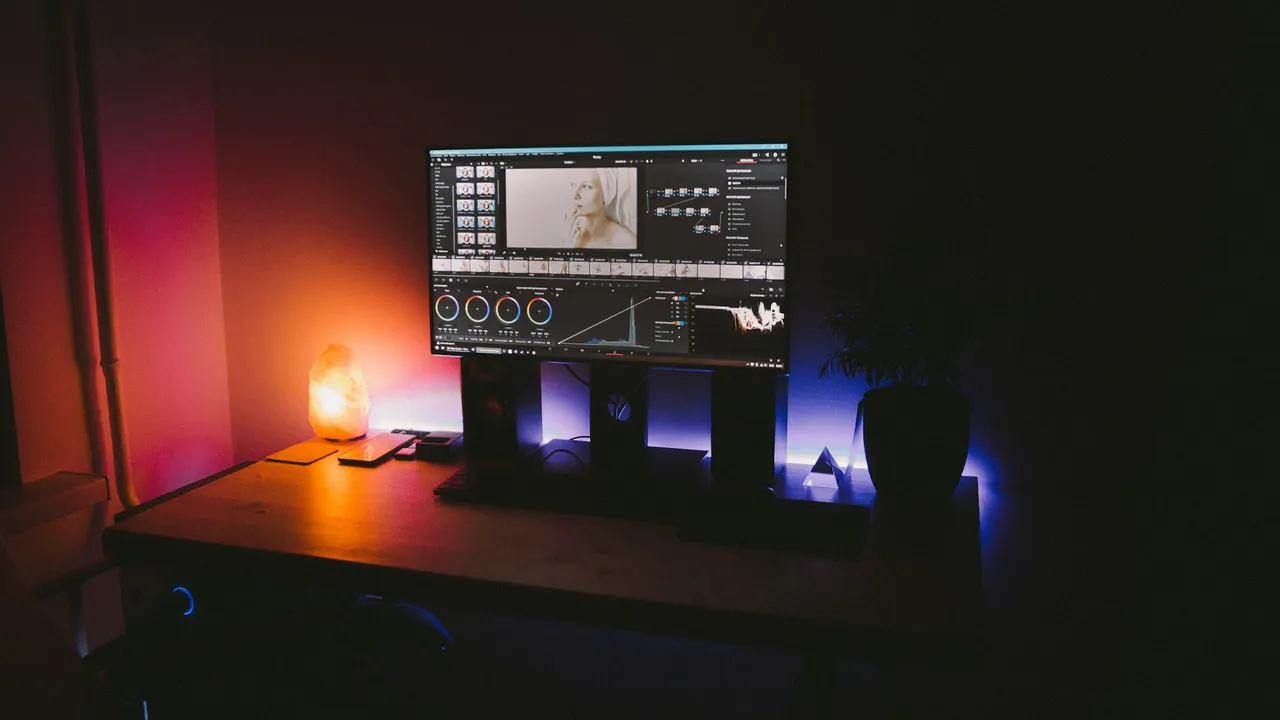
5 steps
In DaVinci Resolve
01
Open Custom Export
On the Deliver page, choose Custom Export in Render Settings, or the Audio Only preset.
02
Turn off video
On the Video tab, untick Export Video.
03
Choose the audio format
On the Audio tab, keep Export Audio ticked and set Format to Wave for a lossless file or MP3 for a small one.
04
Pick the tracks
Set Output Track to the main bus, or choose individual tracks if you need stems.
05
Render
Click Add to Render Queue, then Render All.
Good to know
Before you start
- Note 1
- To render each track as its own file, set the Output Track options to the tracks you want and choose separate files where the menu offers it, or render a job per track.
Eddie AI
Do it in Eddie
Eddie edits audio-only projects such as podcasts too.
You can make a project from audio alone, and it exports to Resolve as a .drp or FCPXML; with no video to set the frame size, the timeline uses a standard 1920 x 1080 frame. Generated voice-over and music go on their own tracks and download together from Assets > Generated assets (.zip) in All export options.
Back to Resolve
Open the edit, click Export and choose Resolve. The default is a Resolve project (.drp) that opens with the timeline built; behind the arrow is a Resolve FCPXML you bring into the project you have open with File > Import > Timeline. In the desktop app, Send to DaVinci Resolve builds the timeline in the Resolve you have running, through Eddie's script (Workspace > Scripts > Eddie AI AE).
If you imported the footage through the desktop app, the timeline points at your original camera files. If you uploaded on the web or pulled from cloud storage, it points at Eddie's proxy media: relink to those in the Media Pool with Relink Selected Clips, not to the camera originals.
FAQ
Questions
- WAV or MP3?
- WAV for a mixer or further editing. MP3 for sharing and podcasts.
- Can I bounce the mix to a track instead?
- Yes. On the Fairlight page, choose Timeline > Bounce Mix to Track to print the mix onto a new track in the timeline.
