


DaVinci Resolve · Cutting and the timeline
How to replace a clip in DaVinci Resolve
The short answer
Load the new clip in the Source viewer, park the timeline playhead on the clip to replace, and press F11 (Replace). Resolve swaps the clip in place and keeps its length and position on the timeline.

4 steps
In DaVinci Resolve
01
Load the new clip
Double-click the replacement in the Media Pool to open it in the Source viewer, and park its playhead on the frame that should line up.
02
Target the old clip
On the timeline, park the playhead over the clip to replace, and make sure its track is the destination track.
03
Replace it
Press F11, or drag the new clip from the Source viewer onto the Timeline viewer and drop it on Replace in the overlay.
04
Check sync
Replace lines up the Source viewer's playhead with the timeline playhead. Play the clip and check that the action starts where you want.
Good to know
Before you start
- Note 1
- If the new clip is shorter than the old one, Resolve can't fill the length and the replace fails or leaves a gap. Choose a longer replacement or trim the old clip first.
- Note 2
- Effects, grades and transforms stay on the clip's place in the timeline, so check that a grade made for the old shot still suits the new one.
Eddie AI
Do it in Eddie
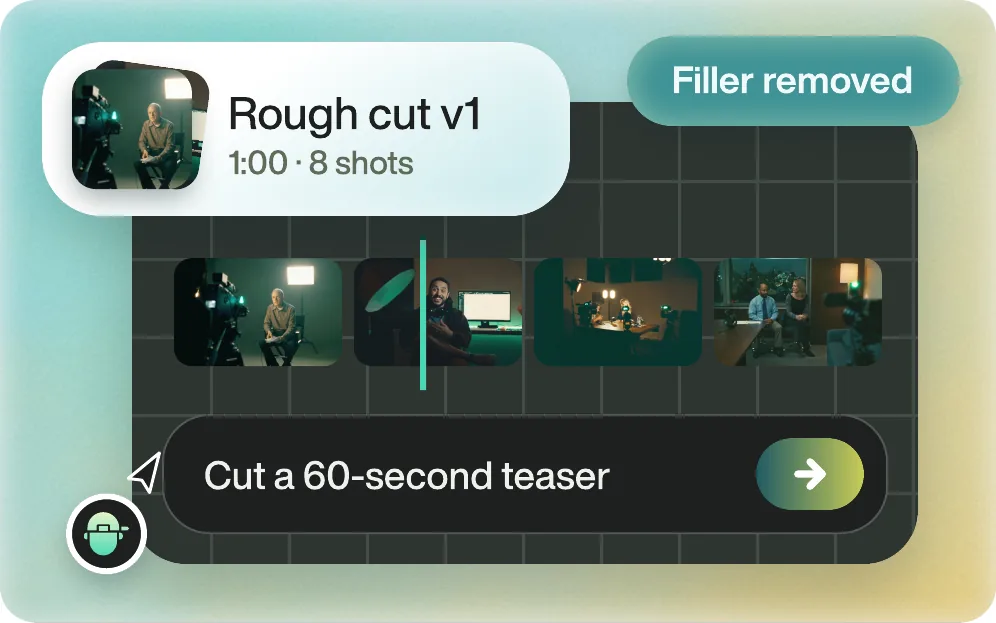
Ask Eddie to swap a shot, and it finds the replacement.
Say "Replace this b-roll with something from the factory tour" or hover a clip and use Cover with b-roll to pick from playable options. Eddie uses your own footage first, then stock, then generated clips.
Back to Resolve
Open the edit, click Export and choose Resolve. The default is a Resolve project (.drp) that opens with the timeline built; behind the arrow is a Resolve FCPXML you bring into the project you have open with File > Import > Timeline. In the desktop app, Send to DaVinci Resolve builds the timeline in the Resolve you have running, through Eddie's script (Workspace > Scripts > Eddie AI AE).
If you imported the footage through the desktop app, the timeline points at your original camera files. If you uploaded on the web or pulled from cloud storage, it points at Eddie's proxy media: relink to those in the Media Pool with Relink Selected Clips, not to the camera originals.
FAQ
Questions
- What is the replace shortcut in DaVinci Resolve?
- F11 performs a Replace edit from the Source viewer onto the timeline.
- Does Replace keep the grade?
- The timeline clip's grade and effects stay with the new clip, so recheck the grade after you swap.
