


DaVinci Resolve · Cutting and the timeline
How to add b-roll in DaVinci Resolve
The short answer
Mark the part of the b-roll clip you want in the Source viewer, turn off the audio destination so only picture goes in, and use Place on Top (F12) or drag it onto Video 2 above the interview. The speaker's audio on the track below keeps playing.
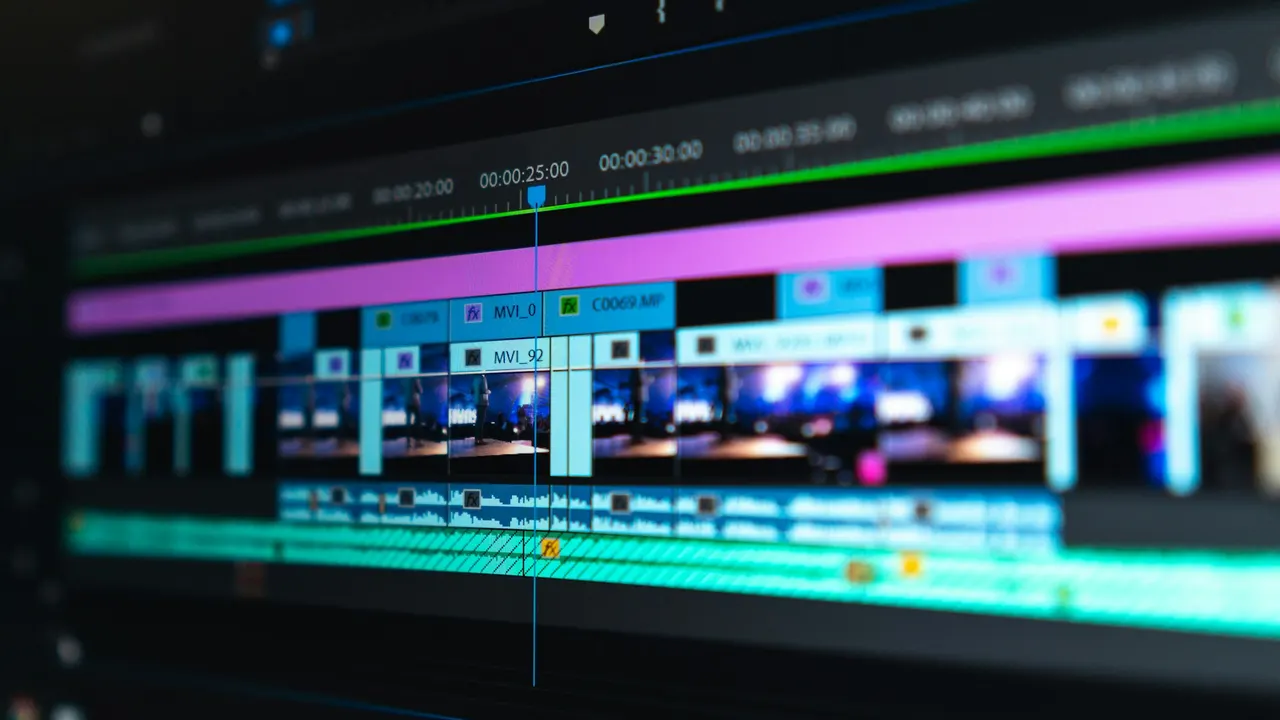
5 steps
In DaVinci Resolve
01
Pick the shot
Double-click the b-roll clip in the Media Pool, then mark In (I) and Out (O) around the part you want.
02
Bring in picture only
Click the audio destination control (A1) in the track header to turn it off, so the b-roll's sound doesn't go in. Or drag only the video icon from under the Source viewer.
03
Place it over the line
Park the timeline playhead where the speaker mentions the subject and press F12 (Place on Top). Or drag the clip onto Video 2 above the interview.
04
Adjust the timing
Drag the b-roll to start just before or on the line it illustrates, and trim it to end on a natural pause.
05
Smooth the edges
Add a short cross dissolve on either end if the cut feels abrupt, or leave hard cuts for a punchier feel.
Good to know
Before you start
- Note 1
- Keep the interview on V1 and every b-roll shot on V2 and above, so a later edit to the dialogue doesn't knock b-roll out of place.
Eddie AI
Do it in Eddie
Ask Eddie for b-roll, and it places it over the right lines.
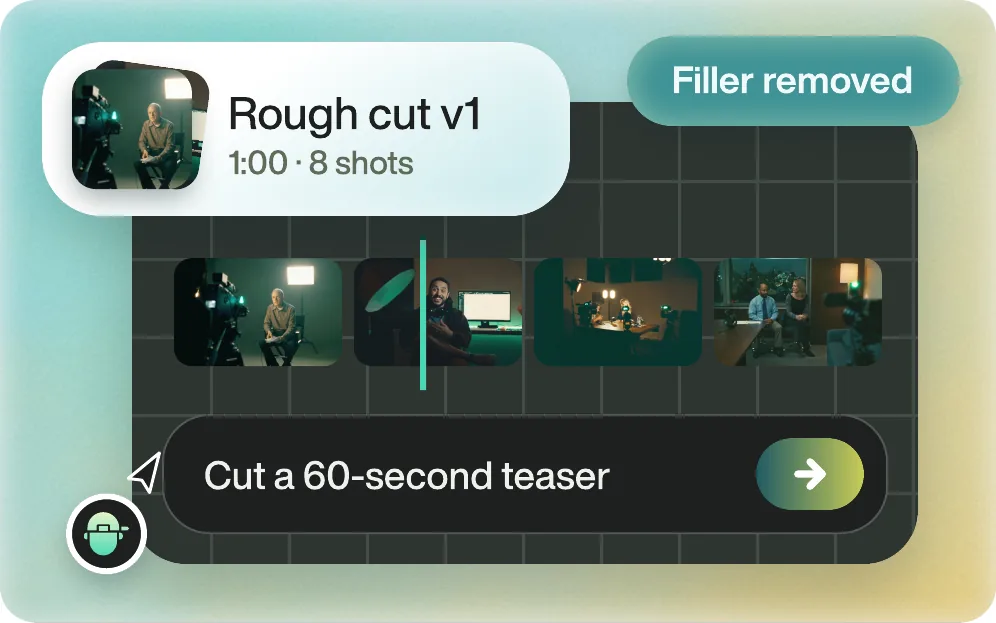
Say "Add b-roll wherever they mention the product." Eddie lays picture-only overlays with the speaker's audio running underneath, using your own footage first, then stock from Pexels (or your Shutterstock account), then generated clips. In Resolve, the b-roll arrives as clips on the upper tracks.
Back to Resolve
Open the edit, click Export and choose Resolve. The default is a Resolve project (.drp) that opens with the timeline built; behind the arrow is a Resolve FCPXML you bring into the project you have open with File > Import > Timeline. In the desktop app, Send to DaVinci Resolve builds the timeline in the Resolve you have running, through Eddie's script (Workspace > Scripts > Eddie AI AE).
If you imported the footage through the desktop app, the timeline points at your original camera files. If you uploaded on the web or pulled from cloud storage, it points at Eddie's proxy media: relink to those in the Media Pool with Relink Selected Clips, not to the camera originals.
FAQ
Questions
- Which track should b-roll go on in Resolve?
- Video 2 or higher, above the interview on Video 1. The upper track plays on top.
- How do I add b-roll without its sound?
- Turn off the audio destination before you edit it in, or Option-click (Mac) or Alt-click (Windows) the b-roll's audio on the timeline and delete it.
