


DaVinci Resolve · Captions, transcripts and text
How to export an SRT file from DaVinci Resolve
The short answer
Right-click the subtitle track header on the Edit page, choose Export Subtitle and save it as SRT. Or tick Export Subtitle on the Deliver page and choose As a Separate File with SRT as the format.

4 steps
In DaVinci Resolve
01
From the track
On the Edit page, right-click the subtitle track's header and choose Export Subtitle.
02
Pick the format
Choose SRT for most platforms or WebVTT for web players, name the file and save it.
03
Or with a render
On the Deliver page, open the Video tab, tick Export Subtitle and set the format to As a Separate File, then choose SRT.
04
Check the timing
Open the SRT in a text editor. If the times start at 01:00:00, set the timeline's start timecode to 00:00:00:00 and export again.
Good to know
Before you start
- Note 1
- An SRT carries the text and timing only. Font, color and position stay in Resolve unless you burn them in.
Eddie AI
Do it in Eddie
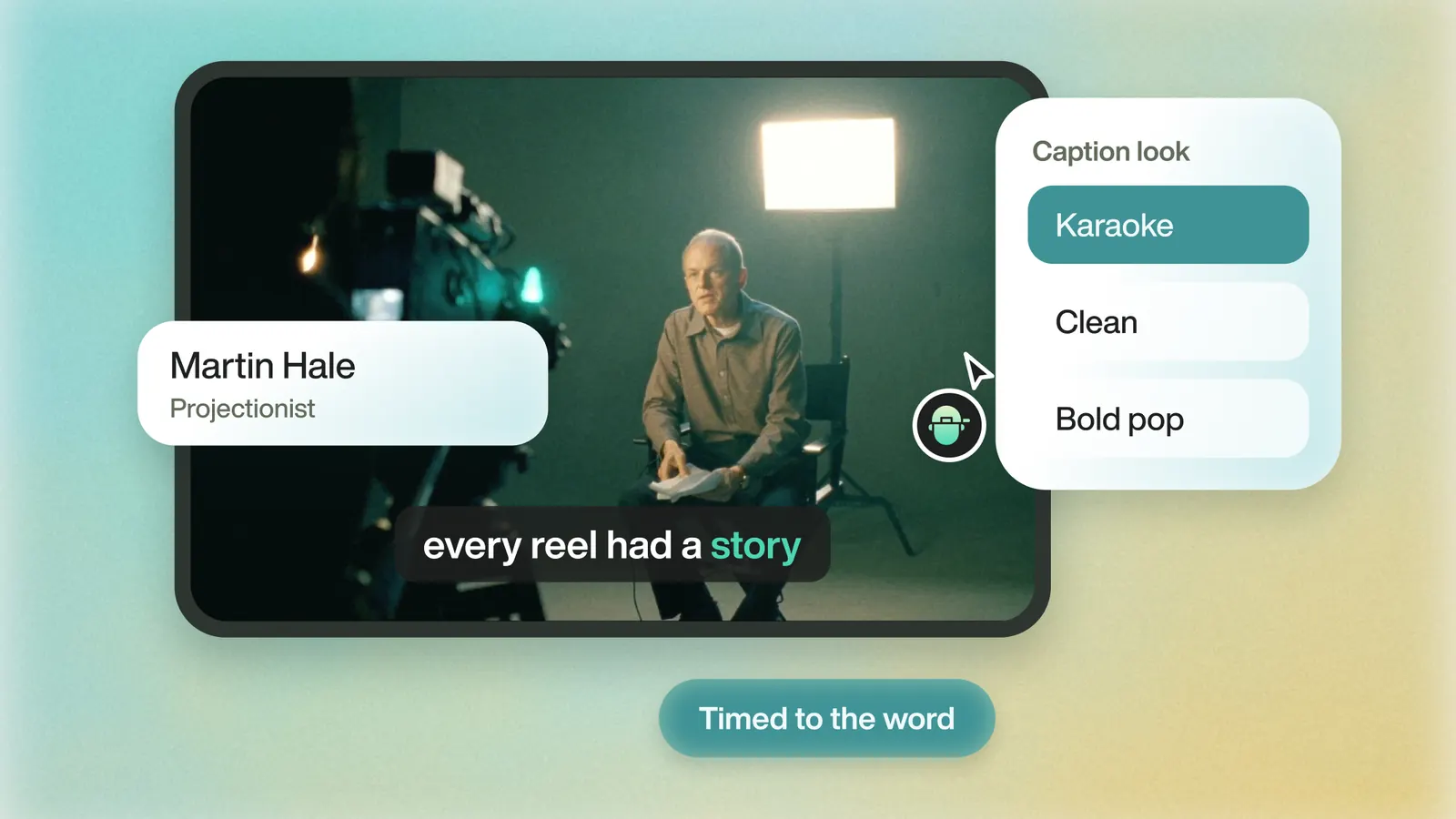
In Eddie the SRT is a free download.
Open Export > All export options > Video file and download Captions (.srt) or Captions (.vtt). Captions skip filler words such as um by default.
FAQ
Questions
- Why does my SRT start at one hour?
- Resolve timelines start at 01:00:00:00 by default. Change the start timecode to zero before you export the SRT.
- Can I export captions without rendering the video?
- Yes. Right-click the subtitle track header and choose Export Subtitle.
