


DaVinci Resolve · Captions, transcripts and text
How to add captions in DaVinci Resolve
The short answer
In DaVinci Resolve Studio, choose Timeline > Create Subtitles from Audio, pick the language and line settings, and click Create. In the free version, right-click a track header, choose Add Subtitle Track and add each caption by hand.

5 steps
In DaVinci Resolve
- 01Studio: generate from audio
- 02Set the options
- 03Free: add a subtitle track
- 04Free: add each caption
- 05Check and fix
01
Studio: generate from audio
Open the timeline on the Edit page and choose Timeline > Create Subtitles from Audio.
02
Set the options
Pick the language or leave it on Auto, choose a caption preset, the characters per line and single or double lines, then click Create. Resolve adds a subtitle track.
03
Free: add a subtitle track
Right-click any track header and choose Add Subtitle Track.
04
Free: add each caption
Park the playhead, right-click the subtitle track and choose Add Subtitle. Type the text in the Inspector's Caption tab and drag the clip's edges to set its timing.
05
Check and fix
Play through, correct words in the Inspector, and drag caption edges so each line stays on screen long enough to read.
Good to know
Before you start
- Note 1
- Create Subtitles from Audio is a DaVinci Resolve Studio feature. The free version has subtitle tracks but no automatic transcription.
- Note 2
- Subtitles only show in the viewer when the subtitle track is enabled. Click the track's eye icon if they are hidden.
Eddie AI
Do it in Eddie
Ask Eddie to add captions, and the Resolve project brings them in on a subtitle track.
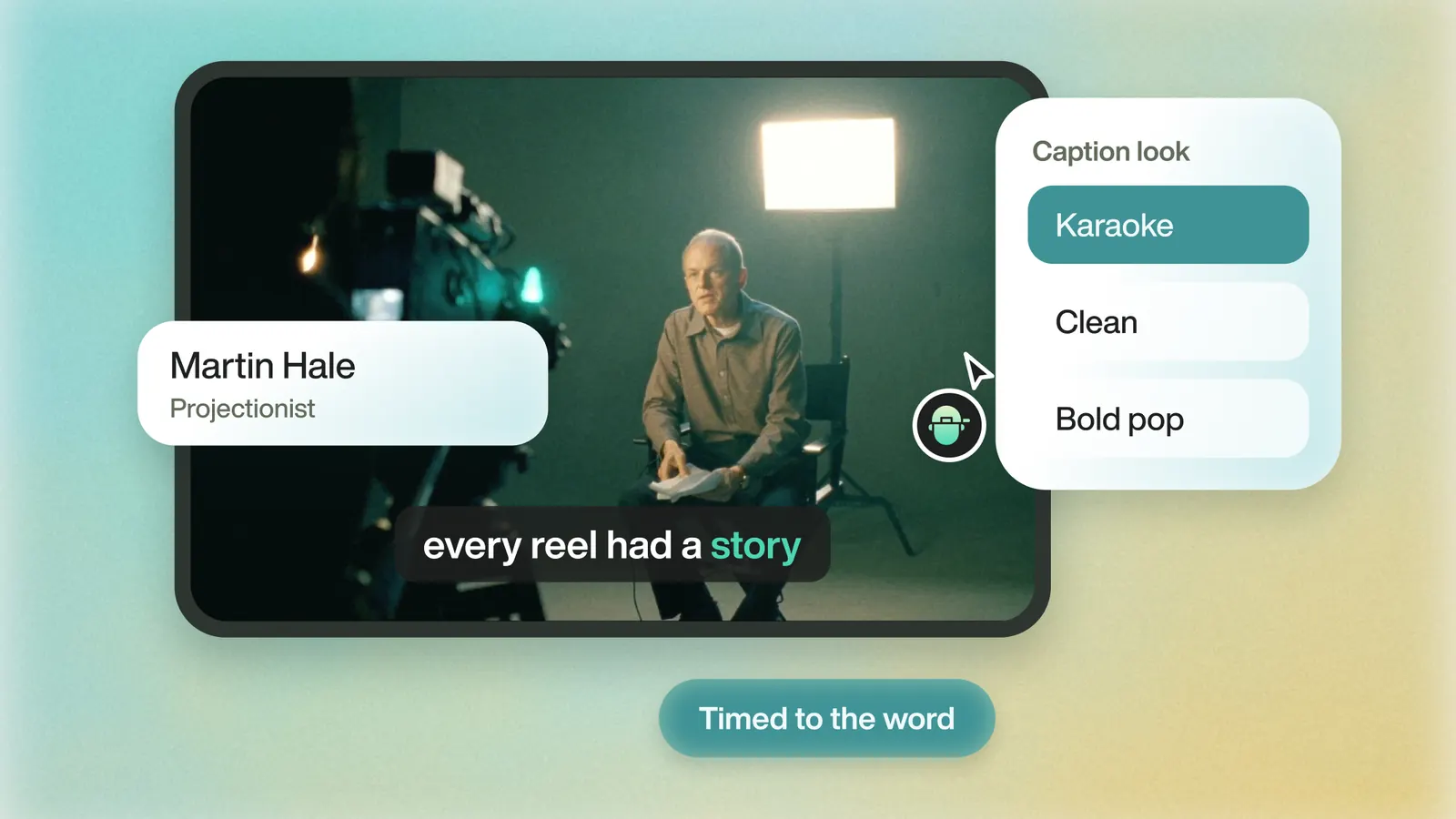
Say "Add captions." You can ask for a style, such as highlighting each word as it's spoken, your brand font, or a color per speaker. Captions move off faces automatically and skip filler words such as um by default. This works without Resolve Studio.
The Resolve 21 project (.drp) puts the captions on a subtitle track. The Resolve FCPXML puts each caption card on the timeline as its own title, and Send to DaVinci Resolve adds a plain subtitle track from the transcript. The word-by-word highlight is in Eddie's MP4 renders only.
Back to Resolve
Open the edit, click Export and choose Resolve. The default is a Resolve project (.drp) that opens with the timeline built; behind the arrow is a Resolve FCPXML you bring into the project you have open with File > Import > Timeline. In the desktop app, Send to DaVinci Resolve builds the timeline in the Resolve you have running, through Eddie's script (Workspace > Scripts > Eddie AI AE).
If you imported the footage through the desktop app, the timeline points at your original camera files. If you uploaded on the web or pulled from cloud storage, it points at Eddie's proxy media: relink to those in the Media Pool with Relink Selected Clips, not to the camera originals.
FAQ
Questions
- Does DaVinci Resolve have auto subtitles for free?
- No. Create Subtitles from Audio is in DaVinci Resolve Studio. The free version lets you type subtitles or import an SRT file.
- Why is Create Subtitles from Audio greyed out?
- You are in the free version, or no timeline is open. Open the timeline on the Edit page and check that you are running Studio.
