


DaVinci Resolve · Captions, transcripts and text
How to export a transcript from DaVinci Resolve
The short answer
In DaVinci Resolve Studio, open the clip's transcription window, click its options menu (the three dots) and choose the export option to save a text file. Or create subtitles from the audio and export the subtitle track as an SRT.

4 steps
In DaVinci Resolve
01
Transcribe the clip
In Resolve Studio, right-click the clip in the Media Pool and choose Audio Transcription > Transcribe.
02
Open the transcript
Right-click the clip again and open its transcription window.
03
Export the text
Click the three-dot options menu in the transcription window and choose the export option. Save the file.
04
Or export subtitles
For a transcript with timecodes, choose Timeline > Create Subtitles from Audio, then right-click the subtitle track header and choose Export Subtitle as SRT.
Good to know
Before you start
- Note 1
- Transcription is a DaVinci Resolve Studio feature. Menu names for the export differ between versions.
Eddie AI
Do it in Eddie
Eddie turns the transcript into a log you can export.
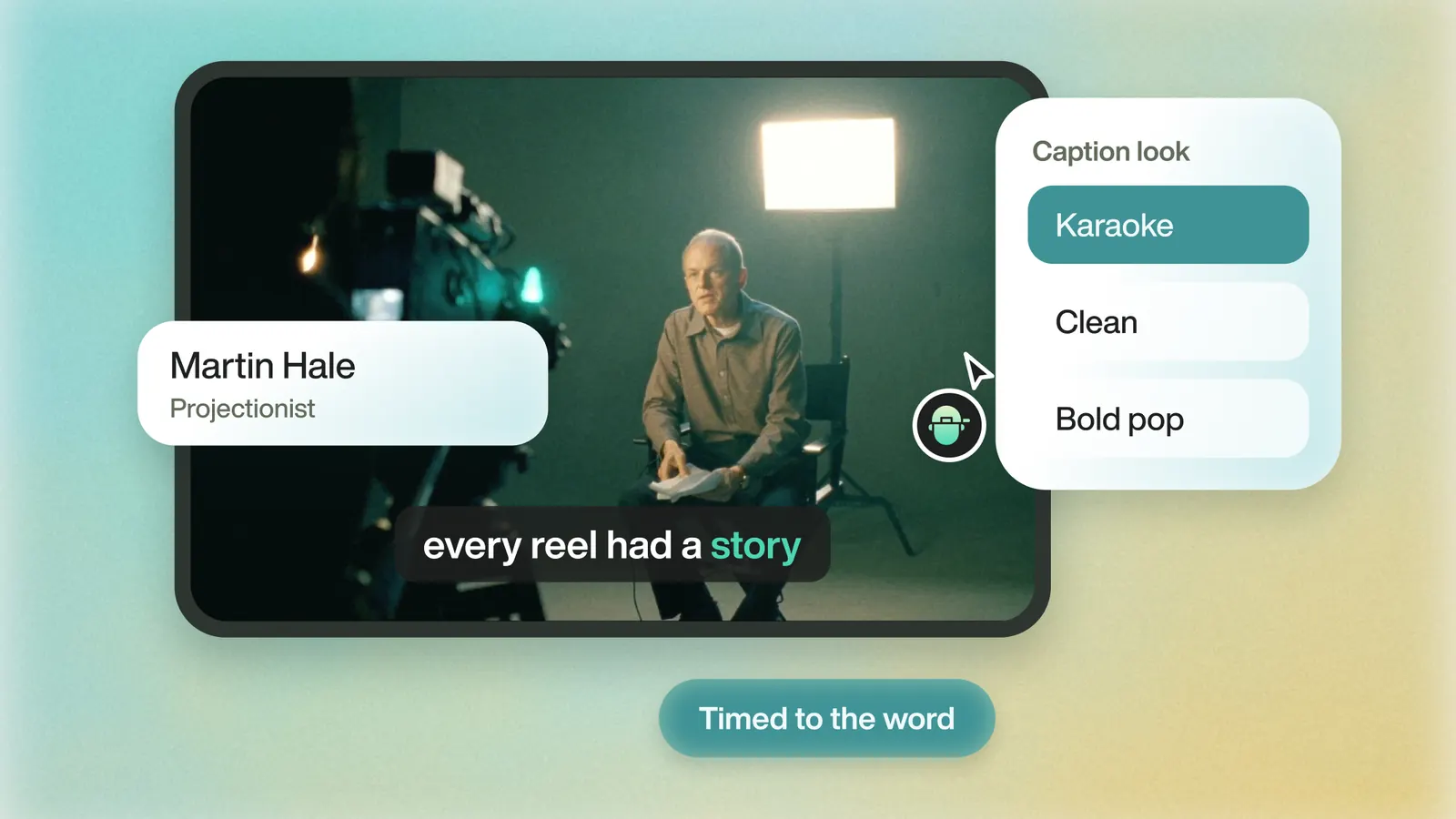
Eddie writes an outline of each interview and a shot log of the b-roll. Export the logs as CSV, Word, a Google Doc or Sheet, or as Resolve XML that opens as bins of soundbites grouped by subject. Captions also download free as SRT or VTT files.
FAQ
Questions
- Can I export a transcript from free DaVinci Resolve?
- No. The free version doesn't transcribe. Type subtitles or import an SRT, then export the subtitle track.
- Does the export include speaker names?
- When speaker detection was on during transcription, recent Studio versions include speaker labels. Check your version's export.
