


DaVinci Resolve · Captions, transcripts and text
How to detect speakers in DaVinci Resolve
The short answer
In DaVinci Resolve Studio 19 and later, turn on speaker detection in the audio transcription options before you transcribe. Resolve labels each passage with a speaker, which you can rename in the transcription window.
5 steps
In DaVinci Resolve
01
Turn on speaker detection
Right-click the clip in the Media Pool, open the Audio Transcription options and switch on speaker detection.
02
Transcribe
Choose Audio Transcription > Transcribe. A clip transcribed before you turned it on needs transcribing again.
03
Rename the speakers
Open the transcription window and click a speaker label to give it the person's name.
04
Fix wrong labels
Select a passage given to the wrong person and change its speaker.
05
Use it in the edit
Search or filter the transcript by speaker to pull one person's lines.
Good to know
Before you start
- Note 1
- Speaker detection is in DaVinci Resolve Studio only. It works best when speakers don't talk over each other.
- Note 2
- For the most accurate labels, record each person on their own mic and track.
Eddie AI
Do it in Eddie
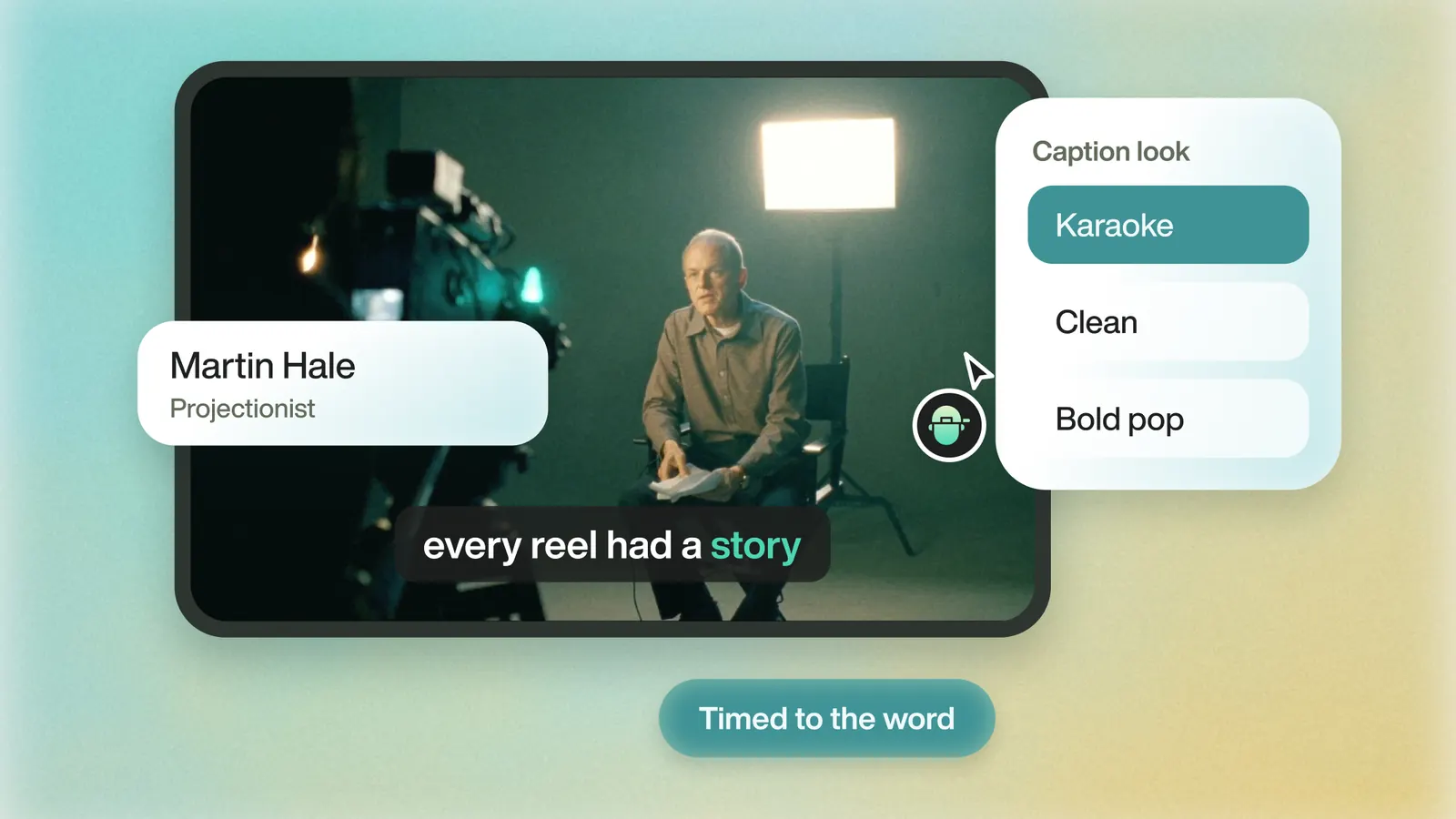
Eddie detects speakers and names them when the audio makes the name clear.
Otherwise speakers show as Speaker 1 and so on. To rename one, open the clip's transcript, click the filter icon, go to Speakers and click the pencil. Use the swap icon to move a line to another speaker. A rename stays in that one interview. Speaker colors work in captions, such as "Make Speaker 2's captions yellow."
FAQ
Questions
- Why didn't DaVinci Resolve detect any speakers?
- Speaker detection was off when the clip was transcribed, or you are in the free version. Turn it on in Studio and transcribe again.
- Can I merge two speakers that are the same person?
- Rename both labels to the same name, or reassign the passages to one speaker.
