


DaVinci Resolve · Rendering and delivery
How to reduce video file size in DaVinci Resolve
The short answer
On the Deliver page, set Quality to Restrict to and type a lower bitrate, such as 8,000 Kb/s for 1080p. Switching the codec from H.264 to H.265 or lowering the resolution also makes the file smaller.
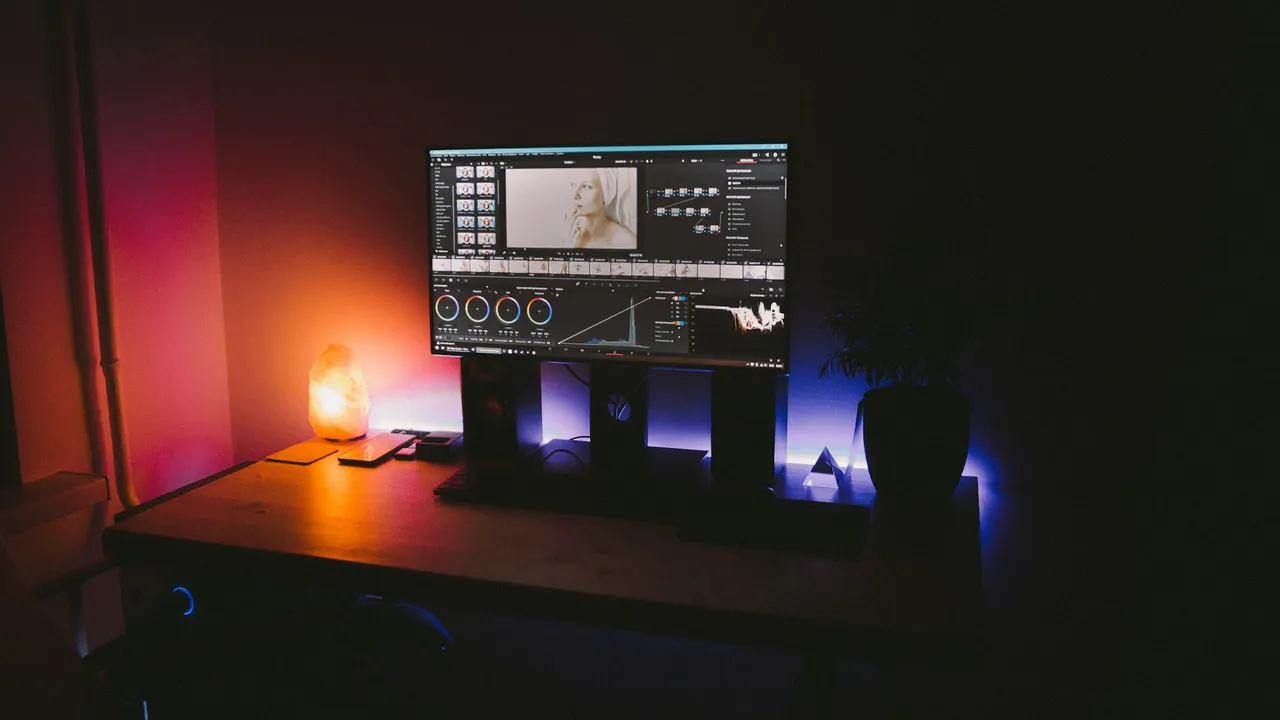
5 steps
In DaVinci Resolve
- 01Pick an efficient codec
- 02Restrict the bitrate
- 03Lower the resolution
- 04Shrink the audio
- 05Render and check
01
Pick an efficient codec
On the Deliver page, set Format MP4 and Codec H.265. It gives a smaller file than H.264 at the same quality.
02
Restrict the bitrate
Under Quality, choose Restrict to and type a bitrate. About 6,000 to 10,000 Kb/s suits 1080p for the web.
03
Lower the resolution
Set Resolution to 1920 x 1080 or 1280 x 720 if you don't need 4K.
04
Shrink the audio
On the Audio tab, use AAC at a lower bitrate if the file is mostly speech.
05
Render and check
Render a short In/Out range first to check the quality before you render the whole timeline.
Good to know
Before you start
- Note 1
- File size is bitrate times length. To hit a target size, divide the size you need by the duration to get the bitrate, leaving room for audio.
Eddie AI
Do it in Eddie
Ask Eddie for a size limit, and it renders under it.
Say "Export an MP4 under 25 MB", or any size you need. Eddie sets the file-size cap for you.
FAQ
Questions
- What bitrate gives a small but good 1080p file?
- 6 to 10 Mbps H.264 for web viewing. H.265 looks similar at a lower bitrate.
- Does a lower frame rate make the file smaller?
- A little, but it changes the motion. Lower the bitrate or resolution first.
