
DaVinci Resolve · Multicam and sync
How to edit a multicam podcast in DaVinci Resolve
The short answer
Select the camera files and the recorder's audio file in the Media Pool, right-click and choose Create Multicam Clip Using Selected Clips, with Angle Sync set to Sound and Multicam Audio set to Reference Audio. Edit the multicam clip into a timeline, set the Multicam Viewer to Video Only and cut between angles while it plays: the picture changes and the dialogue stays one continuous recording. If several camera files play back slowly, make proxies first.
7 steps
In DaVinci Resolve
- 01Make proxies first
- 02Select the angles and the recorder
- 03Set the sync
- 04Choose one audio for every angle
- 05Check the sync
- 06Cut picture only
- 07Fix the cuts afterwards
01
Make proxies first
Several long camera files playing at once is heavy work. In Project Settings > Master Settings > Optimized Media and Render Cache, choose a Proxy Media Resolution (Half or Quarter, for example) and a Proxy Media Format. Select the camera clips in the Media Pool, right-click and choose Generate Proxy Media, then choose Playback > Proxy Handling > Prefer Proxies.
02
Select the angles and the recorder
In the Media Pool, select the three camera clips and the audio file from your recorder or mixer for the same session. Right-click the selection and choose Create Multicam Clip Using Selected Clips.
03
Set the sync
In the New Multicam Clip Properties dialog, set Angle Sync to Sound and pick the Channel with clear speech, or to Timecode if every device was jam synced to the same timecode. Set Angle Name to Clip or File name so each angle is easy to tell apart.
04
Choose one audio for every angle
Set Multicam Audio to Reference Audio. Resolve makes the first audio-only angle, your recorder file, the audio for all the angles; with no audio-only angle, it uses the first angle. Don't choose All Angles for a podcast: it brings every audio track from every angle into the clip. Click Create.
05
Check the sync
Right-click the multicam clip in the Media Pool and choose Open in Timeline to see the angles stacked. Slide an angle that's out of sync (select it and nudge with the Period and Comma keys), and rename the tracks to rename the angles. Leave with the path control at the bottom left of the Timeline.
06
Cut picture only
Edit the multicam clip into a new timeline. In Resolve 21.1, choose Multicam Mode at the bottom of the source viewer; in Resolve 21, choose Multicam from the Source Viewer mode drop-down. A 2x2 grid shows three cameras. Click the Video Only button at the bottom center of the Multicam Viewer, start playback and click an angle to cut to it.
07
Fix the cuts afterwards
Stop playback, choose Source in the source viewer and trim the cuts like any other clips. To change a section's camera, right-click it and choose a new angle from Switch Multicam Clip Angle. When people talk over each other, consider going back to the wide shot rather than chasing each voice.
Good to know
Before you start
- Note 1
- Going to the wide for crosstalk is an editing choice, not a Resolve rule. Blackmagic built the same habit into Multicam SmartSwitch, which it says will tend to use wide angles to cover people talking over each other and silences.
- Note 2
- Multicam SmartSwitch is marked Studio Version Only. It analyzes the angles and cuts to the active speaker; set Switch to Video Only so it leaves your audio alone, and choose the Wide Angle and Wide Angle Frequency (Low, Medium or High) yourself.
- Note 3
- Reference Audio uses one audio-only angle. If your recorder wrote one file holding every mic, Command-right-click (Ctrl-right-click on Windows and Linux) a multicam clip on the timeline to reach the channels inside it.
- Note 4
- Each angle keeps its own grade. To match the three cameras, right-click the multicam clip, choose Open in Timeline and grade each angle on the Color page.
Eddie AI
Do it in Eddie
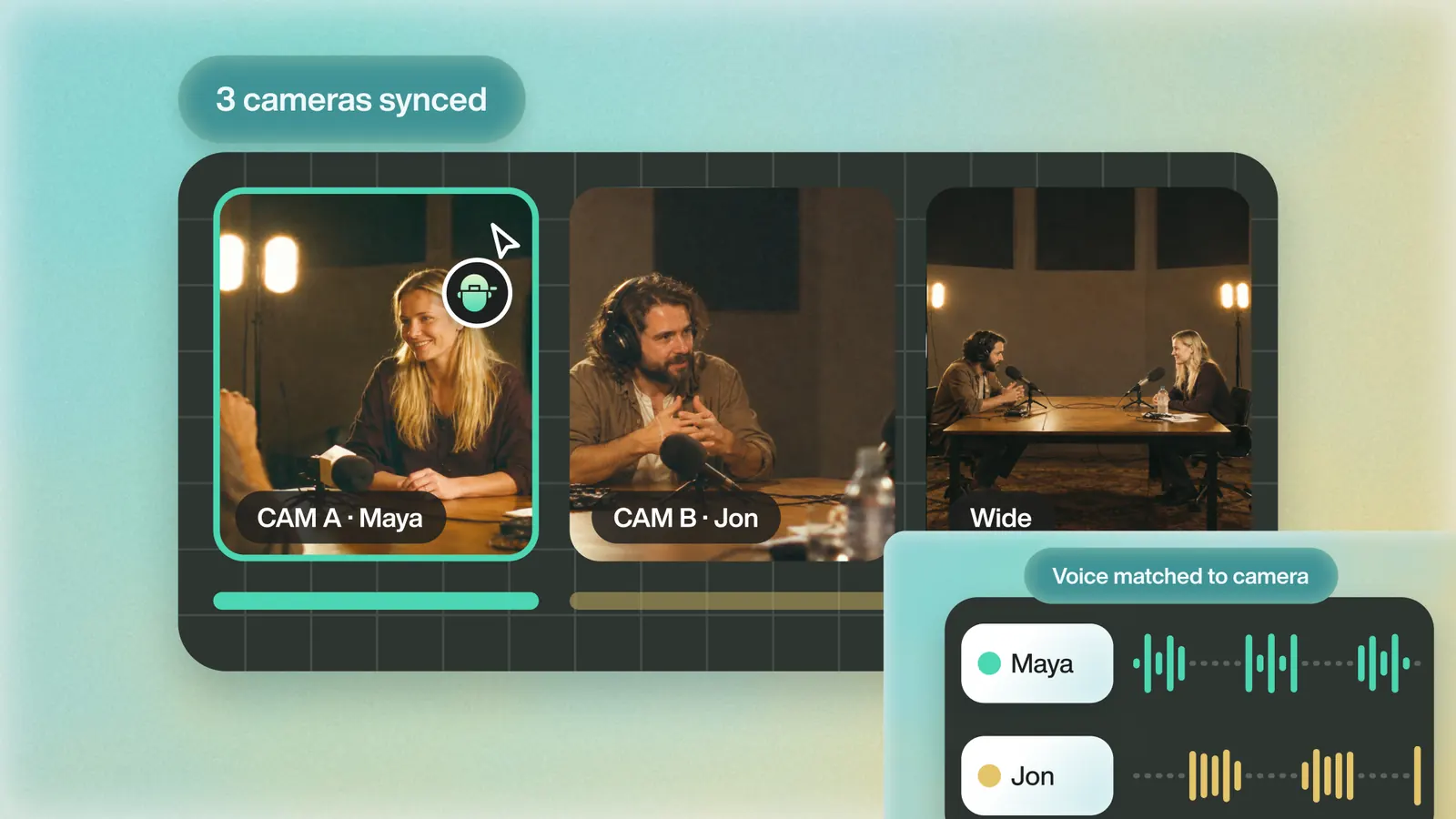
Eddie syncs the cameras and the recorder, and plays one audio file under every cut.
Import the three camera files and a file that holds every voice in the same import, and Eddie groups and syncs them by audio, with timecode as a fallback. Bring the camera files rather than a multicam clip you built in Resolve, which comes into Eddie as one clip you can't switch.
Point the group's sound at the file with every voice once (Set as active audio in the media list) and every cut in the group uses it, in the player, the MP4 render and the editor exports. If each camera only recorded its own mic, Eddie plays only the voice of the camera it is showing, so bring a combined file.
Then ask, for example, "Cut to whoever's talking, and hold the wide shot for the back-and-forth", or name an angle for one stretch. The Resolve project (.drp) brings the group into Resolve as a real Multicam Clip you can keep switching; the Resolve FCPXML brings flat cuts.
Back to Resolve
Open the edit, click Export and choose Resolve. The default is a Resolve project (.drp) that opens with the timeline built; behind the arrow is a Resolve FCPXML you bring into the project you have open with File > Import > Timeline. In the desktop app, Send to DaVinci Resolve builds the timeline in the Resolve you have running, through Eddie's script (Workspace > Scripts > Eddie AI AE).
If you imported the footage through the desktop app, the timeline points at your original camera files. If you uploaded on the web or pulled from cloud storage, it points at Eddie's proxy media: relink to those in the Media Pool with Relink Selected Clips, not to the camera originals.
From the help center
FAQ
Questions
- Which Multicam Audio option should I use for a podcast?
- Reference Audio, with your recorder's file selected along with the cameras. The other choices are Source Audio Channels (the default), Adaptive Tracks and All Angles. All Angles brings every audio track from every angle: Blackmagic's example is an angle with four tracks and one with five giving nine.
- Why does the sound jump when I switch cameras?
- The Audio/Video buttons at the bottom center of the Multicam Viewer decide what a cut changes. Video and Audio cuts both, so the sound can change with the picture. Choose Video Only before you play.
- Can I keep the podcast audio on its own track instead?
- Yes. Resolve plays the whole timeline mix while you cut multicam, and Blackmagic's manual says you can edit a master audio mix file into the timeline to play along with the multicam clip. Keep it lined up with the multicam clip and cut Video Only.
- Can DaVinci Resolve cut a podcast automatically?
- Resolve Studio can, with Multicam SmartSwitch: right-click the multicam clip on the timeline, choose Multicam SmartSwitch, set the options and click Analyze. It is marked Studio Version Only, and you can change any angle it picks afterwards with Switch Multicam Clip Angle.
- How many angles should the Multicam Viewer show?
- Three cameras fit in a 2x2 grid. The grids are 1x1, 1x2, 2x2, 3x3 and 4x4, and Blackmagic's manual suggests viewing fewer angles if your computer can't keep up in real time.