


DaVinci Resolve · Multicam and sync
How to edit multicam in DaVinci Resolve
The short answer
Select the camera clips in the Media Pool, right-click and choose Create New Multicam Clip Using Selected Clips, then pick Timecode or Sound as the Angle Sync. Put the multicam clip on a timeline, switch the Source viewer to Multicam, and click an angle (or press its number key) during playback to cut to it.
7 steps
In DaVinci Resolve
- 01Select the angles
- 02Create the multicam clip
- 03Edit it into a timeline
- 04Show the angles
- 05Cut while it plays
- 06Choose what you switch
- 07Refine afterwards
01
Select the angles
In the Media Pool, select every camera clip and any separate audio recording for the scene.
02
Create the multicam clip
Right-click the selection and choose Create New Multicam Clip Using Selected Clips. Name it and choose the Angle Sync method: Timecode, Sound, In, Out or Marker. Use Sound when the cameras don't share timecode but all heard the same audio.
03
Edit it into a timeline
On the Edit page, drag the multicam clip from the Media Pool into a new timeline.
04
Show the angles
Open the mode menu at the top left of the Source viewer and choose Multicam. The viewer shows every angle in a grid.
05
Cut while it plays
Play the timeline and click an angle in the viewer to cut to it. Number keys 1 to 9 cut to that angle; hold Option (Mac) or Alt (Windows) with the number to switch the angle of the current section without adding a cut.
06
Choose what you switch
The buttons under the multicam viewer set whether a click switches video, audio, or both. Most interview edits switch video only and keep one audio source.
07
Refine afterwards
Trim cuts in Trim Edit mode (T) and roll them to adjust timing. Right-click a section and choose Switch Multicam Clip Angle to change it later.
Good to know
Before you start
- Note 1
- If one camera starts late or runs at a different frame rate, it can fail to sync. Fix the frame rate first, then rebuild the multicam clip.
- Note 2
- DaVinci Resolve Studio 20 and later add Multicam SmartSwitch: right-click the multicam clip on the timeline, choose Multicam SmartSwitch, set the options and click Analyze for a first pass cut by who is speaking. The free version cuts by hand.
Eddie AI
Do it in Eddie
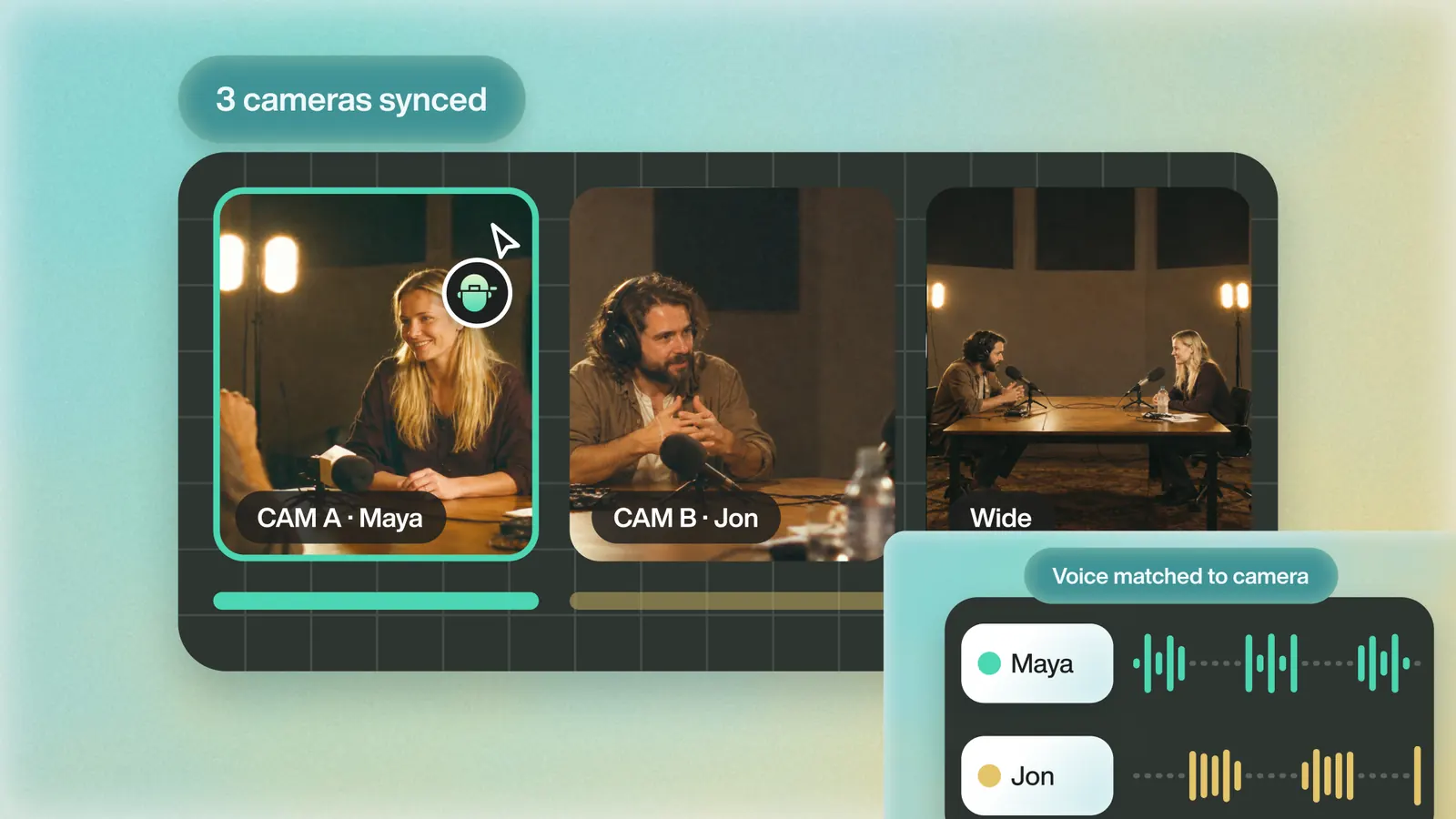
Eddie syncs the cameras and cuts the multicam from a prompt.
Import the cameras together and Eddie syncs them by audio, with timecode as a fallback. There's no multicam setting to turn on. Then ask, for example, "Cut to whoever's talking, and hold the wide shot for the back-and-forth", or "Cut to Sarah" for one moment.
A group Eddie synced arrives in Resolve as a real Multicam Clip with all its angles on every route, and the angle you chose in Eddie plays at each cut, so you can keep switching. A multicam you built in Resolve comes into Eddie as one clip.
Back to Resolve
Open the edit, click Export and choose Resolve. The default is a Resolve project (.drp) that opens with the timeline built; behind the arrow is a Resolve FCPXML you bring into the project you have open with File > Import > Timeline. In the desktop app, Send to DaVinci Resolve builds the timeline in the Resolve you have running, through Eddie's script (Workspace > Scripts > Eddie AI AE).
If you imported the footage through the desktop app, the timeline points at your original camera files. If you uploaded on the web or pulled from cloud storage, it points at Eddie's proxy media: relink to those in the Media Pool with Relink Selected Clips, not to the camera originals.
From the help center
FAQ
Questions
- Is multicam editing free in DaVinci Resolve?
- Yes. Multicam clips and live angle switching work in the free version. Multicam SmartSwitch, which makes an automatic first pass, is Studio-only.
- How many angles can a Resolve multicam clip have?
- The viewer cuts angles 1 to 9 from the keyboard and pages through more if you have them. Most shoots use two to four.
- Why are some angles black in my multicam clip?
- That angle didn't overlap the others after sync, or it failed to sync. Check its timecode or audio and rebuild the multicam clip.
