


DaVinci Resolve · Multicam and sync
How to sync audio and video in DaVinci Resolve
The short answer
Select the video clip and its separate audio clip in the Media Pool, right-click and choose Auto Sync Audio > Based on Waveform (or Based on Timecode if both devices share timecode). The synced audio replaces the scratch track; choose the And Append Tracks option to keep the camera audio as well.
6 steps
In DaVinci Resolve
- 01Check frame rates first
- 02Select the pair
- 03Auto Sync Audio
- 04Check the head and the tail
- 05Or align on the timeline
- 06Sync by hand if it fails
01
Check frame rates first
In the Media Pool, switch to List view and check the Frame Rate column for each clip. A clip that plays too fast or too slow can be set with right-click > Clip Attributes > Video > Frame Rate. Transcode phone or screen recordings with a variable frame rate before you sync.
02
Select the pair
On the Media or Edit page, select the camera clip and the recorder's audio clip in the Media Pool. You can select several cameras and several audio files at once.
03
Auto Sync Audio
Right-click and choose Auto Sync Audio > Based on Waveform, or Based on Timecode if both devices were jammed to the same timecode. Choose the And Append Tracks version to keep the camera's scratch audio as extra channels.
04
Check the head and the tail
Edit the clip into a timeline and play a clap or hard consonant near the start, then one near the end. In sync at the start but late at the end is drift, not a bad sync.
05
Or align on the timeline
Put the video and the audio on separate tracks, select both, right-click and choose Auto Align Clips > Based on Waveform. Use this for a single take you've already edited in.
06
Sync by hand if it fails
Find the clap on both clips, mark it with a marker or an In point, and line the two up on the timeline. Link them with right-click > Link Clips so they move together.
Good to know
Before you start
- Note 1
- Waveform sync needs the same sound on both clips. A camera with no mic, or one that only heard the PA, won't match. Sync by hand on a clap, or by timecode.
- Note 2
- Users report that a multichannel recorder file sometimes syncs only after it is converted to mono, or after you sync on the one channel with clear speech.
- Note 3
- Drift over a long take usually means the camera and recorder didn't share a clock. Sync at the head, cut the audio at a pause partway through, and align each part again.
Eddie AI
Do it in Eddie
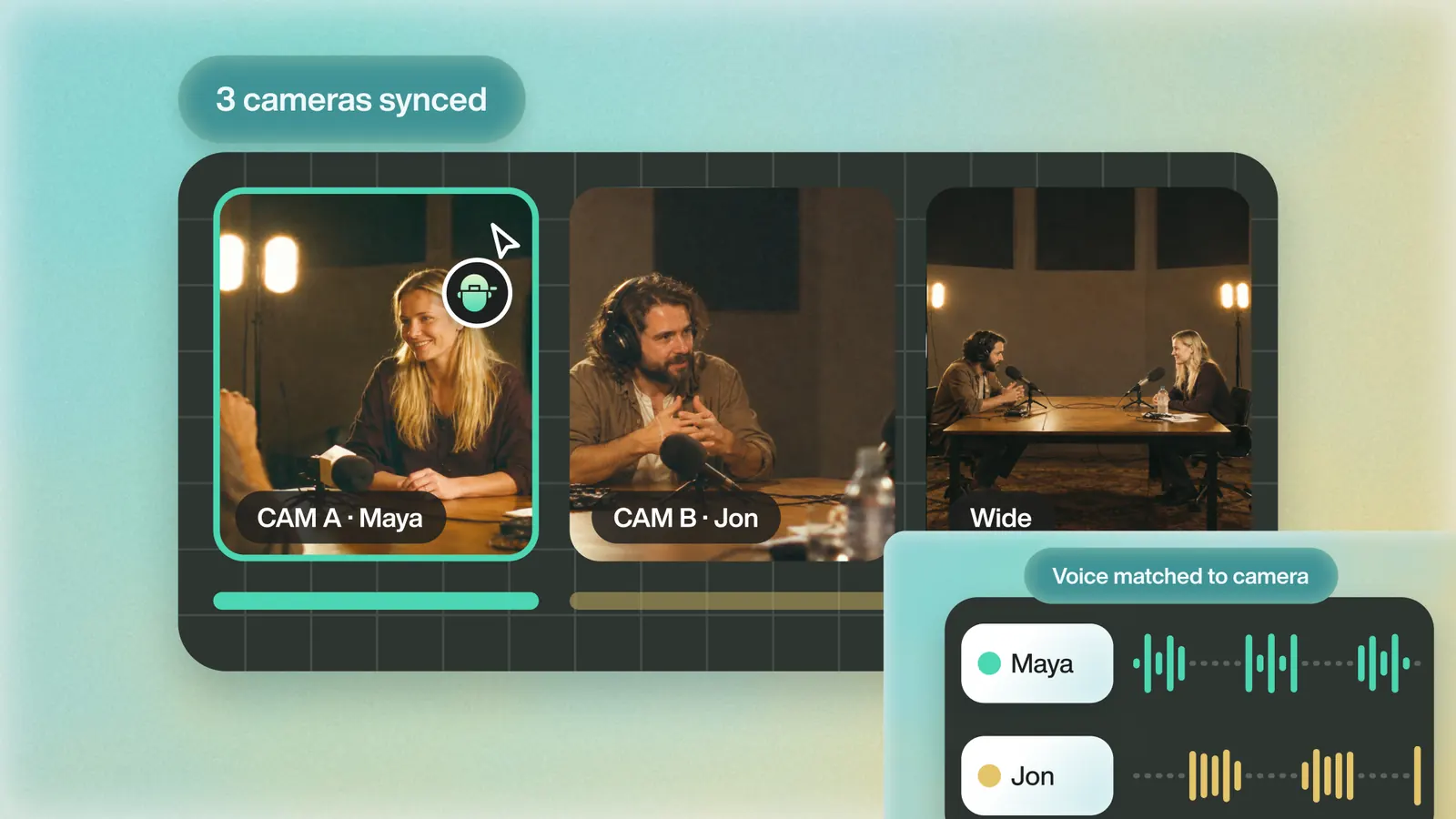
Eddie syncs cameras and a separate recorder when they come in together, and gives you three other ways in when audio sync can't place a camera.
Files in the same import are synced by audio automatically, with timecode as a fallback for a camera the audio couldn't place. When a camera won't place, give the offset yourself, for free: "The clap is at 12.4s on camA and 9.5s on camB, group them."
Ask "Sync my cameras by picture" when the scratch audio is missing or noisy, or "Sync all my cameras" to sweep every ungrouped camera in the project in one pass; that uses credits. A synced group arrives in Resolve as a real Multicam Clip with all its angles.
Back to Resolve
Open the edit, click Export and choose Resolve. The default is a Resolve project (.drp) that opens with the timeline built; behind the arrow is a Resolve FCPXML you bring into the project you have open with File > Import > Timeline. In the desktop app, Send to DaVinci Resolve builds the timeline in the Resolve you have running, through Eddie's script (Workspace > Scripts > Eddie AI AE).
If you imported the footage through the desktop app, the timeline points at your original camera files. If you uploaded on the web or pulled from cloud storage, it points at Eddie's proxy media: relink to those in the Media Pool with Relink Selected Clips, not to the camera originals.
FAQ
Questions
- Why won't DaVinci Resolve sync my audio?
- Usually the clips didn't hear the same sound clearly, the recorder file has several channels with speech on only one, or a clip's frame rate is wrong. Try timecode, a mono version of the audio, or a manual sync on a clap.
- Does Auto Sync Audio replace the camera audio?
- Based on Waveform and Based on Timecode replace it. The And Append Tracks options keep the scratch audio and add the synced audio alongside.
- Can Resolve sync without timecode?
- Yes. Based on Waveform matches the sound, and multicam clips can also sync by In point, Out point or marker.
