Related tutorial.
Full tutorialSupplemental tutorial · Release compatibility unconfirmed. Follow the written steps for Resolve 21.1.2.
THE SHORT ANSWER
Here's the approach.
Resolve Studio 21.1.2 includes Multicam SmartSwitch for dialogue-driven multicam edits. Start with synchronized angles and usable dialogue audio.
Step by step.
Resolve 21.1.2- 01
Prepare the multicam clip
Create a synchronized multicam clip and place it in a timeline. Keep a copy before making the automatic pass.
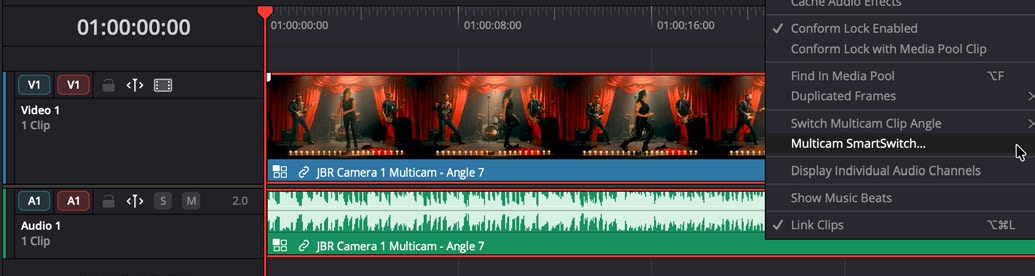
Prepare a multicam clip with synchronized angles.DaVinci Resolve 21.1 · Blackmagic Design - 02
Analyze the conversation
Open Multicam SmartSwitch on the timeline multicam clip. Review timing and switching options, then choose Analyze.
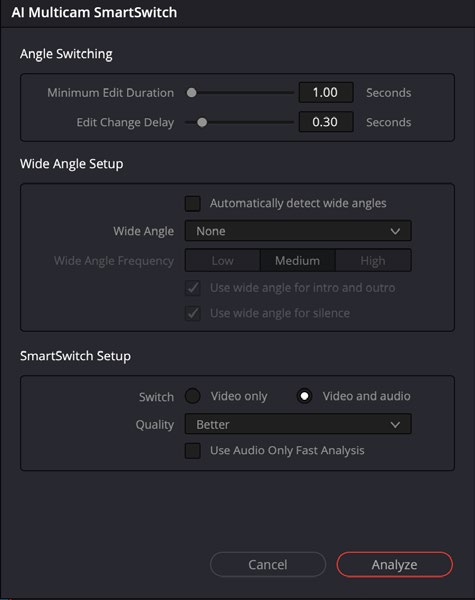
Choose how SmartSwitch analyzes and changes angles.DaVinci Resolve 21.1 · Blackmagic Design - 03
Refine the first pass
Watch the result, repair missed speaker changes and add intentional reactions. Check sync and audio continuity.
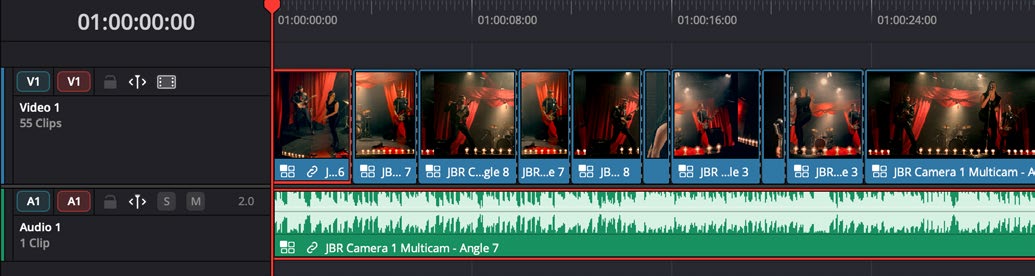
Refine the generated multicam edit.DaVinci Resolve 21.1 · Blackmagic Design
Sources & version notes
Written for DaVinci Resolve 21.1.2. Menu names and available features can differ in other versions.
- Blackmagic Resolve 21.1 reference manual
- Current stable release notes
- Blackmagic release catalogue, 27 October 2026