


DaVinci Resolve · Captions, transcripts and text
How to burn in subtitles in DaVinci Resolve
The short answer
On the Deliver page, open the Video tab, scroll to Subtitle Settings, tick Export Subtitle and set the format to Burn into Video. Add the job to the render queue and render.

5 steps
In DaVinci Resolve
- 01Enable the subtitle track
- 02Open the Deliver page
- 03Turn on subtitles
- 04Choose Burn into Video
- 05Render
01
Enable the subtitle track
On the Edit page, make sure the subtitle track you want is turned on. Resolve burns in the active track.
02
Open the Deliver page
Click Deliver and pick a preset, such as H.264 Master or YouTube.
03
Turn on subtitles
In the Video tab, scroll to Subtitle Settings and tick Export Subtitle.
04
Choose Burn into Video
Set the format to Burn into Video. The other options export a separate file or embed captions in the file.
05
Render
Click Add to Render Queue, then Render All, and play the file to check the captions.
Good to know
Before you start
- Note 1
- Burned-in captions can't be turned off by the viewer. For YouTube, uploading an SRT separately keeps them editable.
Eddie AI
Do it in Eddie
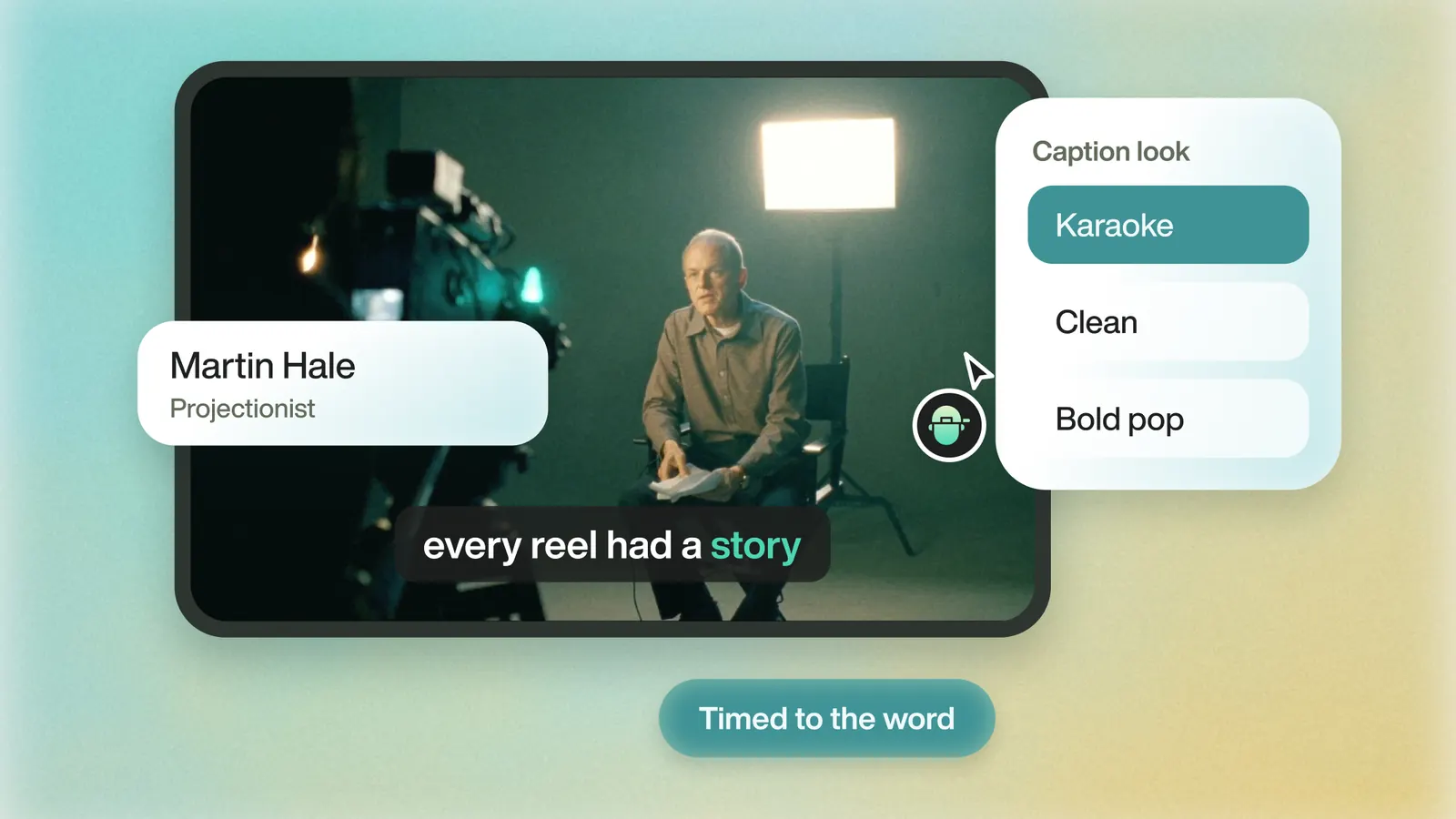
Eddie burns captions into every MP4 it renders.
An Eddie MP4 has the captions burned in, including the word highlight and speaker colors. SRT and VTT downloads are free under Export > All export options > Video file. Some scripts don't burn in correctly yet, such as certain Devanagari vowel signs.
FAQ
Questions
- Why aren't my subtitles in the exported video?
- Export Subtitle is off or set to a separate file. Tick it and choose Burn into Video on the Deliver page.
- Can I export the video and an SRT at once?
- Choose As a Separate File for the SRT, render, then render again with Burn into Video if you need both versions.
