


DaVinci Resolve · Audio
How to duck music under dialogue in DaVinci Resolve
The short answer
On the Fairlight page, add the Ducker effect to the music track and pick the dialogue track as its source, or turn on the music track's compressor and key it from the dialogue. Volume keyframes on the music clip work in every version.
5 steps
In DaVinci Resolve
- 01Split dialogue and music
- 02Add the Ducker
- 03Or use a sidechain
- 04Set depth and release
- 05Or keyframe by hand
01
Split dialogue and music
Put dialogue and music on separate audio tracks, then open the Fairlight page.
02
Add the Ducker
In recent versions, add the Ducker to the music track's track effects and choose the dialogue track as the source that triggers it.
03
Or use a sidechain
Double-click the Dynamics area of the music track in the Mixer, turn on the Compressor, and set its sidechain to listen to the dialogue track or bus.
04
Set depth and release
Set how far the music drops, typically 8 to 12 dB, and a release slow enough that it doesn't pump between words.
05
Or keyframe by hand
On the Edit page, Option-click (Mac) or Alt-click (Windows) the volume line on the music clip to add keyframes, then drag the section under speech down.
Good to know
Before you start
- Note 1
- In DaVinci Resolve Studio 20 and later, Timeline > AI Tools > Audio Assistant balances dialogue and ducks music for a delivery standard you pick. Listen to the result and adjust it.
- Note 2
- Control names for the Ducker differ between versions. Check the Fairlight section of the manual for your build.
Eddie AI
Do it in Eddie
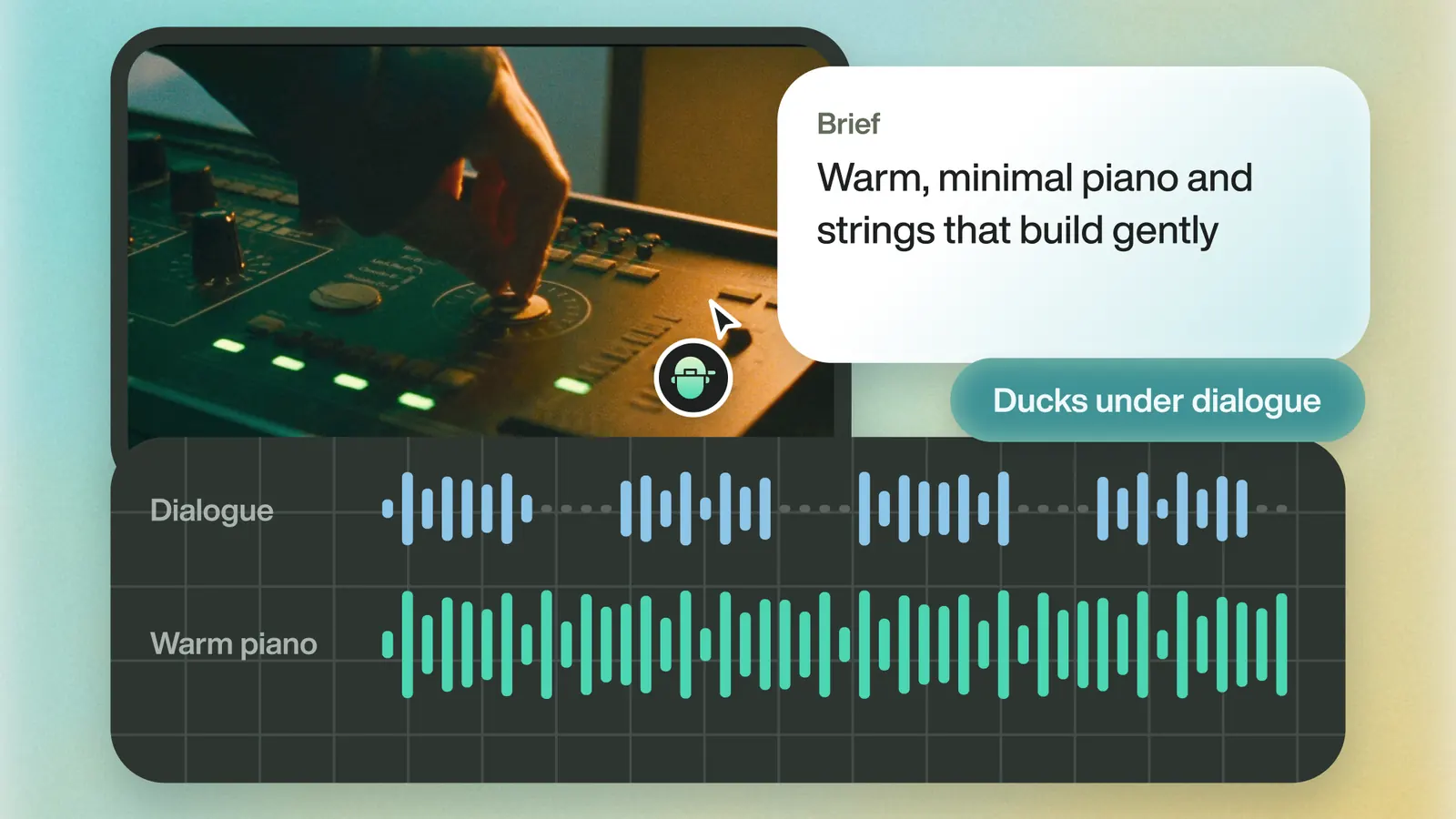
Eddie ducks music under speech by default.
When Eddie adds music, it sits about 12 dB under speech. Music arrives in Resolve on its own audio track, so you can adjust it or add a Ducker there. You can also ask Eddie to snap the cuts to the beat.
Back to Resolve
Open the edit, click Export and choose Resolve. The default is a Resolve project (.drp) that opens with the timeline built; behind the arrow is a Resolve FCPXML you bring into the project you have open with File > Import > Timeline. In the desktop app, Send to DaVinci Resolve builds the timeline in the Resolve you have running, through Eddie's script (Workspace > Scripts > Eddie AI AE).
If you imported the footage through the desktop app, the timeline points at your original camera files. If you uploaded on the web or pulled from cloud storage, it points at Eddie's proxy media: relink to those in the Media Pool with Relink Selected Clips, not to the camera originals.
From the help center
FAQ
Questions
- Does DaVinci Resolve have auto ducking?
- Yes. The Fairlight Ducker track effect and the compressor's sidechain both lower music when dialogue plays. In Studio, Timeline > AI Tools > Audio Assistant also ducks music as part of an automatic mix.
- Why does my music pump up and down?
- The release is too fast. Lengthen it so the music comes back up slowly after each sentence.
