
Related tutorial.
Full tutorialSupplemental tutorial · Release compatibility unconfirmed. Follow the written steps for Resolve 21.1.2.
THE SHORT ANSWER
Here's the approach.
AI Audio Assistant requires DaVinci Resolve Studio. In 21.1.2, it can balance dialogue, duck music and apply processing and automation for the chosen delivery standard. Start with an unmixed timeline; it handles the fader adjustments.
Review the result before delivery. If a track is misclassified, correct its Track Category and rerun Audio Assistant. You can also refine or undo the mix.
Step by step.
Resolve 21.1.2- 01
Prepare the unmixed timeline
Open a timeline containing your dialogue, music and effects. Initial fader levels do not need to be preset; Audio Assistant adjusts them.
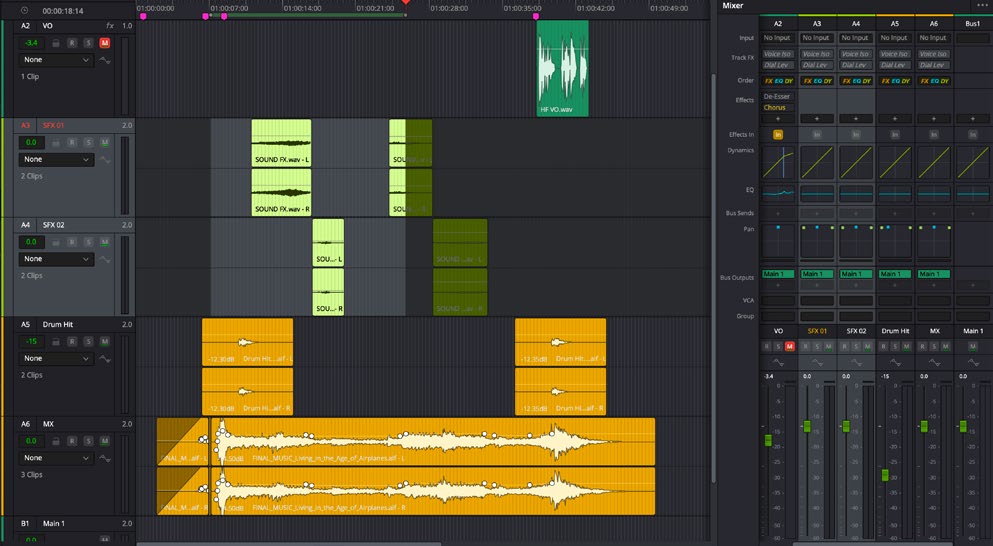
Keep the audio elements on appropriate tracks.DaVinci Resolve 21.1 · Blackmagic Design - 02
Choose delivery and Auto Mix
Choose Timeline > AI Tools > Audio Assistant. Select the Delivery Standard and click Auto Mix. Wait for the process to finish, or cancel it if needed.
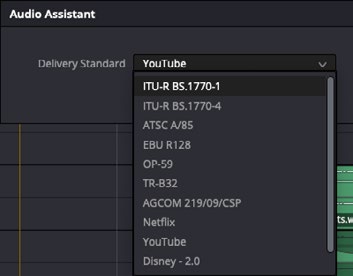
Choose the Delivery Standard for the mix.DaVinci Resolve 21.1 · Blackmagic Design - 03
Listen and correct
Play back the mix. For a wrong category, right-click the track header, choose the correct Track Category and rerun Audio Assistant. Refine or undo the result as needed.
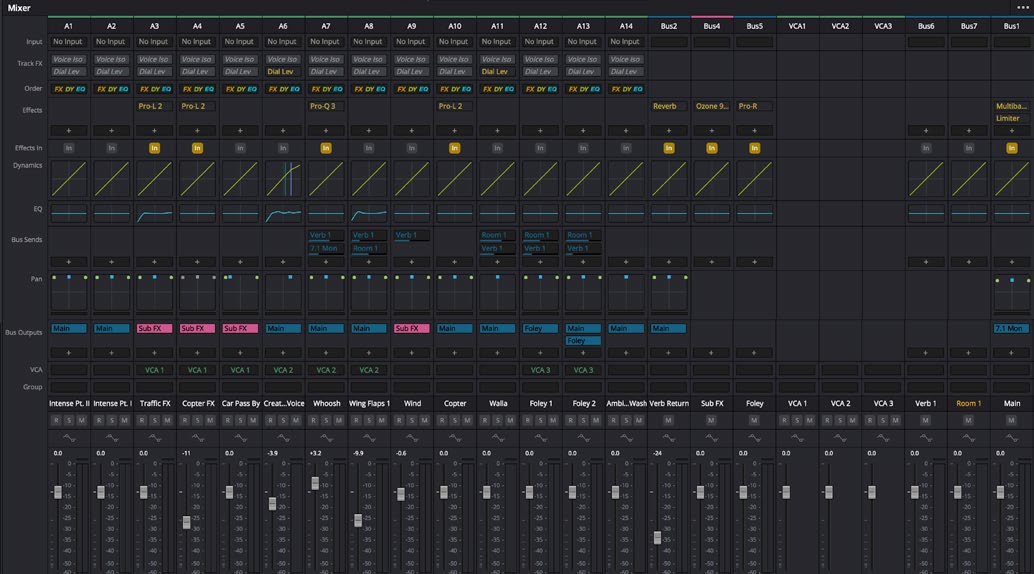
Review track levels, effects and bus output.DaVinci Resolve 21.1 · Blackmagic Design
Sources & version notes
Written for DaVinci Resolve 21.1.2. Menu names and available features can differ in other versions.
- Blackmagic Resolve 21.1 reference manual, Fairlight, printed pp. 3969–3970
- Blackmagic current stable release catalogue