


DaVinci Resolve · Audio
How to add music in DaVinci Resolve
The short answer
Import the music file into the Media Pool (Cmd+I on Mac or Ctrl+I on Windows), then drag it onto an empty audio track below your dialogue. Lower its level in the Inspector and add fades at the ends.
5 steps
In DaVinci Resolve
01
Import the file
Choose File > Import > Media, or press Cmd+I or Ctrl+I, and pick your MP3, WAV or AIFF file. It appears in the Media Pool.
02
Add a music track
Right-click an audio track header in the Edit page timeline and choose Add Track, so the music sits apart from dialogue.
03
Place the music
Drag the song from the Media Pool onto the new track at the point where it should start.
04
Set the level
Select the clip and lower Volume in the Inspector's Audio tab so speech stays clear. Music under dialogue often sits 15 to 20 dB below it.
05
Trim and fade
Trim the end to the length of the edit and drag the fade handles at the top corners of the clip to fade in and out.
Good to know
Before you start
- Note 1
- Use music you have the rights to. Platforms can mute or claim videos with unlicensed songs.
Eddie AI
Do it in Eddie
Eddie adds music from a prompt: generated, uploaded or from your workspace library.
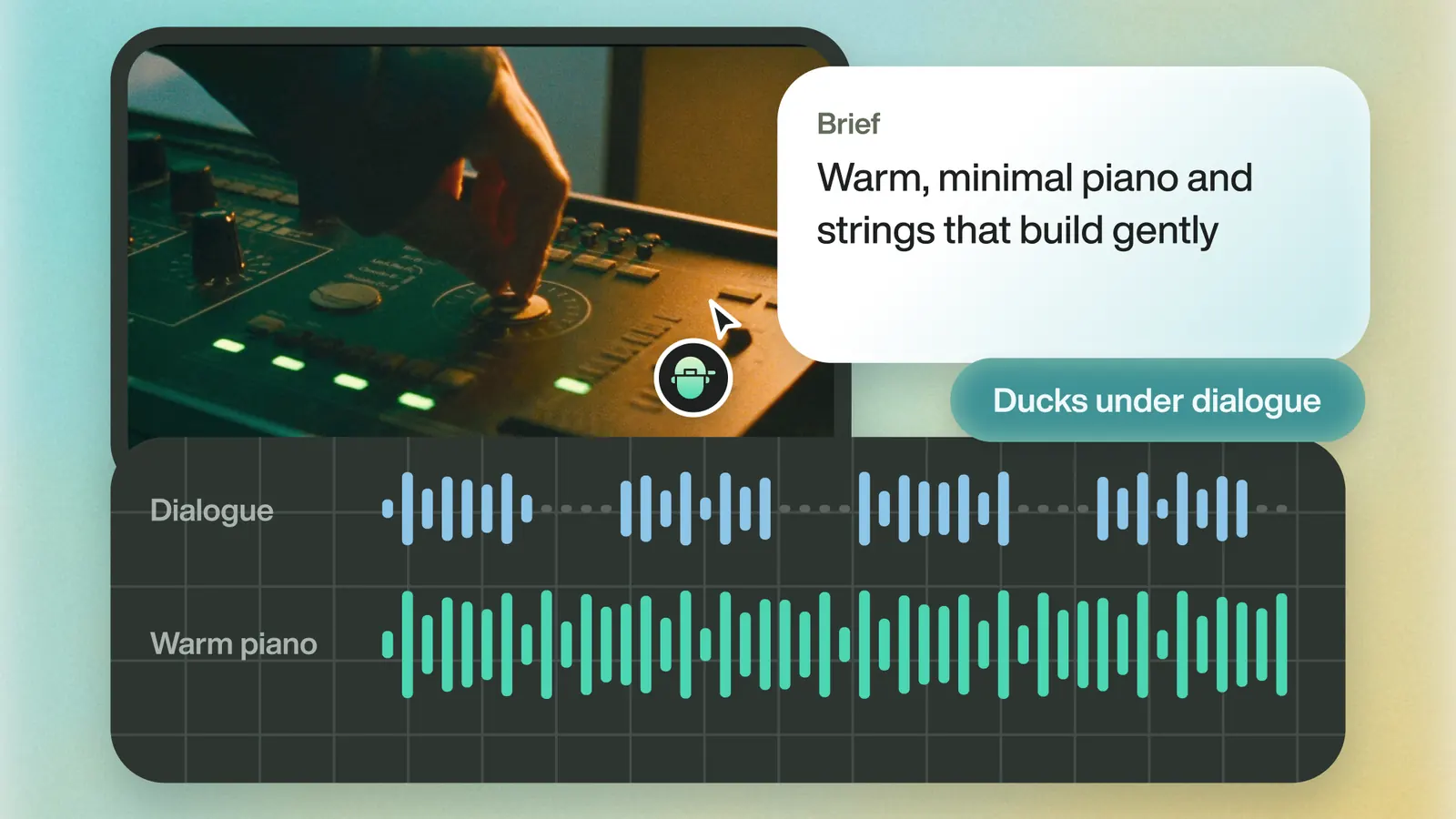
Ask for music, such as "Add a calm piano track under the interview." Eddie can generate it (200 credits per minute), use a file you upload (MP3, WAV or M4A up to 150 MB, free), or use the workspace's music library. It ducks under speech, and you can ask to snap the cuts to the beat. The track arrives in Resolve on its own audio track.
Back to Resolve
Open the edit, click Export and choose Resolve. The default is a Resolve project (.drp) that opens with the timeline built; behind the arrow is a Resolve FCPXML you bring into the project you have open with File > Import > Timeline. In the desktop app, Send to DaVinci Resolve builds the timeline in the Resolve you have running, through Eddie's script (Workspace > Scripts > Eddie AI AE).
If you imported the footage through the desktop app, the timeline points at your original camera files. If you uploaded on the web or pulled from cloud storage, it points at Eddie's proxy media: relink to those in the Media Pool with Relink Selected Clips, not to the camera originals.
FAQ
Questions
- Why won't my music file import into DaVinci Resolve?
- Some files, such as protected iTunes downloads, aren't supported. Convert the song to WAV or MP3 and import it again.
- How do I loop music in DaVinci Resolve?
- Copy the music clip and paste it after itself, then cut both copies on a beat and add a short crossfade.
