On this page
In Summary Automatic multicam cutting is a transcript problem, not a signal-processing one. Once cameras are synced into a group, the cut follows who is speaking, and the rules it follows are written down rather than implied. The exports are the interesting part: Final Cut and Resolve get a real multicam clip, and Premiere gets every alternate angle stacked underneath the chosen one, ready to reveal.
The short answer
Switching angles on a two-hour podcast is the most mechanical work in post. It is also not hard: stay on whoever is speaking, use the wide for the back and forth, do not cut on every "yeah".
Those are rules, and rules are automatable, provided the tool knows two things: which cameras belong to the same take, and who is speaking when. The first comes from syncing. The second comes from the diarised transcript. Put them together and the angle cut is a decision the model can make segment by segment while you watch.
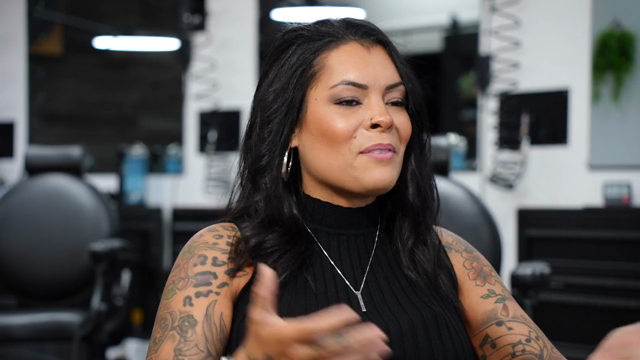
The demo project we use throughout these guides is an interview shoot with Jessica Hernandez and her daughter Alizé, who run Simply Men's Barbershop in West Chester, PA: three interviews, 8:20, 24:59 and 30:38, 1 hour 4 minutes total, 13,675 words, 3 speakers separated automatically. The speaker separation is the part that carries over here. Angle cutting on a podcast is only as good as knowing who is talking.
Step 1: Get your cameras into a group
Angles are cuttable once the cameras of the same take are grouped. There are three ways in, and it is worth knowing which one you are on:
- Grouped at import. Nothing to do. Your source list will show the group.
- Grouped by hand. Nominate a reference camera, then give every other camera an offset in seconds: where that camera's file starts on the reference timeline. Find a moment both cameras caught, a word or a clap, and the offset is the time of that moment in the reference file minus its time in the other camera's file. Positive means that camera started later. You can derive it straight from matching transcript timestamps. This is free, it never guesses, and it works across separate imports, so a camera you added a week later can still be grouped with the originals.
- Already synced elsewhere. If you assembled a synced timeline in Premiere or Resolve, or with Syncaila or Tentacle Sync, import it as-is. See import dirty multicams (aka synced timelines).
There is also a whole-project "sync all my cameras" analysis that proposes a grouping for everything ungrouped and changes nothing until you confirm it. It is metered, roughly 2 to 3 credits per minute of ungrouped footage plus about 6 fixed, so about 150 credits for an hour, and it is still behind a rollout flag. Treat grouping by hand as the path that always works.
Step 2: Look at the angles before you cut
Ask for the angles on the edit and you get each one's id, role, name and real pixel dimensions, plus which angle is currently live on every segment. Read this before anything else, for two reasons. The dimensions are what any reframe or split-screen has to be computed against, and cameras are not all 16:9: cinema cameras ship 1.9:1, and phone footage reports rotation-aware display dimensions rather than its raw encode.
Step 3: Cut on who is speaking
Angle assignment happens per segment. The editorial rules Eddie follows are not vague "AI magic", they are stated instructions, and they are the ones a careful assistant would follow:
- Stay on whoever is speaking: the guest's shot for their answers, the host's shot or the wide for questions and reactions.
- Use the wide two-shot for quick back and forth.
- Do not switch angle for every short "yeah" or "right". It looks nervous.
- Only switch on a real change of speaker, or to smooth a jump cut.
- If a speaker has no camera of their own, stay on the wide rather than sit on the wrong person's face.
- Prefer the sharpest camera. Fall back to a softer angle only briefly, and only when it is the only shot of that person.
You can override any of it in plain language: "stay wide for the whole intro", "never cut to camera B, the focus is soft".
Step 4: Use angles to hide your own cuts
The most valuable thing a second camera does is cover the cuts you made for other reasons. Every filler word you removed at word level leaves a jump cut on a single locked-off camera. Switching angle on those segments makes the cut invisible, and it is the reason to clean filler before you assign angles rather than after. See how to remove filler words from an interview.
For a vertical deliverable, the same angle information drives a split-screen canvas: guest on the top half, host on the bottom, with per-segment overrides so you go full frame on whoever is talking. See how to make vertical clips for social from a podcast or interview.
Step 5: What your NLE actually receives
This is where multicam workflows normally fall apart, so here is precisely what Eddie writes:
- Final Cut Pro and DaVinci Resolve (FCPXML) get a genuine multicam clip. The chosen angle is written as the video source and the group's single reference angle as the audio source, as two separate entries. That second part is deliberate: a single combined entry let Resolve enable every angle's audio at once and split it across A1 and A2. Pinning audio to one angle stops that.
- Premiere Pro XML gets the chosen angle on the timeline and every alternate angle stacked on the lanes directly beneath it, in group order, closest alternate first. The alternates stay video-enabled, hidden behind the top clip, with their audio muted so angles do not pile up. Switching to a different angle in Premiere is then a matter of hiding the top clip, not re-syncing anything.
- OTIO carries the cut, not the group.
Both formats relink to your original camera files. See how to export an AI edit to Premiere Pro, DaVinci Resolve or Final Cut.
What it will not do
- It does not sync by waveform for you as a free automatic step. Cameras that were grouped at import are grouped. Everything else is either your offset, your synced timeline, or the metered whole-project analysis. Anyone claiming free instant sync of arbitrary footage is describing a wish.
- It has no opinion on the picture. The angle choice is made from who is speaking, not from which shot is better composed, better exposed, or in focus. If camera B drifts soft in the second hour, you have to say so.
- It will not invent an angle. If nobody pointed a camera at the person talking, the best it can do is stay wide.
- Reaction shots are a judgement call it will usually miss. The moment where the host raises an eyebrow is not in the transcript, so it is not in the model's view of the world. Those cuts stay yours.
- Only real same-take angles belong in a group. B-roll is not an angle, and grouping it will produce nonsense.
FAQ
Does multicam angle cutting cost credits? No. Listing angles, assigning them, grouping cameras by hand and exporting are all free. The whole-project sync analysis is the metered exception.
How many cameras can be in a group? More than two is fine. Each becomes a switchable angle, and Premiere exports stack every alternate under the chosen one.
Can I add a camera later? Yes. Re-declare the group with the extra camera and its offset. Grouping works across separate imports.
Do my existing cuts break when I change the grouping? No. Adding angles is additive, and edits you already built stay valid.
Can I drive this from ChatGPT or Claude? Yes, over the same MCP connector. See how to edit video with ChatGPT and how to edit video with Claude.
If you want to see the transcript-driven half of this before you point four cameras at anything, the barbershop project ships inside Eddie. Open it and prompt it.