How-to guidesEvents
How to Edit an Event Highlight Video
An event recap sells the next event. Nobody watches ten minutes of a conference they missed, but they will watch ninety seconds that make them wish they had been there. The difficulty is volume: hours of roaming camera footage, and the good moments are not in the transcript because nobody is talking in them.
The short answer
Pick 60 to 120 seconds of the event's peaks: the crowd arriving, the stage moments, the reactions, two or three lines from speakers or guests. Cut them to an energetic music track on the beat, use slow motion for the big moments, and open and close with a wide shot of the venue. Eddie finds the moments by watching the footage, builds the montage, and snaps the cuts to the music.
What you will end up with
- A 90-second recap of the event's peaks, cut to music.
- Two or three short soundbites from speakers or attendees.
- Slow-motion ramps on the biggest moments.
- A vertical version for social and a title card with the date and next event.
Step by step
Step 1
Import all the coverage
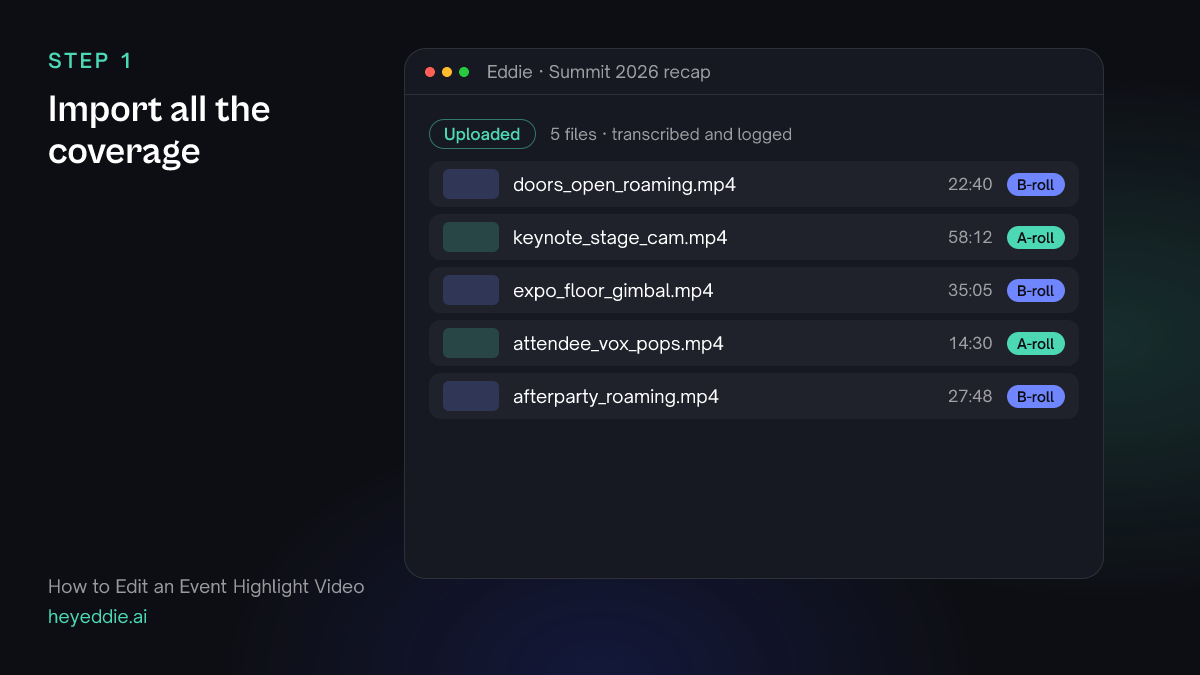
Upload every camera card from the event. Do not cull first. Eddie logs the roaming footage by what it shows and transcribes anything with speech.
What Eddie does
- Logs roaming footage shot by shot and transcribes the keynote and the attendee interviews.
- Sorts talking footage from coverage, which you can correct.
What you get: Hours of coverage you can search by what happens in it.
Step 2
Find the moments in the picture
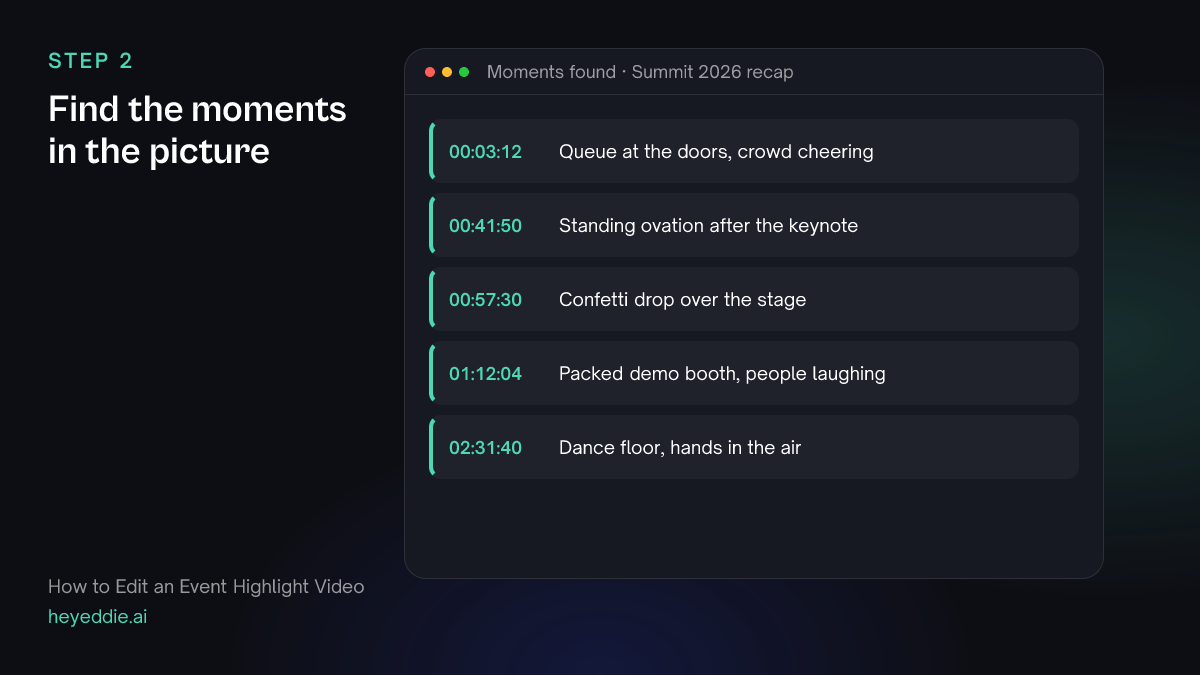
The best recap moments have no words: a crowd standing up, a confetti drop, a handshake on stage. Ask Eddie to watch for them.
What you type “Search all the coverage for the high-energy moments: the crowd applauding, people laughing, the confetti at the end of the keynote, packed expo booths, and the dance floor. Give me each moment with its time.”
What Eddie does
- Watches the picture and sound of the coverage for the moments you described, after quoting the credits.
- Returns each moment with its source, start and end time, a description and a confidence.
What you get: A list of the event's peaks without scrubbing four hours of footage.
Step 3
Build the montage and add a few voices
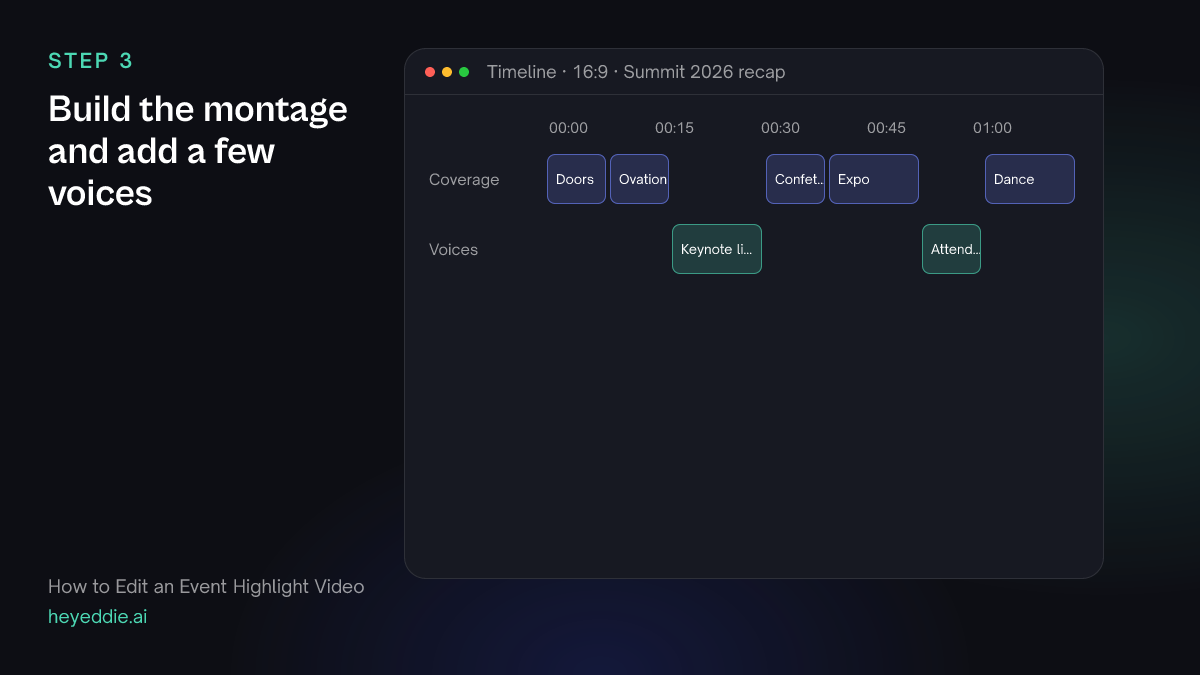
Lay the moments in the order of the day, and let two or three short lines carry the story: one from the stage, one or two from attendees.
What you type “Make a 90-second recap from the moments you found, in the order of the day. Open on the doors opening, include the keynote line "this is the year we ship it" and two short attendee quotes about the expo, and end on the dance floor.”
What Eddie does
- Builds the montage from the found moments and your coverage.
- Adds the soundbites you named in their place and keeps them short.
What you get: A recap that has both energy and words.
Step 4
Cut to the music and ramp the peaks
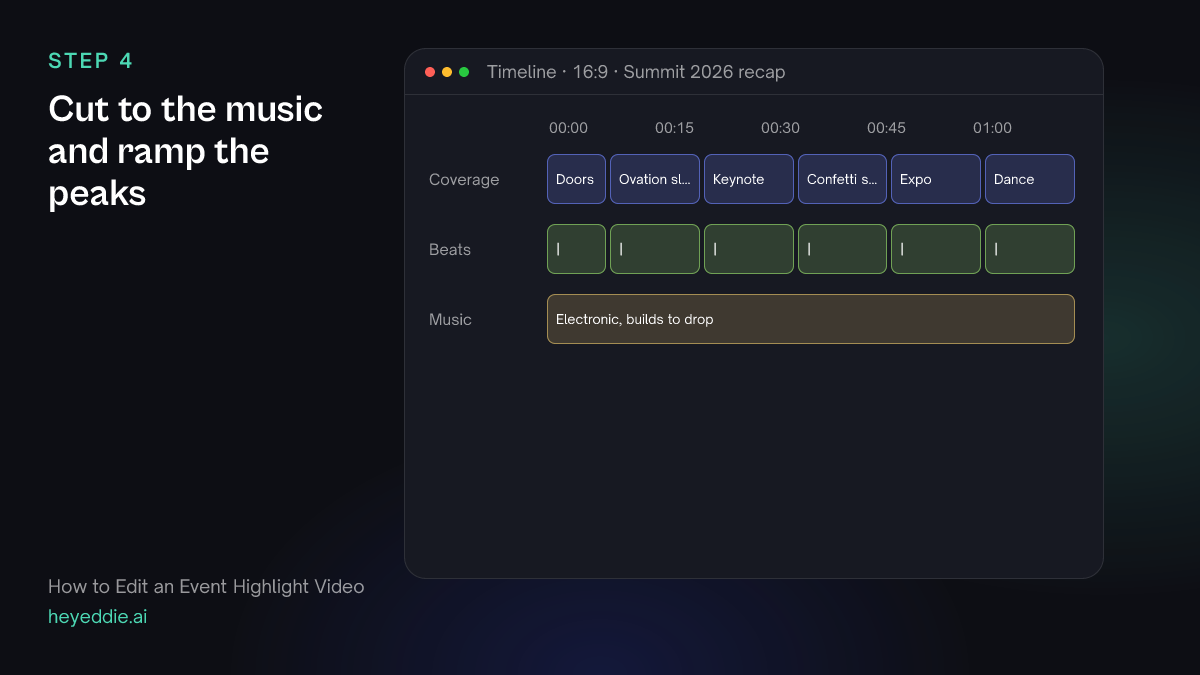
An energetic track, cuts on the beat, and slow motion on the two biggest moments give a recap its pulse.
What you type “Add an upbeat electronic track that builds, snap the montage cuts to the beat, and ramp the confetti drop and the ovation to slow motion and back.”
What Eddie does
- Attaches or generates the track, measures its beat grid, and moves the montage cuts onto beats without cutting into speech.
- Applies a speed ramp, such as 100% to 40% to 100%, on the segments you named.
What you get: A recap that moves with its music.
Step 5
Add the title card, then export
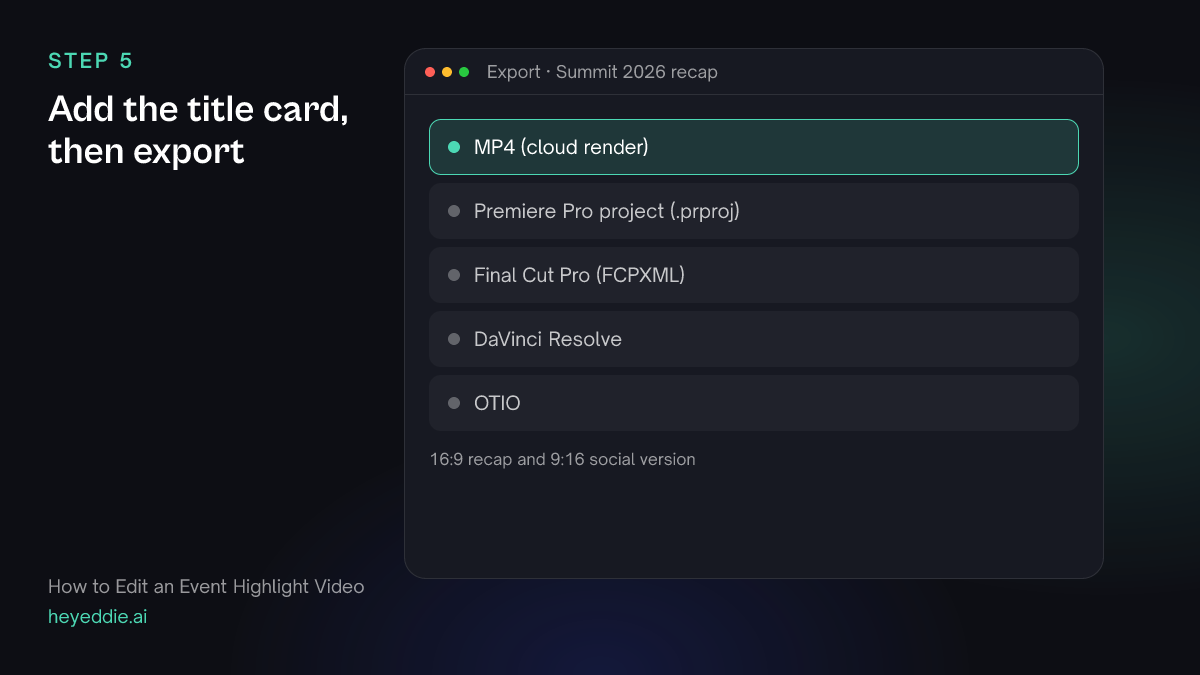
Close with the event name, the date and the next event. Then export the recap in both shapes.
What you type “Add an end title "Summit 2026, see you in Lisbon next May" over the last shot, make a 9:16 version for Instagram, and export both as MP4.”
What Eddie does
- Adds the title to the end of the edit.
- Builds a vertical version and renders both in the cloud.
What you get: A recap for the website and one for social.
What makes it work
- Shoot reactions, not only the stage
- The stage looks the same at every event. The faces in the audience are what make a recap feel like being there.
- Keep soundbites under six seconds
- A recap is a music video with a few words. Long quotes break the rhythm; save them for a separate speaker highlight.
- Save slow motion for two moments
- Slow motion on everything is no longer slow motion. Ramp the biggest peak and one emotional moment.
- End on the call to action
- The recap's job is the next event. Put the date, the place or a link on the last shot.
Questions
- Can Eddie find moments that have no speech?
- Yes. Eddie can search video sources by watching the picture with its sound, for moments you describe in words, such as applause or a confetti drop. It quotes the credits before it starts.
- How long should an event recap be?
- Sixty to 120 seconds for the main recap, and 15 to 30 seconds for social teasers.
- Can I also deliver the full keynote?
- Yes. Make the keynote its own edit from the stage camera, trimmed to the talk. See the conference talks guide for that workflow.
- Can I use a song from my music library?
- Yes. Use a track from your workspace music shelf or an audio file in the project, or ask Eddie to generate one from a description.