How-to guidesConference talks
How to Edit Conference Talk Recordings
A conference produces dozens of talks, and each one needs the same edit: trimmed, synced, slides visible, speaker named. The challenge is doing it consistently for every session in the days after the event, while people still care. This guide sets up a repeatable edit per talk.
The short answer
Trim each talk from the speaker's first line to the end of the applause, sync the stage cameras with the room audio, and show the speaker and the slides together, side by side or with the slides full screen when they matter. Add the speaker's name and the talk title, remove technical pauses, and pull two or three clips per talk. Eddie does each step from a prompt and repeats it for every talk.
What you will end up with
- Each talk trimmed from first line to applause.
- The speaker and the slides visible together, in a layout that fits the talk.
- A title card with the speaker's name and the talk title.
- Two or three short clips per talk for social.
Step by step
Step 1
Import the day and sync the stage
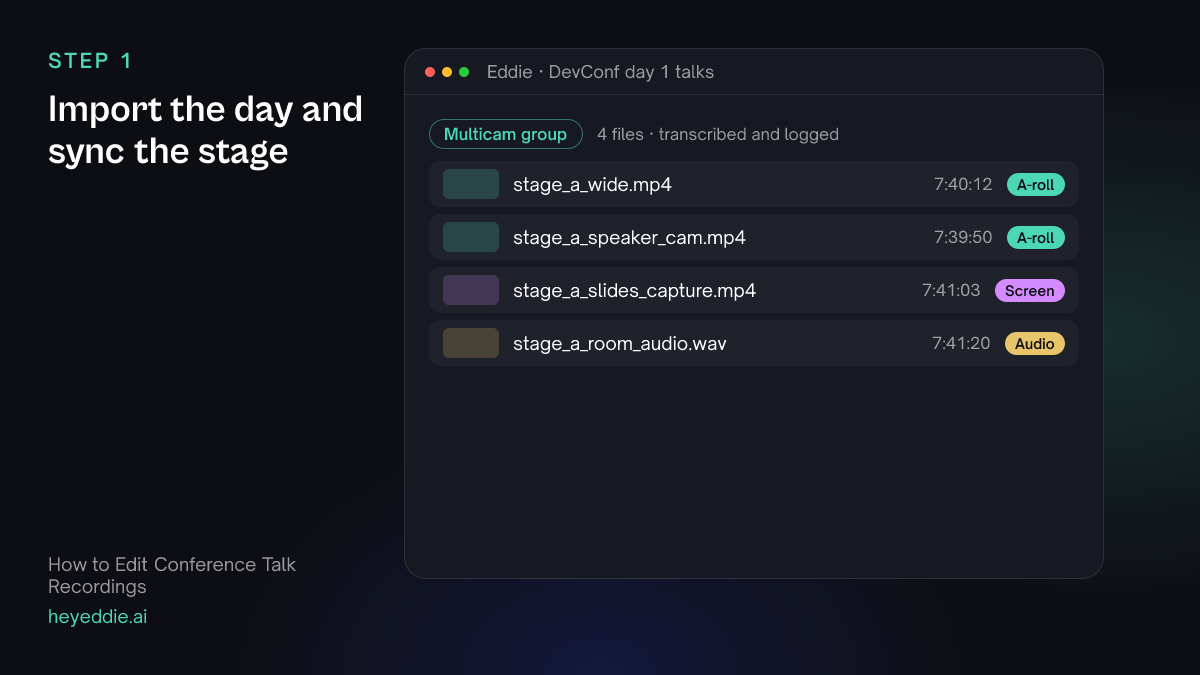
Upload the full-day recordings from the stage: the cameras, the slide capture and the audio desk recording. Sync them once for the whole day.
What you type “Sync the wide camera, the speaker camera, the slide capture and the room audio as one multicam group, using the room audio for every cut.”
What Eddie does
- Transcribes the full day and syncs every file by sound.
- Sets the desk recording as the audio.
What you get: A whole day of talks, synced, in one project.
Step 2
Split the day into talks
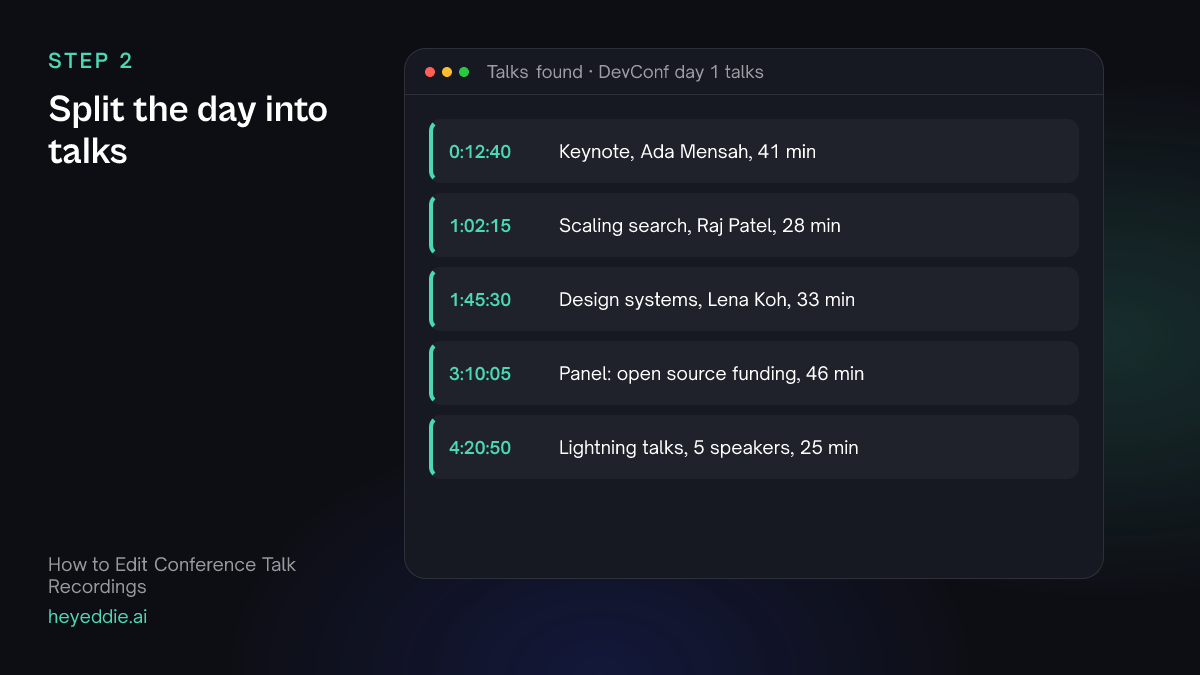
Ask Eddie to find each talk's start and end from the transcript: the host's introduction, the speaker's first line, the last question.
What you type “Find where each talk starts and ends: from the speaker's first line after the host introduces them to the end of the applause after the last question. List them with the speaker names.”
What Eddie does
- Reads the transcript for introductions and closing applause.
- Returns each talk with its start, end and speaker.
What you get: The day split into talks.
Step 3
Lay out speaker and slides
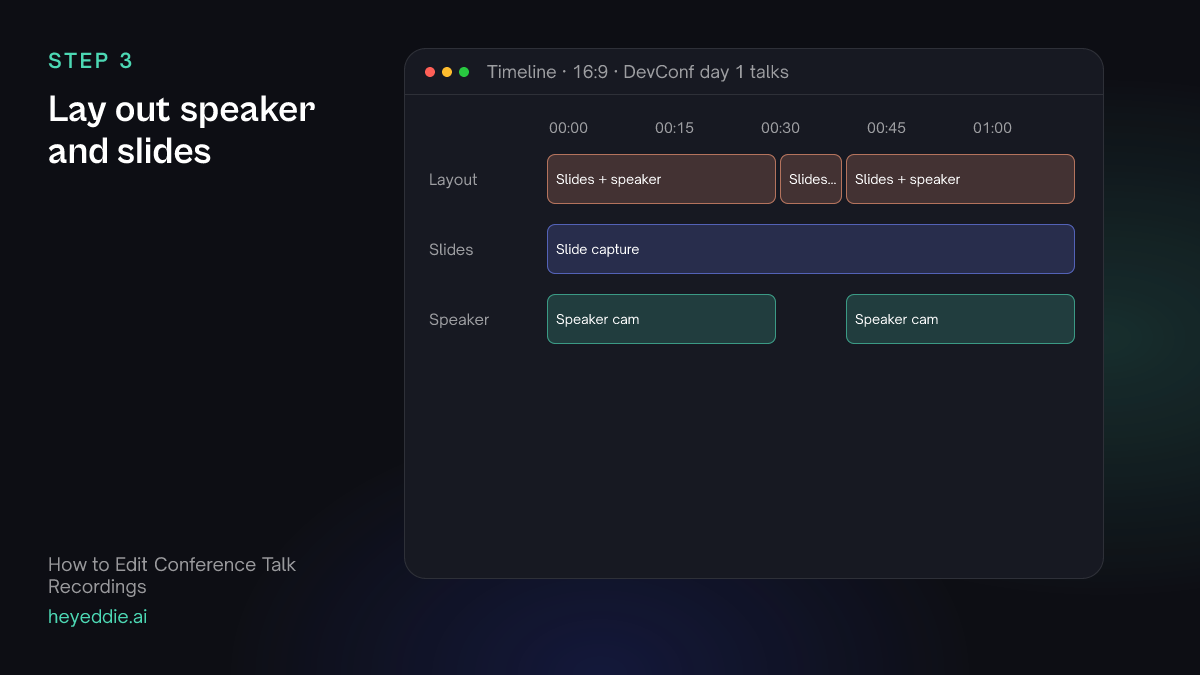
Viewers need the slides. Show the speaker and the slides side by side for most of the talk, and the slides full screen when they hold a diagram or code.
What you type “Make an edit of Raj Patel's talk with the slides on the left two thirds and the speaker camera on the right third. Cut to the slides full screen for the architecture diagram at 1:14:20, and remove the 40-second pause while the clicker failed.”
What Eddie does
- Builds the talk edit and places the slide capture and speaker camera as layers on the canvas.
- Switches to slides alone for the section you named and removes the pause.
What you get: A talk viewers can follow on a laptop or phone.
Step 4
Add titles and captions
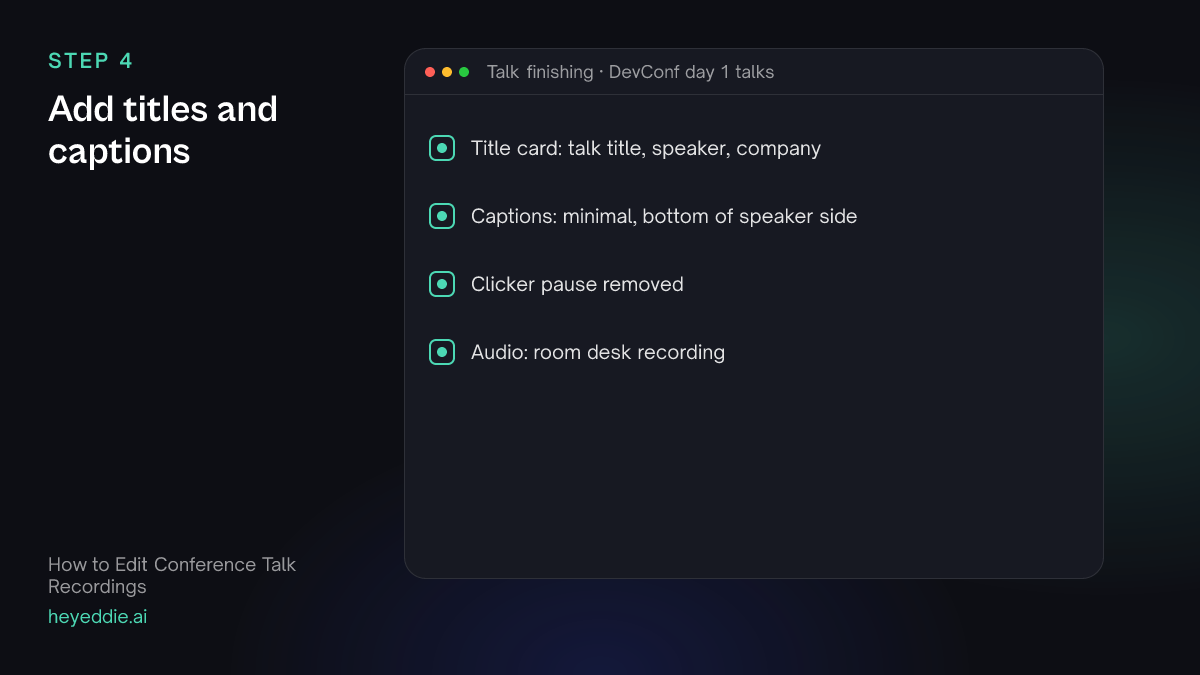
Put the speaker's name and the talk title on screen at the start, and add captions for accessibility.
What you type “Add a title card for the first 5 seconds: "Scaling search to a billion queries, Raj Patel, Northwind". Then add minimal captions at the bottom of the speaker side.”
What Eddie does
- Places the title at the start of the talk.
- Adds captions from the word timings, positioned where you asked.
What you get: A talk that names its speaker and is accessible.
Step 5
Pull clips and export
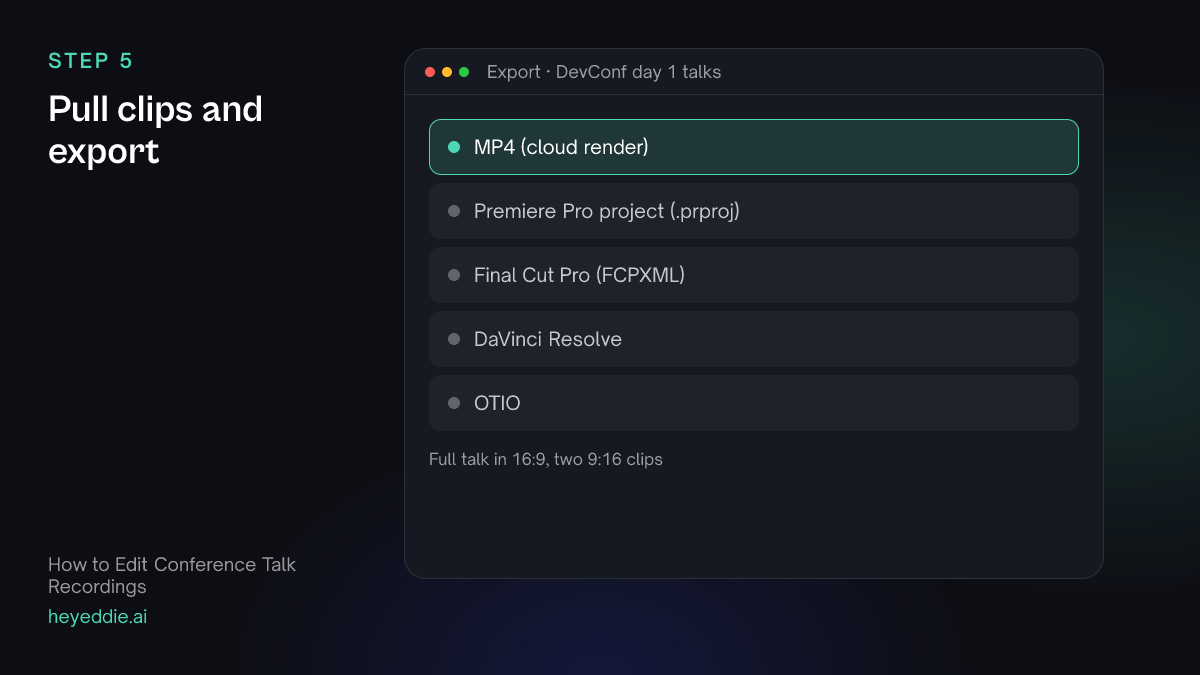
Two or three short clips per talk promote the recordings. Export the full talks for your website or YouTube.
What you type “Make 2 vertical clips of 45 seconds from the strongest moments of Raj's talk, on the speaker camera with social captions. Export the talk and the clips as MP4.”
What Eddie does
- Picks self-contained moments and builds vertical edits on the speaker camera.
- Renders the talk and the clips in the cloud.
What you get: The talk and its social clips, ready to publish.
What makes it work
- Record the slides directly
- A capture of the presentation laptop's output is far sharper than a camera pointed at the screen. Ask the AV team for it.
- Sync once for the whole day
- Group the day's files once, then cut each talk from the group. Every talk uses the same sync and audio.
- Show slides when they carry information
- Full-screen slides for diagrams and code; side by side for everything else, so the speaker stays human.
- Publish within the week
- Interest in a talk peaks in the days after the event. A repeatable edit per talk is what makes that possible.
- Name every speaker in the transcript
- Correct the speaker names once for the whole day. Titles, captions and the list of talks then use the right names in every edit.
Questions
- Can Eddie split a full-day recording into separate talks?
- Yes. Eddie finds each talk's start and end from the transcript, and you make one edit per talk.
- Can I show the slides and the speaker together?
- Yes. Eddie can place several video layers on the canvas, such as the slides and the speaker side by side.
- What about panels with several speakers?
- Sync a camera per panellist if you have them, and Eddie can switch to whoever is speaking. Name the speakers so captions and titles are right.
- Can I remove technical problems from a talk?
- Yes. Name the problem and roughly where it happens, such as a clicker failure, and Eddie removes that stretch.
- Can I publish the talks with the slides only?
- Yes. Ask for the slide capture full screen with the speaker's audio, and Eddie builds the talk that way. It suits technical talks where the slides carry most of the content.